


Introduction
Encryption is one of the important things when it comes to the security of data. In the RDS aurora cluster as we all know it uses a volume to store the data and when the instances running make a request to that data it makes it in a very plain text which is insecure as well. So when we enable our RDS cluster it protects our data in two ways
- Data at Rest encryption
- Data in Transit encryption
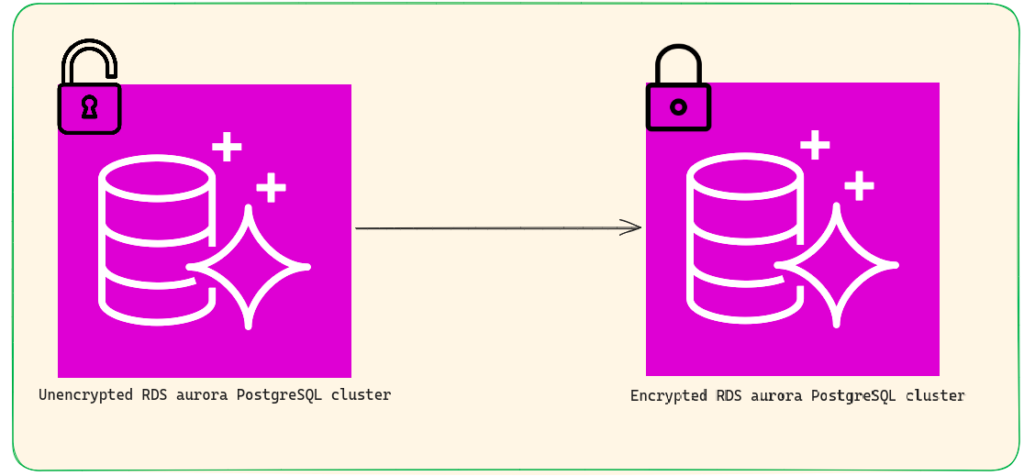
Note: One thing to note here is that we can not enable encryption on the existing RDS aurora cluster but there is another way through which we can achieve that which I will tell you later in this blog.
Use of KMS Key
So to enable encryption you need to have a key, you can use the default AWS/KMS key or create your own. Also, you need to choose which type of key you want to use whether a symmetric key or asymmetric key. In case you are unaware of asymmetric key encryption and symmetric key encryption let me explain to you, so symmetric key encryption is when you use a single key for encrypting and decrypting data while in asymmetric key encryption, you have two keys one is public and another is private.
To make it clear let’s explain this with an example suppose you have a message to send to a person named X. Now when you send a message to X you encrypt the message first and then send it to X after that X decrypts the message and reads it. So what happened in the symmetric key is you and X decided that whenever we communicate with each other we use a key that is only known to you and person X, now when you send a message you use a key to encrypt the message but you also send the key in the encrypted form with the message and that key is also known to X so X can easily decrypt it and read the message.
However, in the case of asymmetric key encryption, you both have two keys one is public and another one is private. The public key is known to everyone but the private key is a secret to the person who decrypts the message, so what happens is that when you send the message to X you encrypt it by X’s public key and then X will open that message using his private key.
Expected Downtime
In general, there are ways to reduce downtime by using the DMS service. However, in this case, I am not utilizing the DMS service, so the expected downtime depends on the size of your database. You have to put the system in maintenance mode because there might be some kind of data inconsistency. In my case, I have 12GB of data in my database, and the snapshot takes around 3-3.5 minutes. After that, I have a single instance in the cluster, so the cluster takes around 12 minutes, and the instance takes around 4 minutes.
Demo
To enable encryption we need to follow these steps
- Create a snapshot of existing RDS Aurora PostgreSQL.
- Create a KMS key on AWS/KMS.
- From the snapshot create a new DB cluster
Step 1: Create a snapshot of existing RDS aurora PostgresSql
First of all, we have to create a snapshot of the existing RDS cluster. One thing to note here is that you cannot create a snapshot of a single instance rather we create a snapshot of the whole cluster, to do so we need to follow the following steps
- Open AWS console.
- Type RDS on the search bar and click on the first service.
- Then click on the existing cluster name that you want to create a snapshot.
- Click on the action and click take a snapshot.
- Provide snapshot name and create it.
Step 2: Create a KMS key on AWS/KMS
Now we need to create a key that will be used to provide encryption of our db cluster, to create the encryption key we need to follow the below steps
- In the search bar type KMS in the result you will see Key Management Service click on that.
- After that you need to select the customer-managed key located on the left side of the panel and then click Create key.
- Here you need to select whether you want to use a symmetric or asymmetric key in the key type option, select encrypt and decrypt in the key usage section, and click next.
- Provide a key name as an alias and give appropriate user permission.
Step 3: From the snapshot create a new DB cluster
- You again need to go to that snapshot that you have created in step 1.
- Click on the snapshot then from the action menu select restore snapshot in the setting tab provide the DB instance identifier and check the enable encryption box on the Encryption tab.
- That’s it now the newly created cluster is encrypted and contains all the data of the previous unencrypted db cluster.
Afterward,
Now you will have a new RDS endpoint and you need to modify the connection endpoint with a new one.
Bonus Content
If you are using Terraform which is an infrastructure as code tool then I have a predefined module for you in my git repo you can find all the information there how to use it https://github.com/NashTech-Labs/encrypeted-aurora-psql-using-snapshot-of-unecrypted-auroraRDS-cluster
Conclusion
Enabling encryption for your database is important as it protects the data at rest as well as in transit which is important. The data will get encrypted and only a valid request able to decrypt that data and read it.