


“Effective Error Handling and Debugging Techniques in Nightwatch.js “
So, first of all what is nightwatch.js?
Nightwatch.js is an end-to-end testing framework for web applications which is built on top of Node.js engine and is an open-source framework. It uses the W3C WebDriver API (formerly Selenium) to automate browser actions. It is designed to simplify the process of writing and running automated tests for web applications.
In this blog we are going to discuss various error that occurs in Nightwatch.js and effective ways we can counter them using error handling and debugging techniques.
Common errors in nightwatch.js
Here are some common errors that are faced commonly in nightwatch.js script development.
Stale Element Referance
This is a commonly occurring error and occurs when an element is located as expected during test script execution but becomes stale i.e., the DOM changes before interacting with it and now it is not available for interaction.

Solution
Using functions like waitForElementVisible(), waitForElementPresent() helps in performing explicitly wait.
browser
.waitForElementVisible('#username',20000); // to wait until element is visible under 20s
Further, to wait implicitly we can use .pause() command to pause for a specific period of time and as a result can wait until the element in loaded.
browser
.pause(20000).findElement('#username');    // waiting for 20s and expecting the element is loaded in those 20s.
Asynchronous Code Execution:
Nightwatch.js uses Node.js, which is asynchronous that means tasks can run independent of the main program flow. In asynchronous execution, program continue to initiate with another task instead of waiting for current task to complete. This could be an issue considering the work in automation flow, that requires task to be completed as per the flow and one action may require previous action to be completed.
Solution:
Using Nightwatch.js commands like pause() or api.perform() to handle asynchronous operations can help in this scenario.
.pause() operations helps in stopping execution of the flow for a particular period of time. This helps by giving time to the processes to be completed before hand and thus helps in proper flow.
Though, use of `.pause()`is not encouraged to use as it is not dynamic in nature and often requires hard coding of time for which the execution has to be stopped.
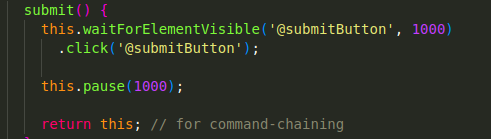
//Code
this.waitForElementVisisble('@submitButton', 1000)
.click('@submitButton);
this.pause(1000);
As you can see in above picture, this.pause(1000) waits for 1s. But, this.waitForElementVisible(‘@submitButton’,1000) waits until 1s that is if conditions satisfies within 1 second, it will move on to next command.
Promises: Promises helps by representing asynchronous operations as either eventual completion or eventual failure. It helps in avoiding callback hell thus helps in handling asynchronous operations in a more structured way.
let newPromise = new Promise(function(promiseResolved, promiseRejected) {
// "Code with takes time" (May take some time like api call)

  promiseResolved(); // when successful
  promiseRejected();  // when error
});

// "Code dependent on promise" (Must wait for a fulfilled Promise)
newPromise.then(
  function(value) { /* code if successful */ },
  function(error) { /* code if some error */ }
);
Async/Await: Async/Await makes asynchronous code look like synchronous code and improves readability. Async is used to define a function that returns a promise implicitly. Whereas await is used inside an ‘async’ functions to pause the execution until the promise has been resolved.
async function(browser){
    await browser.waitForElementVisisble('#id').click();
    await browser.findElement('#id2');
}
Handling Pop-ups and alerts
Pop-ups are windows that occurs on the current browser, mainly for displaying ads, important information, forms or content.
These can be modals, that can block interaction with underlying content until they are closed.
On the other hand, we have alerts that are basic pop-ups that are can be used to display a message to user. They blocks the execution of the script until they are accepted or dismissed.
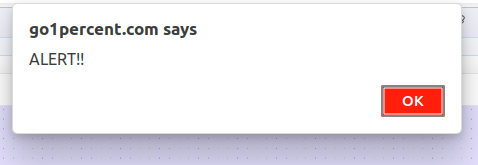
Pop-ups and alerts are a tricky part and can disrupt test execution. handling them can be tricky.
Solution:
Nightwatch.js provides commands like: .alerts.accept()
.alerts.dimiss()
.alerts.getText()
.alerts.setText()
to handle pop-ups and alerts. Ensure that you are waiting for the alert to be present before interacting with it. You can check more on here.
Nightwatch.js provides functions like .window.switchTo() to handle multiple windows and tabs as well.
Cross-browser Compatibility:
Cross browser testing revolves around the behavior of your website in different browser environments. It helps to ensure that the website delivers an optimal user experience that is independent of the browser used.
Solution:
Regularly testing on multiple browsers and use Nightwatch.js capabilities like desiredCapabilities to set browser-specific configurations in nightwatch.conf.js file. Consider using a testing service like BrowserStack or Sauce Labs for extensive cross-browser testing.
Dynamic Selectors:
Selectors can be dynamic too. Their appearance in DOM can be dependent upon some clicks or events. Hence, when choosing them in the automation scripts may through an stale error or element not found error.
Solution:
For this problem of Dynamic selectors, we can use selectors (e.g., Xpath) or strategies like CSS classes that are less likely to change. Regularly update and review your selectors also helps in their maintainability and hence, more error proof and better results on execution.
Large Test Suites:
With large application, comes large test suite to test multiple features. Large test suites can lead to increased execution time and maintenance challenges.
Solution:
Breaking down of large test suites into smaller, modular tests. By doing this we can use test parallelization to speed up execution time. Also, modular and smaller tests are easy to maintain and thus saves time in debugging and its maintenance.
Network Issues:
Tests may fail due to slow network connections or intermittent network issues. This issue may not be visible directly in error log and hence sometimes shown as element not visible error.

Solution:
//Explicit wait commands includes:
browser.waitForElementVisible('css-selector');  //waiting until particular element with css-selector in visible

browser.waitForElementPresent('css-selector'); //waiting until particular element with css-selector in present in DOM

browser
      .url('https://nightwatchjs.org)
      .waitUntil(async function() {   //here we are waiting until particular condition is met within 5s
        const title = await this.execute(function() {
          return document.title;
        });
        return title === 'Nightwatch.js';
      }, 5000);
Setting realistic timeouts for explicit wait commands may helps to counter this. Also, running with UI mode for browser helps to understand network problem very well.
Page Object Model (POM) Implementation:
Lack of a structured Page Object Model can lead to code duplication and maintenance challenges.
Solution:
Implement a clear and organized Page Object Model to separate test logic from page interaction logic. This improves code maintainability and readability.
Framework Updates:
Updates are very necessary in test scripts development and to ensure functionalities and keep check over vulnerabilities. Compatibility issues may arise when updating Nightwatch.js or its dependencies.
npm install -g npm@latest  //to update npm itself
npm update  // to update to latest dependencies used in project
Solution:
Regularly updating Nightwatch.js and its dependencies helps in this problem. Check for release notes and updating test scripts accordingly.
By addressing these common issues, you can improve the stability and reliability of your Nightwatch.js test automation suite. Regularly reviewing and updating your test scripts as your application evolves is also crucial for maintaining a robust automation framework.
Improper configurations:
This happens a lot when initially starting with nightwatch.js. Improper configurations may lead to unwanted and unexpected results which may sometimes be harder to figure out.
Solution:
Always referring to documentations helps in this case. Sometimes, discussing with other people who are working or have already worked on nightwatch.js may help to figure out things.
Proper understanding of nightwatch.conf.js file and the keys and values may help to resolve things out.
Checking if all important plugins are added or not.
Going through different environments and their proper configuration ensures expected environment behaviour.
Effective error handling and debugging
Effective error handling and debugging strategies are very important for maintaining a robust Nightwatch.js script and test suite. Here are some strategies to enhance error handling and debugging in Nightwatch.js tests:
Logging:
Leveraging the built-in logging features provided by Nightwatch.js helps in understanding errors and their nature very well and hence saves debugging time.
Use commands like log, verify, and assert to log information at various steps in your test scripts. This helps in understanding the flow and identifying issues.
Verbose Output:
Enable verbose output to get detailed information during test execution.

npx nightwatch <location-of-tests-scripts> --verbose
npx run test --verbose
Use the –verbose command line option or set verbose: true in your Nightwatch.js configuration. This provides additional details about test execution, making it easier to pinpoint problems.
Custom Assertions:
Create custom assertions for specific scenarios. Extend Nightwatch.js by defining custom assertions using the assert property in the test module. This reduces code duplication and improve the readability of your test scripts as result less errors occurs and debugging is easy.
Explicit Waits:
Use explicit waits to ensure that elements are present before interacting with them. Employ commands like waitForElementPresent or waitForElementVisible to handle asynchronous operations. This prevents issues with elements not being ready for interaction.
.waitForElementVisible();
.waitForElementPresent();
.waitUntil();
Screenshots on Failure:
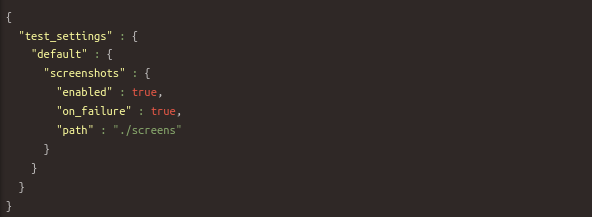
Take screenshots automatically when a test fails. Configure Nightwatch.js to take screenshots on test failure using the on_failure configuration in nightwatch.conf.js file. This provides visual evidence of the application state at the time of failure.
Debugging Commands:
Use the pause command or breakpoints for manual debugging. Insert the pause command at specific points in your test script to pause execution. Alternatively, use breakpoints in the browser’s developer tools for interactive debugging.
Console Output:
Leverage browser console output for additional debugging information. Use the browser’s execute command to log information to the console during test execution. This can be valuable for debugging complex scenarios.
//Example
//Here we are logging the all the elements found with the given css selector
browser.findElements('css-selector', function(result){
console.log(result);
})
Review Test Reports:
Analyse test reports for failures and errors. Nightwatch.js generates detailed HTML reports. Regularly review these reports to identify patterns in failures and errors. This can help in addressing recurring issues.
CI/CD Integration:
Integrate Nightwatch.js tests into your CI/CD pipeline. Run tests automatically as part of your CI/CD process. This ensures that any issues are caught early in the development lifecycle.
Browser Developer Tools:
Leverage browser developer tools for interactive debugging. Insert breakpoints in your test scripts or use the pause command for interactive debugging.
Conclusion:
Nightwatch.js is a powerful tool for automated testing. However, it is not uncommon to encounter error while using it. With effective measures and debugging steps we can counter these errors and make our development process smooth and less time taking. Reducing the Nightwatch.js error, debugging time and efforts and thus, gives more time in better automation script development.
References:
- https://nightwatchjs.org/
- https://nightwatchjs.org/blog/
- https://nightwatchjs.org/guide/using-page-objects/getting-started.html
- https://nightwatchjs.org/guide/extending-nightwatch/adding-custom-assertions.html#define-a-custom-assertion
- https://nightwatchjs.org/api/screenshot.html#screenshot
- https://nightwatchjs.org/api/waitUntil.html#waitUntil