


eVision Basic Portal Structure
Understanding the eVision Basic Portal Structure is fundamental for anyone working with SITS: eVision by Tribal. Whether you are configuring access, building new containers, or troubleshooting permissions, this structure defines how users see and interact with the system.
This article explains the core components and relationships that make up the eVision portal, based on the standard Tribal architecture.
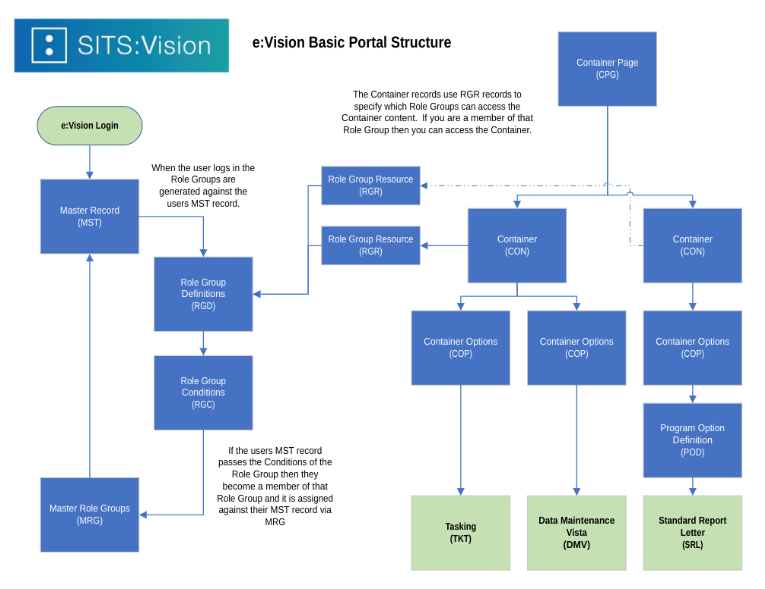
1. Entry Point: eVision Login and Master Record (MST)
Every eVision session starts with eVision Login.
Once a user logs in:
-
eVision identifies the user via the Master Record (MST)
-
The MST holds the user’s core identity information
-
All security and access checks are evaluated against this record
At this stage, eVision does not yet decide what the user can see—that is handled by Role Groups.
2. Role Group Framework (Security Foundation)
2.1 Role Group Definitions (RGD)
Role Group Definitions (RGD) describe:
-
What a role group represents (e.g. Student, Staff, Tutor, Administrator)
-
The purpose of the role group in the portal
RGDs are the blueprint of access roles in eVision.
2.2 Role Group Conditions (RGC)
Role Group Conditions (RGC) define:
-
The rules a user must satisfy to become a member of a role group
-
Conditions are evaluated against the user’s MST record
Examples:
-
Student status = Active
-
Staff contract exists
-
Programme or faculty membership
If the MST record passes the conditions, the user becomes eligible for the role group.
2.3 Master Role Groups (MRG)
Once conditions are met:
-
The user is assigned to a Master Role Group (MRG)
-
This assignment links the MST record to the role group
This step is critical because all portal access is driven by MRG membership.
3. Role Group Resource (RGR): Linking Security to Content
Role Group Resources (RGR) act as the bridge between:
-
Security (Role Groups)
-
Portal content (Containers)
An RGR record specifies:
-
Which Role Group can access which Container
-
Whether access is read-only or interactive
If a user is not a member of the Role Group linked via RGR, they cannot access the Container.
This ensures security is enforced before content is displayed.
4. Container Page (CPG): The Portal Layout
The Container Page (CPG) defines:
-
The overall page layout
-
How multiple Containers are arranged on a screen
Think of CPG as the portal shell that holds functional areas.
5. Containers (CON): Core Building Blocks
5.1 What Is a Container?
A Container (CON) is a logical unit that:
-
Groups related functionality
-
Appears as a menu item or page section in eVision
Examples:
-
Student Details
-
Enrolment
-
Results
-
Requests
Containers do not perform actions themselves—they host Container Options.
5.2 Security at Container Level
Access to a Container is controlled by:
-
Role Group membership
-
RGR configuration
Even if a user guesses a URL, eVision will block access if they are not authorised.
6. Container Options (COP): Functional Entry Points
Container Options (COP) define:
-
What actions are available inside a Container
-
Which eVision functions are launched
A single Container can have multiple COPs, such as:
-
View data
-
Update data
-
Submit a request
-
Run a report
Each COP links to a specific functional module.
7. Functional Modules Behind Container Options
Container Options connect users to actual system functionality, including:
7.1 Tasking (TKT)
-
Workflow-driven requests
-
Approvals and status tracking
-
Example: Change of programme, suspension request
7.2 Data Maintenance Vista (DMV)
-
Data entry and maintenance screens
-
Used mainly by staff
-
Strictly controlled by permissions
7.3 Standard Reports & Letters (SRL)
-
Predefined reports and letters
-
Often linked via Program Option Definition (POD)
-
Used for outputs like confirmation letters or summaries
8. Program Option Definition (POD)
For reporting and letters:
-
POD defines how a program is executed
-
Controls parameters, outputs, and formatting
-
Ensures consistent reporting behaviour
9. End-to-End Flow Summary
The complete flow of the eVision Basic Portal can be summarised as:
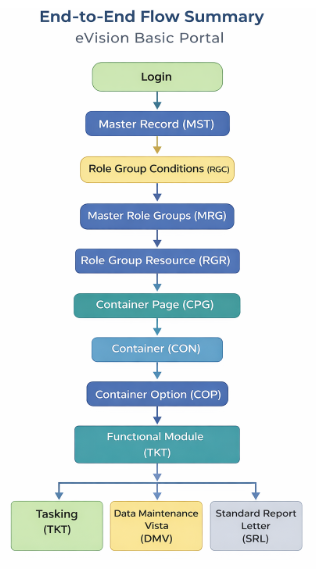
Each layer adds control, security, and structure to the portal.
10. Why This Structure Matters
Understanding the eVision Basic Portal Structure helps institutions to:
-
Design clean and secure portals
-
Troubleshoot access issues efficiently
-
Avoid over-customisation
-
Maintain upgrade compatibility
Most access problems in eVision are caused by:
-
Incorrect Role Group Conditions
-
Missing RGR links
-
Misconfigured Containers or COPs
Conclusion
The eVision Basic Portal Structure is a carefully designed framework that separates:
-
Identity
-
Security
-
Navigation
-
Functionality
By mastering how MST, Role Groups, Containers, and Options work together, developers and administrators can build robust, scalable, and secure portals that fully leverage the power of SITS: eVision.