



Introduction
AWS Identity and Access Management (IAM – https://aws.amazon.com/iam) is a fundamental service in the AWS cloud ecosystem. It allows you to securely manage access to your AWS resources by defining permissions and policies.
Understanding how to properly define, test, and maintain IAM policies is a critical skill for any AWS practitioner, from solutions architects to DevOps engineers.
Source: https://datascientest.com/en/aws-identity-access-management-iam-how-does-it-work
IAM policies are JSON documents that define permissions for AWS services and resources. These policies govern who can access what (e.g., launching an AWS EC2 instance, reading data from AWS S3) under which conditions in your AWS account.
Basically, there are 2 main parts:
- Specification: defining access policies by specifying which IAM principals (who) are allowed to perform which actions (what) on specific AWS resources under which conditions.
- Enforcement: by evaluating the AWS request and the defined policies
IAM policy structure
{
  "Version": "2012-10-17",
  "Statement": [
    {
      "Effect": "effect",
      "Principal": "principal",
      "Action": "action",
      "Resource": "arn",
      "Condition": {
        "condition": {
          "key": "value"
        }
      }
    }
  ]
}- Version: specifies the version of the policy language
- Statement: the main part of the policy
- Effect: specifies whether the statement allows or denies the action
- Principal: indicating the entity that is allowed or denied access.
- Action: specifying the type of access that is allowed or denied access.
- Resource: the AWS resource(s) the action will act on. Identified by ARNs (Amazon Resource Names)
- Condition: the conditions under the access defined is valid.
Example 1: to give permission – only read files (GetObject) from an S3 bucket called [your-bucket-name]
{
  "Version": "2012-10-17",
  "Statement": [
    {
      "Effect": "Allow",
      "Action": "s3:GetObject",
      "Resource": "arn:aws:s3:::your-bucket-name/*"
    }
  ]
}
IAM policy evaluation
Source: https://www.youtube.com/watch?v=YQsK4MtsELU&ab_channel=AmazonWebServices
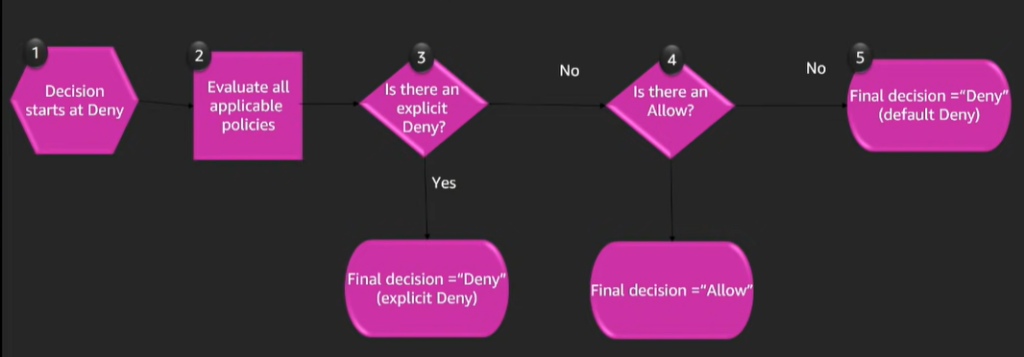
The process of IAM policy evaluation will be executed as below:
- The evaluation always starts with an implicit Deny, this is because everything in AWS is denied by default.
- The effect element is evaluated.
- If the value of effect is Deny, the evaluation will be to deny the request.
- If the value of effect is Allow the evaluation will be to allow the request.
- If no allow is found, the evaluation will fall back to deny by default
Use case: applying role-based access control (RBAC)
Role-Based Access Control (RBAC) in AWS Identity and Access Management (IAM) is a powerful strategy for managing permissions based on job functions or roles. We will use the billing managed policy attached to a group. After that assigning a user to that group to regulate the billing permissions of the user by the group’s policy.
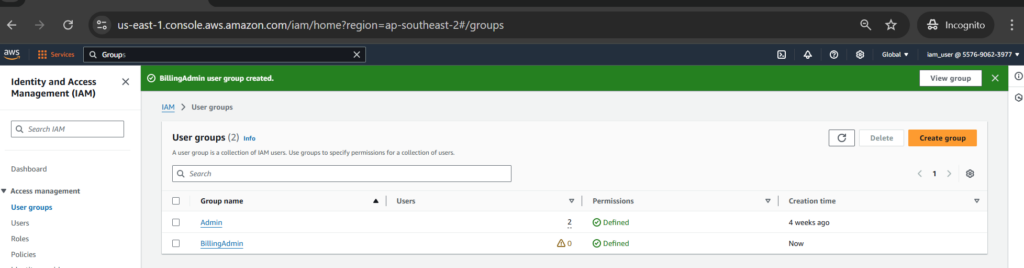
Creating a group called [BillingAdmin]
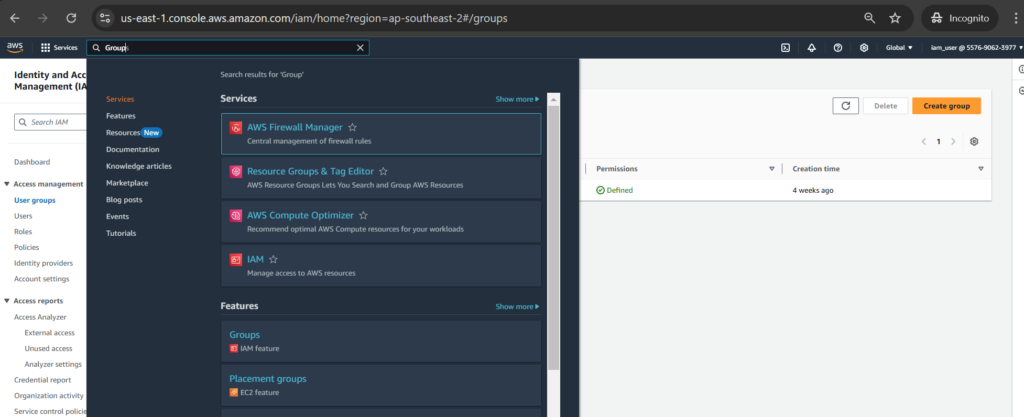
By typing [Group] in the Search bar to go to IAM > User groups, then click [Create group] button
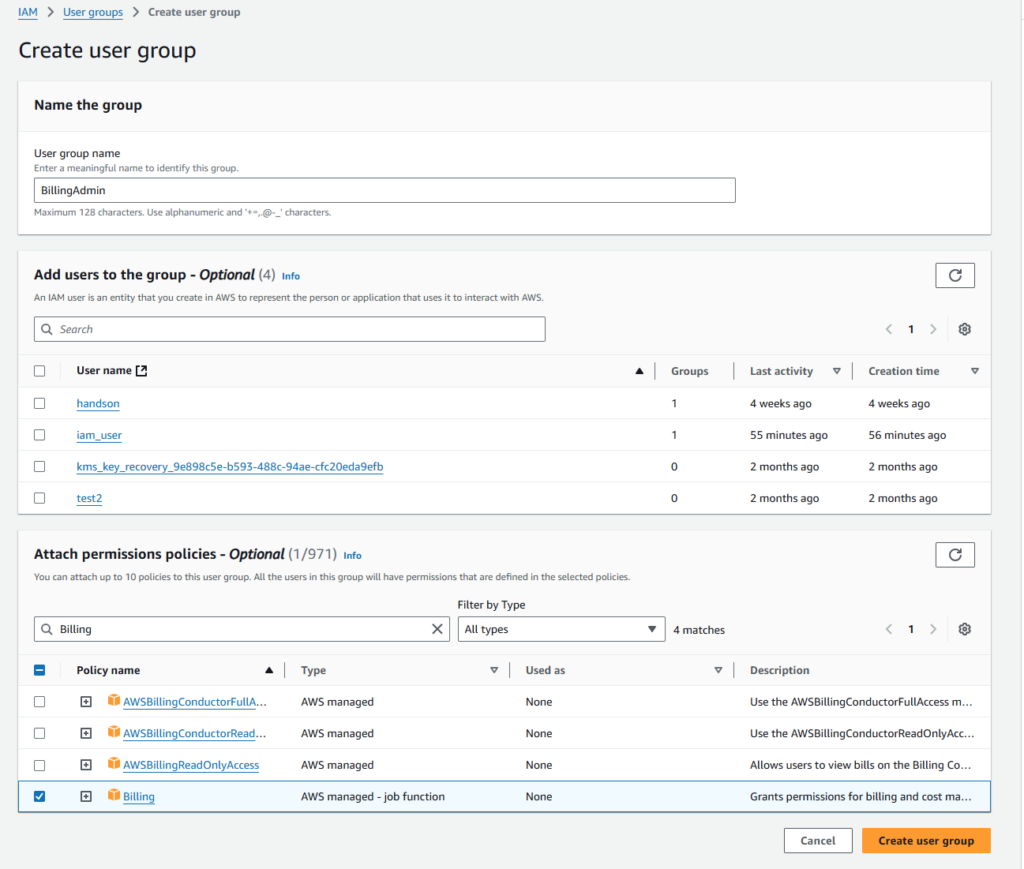
Next, enter the group name as [BillingAdmin] and choose the existing [Billing] permission policy to attach the permissions policy to the group.
We can see the actual JSON policies as [Billing] permission policy as below:
{
    "Version": "2012-10-17",
    "Statement": [
        {
            "Sid": "VisualEditor0",
            "Effect": "Allow",
            "Action": [
                "account:GetAccountInformation",
                "aws-portal:*Billing",
                "aws-portal:*PaymentMethods",
                "aws-portal:*Usage",
                "billing:GetBillingData",
                "billing:GetBillingDetails",
                "billing:GetBillingNotifications",
                "billing:GetBillingPreferences",
                "billing:GetContractInformation",
                "billing:GetCredits",
                "billing:GetIAMAccessPreference",
                "billing:GetSellerOfRecord",
                "billing:ListBillingViews",
                "billing:PutContractInformation",
                "billing:RedeemCredits",
                "billing:UpdateBillingPreferences",
                "billing:UpdateIAMAccessPreference",
                "budgets:CreateBudgetAction",
                "budgets:DeleteBudgetAction",
                "budgets:DescribeBudgetActionsForBudget",
                "budgets:DescribeBudgetAction",
                "budgets:DescribeBudgetActionsForAccount",
                "budgets:DescribeBudgetActionHistories",
                "budgets:ExecuteBudgetAction",
                "budgets:ModifyBudget",
                "budgets:UpdateBudgetAction",
                "budgets:ViewBudget",
                "ce:CreateCostCategoryDefinition",
                "ce:CreateNotificationSubscription",
                "ce:CreateReport",
                "ce:DeleteCostCategoryDefinition",
                "ce:DeleteNotificationSubscription",
                "ce:DeleteReport",
                "ce:DescribeCostCategoryDefinition",
                "ce:GetCostAndUsage",
                "ce:ListCostAllocationTags",
                "ce:ListCostCategoryDefinitions",
                "ce:ListTagsForResource",
                "ce:TagResource",
                "ce:UpdateCostAllocationTagsStatus",
                "ce:UpdateNotificationSubscription",
                "ce:UpdatePreferences",
                "ce:UpdateReport",
                "ce:UpdateCostCategoryDefinition",
                "ce:UntagResource",
                "ce:StartCostAllocationTagBackfill",
                "ce:ListCostAllocationTagBackfillHistory",
                "ce:GetTags",
                "ce:GetDimensionValues",
                "consolidatedbilling:GetAccountBillingRole",
                "consolidatedbilling:ListLinkedAccounts",
                "cur:DeleteReportDefinition",
                "cur:DescribeReportDefinitions",
                "cur:GetClassicReport",
                "cur:GetClassicReportPreferences",
                "cur:GetUsageReport",
                "cur:ModifyReportDefinition",
                "cur:PutClassicReportPreferences",
                "cur:PutReportDefinition",
                "cur:ValidateReportDestination",
                "freetier:GetFreeTierAlertPreference",
                "freetier:GetFreeTierUsage",
                "freetier:PutFreeTierAlertPreference",
                "invoicing:GetInvoiceEmailDeliveryPreferences",
                "invoicing:GetInvoicePDF",
                "invoicing:ListInvoiceSummaries",
                "invoicing:PutInvoiceEmailDeliveryPreferences",
                "payments:CreateFinancingApplication",
                "payments:CreatePaymentInstrument",
                "payments:DeletePaymentInstrument",
                "payments:GetFinancingApplication",
                "payments:GetFinancingLine",
                "payments:GetFinancingLineWithdrawal",
                "payments:GetFinancingOption",
                "payments:GetPaymentInstrument",
                "payments:GetPaymentStatus",
                "payments:ListFinancingApplications",
                "payments:ListFinancingLines",
                "payments:ListFinancingLineWithdrawals",
                "payments:ListPaymentPreferences",
                "payments:ListPaymentProgramOptions",
                "payments:ListPaymentProgramStatus",
                "payments:ListTagsForResource",
                "payments:ListPaymentInstruments",
                "payments:MakePayment",
                "payments:TagResource",
                "payments:UntagResource",
                "payments:UpdateFinancingApplication",
                "payments:UpdatePaymentInstrument",
                "payments:UpdatePaymentPreferences",
                "pricing:DescribeServices",
                "purchase-orders:AddPurchaseOrder",
                "purchase-orders:DeletePurchaseOrder",
                "purchase-orders:GetPurchaseOrder",
                "purchase-orders:ListPurchaseOrderInvoices",
                "purchase-orders:ListPurchaseOrders",
                "purchase-orders:ListTagsForResource",
                "purchase-orders:ModifyPurchaseOrders",
                "purchase-orders:TagResource",
                "purchase-orders:UntagResource",
                "purchase-orders:UpdatePurchaseOrder",
                "purchase-orders:UpdatePurchaseOrderStatus",
                "purchase-orders:ViewPurchaseOrders",
                "support:CreateCase",
                "support:AddAttachmentsToSet",
                "sustainability:GetCarbonFootprintSummary",
                "tax:BatchPutTaxRegistration",
                "tax:DeleteTaxRegistration",
                "tax:GetExemptions",
                "tax:GetTaxInheritance",
                "tax:GetTaxInterview",
                "tax:GetTaxRegistration",
                "tax:GetTaxRegistrationDocument",
                "tax:ListTaxRegistrations",
                "tax:PutTaxInheritance",
                "tax:PutTaxInterview",
                "tax:PutTaxRegistration",
                "tax:UpdateExemptions"
            ],
            "Resource": "*"
        }
    ]
}
There are multiple types of policies in AWS like identity-based policy, resource-based policy and permission boundaries policy. In this scenario, we use the existing Billing permission policy. This policy is categorized as identity-based policy. Let’s have a look at this type of policy.
Identity-based policy
– are attached to IAM users, groups, or roles within AWS.
– control what actions the identity (user, group, role) can perform on which resources under what conditions.
Example1: given that you want to allow a user to manage files in a specific S3 bucket.
You could attach an identity-based policy to the user’s IAM role that specify what actions they can perform on the bucket.
{
    "Version": "2012-10-17",
    "Statement": [
        {
            "Effect": "Allow",
            "Action": [
                "s3:ListBucket",
                "s3:GetObject",
                "s3:PutObject",
                "s3:DeleteObject"
            ],
            "Resource": [
                "arn:aws:s3:::example-bucket",
                "arn:aws:s3:::example-bucket/*"
            ]
        }
    ]
}
This policy allows to list, get, put, and delete objects for the specified bucket called [example-bucket].
For the full list of policy types, you can have look at: https://docs.aws.amazon.com/IAM/latest/UserGuide/access_policies.html#access_policy-types
Let’s continue with our use-case. Click [Create group] button to finish creating the group.
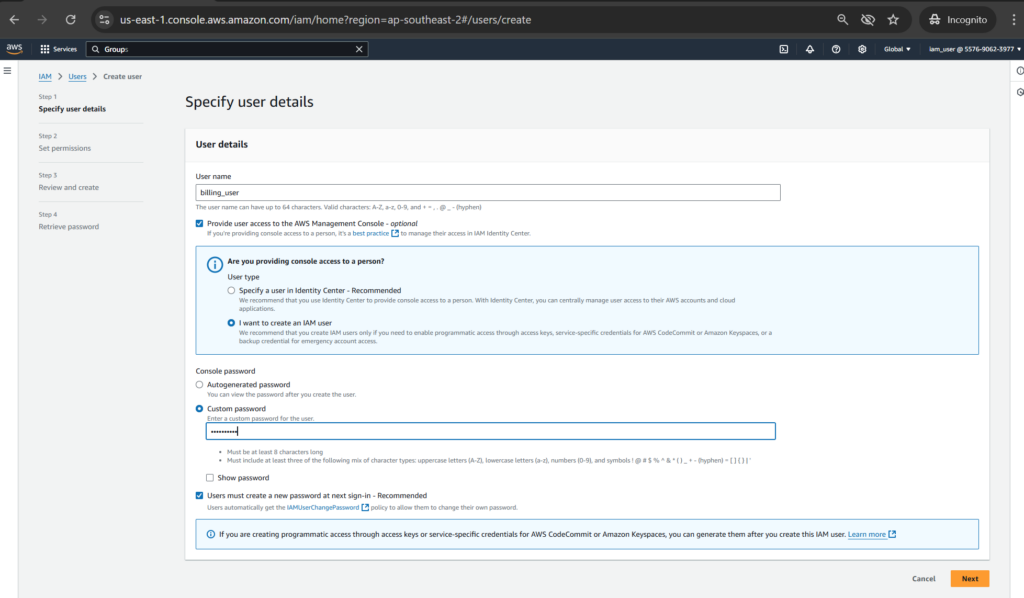
Creating a user called [billing_user] and assign the user to the group
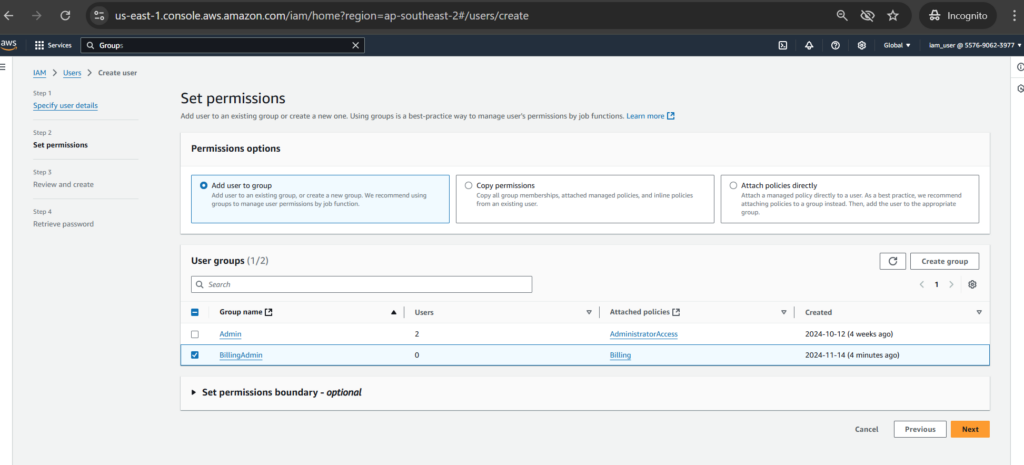
Click [Next], then select a group for the user.
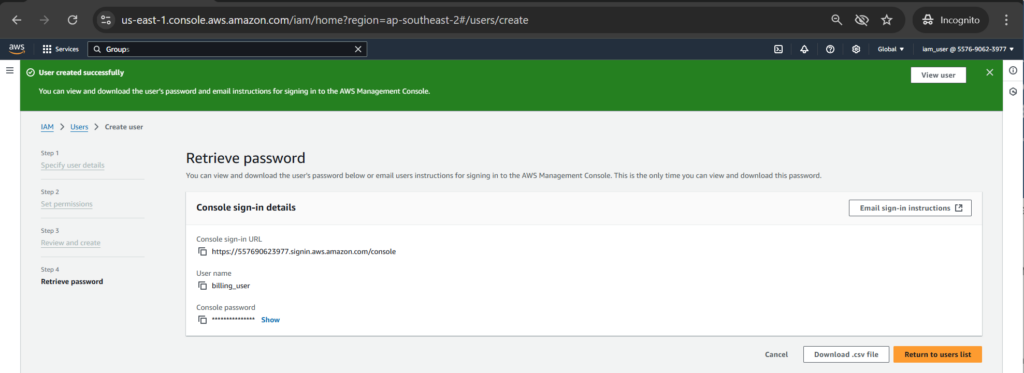
After that, click [Create user] to finishing of creating a user.

Test it out
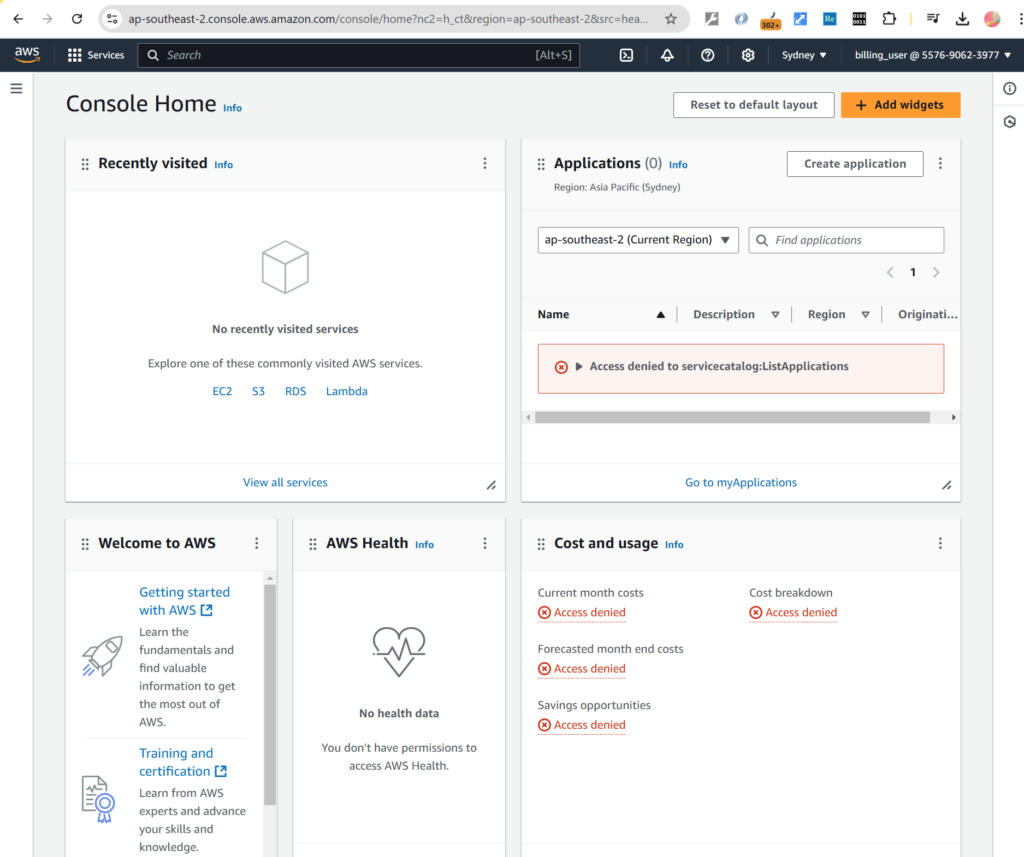
Let’s log in with newly created user and see the outcome.
Notes:
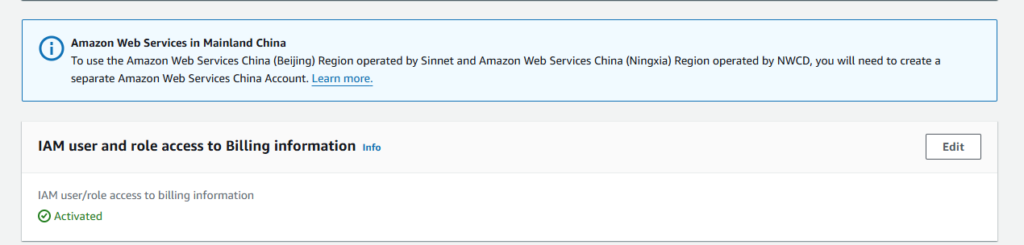
IAM users and roles in an AWS account can’t access the Billing and Cost Management console by default. This is true even if they have IAM policies that grant access to certain Billing features. To grant access, the AWS account root user must first activate IAM access.
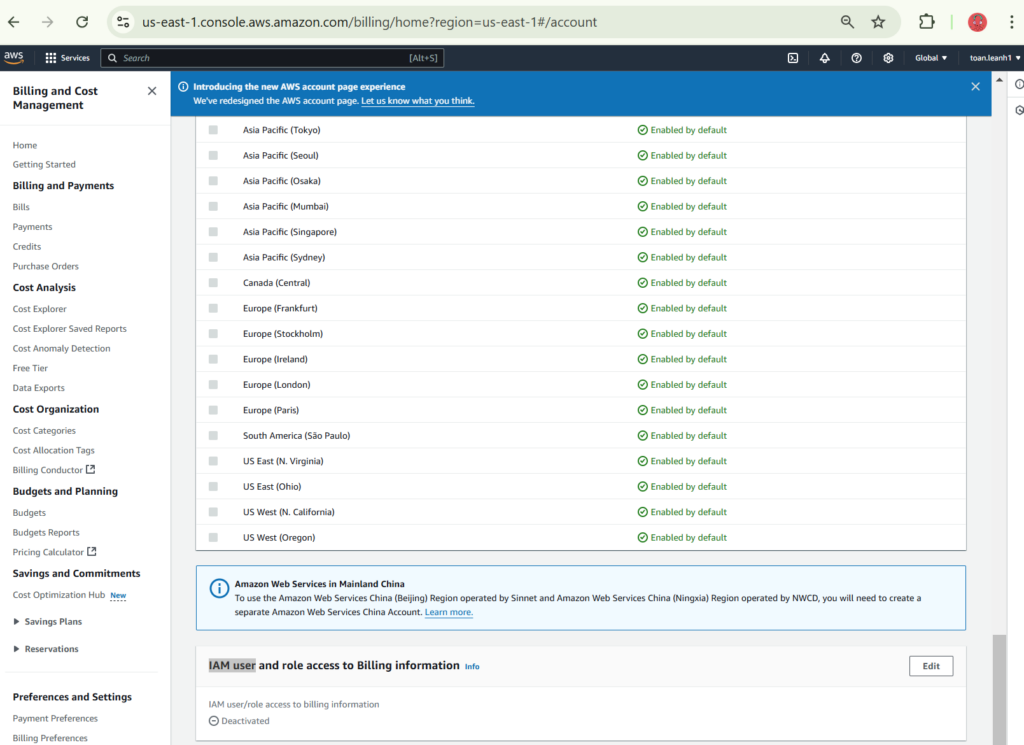
Click [Edit] to [Activate IAM Access]

Let’s sign in with newly created user [billing_user]

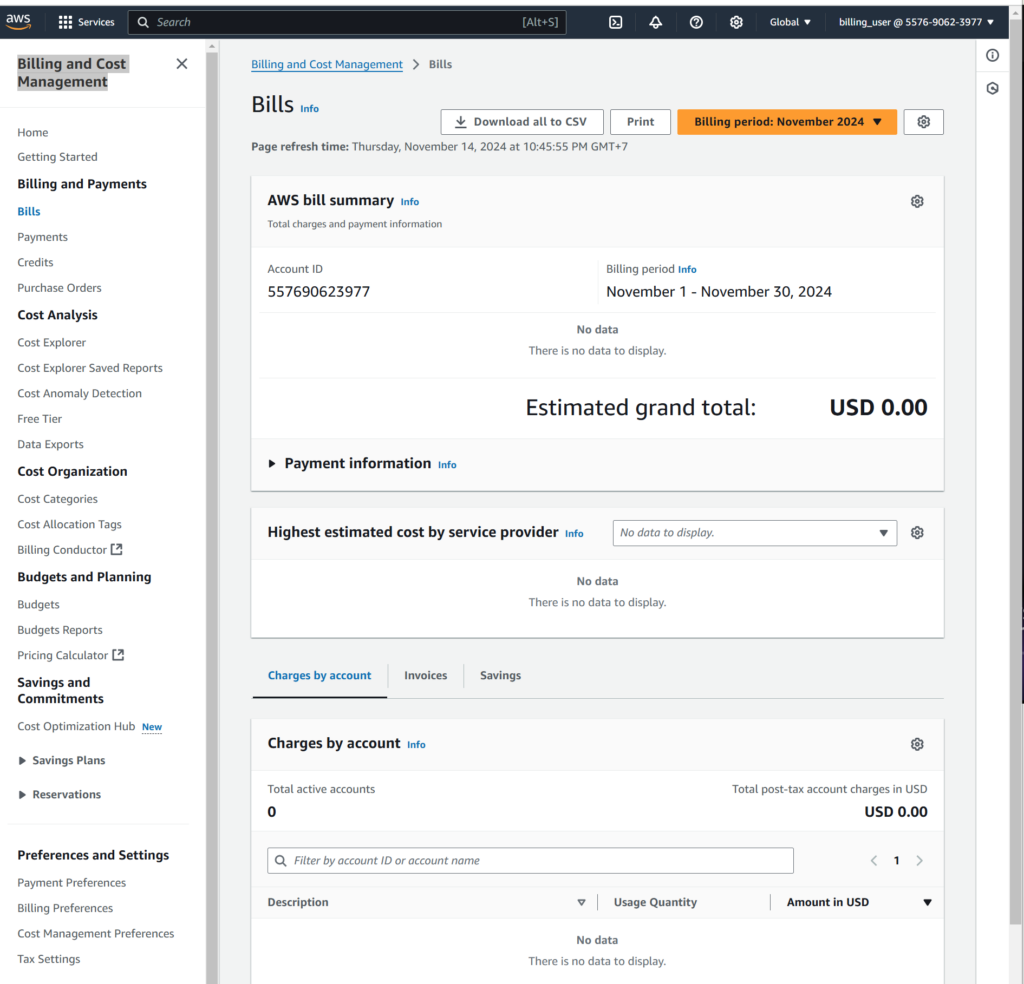
Next, let’s type [Billing] in the Search bar to go to [Billing and Cost Management]. Now the [billing_user] can view Bills information
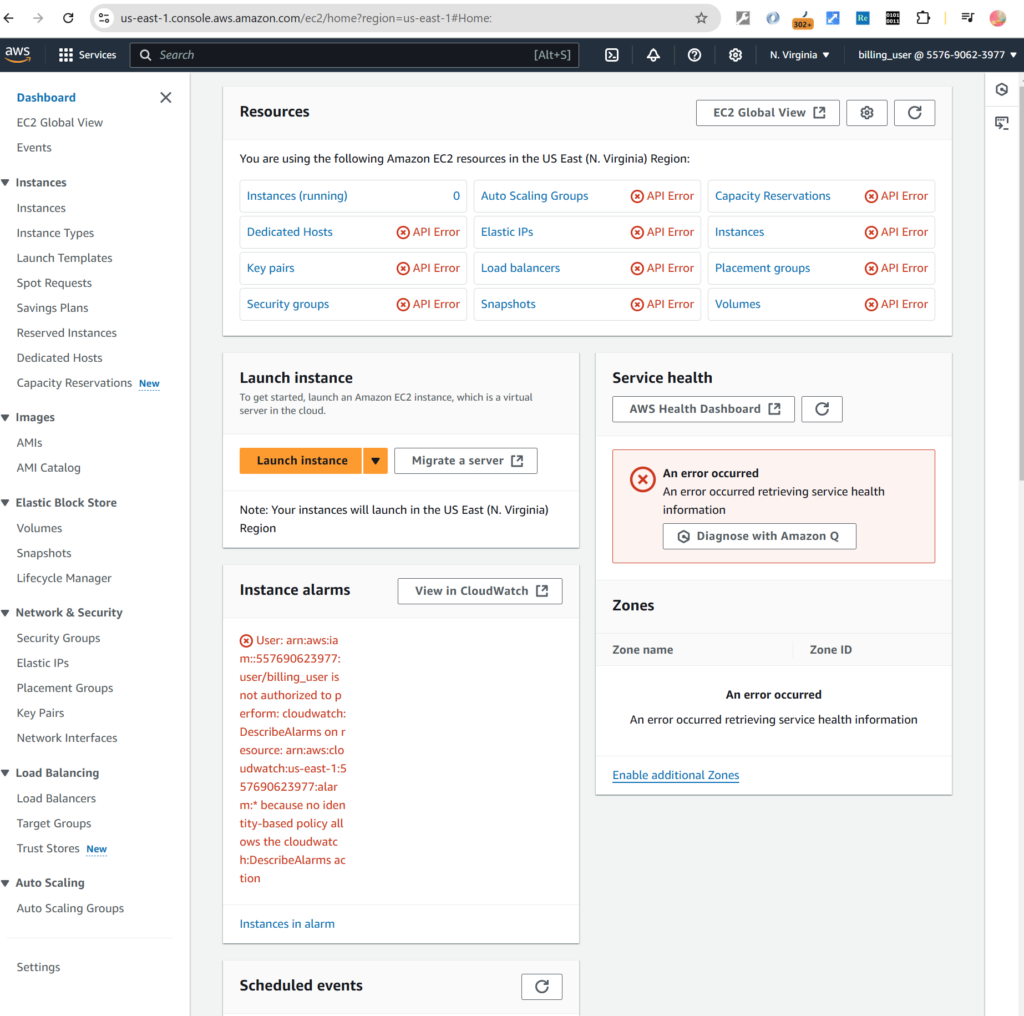
The Billing permission policy doesn’t allow users to do actions like launching a new AWS EC2 instance.
So, let’s go to AWS EC2 you can see the API errors which indicating the user doesn’t have permissions on AWS EC2.
Conclusion
In summary, by mastering IAM policies, organizations can significantly enhance their cloud security posture, ensuring robust, scalable, and precise access control across AWS environments. RBAC in AWS IAM provides a structured and efficient way to manage access control, ensuring that users have the right permissions based on their roles while maintaining security and compliance.
In the first part of this series, we go through how to accomplish it using identity-based policy. Next, we will explore more about the power of the other IAM policies like resource-based policy, permission boundaries policy.
References:
https://aws.amazon.com/iam
https://docs.aws.amazon.com/IAM/latest/UserGuide/access_policies.html