


Introduction to Keycloak
Keycloak is an open-source Identity and Access Management solution that provides authentication and authorization services for applications. Whether you’re managing a small-scale project or handling a large enterprise system, Keycloak makes it easier to secure your applications. This guide helps you explore the main components of the Keycloak UI, allowing you to start configuring and managing your system.
Keycloak simplifies user authentication and authorization management. It offers features like Single Sign-On (SSO), user federation, social login, and customizable authentication flows. With a user-friendly UI, Keycloak allows administrators to create and manage realms, clients, users, and roles. For more information click here.
Understanding the Key Components of the Keycloak UI
For login into keycloak UI in your local system run the below docker command and after that visit Keycloak UI.
sudo docker run -p 8082:8080 -e KC_BOOTSTRAP_ADMIN_USERNAME=admin -e KC_BOOTSTRAP_ADMIN_PASSWORD=admin quay.io/keycloak/keycloak:26.0.1 start-devOnce you log in to the Keycloak Admin Console, you’ll be greeted by a variety of options. Let’s break down the core components you’ll interact with
Realm
A realm is the core organizational unit in Keycloak. It groups clients, users, and roles together. Each realm is isolated from the others, allowing different applications or environments to have their own set of configurations.
Master Realm: Keycloak comes with a default “Master” realm, used to manage the Keycloak instance itself. You can create additional realms for other purposes, such as different environments (development, production, etc.).
To create a new realm:
- Click on KeycloakMaster tab
- Now there is option to Create Realm, click on it.
- Provide a name for the realm and click Create.

Clients
Clients represent applications that use Keycloak for authentication. They could be web applications, mobile apps, or even backend services. When a client requests authentication, Keycloak redirects the user to the login page and issues a token upon successful login.
- Public Clients: These clients don’t have a client secret, like Single Page Applications (SPA).
- Confidential Clients: These clients have a client secret, such as server-side applications.
To create a new client:
- Select your realm and go to the Clients section
- Enter the client ID (usually the name of your application)
- Configure all the details then click on save


Users
Keycloak provides robust user management features. You can manually create users or allow self-registration. Users are assigned credentials, roles, and permissions within the UI.
User Federation: You can connect Keycloak to external identity providers, such as LDAP or Active Directory, to manage users from those systems.
To add a new user:
- Select the Users menu from the sidebar.
- Click Create New User.
- Enter basic details like username and email, then click Create.

Roles
Roles in Keycloak define what users can do within a system. They are assigned to users or groups and can be mapped to clients or the realm itself.
- Client Roles: These are roles specific to a particular client (application).
- Realm Roles: These are global roles within a realm that can be assigned to any user.
To create a new realm role:
- Navigate to the Realm Roles section in the sidebar.
- Click Create Role.
- Configure the role name and click on Save.


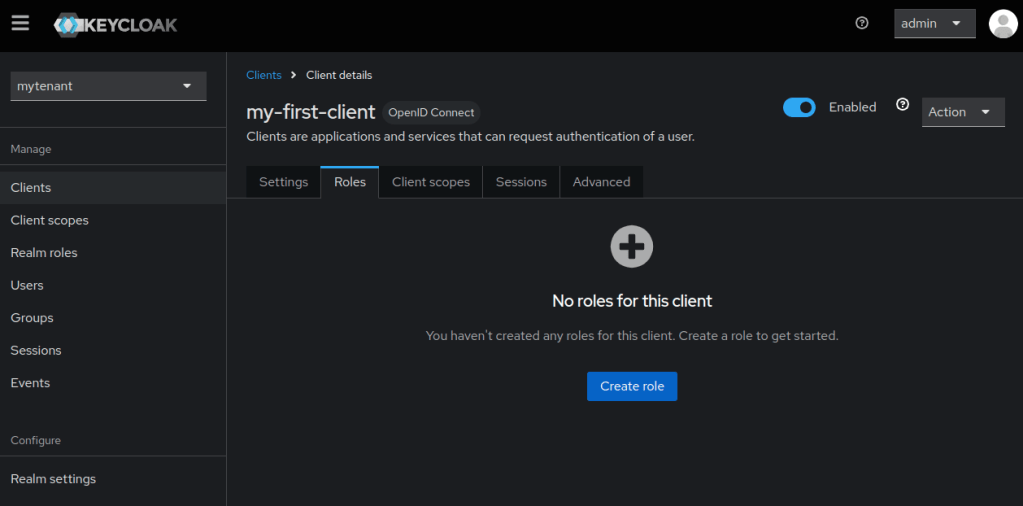
To create a new client role:
- To create Client role Move to Client section.
- Click on specific client for which you want to create role.
- Then select Role from Top Bar and click on Create Role.
Authentication Flows
Authentication flows control how users authenticate with Keycloak. The default flow handles common scenarios, but you can customize it to include additional factors such as OTP (one-time password), social logins, or password policies.
Authentication Configurations: Navigate to Authentication in the sidebar to explore the predefined flows or create custom ones.
Identity Providers
Keycloak allows users to log in using third-party identity providers like Google, Facebook, GitHub, etc. This can be a great way to streamline user registration and login.
To configure an identity provider:
- Enable the provider for user login.
- Go to the Identity Providers section.
- Choose the provider (e.g., Google, Facebook).
- Set up the required client credentials (API keys, secrets).
Configuring SSO (Single Sign-On)
Keycloak makes it simple to set up SSO, enabling users to log into multiple applications with a single login.
To configure SSO for your clients:
- Test the login flow from your application and verify that users are redirected to the Keycloak login screen.
- Ensure your clients are set up correctly with redirect URIs.
- Enable login via SSO in your client settings.
Conclusion
Keycloak’s user-friendly UI makes it a powerful tool for managing authentication and authorization in modern applications. By understanding the main components—realms, clients, users, roles, and authentication flows—you can secure your applications with ease and flexibility. As you grow more familiar with the platform, you’ll find even more advanced features like federation, SSO, and custom identity providers to suit your needs.
Keycloak empowers both developers and administrators to manage security seamlessly, making it a great choice for modern, secure applications.