


In this blog we will learn to create AGIC (application Gateway) with application gateway through azure portal (manually) and will try to deploy one sample application and access it through application gateway public IP address.
Prerequisites :
You need to have these prerequisites to get these working :
– Azure account
– Resource Group
– Vnet/subnet for AKS
– AKS cluster]
What is Application Gateway ?
Microsoft Azure offers the load balancing and web traffic management service known as Azure Application Gateway (AG). It enables you to control incoming HTTP(S) requests based on factors like URL prefixes, host names, and query parameters and execute web applications behind one or more back-end servers.
Here are some of Azure Application Gateway’s characteristics:
- In order to increase responsiveness and lower the chance of overtaxing certain servers, load balancing spreads incoming traffic over several back-end servers.
- Path-based routing enables you to run many websites on the same IP address by directing traffic to various back-end servers according to the desired path.
- Traffic is routed depending on the hostname provided in the request in host name-based routing.
- Websockets: supportsWebSocket protocol, allowing for bidirectional communication between clients and servers.
- SSL Offload: can terminate and offload SSL encryption from the back-end servers, improving their performance and reducing the workload.
- Caching: provides caching capabilities to reduce latency and improve performance.
- Request filtering: allows you to filter Requests based on specific criteria, blocking malicious traffic and enhance security.
- Response smoothing: simplifies complex server returned responses such as those from web Sockets, to improve client performance and simplify subsequent processing.
- Connection draining: allows you to drain existing connections from a backend pool before removing it from rotation, ensuring that all active connections are completed before the backend instances are shut down.
How to attach AGIC and Application Gateway in AKS :
- Firstly check all the prerequisites exist and you are ready to go .
- Go to your kubernetes cluster .
- Select networking option from the left side options under Settings .
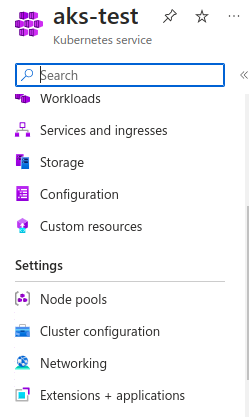
4. Inside networking section go to Application Gateway Ingress Controller section at the very end .

5. Select Enable ingress controller check box . After that it will ask for application gateway details . Click on add new and then click on OK .
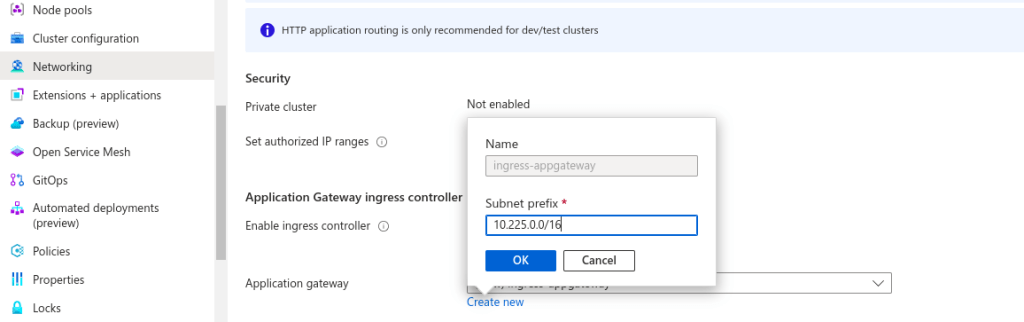
6. Then Click on apply . The cluster will start updating again
7. Once update gets completed you will be able to see new application gateway got created .

8. You can connect to your AKS cluster through CLI and start deploying sample application provided by microsoft itselft . Just run
kubectl apply -f https://raw.githubusercontent.com/Azure/application-gateway-kubernetes-ingress/master/docs/examples/aspnetapp.yaml
It will deploy one pod, service and ingress for you .
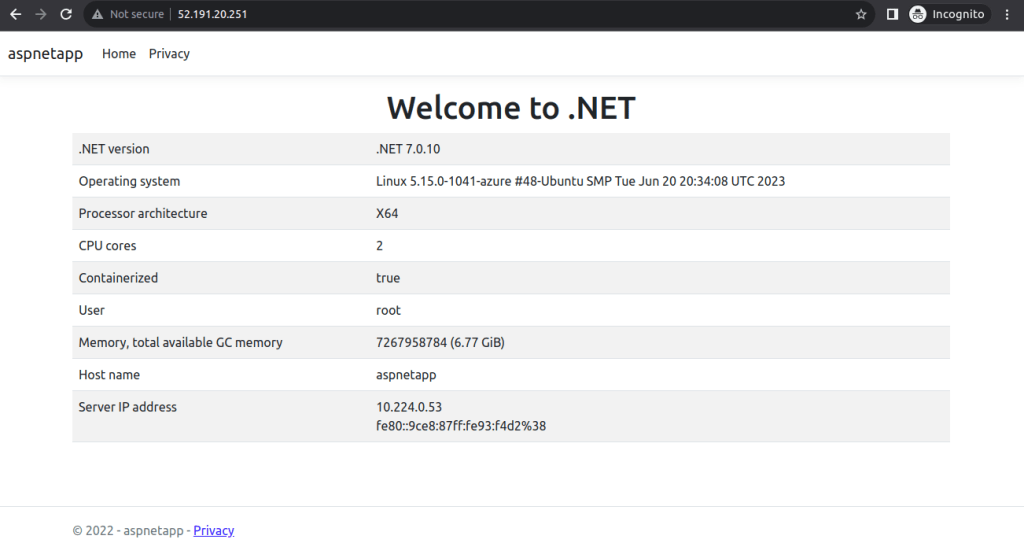
9. Now run kubectl get ing to get the public Ip address to access the application .

Using your public IP address you can access the application . You will able to see this application on browser
That all for today . For more such blogs visit nashtech website .