



Introduction
When testing APIs in the browser using DevTools (F12), the Network tab is one of the most powerful tools available.
However, beginners often face a common problem:
The Network tab shows too many requests:
- Documents (Doc)
- Images (JPG, PNG, SVG…)
- Scripts (JS)
- Styles (CSS)
- API calls (XHR / Fetch)
And you only want API requests.
This guide will show you 3 simple ways to filter API requests quickly and efficiently.
What is the Network Tab?
The Network tab in browser DevTools helps you:
- Track all requests made by a website
- Inspect API calls and responses
- Debug frontend-backend communication
- Analyze performance issues
But without filtering, it becomes messy and hard to read.
1. Filter API Requests Using Fetch/XHR
This is the fastest and most common method.
Steps:
- Open DevTools (F12)
- Go to Network tab
- Click Fetch/XHR
Result:
You will only see API-related requests.
Why Fetch/XHR?
- XHR (XMLHttpRequest): older API request method
- Fetch: modern JavaScript API for requests
Most APIs today use one of these two, so filtering both ensures you don’t miss anything.
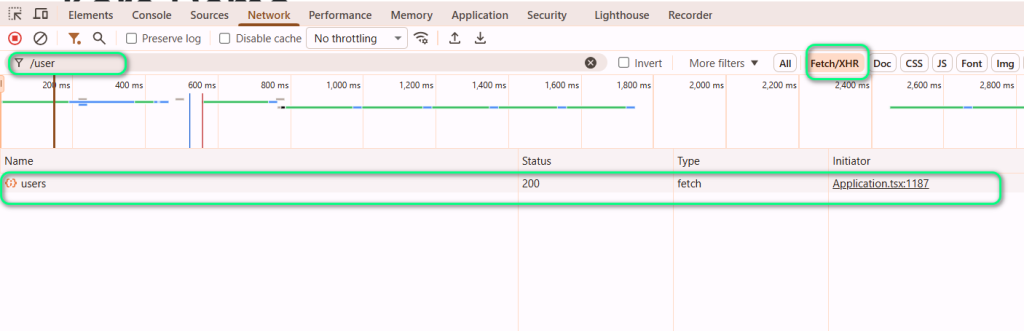
2. Search for a Specific API (Fast Method)
If you already know the API name, this is the quickest way.
Steps:
- Go to Network tab
- Find the Filter input box
- Type the API name or endpoint
Example:
/login
/user
/api/products
Benefits:
- Extremely fast
- No need to scroll
- Works well in large applications
Best for targeted debugging
3. Invert Filter Trick (Advanced but Powerful)
This is a lesser-known but very useful trick.
Scenario:
You want to:
- ❌ Remove unnecessary requests (e.g., analytics, images)
- ✅ Keep everything else
Steps:
- Type a keyword in the Filter box (e.g., analytics)
- Click Invert
Result:
- All matching requests are hidden
- Everything else is shown
This is perfect for removing noise from tracking scripts or third-party calls.
Step-by-Step Real Example
Imagine you are testing a login page.
You will likely see:
- login API request
- captcha request
- analytics tracking
- CSS + images
What you do:
- Click Fetch/XHR
- Search for /login
- Use Invert to remove analytics
Now you only see real backend API calls
Summary of Filtering Techniques
| Method | When to use | Difficulty |
| Fetch/XHR filter | General API debugging | Easy |
| Search filter | Known API name | Very easy |
| Invert filter | Remove noise | Medium |
Key Takeaways
- Fetch/XHR filter = your default starting point
- Search filter = fastest when you know the endpoint
- Invert filter = advanced cleanup technique
- Always combine filters for best results
Conclusion
Filtering API requests in DevTools is a must-have skill for frontend developers and testers.
Once you master:
- Fetch/XHR filtering
- Search filtering
- Invert filtering
You will debug APIs faster, cleaner, and more efficiently.
References
Here are some helpful resources:
- Chrome DevTools Documentation
https://developer.chrome.com/docs/devtools/ - MDN Web Docs – Network Panel
https://developer.mozilla.org/en-US/docs/Tools/Network_Monitor - Fetch API Guide
https://developer.mozilla.org/en-US/docs/Web/API/Fetch_API - XHR Overview
https://developer.mozilla.org/en-US/docs/Web/API/XMLHttpRequest