



The Jira Cloud for Microsoft Teams app lets you connect Jira projects to Microsoft Teams so you can view personal notifications, view issues in a tab within a Chat or Team channel, and create Jara issues from your team’s workspace.
Steps to integrate Jira with MS Teams:-

- Make sure you have MS in your system
- Once Installed, click on Teams (present on the left panel)
- Go to the Teams Channel where you would like to configure the Jira webhook
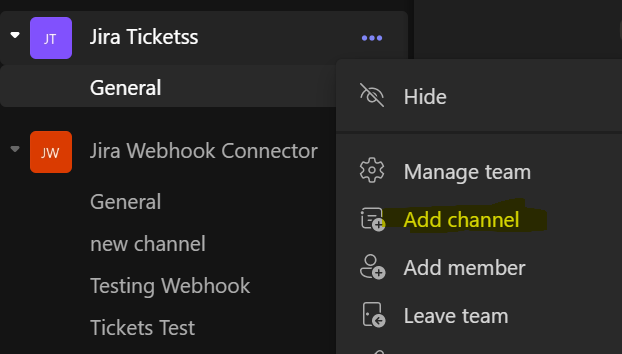
- Click on Add Channel
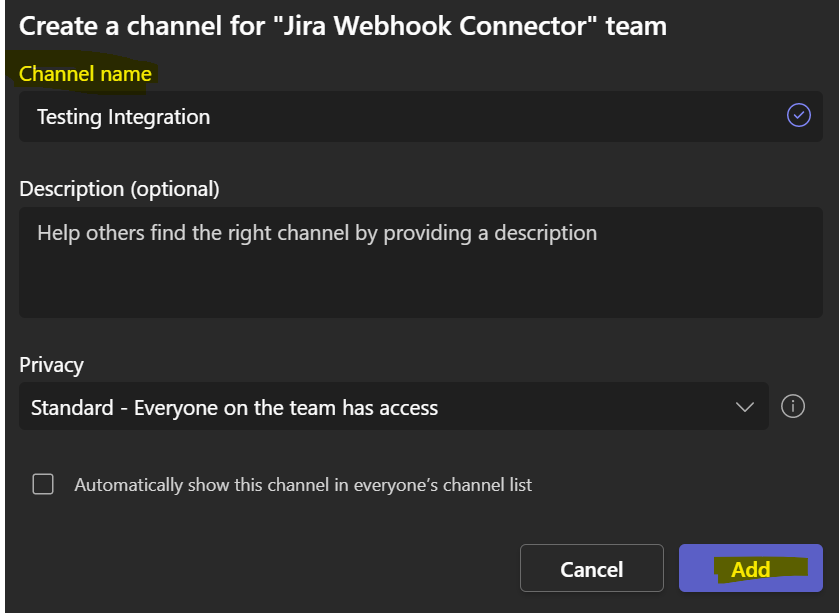
- Give the appropriate Name and click on Add
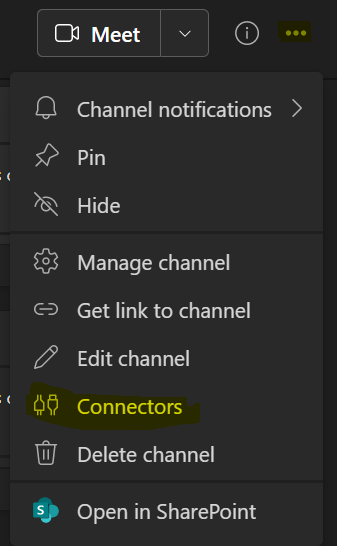
- Click on 3 dots and select Connectors
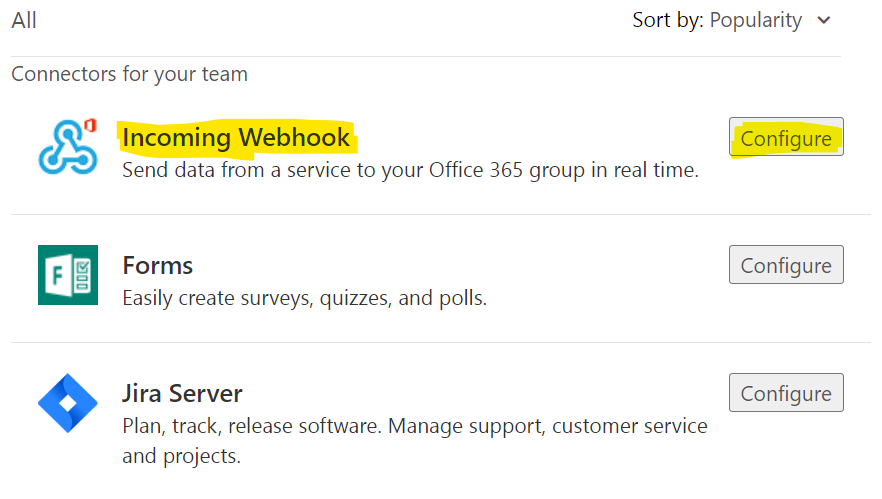
- Click on configure beside Incoming Webhook
- Provide a name for Incoming Webhook
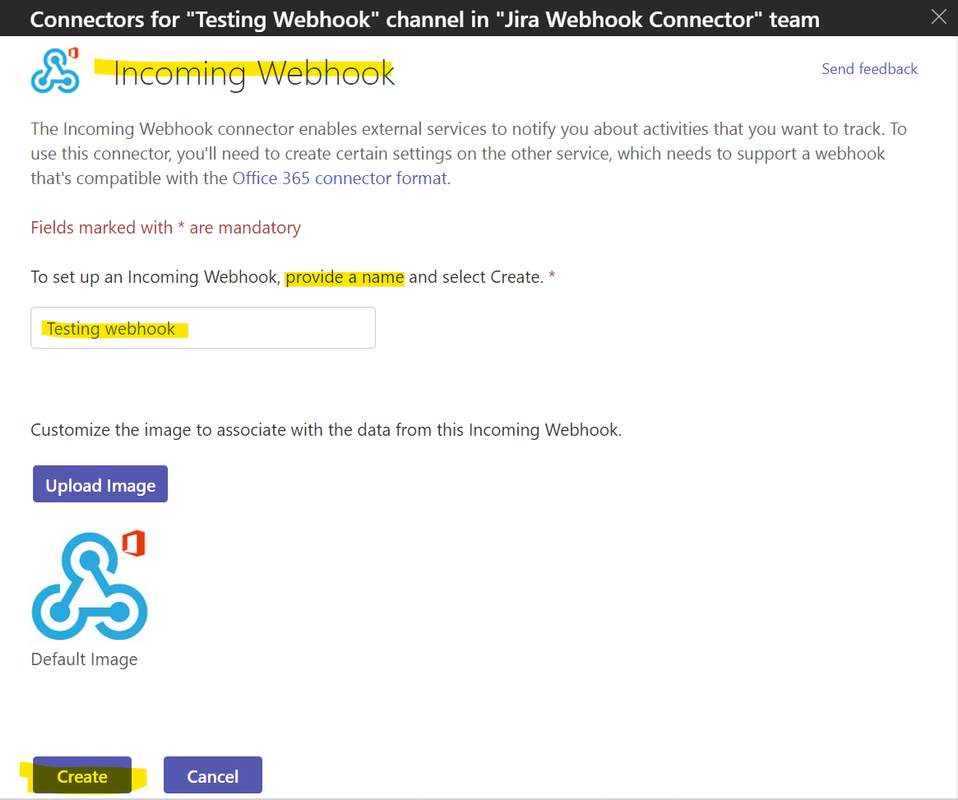
- Click on Create
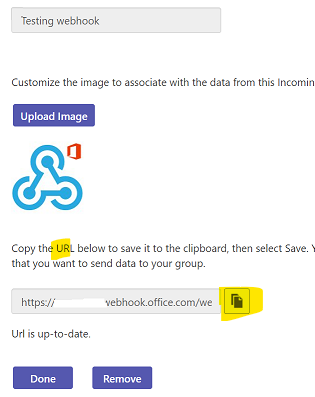
- Once you click on create you will get an URL: You’ll need this URL when you go to the service that you want to send data to your group.
- Go to your Jira project
- Click on Project Settings
- Search for MS Teams connector
- Click on create a connection
- Give the URL which was generated in step 10.
- Customize the notification settings as per the requirement
- Click on Save
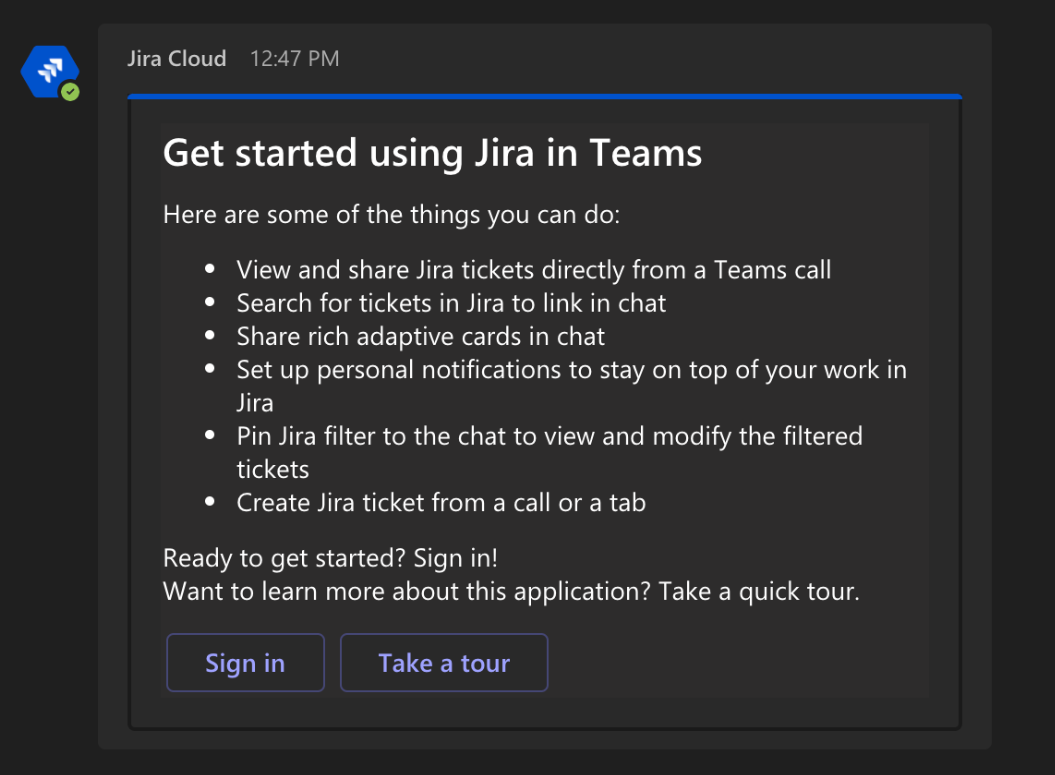
Now you will be able to receive notification on MS Teams whenever any event gets triggered (definitely notification will be as per setting which you have done in step 16)
Advantages:-

- Get notified when the new jira issue is created
- Get notified when any comment is made
- Create Jira issues using MS Teams
- Reduces manual efforts of creating the issues
Conclusion:-

To manage jira issues more preciously and effectively, MS Teams integration is a good choice. It keeps you updated with the new updates as per the settings done in the notification settings.