



1. Introduction
When working with Salesforce, sometimes, testers often need to validate data, check field level access, and simulate user scenarios without waiting on administrators or developers. Salesforce Inspector is a powerful, lightweight browser extension (primarily for Chrome and Edge) that helps testers perform these tasks quickly and efficiently.
In this post, we will walk through how testers can use Salesforce Inspector effectively to boost their productivity, improve test accuracy, and reduce turnaround time.
2. Why Testers Should Use Salesforce Inspector?
Salesforce Inspector is a browser extension that enhances the Salesforce user interface by providing easy and instant access to metadata and data from Salesforce orgs. It overlays a discreet sidebar in your Salesforce UI that lets you view, export, and import data, inspect metadata, and troubleshoot more efficiently than ever before. It’s not officially developed by Salesforce, but it’s widely used and trusted across the Salesforce community. So, it is not for developers or admins, it’s also a fantastic tool for QA testers that will help in:
- Validating test data quickly
- Checking field level access for different profiles
- Testing SOQL queries without Developer Console
- Simulating different user views
- Verifying automation triggers like flows, workflows, and validation rules
- Importing and exporting test data
3. How to Install Salesforce Inspector?
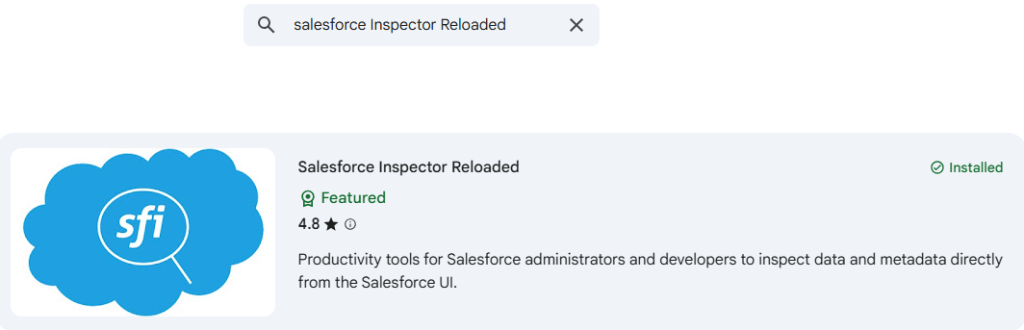
Firstly, you open Chrome Web Store and find ‘Salesforce Inspector Reloaded’, then select the extension and click “Add to Chrome”.
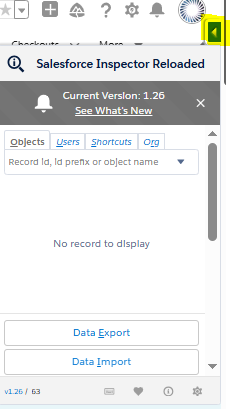
Once installed, you’ll see a small arrow icon on the right side of any Salesforce page. Then, you can log in to your Salesforce org and click the arrow to open Salesforce Inspector.
4. Some Common Use Cases for Testers
There are some most common use cases for Testers:
4.1. Querying Data with SOQL
Instead of requesting access to Developer Console or waiting on a dev, testers can use SOQL (Salesforce Object Query Language) in Salesforce Inspector to:
- Retrieve test records
- Check specific field values
- Filter records by created date, owner, or status
- Validate expected changes after test cases
Steps:
- Open Salesforce Inspector.
- Click “Data Export”.
- Enter a SOQL query, e.g.: SELECT Id, Name, Status__c FROM Case WHERE Status__c = ‘New’
- Click Export to view results or download as CSV.

4.2. Checking Field Level Security
If tester need to validate which fields are visible or editable for a specific profile
Steps:
- Open a record in Salesforce.
- Launch Inspector → Click “Show All Data”.
- You’ll see all fields, even those not on the page layout.
- You can compare visible fields with what’s configured to verify if access is correctly applied.

This is very useful when testing profile permissions, record types, or field level visibility.
4.3. Importing Test Data
Creating test records manually can be time consuming. With Salesforce Inspector, you can import data quickly to create large volumes of test records:
Steps:
- Click “Data Import” in the Inspector.
- Choose the object (e.g.,
Contact). - Paste or upload data in CSV format.
- Map the fields and click Import.

4.4. Viewing Record Details Instantly
To verify values after actions like approvals, field updates, or workflow execution:
- Open the record.
- Click Inspector → Show All Data.
- Instantly view all field values, including hidden or system fields.

This can help testers check audit fields like LastModifiedBy, CreatedDate, or custom automation fields.
5. Conclusion
Salesforce Inspector is a powerful and easy to use tool that enables testers to work more efficiently. It helps with tasks such as checking field level security, validating automation, and importing test data, making daily QA activities faster and simpler. For Salesforce testers who have not tried this extension yet, it is a valuable productivity tool worth exploring. Thank you for reading, and happy testing with Salesforce.
References