


Hello Readers!! We are again back with an exciting topic I.e how we can implement multi-factor authentication with AWS IAM. Amazon Web Services (AWS) recognizes the importance of protecting user identities and resources, and one effective method for enhancing security is Multi-Factor Authentication (MFA). MFA adds an extra layer of defense by requiring users to provide multiple forms of identification before gaining access to their accounts. In this blog post, we’ll see the process of implementing MFA with AWS Identity and Access Management (IAM) users.
Multi-Factor Authentication (MFA):
Multi-Factor Authentication (MFA) is a security mechanism that requires users to provide more than one form of identification to access a system, application, or online account. It adds an extra layer of protection beyond traditional username and password credentials, making it significantly more challenging for unauthorized individuals to gain access.
For example, when a user attempts to log in with MFA enabled, they enter their username and password as usual. After this initial authentication, they are prompted to provide a second form of authentication, such as a code sent to their mobile device or generated by a dedicated authentication app. Without both factors, access is denied. This is how MFA works.
Setting Up Multi-Factor Authentication in AWS IAM
1. Accessing the AWS Management Console. Log in to your AWS Management Console using your administrator credentials.
2. Navigate to IAM. IAM is the AWS service responsible for managing user identities and access. Choose and open the user for whom you want to enable MFA.
3. Within the user details, select the “Security credentials” tab.
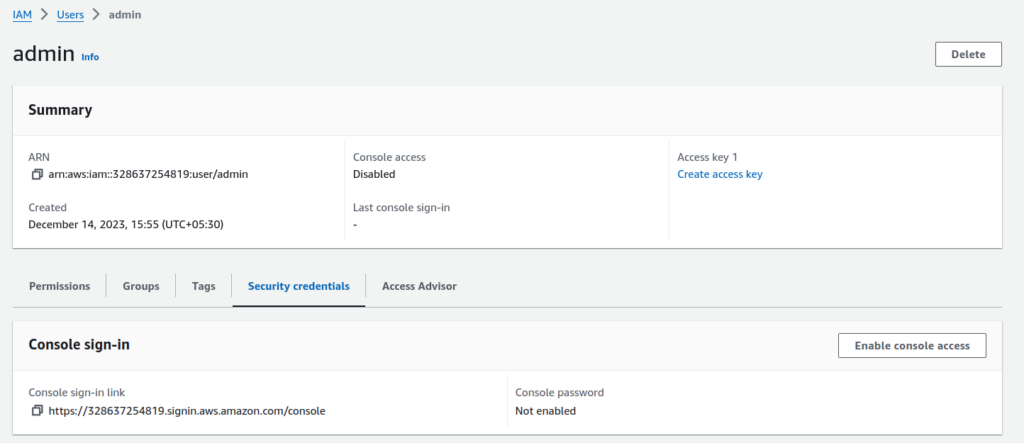
4. Scroll to the “Multi-Factor Authentication (MFA)” section and then click on “Assign MFA device”

5. Give here a name to your device.
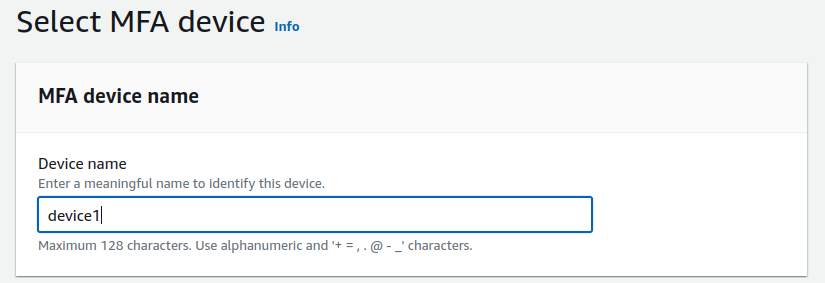
Choose the MFA device that suits your preferences. We have here option for the Authenticator app, security key, and hardware TOTP Token.
Click on Next.
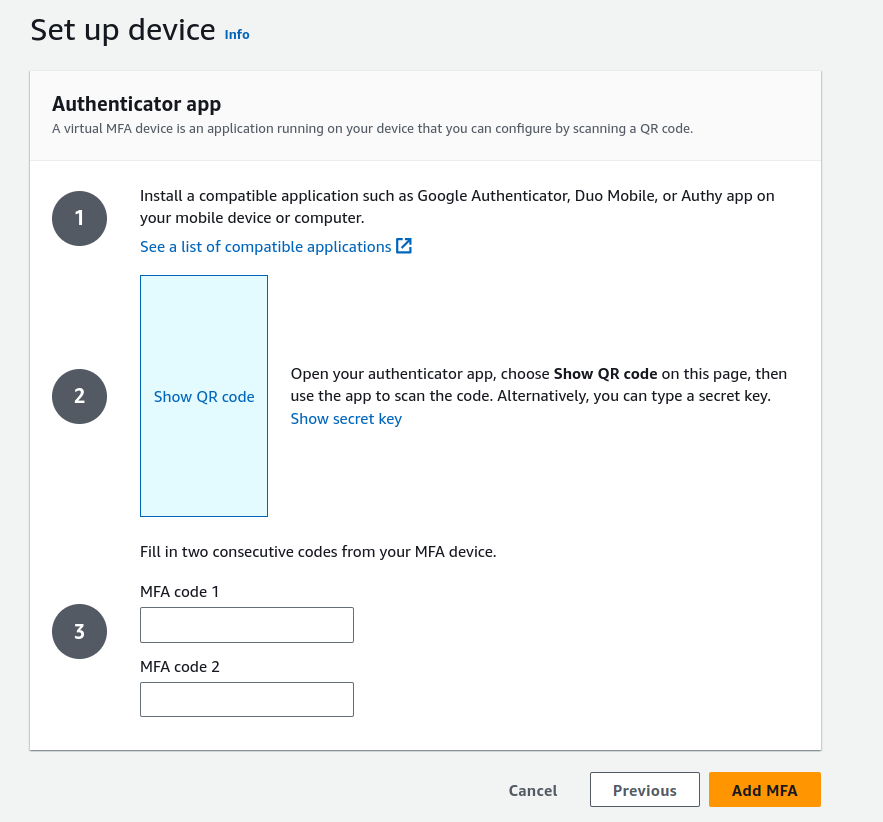
6. Follow the on-screen instructions to activate MFA for the selected user. The process involves installing an application on your mobile device. You can also see a list of compatible applications. After installing scan the QR code and then fill in their codes from your MFA device. Click on add MFA.
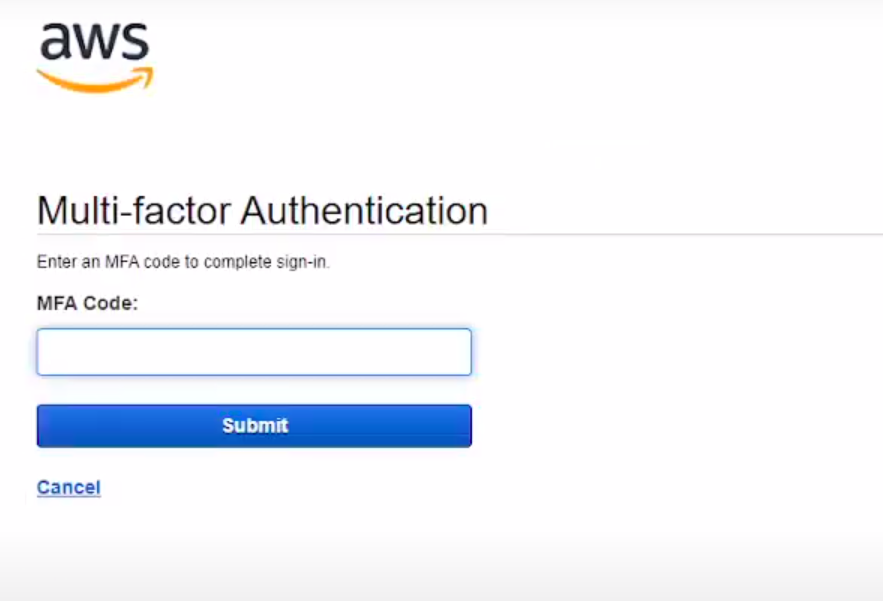
7. It will be added successfully. After activation, when the user will sign in after giving his username and password it will ask for an MFA code.
By following the steps outlined here, we can enhance the protection of your AWS resources and meet compliance standards.
Conclusion
Thank you for sticking to the end. So, in this blog, we have learned how we can implement multi-factor authentication with AWS IAM. This is very quick and simple. Therefore, if you like this blog, please share my blog and show your appreciation by giving thumbs-ups, and don’t forget to give me suggestions on how I can improve my future blogs that can suit your needs.
Happy Learning!!!