


API testing is a crucial part of ensuring the reliability and performance of modern applications. Insomnia, a powerful API client, users can easily generate API reports with its intuitive interface and robust feature set. However, when it comes to managing and generating test reports for API testing, many users wonder how they can maximize Insomnia’s capabilities. In this guide, we will explore how to effectively use Insomnia for generate API reports with insomnia, leveraging custom reporting plugins.
What is Insomnia
Insomnia is an open-source tool that makes API testing simple with its easy-to-use interface. It works well for testing REST, GraphQL, and SOAP APIs, supporting different HTTP methods, authentication types, and data formats. With its user-friendly design, both testers and developers can easily create and run API requests, check responses, and even automate workflows.To help you understand how to use Insomnia for API testing, we’ll walk through about the tool and how can we create request and write the test cases and plugins that are commonly used. Along the way, we’ll include code examples and explanations for each part.
How To Install Insomnia?
You can easily download and install Insomnia from the Insomnia Download Page. These are the steps which you can follow:
Step1: Open your web browser and go to the Insomnia Download.
Step2: you will see Download Insomnia Ubuntu
Step3: Download Insomnia and install it
Step4: Once the installation is complete, open Insomnia from your application menu.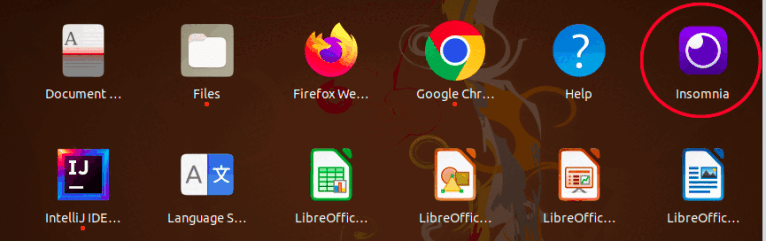
Creating Request
Creating Get Request
1. Open the Insomnia, create a new document.
2. Access the Collection Tab.
3. Click on plus Icon and create a new HTTP Request.
4. Name your request (e.g., “Get Request”) and select GET as the request type.
5. Enter the URL (e.g., “https://official-joke-api.appspot.com/random_joke”).
6. Add any necessary headers or query parameters.
7. Click on Send Button.
8. You can see the result returned by the server.

Creating Post Request
1. Click on plus Icon and create a new HTTP Request.
2. Name your request (e.g., “Post Request”) and select Post as the request type.
3. Enter the URL (e.g., “https://jsonplaceholder.typicode.com/users”).
4. Add any necessary headers or query parameters.
5. Go to the “Body” tab, select JSON, and enter your JSON payload.
6. Click on Send Button.
7. You can see the result returned by the server.
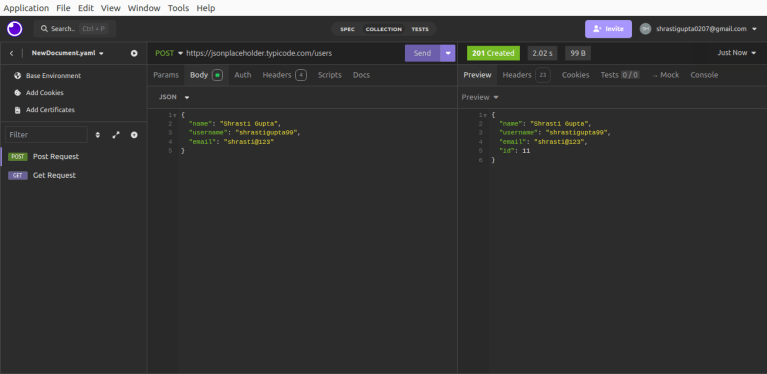
Insomnia Testing Toolkit
Insomnia allows developers to write API tests efficiently, using JavaScript and the Chai assertion library for validating responses. Here’s a flow that walks you through creating and running tests in Insomnia with Chai assertions.
Setup your Test Workspace
1. Open the Insomnia Application.
2. Select the document in which you have created the request.
3. Select the Request which you want to test.
4. Go to the Tests Tab.
5. Navigate to the Tests tab, where you’ll write the test scripts using Chai assertions.
6. Create a New Test Suite (e.g.,Request Test Suite)
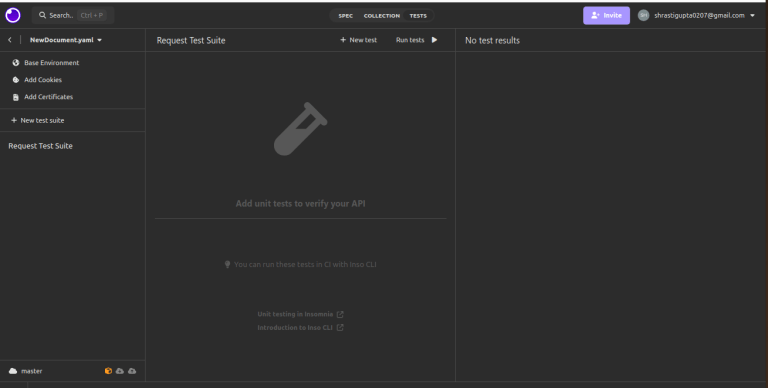
7. Click on New Test.
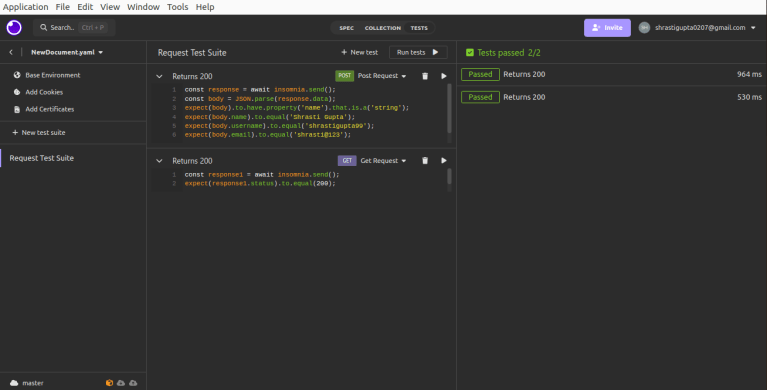
Examples of Test cases
1. To check that the status code is 200 for Get Request.
const response1 = await insomnia.send();
expect(response1.status).to.equal(200);

2. Validate the response of the body for Post Rquest
const response = await insomnia.send();
const body = JSON.parse(response.data);
expect(body).to.have.property('name').that.is.a('string');
expect(body.name).to.equal('Shrasti Gupta');
expect(body.username).to.equal('shrastigupta99');
expect(body.email).to.equal('shrasti@123');

Run the Tests
1. Send the Request – After writing your tests, go the collection tab, click the send button to execute the request.
2. View the Response – Check the response panel for the returned data
3. View the Test Results – Look for the Tests tab to see the results of your assertions. It will show whether each test passed or failed.
Plugins
Key Uses of Custom Reporting Plugins
1. Automated Report Generation: Custom reporting plugins can automate the process of compiling API test results into organized formats like JSON, HTML, or Markdown.
2. Customizable Report Formats: Plugins allow you to define how the test results are displayed. You can include request and response details, status codes, test execution time, and error messages.
3. Improved Collaboration: Custom reports can be tailored to highlight important metrics for different stakeholders, from developers and testers to project managers.
4. Detailed Test Analytics: Custom plugins can also offer advanced test analytics, such as pass/fail ratios, response time metrics, and success trends over time.
Installing Insomnia Plugins
Installing plugins in Insomnia is simple and can greatly enhance your workflow. Plugins can add functionality like JWT token generation, environment variable management, and more.
Here’s how to install a plugin in Insomnia:
- Open Insomnia: Launch the application.
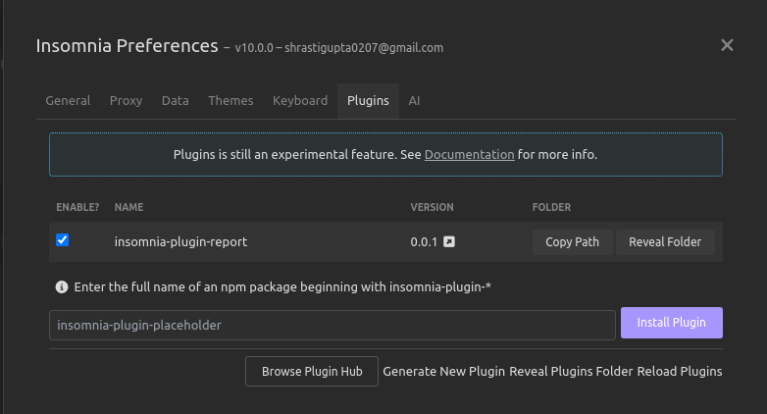
- Go to Plugins: In the main menu, click on “Preferences,” then navigate to the “Plugins” tab.
- Install Plugin: In the search bar, type the name of the plugin you want to install, or search the Insomnia Plugin Hub for options.
- Install from NPM: Alternatively, if you know the npm package name, you can install it by typing
insomnia-plugin-name. - Restart Insomnia: After installation, restart Insomnia to activate the plugin.

Generate Custom Plugin
Here’s how to generate new plugin in Insomnia:
Open Insomnia: Launch the application.
Go to Plugins: In the main menu, click on “Preferences,” then navigate to the “Plugins” tab.
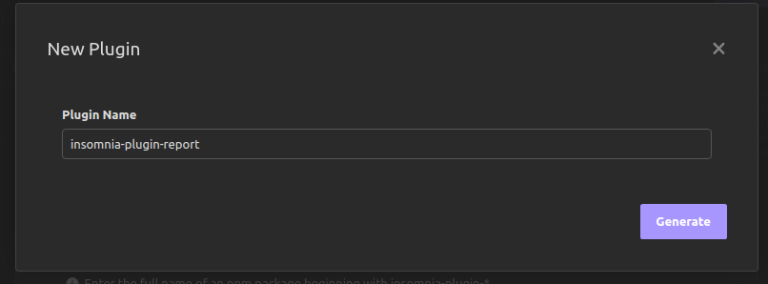
Generate New Plugin: Click on Generate New Plugin button, write the name of the plugin and generate it.
Enable Plugin: After Generated the new plugin, Enable the checkbox of the plugin which you have generated.
Why Generate Test Reports?
Before diving into Insomnia’s reporting capabilities, let’s first understand why test reporting is essential:
Visibility: Reports provide a detailed view of how your APIs are performing.
Accountability: Test reports can highlight errors, failed requests, and performance bottlenecks.
Collaboration: Teams can easily share reports to discuss results or track progress.
Compliance: Some industries require reports to ensure APIs comply with regulatory or security standards.
Generate API Test Report
Insomnia provides built-in export options that can be used to generate basic test reports. This feature lets you easily save and share your API requests, responses, and test results, making sure that your testing process is clear and well-organized.
Export Your Workspace from Insomnia
Before you can create an HTML report, you need to export your Insomnia workspace:
- Open your Insomnia application.
- In the main menu, click on “Preferences,” then navigate to the “Plugins” tab.
- In the search bar, type the name of the plugin “insomnia-plugin-postman-export” and install it, or you can also search the Insomnia Plugin Hub for this.
- After Installing the plugin choose the ‘Export as Postman Collection’ option in Collection (Workspace) menu.
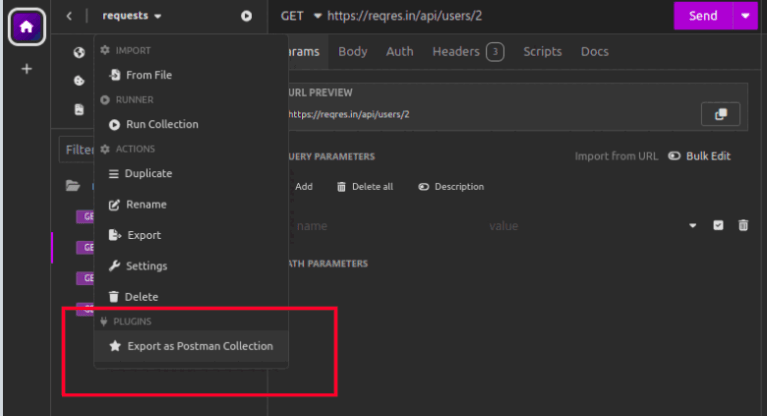
- Requests can be selected via regex or a csv of request ids.

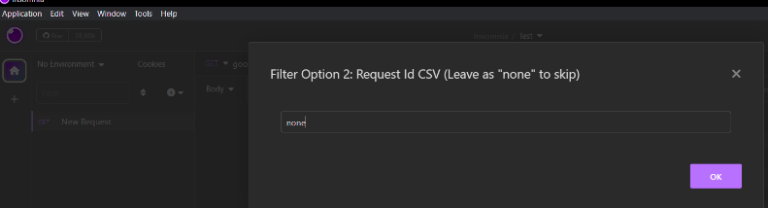
- Give an output path to the export workspace where you want to save it.

Integrate With Newman
If you have exported the workspace or collection in Insomnia, you need to Integrate with Newman. Before we dive into the steps, let’s quickly understand why we’re integrating Insomnia with Newman.
Insomnia v4 version allows you to export your workspace as a JSON file, but it doesn’t directly generate reports for your API test. This is where newman comes in. Newman supports v2 version with postman so here we need to use a plugin called “insomnia-plugin-postman-export” to export our Insomnia workspace to Postman, and then use Newman to generate the reports.
- Make sure you have Node.js installed.
- Install Newman globally using npm.
npm install -g newmanRun the Collection or Workspace using Newman
- Use Newman to run the exported collection and generate a report.
- Run the following command in your terminal.
newman run --reporters=cli,htmlextra newman
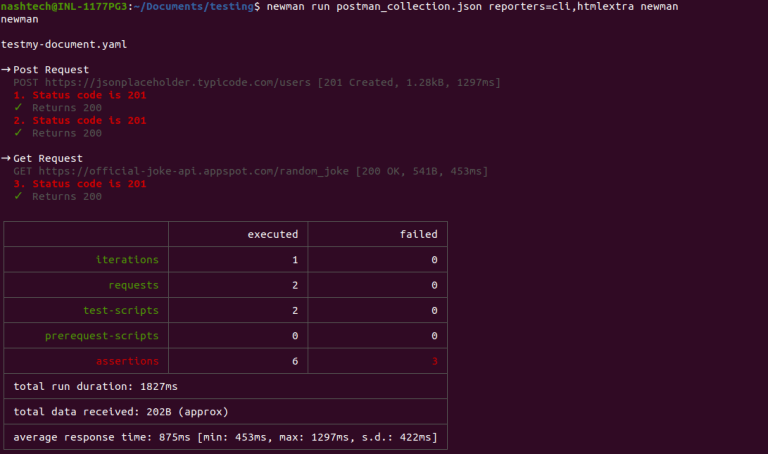
- This command creates an HTML report (report.html) and places it in a folder called newman.
- Inside the newman folder, you should see the generated html file.
- Double-click on
htmlfile in your file explorer to open it in your default web browser.

Conclusion
In conclusion, Insomnia is a strong and easy-to-use tool for testing APIs, helping to improve the quality and trustworthiness of your applications. By creating detailed test reports, you can understand how well your API works and share important information with your team. You can also customize reports with plugins to fit your project’s needs better.