


Azure Blob Storage is a scalable cloud storage solution designed to store large amounts of unstructured data, such as text and binary data. Integrating Azure Blob Storage with Selenium can streamline your testing process, especially when dealing with file uploads or downloads. In this guide, we’ll walk you through the process of integrating Azure Blob Storage with Selenium, exploring both code and non-code approaches.
Why Integrate Azure Blob Storage with Selenium?
Before diving into the steps, it’s worth noting why integrating Azure Blob Storage with Selenium is beneficial:
- Efficient File Management: Store and manage files required for testing in the cloud, simplifying access and reducing local storage needs.
- Scalability: Easily scale your test data and files as your test suite grows.
- Consistency: Ensure consistent test environments by using the same set of files across different test runs and environments.
Prerequisites
- Azure Account: To access Azure services and create resources like Storage Accounts and Containers.
- Azure Storage Account: To store test files and manage blob data.
- Blob Container: To organise and store blobs (files) in your Azure Storage Account.
- Azure Storage Account Connection String: To authenticate and access your Azure Blob Storage programmatically.
- Azure CLI Installed (for Azure DevOps): To interact with Azure services using command-line commands.
- GitHub Account (for GitHub Actions): To host your repository and manage GitHub Actions workflows.
- Azure DevOps Account: To manage your CI/CD pipelines and integrate with Azure services.
- Selenium Tests: To perform automated testing of your web applications.
- Secrets Management: To securely handle sensitive information like Azure connection strings.
Using Java Code in GitHub Actions
GitHub Actions provides a flexible CI/CD environment for automating your workflows. You can use it to integrate Azure Blob Storage with your Selenium tests written in Java.
1: Set Up Azure Blob Storage
- Create Azure Blob Storage:
- Follow the steps to create an Azure Storage Account and a Blob Container as described in the previous sections.
- Obtain Connection String:
- Go to “Access keys” under “Security + networking” in your storage account and copy the connection string.
2: Prepare Your Java Project
- Add Azure SDK Dependency:
- In your
pom.xml, add the Azure Storage Blob SDK dependency
- In your
<dependency>
    <groupId>com.azure</groupId>
    <artifactId>azure-storage-blob</artifactId>
    <version>12.14.1</version>
</dependency>
Write Java Code to Interact with Azure Blob Storage:
- Create a utility class to handle file uploads and downloads. Here’s a basic example:
import com.azure.storage.blob.BlobServiceClient;
import com.azure.storage.blob.BlobServiceClientBuilder;
import com.azure.storage.blob.models.BlobItem;
import com.azure.storage.blob.specialized.BlobClientBuilder;
import java.io.File;
import java.io.FileOutputStream;
import java.io.OutputStream;

public class AzureBlobUtils {
    private static final String CONNECTION_STRING = "<your-connection-string>";

    public static void downloadBlob(String containerName, String blobName, String downloadFilePath) {
        BlobServiceClient blobServiceClient = new BlobServiceClientBuilder()
                .connectionString(CONNECTION_STRING)
                .buildClient();

        BlobClient blobClient = blobServiceClient.getBlobContainerClient(containerName).getBlobClient(blobName);
        blobClient.downloadToFile(downloadFilePath);
    }

    public static void uploadBlob(String containerName, String blobName, String filePath) {
        BlobServiceClient blobServiceClient = new BlobServiceClientBuilder()
                .connectionString(CONNECTION_STRING)
                .buildClient();

        BlobClient blobClient = blobServiceClient.getBlobContainerClient(containerName).getBlobClient(blobName);
        blobClient.uploadFromFile(filePath, true);
    }
}- If we want to upload the whole directory, then,
public void uploadDirectory(String directoryPath) {
        File directory = new File(directoryPath);

        if (directory.isDirectory()) {
            File[] files = directory.listFiles();

            if (files != null) {
                for (File file : files) {
                    if (file.isFile()) {
                        // Generate blob name with timestamp
                        String timestamp = getTimestamp();
                        String blobName = file.getName() + "-" + timestamp; // Prefix the file name with the timestamp
                        uploadFile(file.getAbsolutePath(), blobName);
                    } else if (file.isDirectory()) {
                        // Recursively handle subdirectories
                        uploadDirectory(file.getAbsolutePath());
                    }
                }
            }
        } else {
            System.out.println("Provided path is not a directory.");
        }
    }
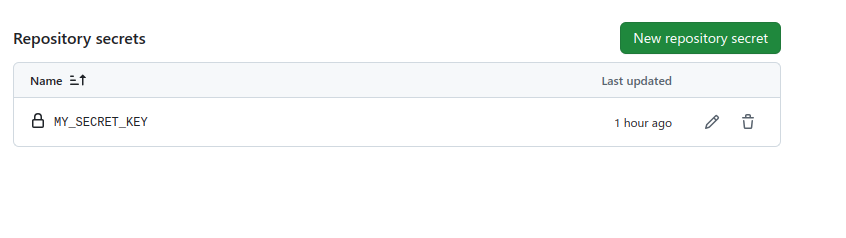
3: Set the SECRET_KEY in GitHub
Go to the GitHub repository and select the “Settings” -> “Secrets and variables” -> “Actions” -> “New Repository secret”.
4: Set Up GitHub Actions Workflow
Create GitHub Actions Workflow File:
name: Java CI with Maven

on:
  push:
    branches: [ "main" ]
  pull_request:
    branches: [ "main" ]

jobs:
  build:

    runs-on: ubuntu-latest

    steps:
    - uses: actions/checkout@v4

    - name: Set up JDK 17
      uses: actions/setup-java@v4
      with:
        java-version: '17'
        distribution: 'temurin'
        cache: maven
    - name: Set Environment Variable
      run: echo "MY_SECRET_KEY=${{ secrets.MY_SECRET_KEY }}" >> $GITHUB_ENV
    - name: Build with Maven
      run: mvn -B package --file pom.xml
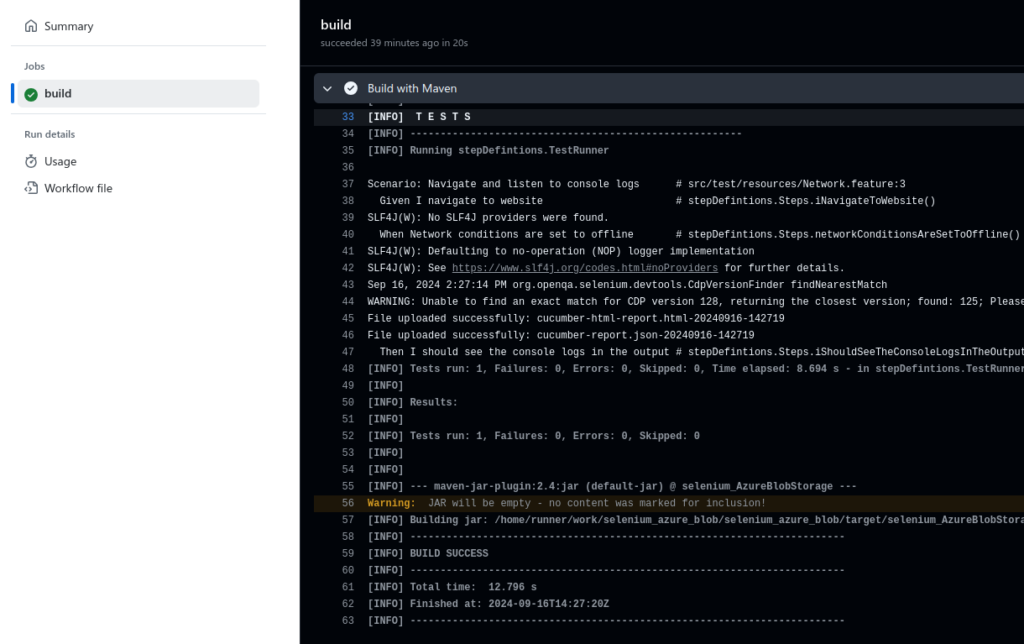
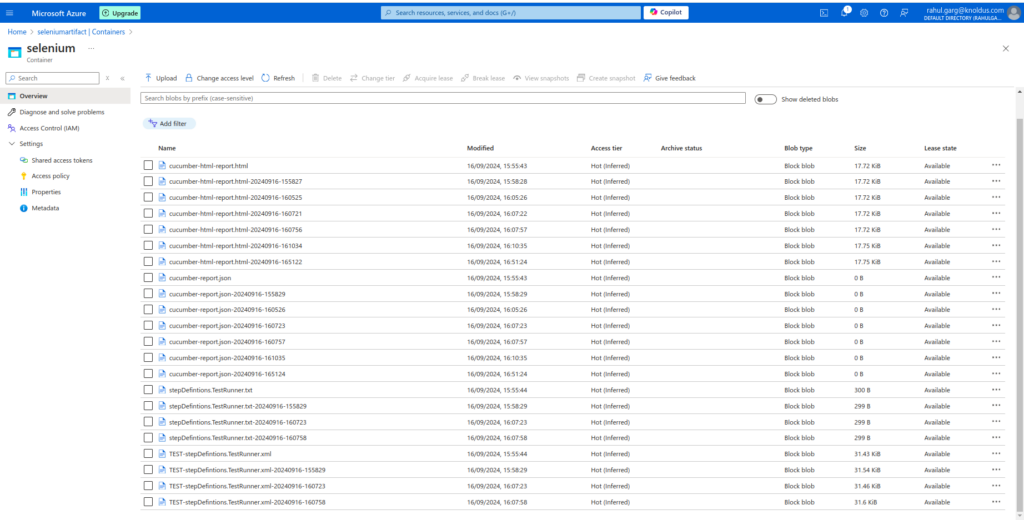
Results:
Using Azure CLI in Azure DevOps
Azure DevOps provides a robust environment for managing your CI/CD pipelines. Here’s how you can use Azure CLI to manage files in Azure Blob Storage and integrate with Selenium tests.
1: Set Up Azure Blob Storage
- Follow the same steps as in the GitHub Actions section to set up Azure Blob Storage.
2: Create an Azure DevOps Pipeline
- Navigate to Azure DevOps and go to your project.
- Under Pipelines, click on “Create Pipeline.”
- Choose “Use the classic editor” for a visual pipeline setup.
3: Select Your Repository:
- Choose the repository where your Maven project is hosted.
4: Add Azure CLI Task:
- Click on “Add” to add a new task.
- Search for “Azure CLI” and add the task to your pipeline.
- Configure the Azure CLI task:
- Script Path: Specify the path to your script file (e.g.,
scripts/download-files.sh).
- Azure subscription: Select your Azure Service Connection.
- Script Type: Choose
bash.
az storage blob upload-batch -d <container-name> -s $(Build.ArtifactStagingDirectory) --account-name <storage-account-name> --account-key <storage-account-key>5: Add Maven Build and Test Tasks:
- Click on “Add” to add a new task.
- Search for “Maven” and add two tasks:
- Maven Build:
- Goals:
clean install
- Goals:
- Maven Build:
Result:

References
https://learn.microsoft.com/en-us/azure/storage/blobs
Conclusion
Using Azure CLI in Azure DevOps classic mode to execute Maven tests provides a straightforward way to manage Azure Blob Storage interactions and automate your build and test processes. By following these steps, you can ensure a seamless integration of Azure Blob Storage with your Maven-based Selenium tests, leveraging Azure DevOps to handle file operations and execute your tests efficiently.