


When working with Azure DevOps Test Plans, I faced several testing challenges:
– Manual Context Management: Constantly switching between work items and test plans, copying requirements, and maintaining traceability links consumed significant time and led to errors
– Inefficient Test Case Creation: The web interface required repetitive clicking and form-filling, with no efficient way to create or update test cases in bulk
– Inconsistent Test Documentation: Different team members used varying formats for test steps, making test execution and maintenance difficult
– Limited Version Control: Unlike code, test cases lacked proper version tracking and review mechanisms, making it hard to manage changes or maintain quality
– Complex Suite Management: Organizing test cases, creating variations, and managing test suites required tedious manual work with no automation support
I solved these problems by using Azure DevOps MCP. The MCP server acts as an intelligent bridge between Azure DevOps and AI tools, automating context extraction and test case creation. This approach dramatically reduced test case creation time, ensured consistent coverage, and maintained perfect requirement traceability.
1. What is MCP Server for Testing
MCP (Model Context Protocol) servers provide structured interfaces between AI tools and external systems. For testing, they enable:
– Context extraction from work items and user stories.
– AI-assisted test case creation with rich requirement stories.
– Automated traceability between requirements and test cases.
– Test suite management through structured commands.
Unlike manual copy-pasting from Azure DevOps, MCP servers provide the AI model with complete work item context automatically.
2. Setting Up Azure DevOps MCP
2.1 Pre-requisites
– Node.js 18+
– Azure CLI installed and configured
– Azure DevOps organization with API access
– VS Code with GitHub Copilot
– Existing test plans and test suites in Azure DevOps
2.2 Azure DevOps MCP Setup
Step 1: Install Azure CLI
# Windows (using winget)
winget install --exact --id Microsoft.AzureCLI

# macOS (using Homebrew)
brew update && brew install azure-cli

# Linux (Ubuntu/Debian)
curl -sL https://aka.ms/InstallAzureCLIDeb | sudo bash
Step 2: Login to Azure and configure Azure DevOps
After installing the Azure CLI, open the command line terminal in VS code and type in:
az login
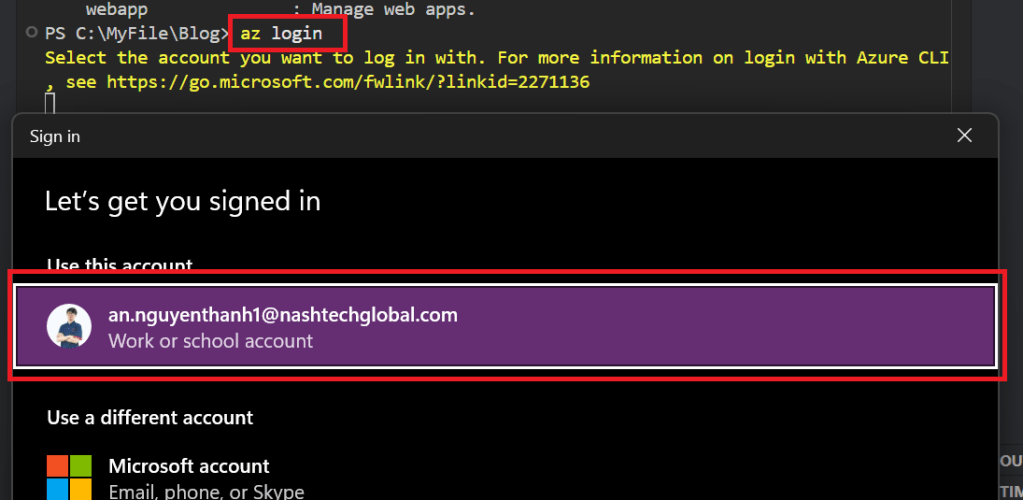
Then you install Azure DevOps extension and configure your default organization (optional):
az extension add --name azure-devopsaz devops configure --defaults organization=https://dev.azure.com/your-org project="your-project"Step 3: Install and configure Azure DevOps MCP
npm install @azure/devops-mcpThere are two methods of configuring Azure DevOps MCP, the first one is using command line, for example:
code --add-mcp '{
  "name": "azure-devops",
  "command": "npx",
  "args": ["@azure/devops-mcp", "--org", "your-org", "--project", "your-project"]
}'
The second method is using a json configuration file. In VS code, create a folder called “.vscode” then create a file “mcp.json” with the following content:
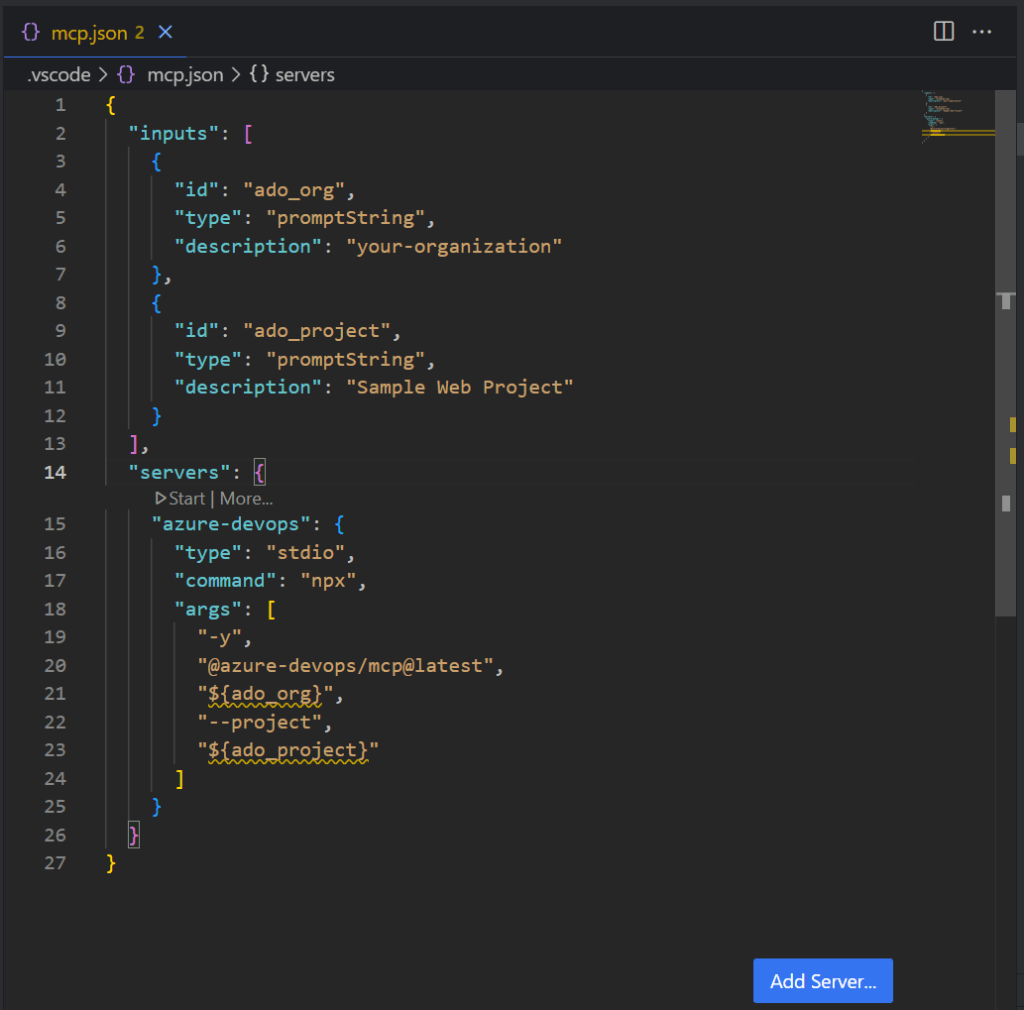
You can start the MCP server by clicking the “Start” text above the “azure-devops” text.
MCP Authentication and Project setup:
– Create Personal Access Token (PAT) in Azure DevOps portal

– Set environment variable `AZURE_DEVOPS_PAT`(Restart VS Code after setting the environment variable):
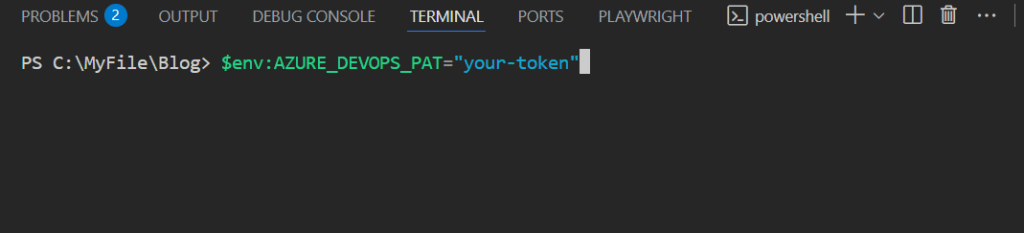
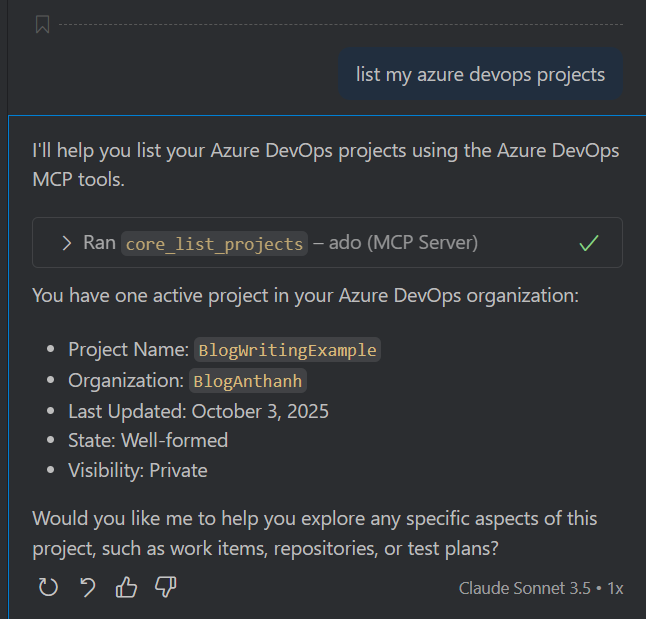
Now, let’s check if the MCP is working by asking the Copilot “List my Azure DevOps projects”, here the example:
2.3 Workspace Instructions Integration:
Before I use AI to help generate test cases, I want Copilot to follow a clear guideline, and standards keep everything consistent. And this is the reason why I use instruction files. It is like a standard that helps both the team and the Copilot to know how test cases should be written, updated, and maintained. This should make the testing process smoother and faster.
In the VS Code workspace, I create and use the ‘general.instruction.md’ file. It has several critical purposes in the MCP workflow:
– This will guide the Copilot to follow up the project-specific conventions and patterns.
– The file ensures the test case generation consistency.
– It keeps the testing process across the team consistent.
– Also, it helps me accelerate review cycles through shared standards.
Here is the example of an instruction file:
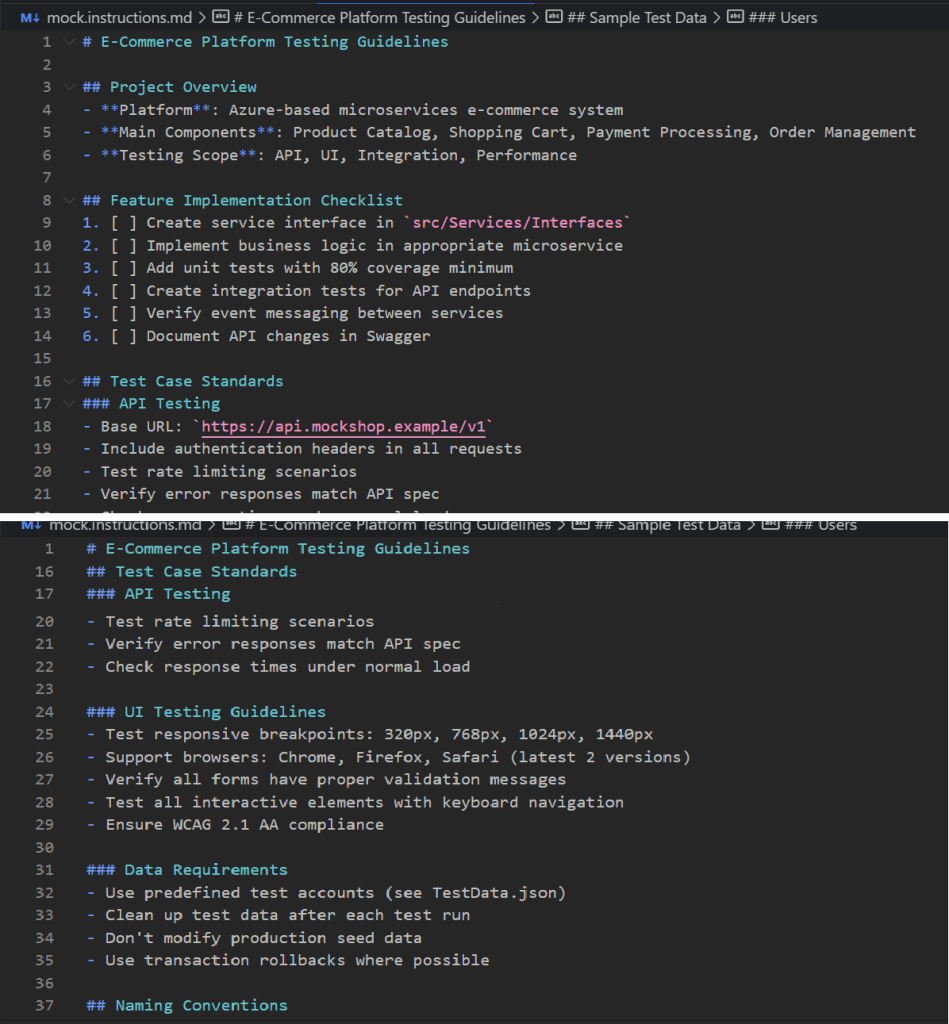
The MCP server uses this instruction file for several purposes. It helps the AI to structure my test cases correctly, follow the right naming conventions as I predefined, and make sure all the necessary testing details are included. And the most important thing is that it keeps everything aligned with the way my team or I actually works. Eventually, the output of the commands and prompts stays consistent and easier to maintain.
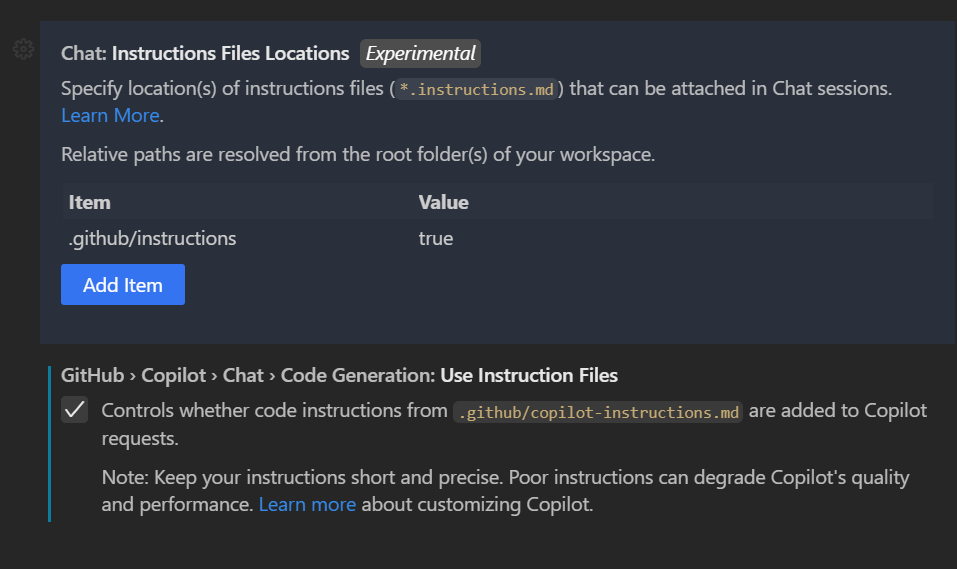
To make the AI model use the instruction file, you can add it in the Settings in VS Code:
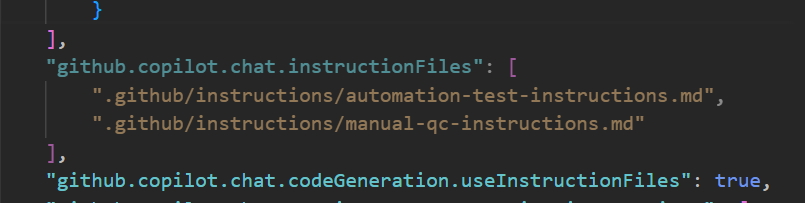
Or add these codes in the ‘settings.json’ file:
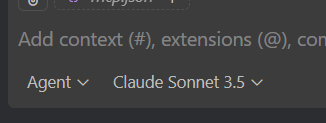
And remember to use the “Agent” mode in the chat session:
3. Azure DevOps MCP for manual test case creation
Azure DevOps MCP transforms manual test case creation by providing AI models with rich work item context. Here’s my workflow:
3.1 Context Extraction from Work Items
When a new ticket is created by product owners/BAs, I use Azure DevOps MCP to extract all relevant information:
“Using Azure DevOps MCP, extract the following information from work item #[ID] in the project #[ProjectName]:
– Title and description
– Acceptance Criteria
– Business Value
– Priority level
– Assigned team member
– Current iteration
– Any linked requirements or dependencies
– Related test cases (if any)
Please provide this in a structured format and highlight any specific testing requirements mentioned in the AC.”
Or you can use a simple prompt like:
“Explain the ticket #[ID] with simple words”

3.2 AI-Assisted Test Case Writing
With full context loaded, I command the AI model to create comprehensive test cases. Here are example prompts for different testing scenarios:
- Basic Feature Testing: “In the 10000-000777 – Sample Web Project, write test cases for the user story: [Sample PBI] Donors for Charity (id: 112334) and put the test cases in the test suite [Sample PBI] Donors for Charity (ID: 112335)”
- Negative scenarios: “Create negative test cases for the Donors for Charity feature (id: 277452) focusing on:
– Invalid donation amounts
– Incomplete donor information
– Expired payment methods
Add these to test suite 282209″
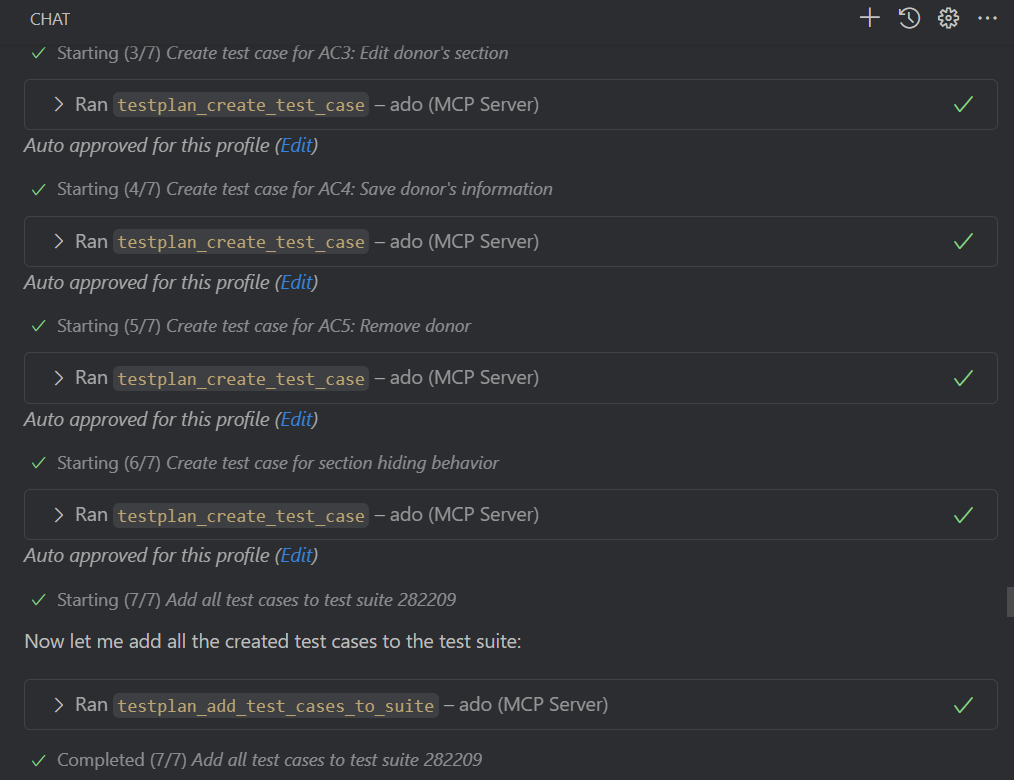
As you can see, the AI model starts running the ADO MCP server to upload the test cases and automatically put them in a test suite. This is way easier than adding them by hands. And if you want to be more careful, you can ask the Copilot to show the test cases to you first and then command it to create on Azure DevOps.
Benefits:
– Test cases automatically linked to source requirements
– Consistent format based on acceptance criteria
– Complete coverage of user story scenarios
– Proper categorization in test suites
3.3 Test Case Modification
After reviewing generated test cases, I can command the AI model to modify them.
Examples of management commands:
– Update test case ‘TC001’ to include negative scenarios for invalid charity selection
– Remove test case ‘TC003’ from the Donors for Charity test suite
– Move test cases TC005-TC008 to the Regression test suite
– Add a new test case for donors with multiple charity preferences
4. Conclusion
The biggest lesson I learn here is that AI works better when it acquires more details of the testing scope and context and Azure DevOps MCP gives it exactly that.
By letting MCP handle the heavy lifting, I can stop doing manual copy-paste and focus on actual testing, not busywork.
I don’t need to overhaul everything at once anymore. Start with one feature, see the benefits, and grow from there.
In my opinion, AI isn’t replacing testers. It’s helping us to work smarter, write better test cases and maintain the testing quality with less effort.
In the end, what’s really matter is how I use AI to strengthen your workflow, not just from the tool itself.