



Introduction
In today’s data-driven world, businesses heavily rely on insightful analytics to make informed decisions. Microsoft Power BI transforms raw data into insights through visualizations and reports, crucial for informed decision-making. Furthermore, this powerful business intelligence tool empowers organizations to extract value from their data efficiently. Moreover, Data Flows enhance Power BI by seamlessly ingesting, transforming, integrating, and enriching data across organizations’ processes. Consequently, these Data Flows streamline the process of data preparation, ensuring consistency and reliability across reports and facilitating informed decision-making.
What Are Power BI Dataflows?
Power BI Data Flows allow organizations to ingest, transform, integrate, and enrich data from various sources before it’s consumed in Power BI datasets and reports. Essentially, think of Data Flows as an ETL (Extract, Transform, Load) process within the Power BI ecosystem, meticulously designed to streamline and automate data preparation tasks.
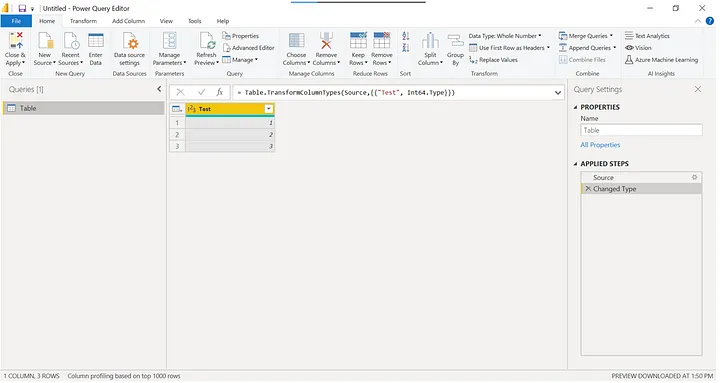
- Moreover, Power BI Dataflows — specifically through the Power Query Editor

- In Power BI Desktop — provide robust tools for data transformation.
Where Do Power BI Dataflows Fit in Your Power BI Solution?
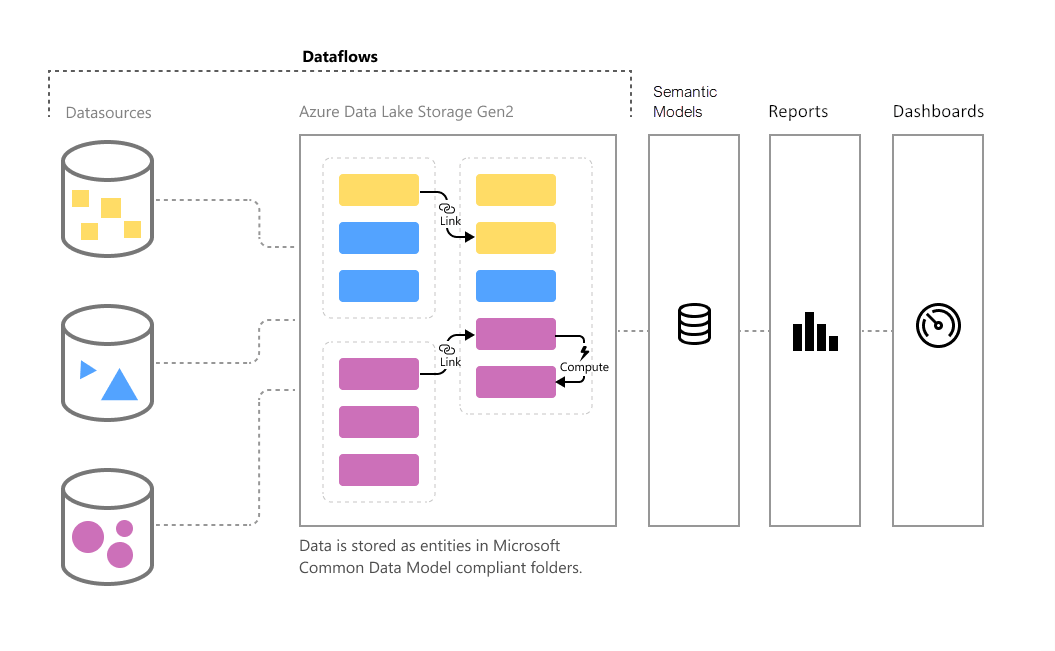
As displayed in the diagram above, Power BI Dataflows fit in between the data sources that you’re connecting to and the Power BI Datasets that you would create using the Power BI Desktop app. By utilizing this technology, you would be able to create ETL logic that can be shared across other Dataflows as linked tables and across multiple Power BI Datasets.
Getting Started with Power BI Data Flows
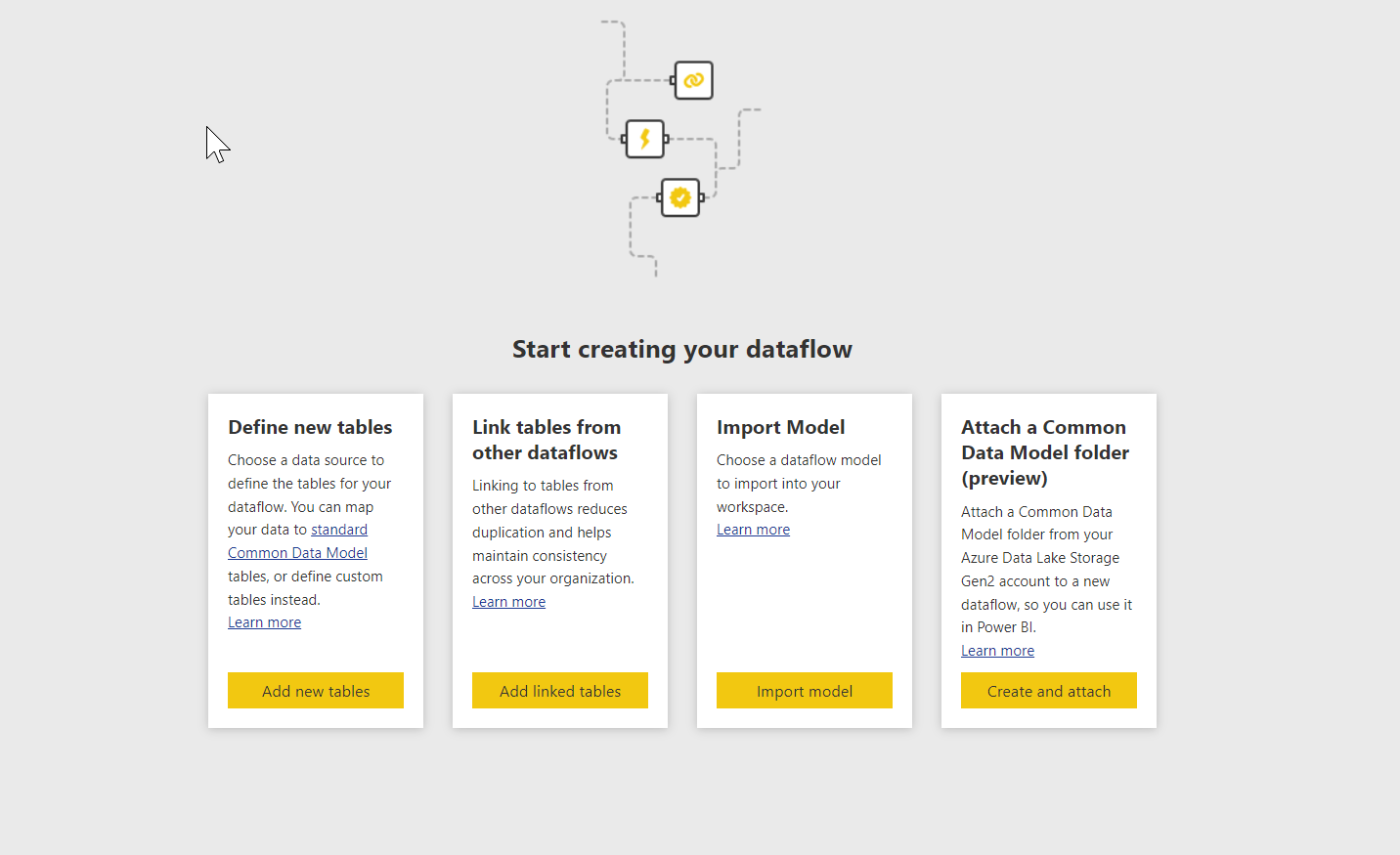
Step 1: Accessing Power BI Data Flows
To begin using Data Flows, ensure you have a Power BI Pro or Premium Per User (PPU) license, as Data Flows are available in these license tiers.
- Navigate to Power BI Service: Log in to Power BI Service (https://app.powerbi.com).
- Open Power BI Dataflows: Click on the “Dataflows” option in the left-hand menu to access Data Flows.
Step 2: Creating a New Data Flow
Now, let’s create your first Data Flow to start preparing data:
- Create New Data Flow: Click on “+ Create” to begin creating a new Data Flow.
- Choose Data Source: Select the data source you want to connect to (e.g., Excel, SQL Server, Azure Blob Storage).
- Transform Data: Use Power Query Online to transform and cleanse your data. Power Query offers a user-friendly interface for performing operations like filtering, merging, and adding custom columns.
- Apply Data Transformations: Apply transformations to shape your data as needed. These transformations are recorded and can be edited at any time.
Step 3: Managing and Refreshing Data Flows
After creating your Data Flow, it’s important to manage and maintain it:
- Schedule Refresh: Set up a refresh schedule to ensure your Data Flow stays up-to-date with the latest data from the source.
- Monitor Refresh History: Monitor the refresh history to troubleshoot any issues and ensure data integrity.
Step 4: Using Data Flows in Power BI Desktop
To leverage your Data Flow in Power BI Desktop:
- Connect to Data Flow: In Power BI Desktop, connect to your Data Flow by selecting it as a data source.
- Create Reports: Build interactive reports using data from your Data Flow. Data Flows enable seamless integration with other data sources in Power BI.
Why Use Power BI Data Flows?
- Centralized Data Preparation is pivotal; therefore, Data Flows provide a centralized approach to prepare and cleanse data, ensuring consistency and reliability across reports.
- Additionally, reusable Data Transformations can significantly boost efficiency by allowing transformations applied in Data Flows to be reused across multiple datasets and reports, thereby reducing redundancy.
- Moreover, enhanced Collaboration is facilitated as teams can collaborate on data preparation tasks within Power BI, leveraging shared dataflows and promoting data governance.
Conclusion
In conclusion, Power BI Data Flows empower organizations to streamline data preparation processes, enhance collaboration, and deliver more reliable insights. By centralizing data preparation tasks and promoting reusability, Data Flows play a pivotal role in accelerating time-to-insight and improving decision-making capabilities. Thus, integrating Power BI Data Flows into your workflow can substantially elevate your organization’s data management and reporting efficiency.