



Job Schedules and Triggers in databricks
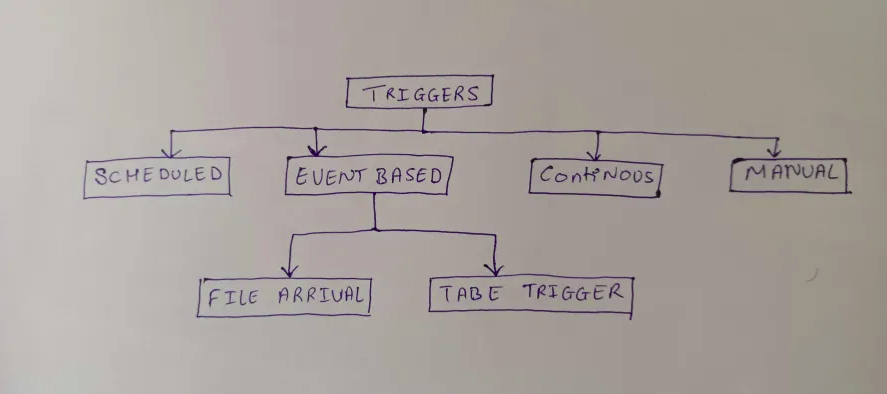
In today’s data-driven world, automating data pipelines is crucial for organizations to efficiently manage workflows and extract information on a large scale. Databricks provides robust tools for managing and coordinating these pipelines, and with Databricks Workflows, you have multiple options for triggering your jobs. You can set up your jobs to run instantly, on a regular schedule, in response to specific events, or continuously.
There are several ways to trigger the jobs in databricks workflow:
Scheduled trigger
The databricks dashboard provides an option to schedule a trigger. Triggers can be scheduled with the help of an API. It is helpful for the organizations to schedule a job at a specific time period which is totally in control. It also allows the user or organization to pause a scheduled job at any time which provides flexibility to manage the jobs based on the requirements or priorities.
Here are the following steps to create one:
Step 1: Access the Databricks Workspace.
Step 2: Navigate to the Jobs Interface. On the left sidebar, click on the “Jobs” icon. This will open the Jobs UI where you can create and manage jobs.
Step 3: Go to schedules and triggers and click on Add trigger button
Step 4: Select trigger type “Schedule” and select the schedule time.
Event Trigger
Event-based triggers provide a way to start data processing jobs when specific events occur. In Databricks, these triggers allow users to automate data workflows, making processes more efficient and responsive. By reacting dynamically to changes in the data environment, they help improve the overall efficiency and responsiveness of data processing systems. Event-based triggers allow jobs to run only when required.There are two types of triggers.
a. File Arrival
File Arrival Triggers start a job whenever new files show up in a specified cloud storage location managed by Unity Catalog.
This is especially handy when data arrives at irregular intervals, making scheduled or continuous jobs inefficient
Here are the following steps to create one:
Step 1: Access the Databricks Workspace.
Step 2: Navigate to the Jobs Interface. On the left sidebar, click on the “Jobs” icon. This will open the Jobs UI where you can create and manage jobs.
Step 3: Go to schedules and triggers and click on Add trigger button
Step 4: Select trigger type “File Arrival” and select the storage location.
b. Table triggers
Table triggers in Databricks are designed to initiate job runs based on changes to specific Delta tables. These triggers are especially useful when data is written in an unpredictable manner or in bursts, as they help avoid frequent job triggers that could result in unnecessary costs and delays.Go to check the pipelines in the “Runs” tab.
Continuous triggers
Real-time data processing is increasingly vital for businesses to quickly gain insights and make informed decisions. Continuous triggers in data pipelines provide a smooth solution, ensuring that a job is always running, even if failures occur. The drawback for this trigger is that only one job instance can be created at any given time.
Here are the following steps to create one:
Step 1: Access the Databricks Workspace.
Step 2: Navigate to the Jobs Interface. On the left sidebar, click on the “Jobs” icon. This will open the Jobs UI where you can create and manage jobs.
Step 3: Go to schedules and triggers and click on Add trigger button
Step 4: Select trigger type “Continuous” and select the storage location.
Step 5: Go to check the pipelines in the “Runs” tab.
Manual triggers
It lets you start a job directly from the Workflows UI, which is especially handy for ad-hoc tasks or when you need to run a job immediately. This feature is particularly useful for testing, debugging, or managing unexpected data processing needs.
There are two ways to manually trigger a job in the UI:
Step 1 (Run now): The “Run Now” button allows you to start a job immediately with its default parameters which is situated at the top right side of the dashboard.
Step 2 (Run now with parameters): The “Run Now” button to the right side of the dashboard has a dropdown where the parameters can be updated.
Conclusion
Databricks Workflows provides various job-triggering options, including instant, scheduled, event-based, continuous, and manual triggers. These triggers enable organizations to optimize data processing, enhance responsiveness, and manage resources efficiently.