



Introduction to Automation Testing
Testing is a critical aspect of maintaining the reliability and functionality of a web application. Automation testing frameworks, such as Nightwatch.js, provide an efficient way to automate end-to-end testing solution for browser-based apps and websites which ensure that your application works as expected before it reaches your users.
In this blog post, we’ll explore how to use GitHub Actions to automate the testing of a Nightwatch TypeScript project. Nightwatch.js, combined with TypeScript, offers a strict syntactical superset of JavaScript that adds static typing.
GitHub Actions provide a flexible way to automate your software workflows integrated with your GitHub repositories. Workflows are custom automated processes that you can configure in your repository to build, test, package, release, or deploy any project on GitHub.
Creating a pipeline with GitHub Actions
GitHub Actions functions as a tool for continuous integration and continuous delivery (CI/CD), facilitating the automation of processes such as building, testing, and deploying your software. It generates workflows that build and test each pull request in your repository, or alternatively, deploy merged pull requests to the production environment.
To establish a pipeline, adhere to the steps outlined below.
- Create a .github/workflows directory: Start by creating a new directory named .github in your project root. Within this directory, create a workflows directory.
- Add a workflow YAML file: Inside the workflows directory, add a new YAML file, such as nightwatch-ci.yml. This file will define the GitHub Actions workflow.
- Configure the necessary actions/steps for the pipeline.
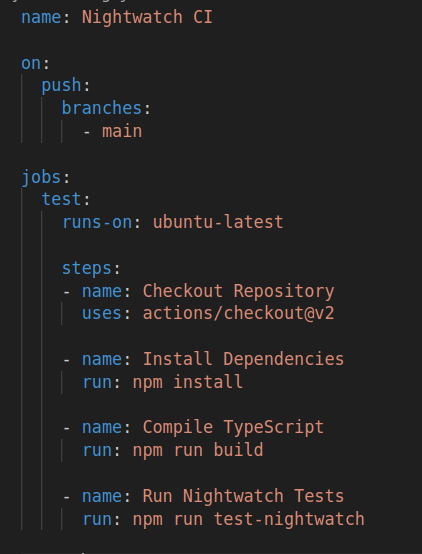
- Commit: Commit the new GitHub Actions workflow file and push it to your repository.
- Push: Once you push to your repo this workflow triggers on every push to the main branch, checks out the repository, installs dependencies, compiles TypeScript, and then runs Nightwatch tests.
- Actions Tab: You can view the status, logs, and results of your Nightwatch tests right in the Actions tab of your repository to monitor the workflow runs. You should see a workflow run initiated by the push event.
With a few short steps, you’ve set up automation to run your end-to-end tests on every push using GitHub Actions and Nightwatch
Triggering a Workflow
Workflows can be triggered by GitHub platform events directly on a repository, such as pushing code or opening a pull request. You can also schedule workflows or even trigger them from an external event by calling GitHub’s repository dispatch webhook.
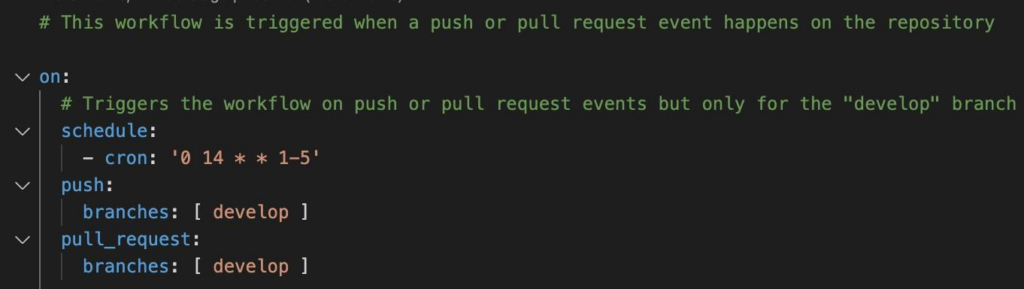
- The schedule in the below code snippet is a GitHub Actions event that triggers the workflow as per the schedule defined interval using a CRON expression.
- The push and pull_request events denote the Actions event that triggers the workflow for each push and pull request on the develop branch whether created or updated.
- The repository_dispatch event triggers a workflow whenever an external entity triggers the repository’s webhook with the event type you specify.
- The workflow_dispatch tag denotes the ability to run the workflow manually, too, via the GitHub API, GitHub CLI, or GitHub browser interface.

Customizing the Workflow
Parallel Test Execution
If your test suite is extensive, you might want to consider parallel test execution for faster results. Nightwatch allows parallel test execution by splitting tests into different environments. Update your Nightwatch configuration to include different environments, and then modify the GitHub Actions workflow to run tests in parallel.
Using the Matrix Strategy
To set up the matrix, you’ll define a build matrix in your GitHub Actions workflow. The matrix will have an array of operating systems and browsers against which to run the tests.
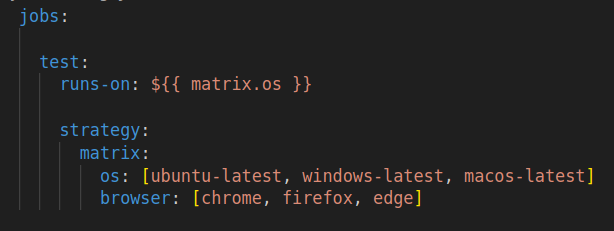
This will run the tests nine times three operating systems x three browsers. Within the test job, you’ll use the browser specified in the matrix to run Nightwatch:

Dispatch a Slack notification containing the job status
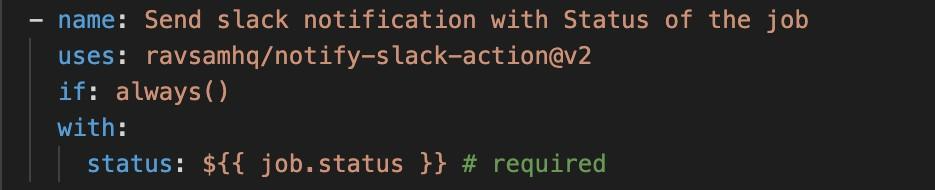
- To swiftly address issues, it’s vital to keep team members updated on the job status during its execution within a CI/CD pipeline.
- Send a Slack notification with the current status of the job.
- The GitHub Action “notify-slack-action” is utilized, which is available in the “ravsamhq/notify-slack-action” repository.
- The presence of the “if: always()” condition signifies that this step is meant to execute consistently, irrespective of the success or failure of preceding steps in the workflow.
Conclusion
With GitHub Actions, automating Nightwatch TypeScript tests becomes an integral part of your continuous integration process. This workflow ensures that tests are executed consistently with each push to the main branch. This streamlined workflow enhances your development process, providing rapid feedback on the health of your web application.
Feel free to tailor the workflow to fit your project’s specific needs. Incorporate additional steps for deployment, artifact creation, or other actions that align with your development and testing processes. Happy testing!
For more information on GitHub Actions, check out the official documentation. If you want to dive deeper into Nightwatch.js, you can read the official Nightwatch documentation.
For more insightful blogs related to technology, please visit nashtechblogs