


Hello Readers!! We are again back with an exciting topic i.e Log File management with Logrotate. In this blog we will see what is logrotate and how can we use it for managing our log files. Today, managing log files is such a crucial task. By using log files, we can analyse the performance metrics, errors and our system behaviours. If we don’t manage it properly, they consume much disk space. So, managing these files are very important for our system performance. Here comes, logrotate.
Logrotate:
Logrotate is a command-line utility tool for the management of log files. As its name suggests, it manages automatic rotation, removal and compression of system log files. We can handle our log files on hourly, daily, weekly and monthly basis depends on the user requirement. Also, we can use log rotate if log files get to a certain size.
Log File Management with Logrotate:
Many linux distributions comes with preinstalled. If it is not installed by default on your system, then you can simply install it by running:
$ sudo apt-get install logrotate
Verify installation by:
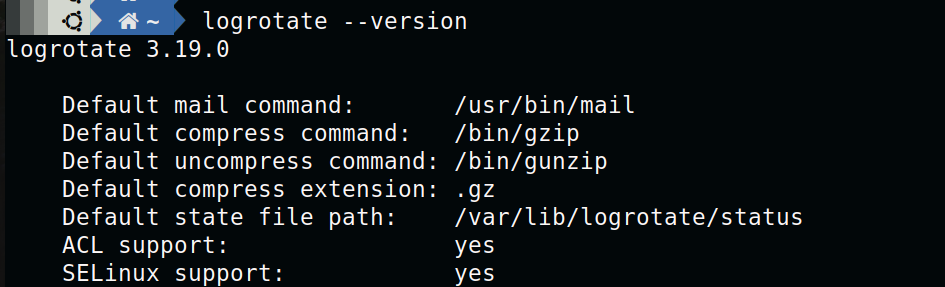
Now, let’s view main log configuration file which we configure for logrotate at /etc/logrotate.conf. By default the file looks like this:
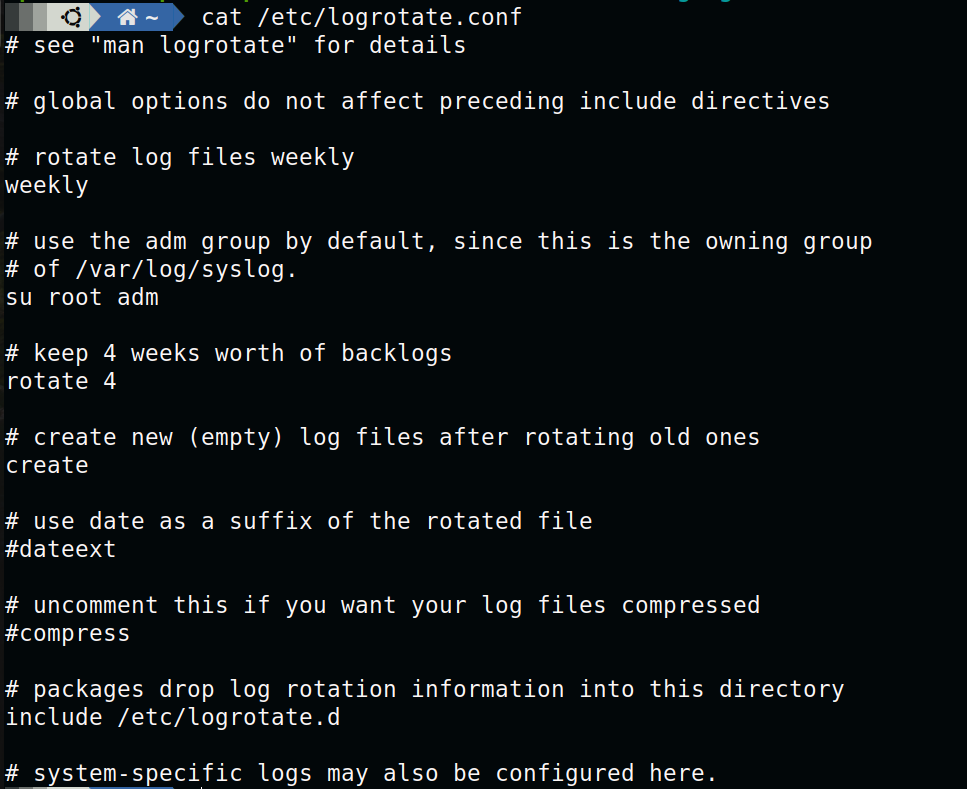
We can configure this default file according to our requirements. Let’s understand each of its configuration:
weekly: It means that the log files should be rotated weekly i.e. log rotation will occur once a week. We can change this to monthly, daily, hourly.
su root adm: It uses adm group by default as this is owning group of /var/log/syslog. Here we can mention user or group we want to give access of log rotated files.
rotate 4: It means it will keep 4 weeks of rotated log files i.e. one current log file and 3 previous weeks rotated log files. We can specify here according to our need.
create: It specifies that it will automatically create ne empty log file after rotating old log files.
dateext: It says when it will create rotated log file names then it will add date as a suffix of the rotated file name. For eg. Secure.20240502 for 5th Feb’24.
compress: Use it when you want to compress rotated log files. It compresses log files in .gz.
include /etc/logrotate.d: It specifies to include additional logrotate configuration files which is /etc/logrotate.d. If you want, you can configure this too.
So, these are the basic configuration that we can configure for managing log files. One more logrotate.conf file which I have configured looks like this:
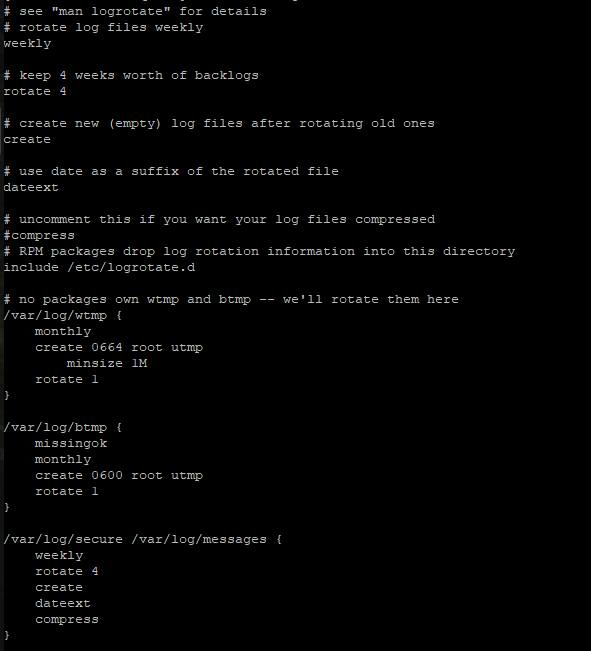
It has different configurations for /var/log/wtmp, /var/log/btmp and /var/log/messages.
Run logrotate.conf file:
By default, a cronjob is run daily for running this utility. Here it is:
$ ls /etc/cron-daily

If we want to run logrotate.conf file manually, then we can do so by running it forcefully.
You can set cronjob for running this logrotate.conf file according to you need.
$ sudo logrotate –f /etc/logrotate.conf
That’s all for now!!
Conclusion
Thanks for being with me till the end. In this blog, we have seen how we can manage our system log files in an efficient way. With this, we can take control of our log files and ensure that the critical log data remains accessible and manageable. If this blog helped you somewhere do like and share this blog with the needful.