


In today’s rapidly evolving software landscape, managing multiple Java and GraalVM versions is crucial. Whether you’re juggling various projects or exploring the latest language features, having the ability to switch seamlessly between versions is a game-changer. This guide will walk you through setting up multiple Java and GraalVM versions on your system and effortlessly switching between them We will we using Java 11 ,Java 17, Java 11 GraalVM Community Edition 22.0.0.2 and Java 17 GraalVM Community Edition 22.0.0.2.
Why Manage Multiple Versions?
As a developer, you may encounter scenarios requiring different versions of Java or GraalVM:
Project Requirements: Some projects may mandate a specific Java version due to dependency compatibility.
Testing and Debugging: Ensure your code works across multiple versions, identifying potential issues early.
Feature Exploration: Experiment with the latest features and improvements available in new Java or GraalVM releases.
Installation on Windows
Install JAVA/GraalVm
You will need the following JDKs Installed:
Java 11 Adoptium OpenJDK 11.0.14.1+1(https://github.com/adoptium/temurin11-binaries/releases/download/jdk-11.0.14.1%2B1/OpenJDK11U-jdk_x64_windows_hotspot_11.0.14.1_1.msi)
Java 11 GraalVM Community Edition 22.0.0.2(https://github.com/graalvm/graalvm-ce-builds/releases/download/vm-22.0.0.2/graalvm-ce-java11-windows-amd64-22.0.0.2.zip)
Java 17 Adoptium OpenJDK 11.0.14.1+1(https://github.com/adoptium/temurin17-binaries/releases/download/jdk-17.0.2%2B8/OpenJDK17U-jdk_x64_windows_hotspot_17.0.2_8.msi)
Java 17 GraalVM Community Edition 22.0.0.2(https://github.com/graalvm/graalvm-ce-builds/releases/download/vm-22.0.0.2/graalvm-ce-java17-windows-amd64-22.0.0.2.zip)
Let’s create a folder to install all JDKs at single place in my case I have created a folder in C drive with name Java. This folder did contain the following folders after installation and move the graalvm folders to this location.
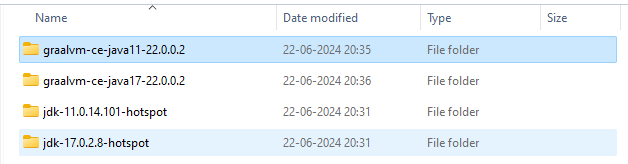
To easily switch between environments, setenv.cmd was created in each directory, for example:
C:\Java\graalvm-ce-java17-22.0.0.2\setenv.cmd
with the following content:
set JAVA_HOME=%~dp0set
PATH=%JAVA_HOME%\bin;%PATH%
java -version
That way it is possible to easily switch between different Java versions by executing this script, for example:C:\Java\graalvm-ce-java17-22.0.0.2\setenv
Once you execute this script, will see similar to this:
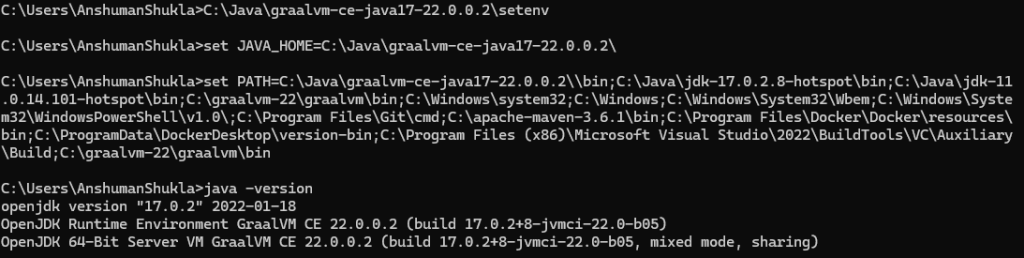
You can verify others as well by switching the version similarly.
Install Native-Image Compiler
To use Native Image Capability, a Native Image Compiler needs to be installed.
Navigate to the bin location of GraalVm. In my case C:\Java\graalvm-ce-java11-22.0.0.2\bin open command prompt or power shell.
execute.
gu install native-image
After executing this the native-image executable will become available in the $JAVA_HOME/bin directory.
Do the same in another version of GraalVM.
You can verify the installation by switching to selected GraalVM and invoking native-image commands, for example:
native-image –version
After executing this you will see something like this.

Native Image compiler requires C++ Build Toolchain. So, we can use Microsoft C++ Compiler. You can acquire one together with Visual Studio Build Tools: https://aka.ms/vs/17/release/vs_BuildTools.exe
After executing the installer, select “Desktop development with C++”.
Having C++ Build Toolchain installed, directory:
C:\Program Files (x86)\Microsoft Visual Studio\2022\BuildTools\VC\Auxiliary\Build
should be put onto PATH environmental variables. This allows you to easily get access to C++ Build Tools using vcvars64:
Conclusion
Managing multiple Java and GraalVM versions doesn’t have to be daunting. You can easily install, manage, and switch between different versions, making your development workflow more efficient and versatile. By following this guide, you’ll be well-equipped to handle the demands of modern Java and GraalVM development.