



Migrating databases across cloud providers often feels like a complex task. Different environments, security rules, and networking requirements can make the process intimidating. Google Cloud offers a managed service – Database Migration Service (DMS) that helps simplify the migration of relational databases in GCP from different cloud providers e.g. AWS. In this Blog, we’ll explore how to migrate a PostgreSQL database from AWS RDS to GCP Cloud SQL in a structured, reliable way.
Why GCP DMS Matters
DMS provides a managed, secure, and largely automated process for shifting workloads to Google Cloud. It supports commonly used engines such as PostgreSQL and MySQL, with SQL Server and Oracle currently in preview. Because it handles replication and synchronization, it can cut downtime to a minimum and ensure that migrated workloads remain consistent.
What You’ll Need Before Starting
A few preparations are necessary before the migration can begin:
- Accounts with access to both AWS and GCP consoles
- Permissions to configure VPN network, firewall, and database resources
- An understanding of key services such as Cloud SQL (Google’s managed relational database),
- Amazon RDS (AWS’s managed database service), and IP allow lists or VPC peering for secure connectivity
Step 1: Build Secure Connectivity
For the two clouds to communicate, a site-to-site VPN must be established.
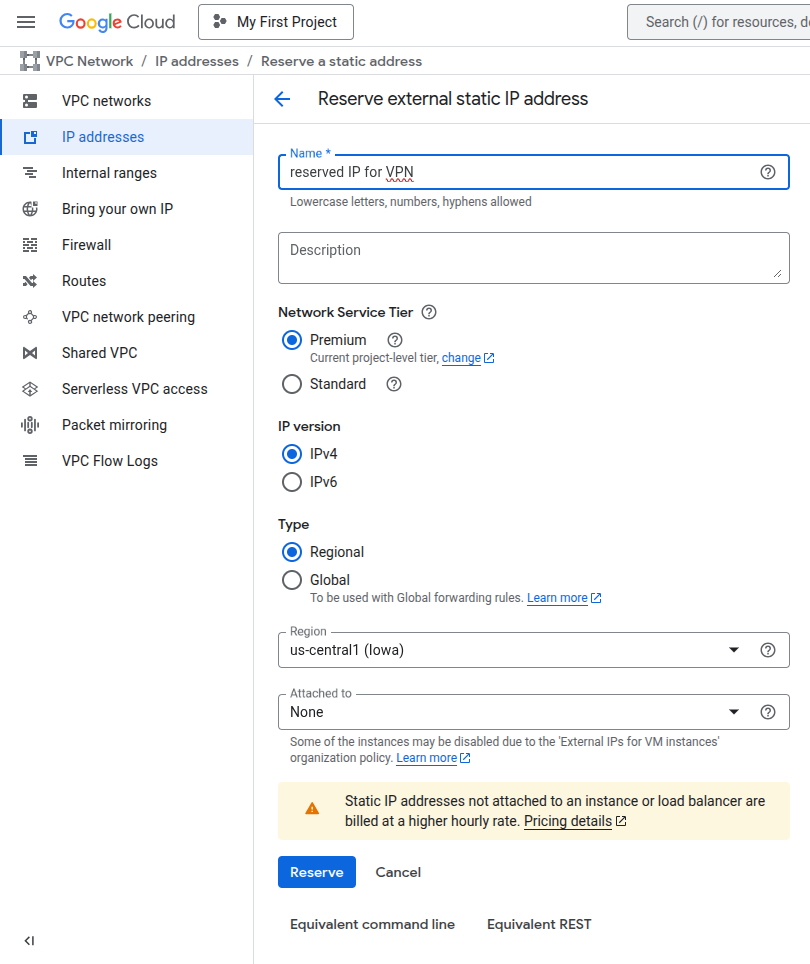
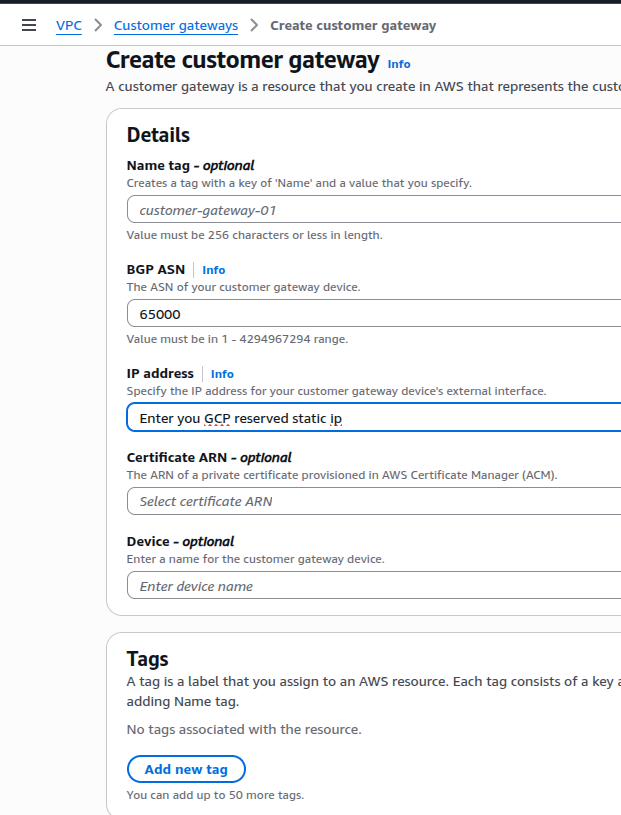
1. In GCP, reserve a external static IP address and create a customer gateway in AWS with the same IP Address
2. Create a Virtual Private Gateway in AWS cloud and attach it to your AWS VPC Network.
3. Define Firewall rules to allow traffic from AWS to GCP and vise versa so each cloud knows the other’s network ranges.
In AWS Network Security Group allow GCP VPC CIDR range and in GCP, create a firewall rule to allow all traffic from AWS VPC.
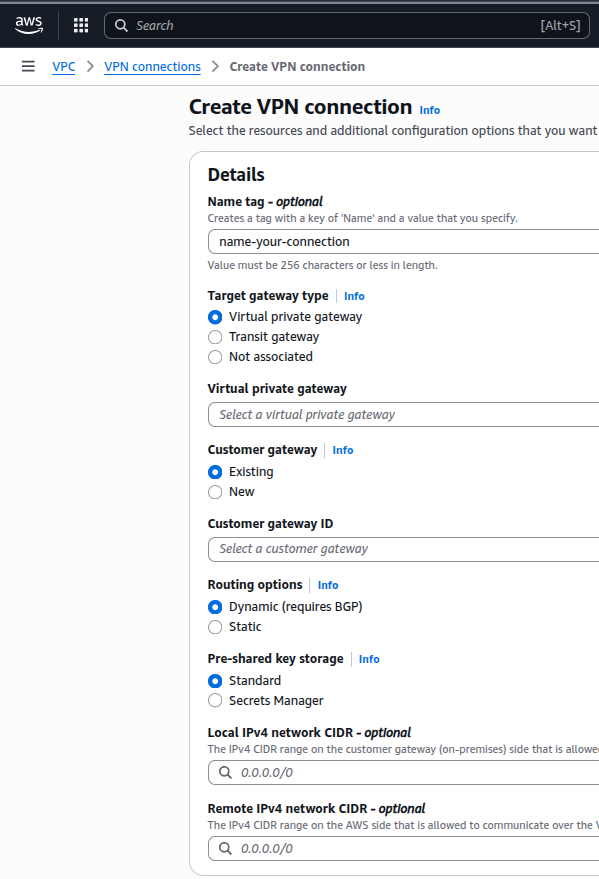
4. Create a Site-to-Site VPN connection in AWS.
Choose Virtual private gateway and Customer gateway that you have created before.
In Local IPv4 network CIDR – Put your AWS VPC CIDR Range and In Remote IPv4 network CIDR – Put your GCP CIDR Range.
5. Download configuration file from Site-to-Site VPN connection and save the value of “Shared Secret” Key. It will be used in GCP VPN configuration.
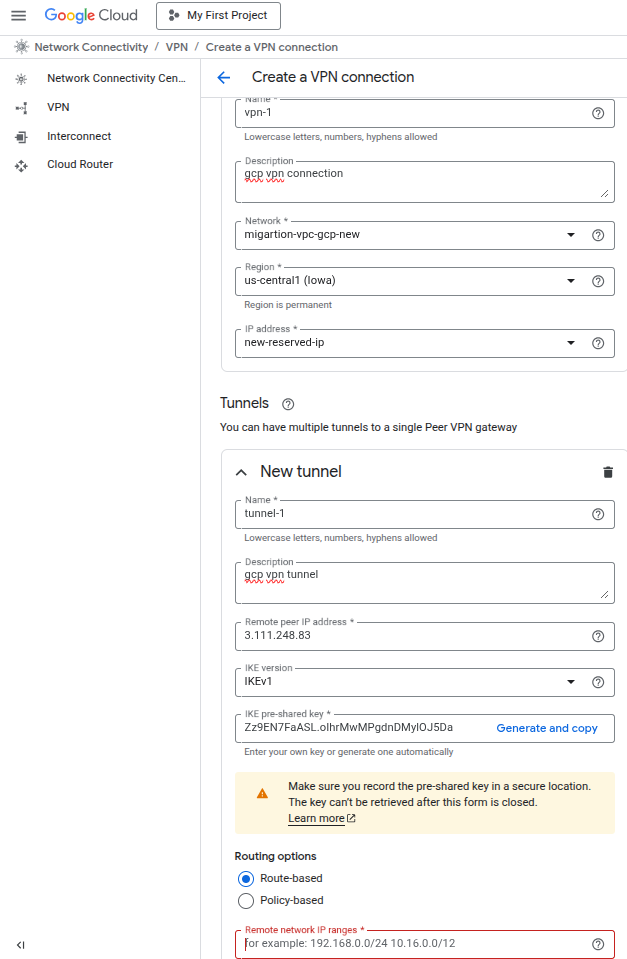
6. Create a Classic VPN connection in GCP:
– Select your VPC Network and Reserved IP Address.
– In tunnel, for Remote peer IP Address, copy and paste the Outside IP address of “Tunnel 1” from AWS Site-to-Site VPN connection.
– Enter the shared key that you have saved from AWS configuration file.
– In Remote network IP ranges, enter your AWS VPC CIDR Range.
Step 2: Prepare the AWS RDS Instance
To allow logical replication, which DMS relies on, a few settings must be enabled in RDS:
Create a parameter group in AWS cloud for your RDS db Instance.
- Add
pglogicalvalue to theshared_preload_librariesparameter in newly created parameter group. - Switch on logical replication by setting
rds.logical_replication = 1. - Adjust parameters such as
max_replication_slots,max_wal_senders, andmax_worker_processesaccording to your requirement.
Apply these changes and attach the parameter group to the RDS instance by modifying it.
You must reboot the RDS database instance to activate the parameter group configuration.
Step 3: Configure GCP Database Migration Service
1. Create a connection profile for the source database (Amazon RDS for PostgreSQL) using the AWS RDS endpoint and credentials.
2. Set up a migration job specifying source (Amazon RDS for PostgreSQL) and destination (Cloud SQL for PostgreSQL) databases.
– Select your source connection profile.
– In define a destination section create a new instance with public access disabled.
3. Add required Cloud SQL flags for logical replication and performance in additional configuration:
- pglogical.batch_inserts = ON
- cloudsql.enable_pglogical = ON
- cloudsql.logical_decoding = ON
- max_replication_slots = 20
- max_wal_senders = 20
- max_worker_processes = 8
Step 4: Configure Firewalls and Routes
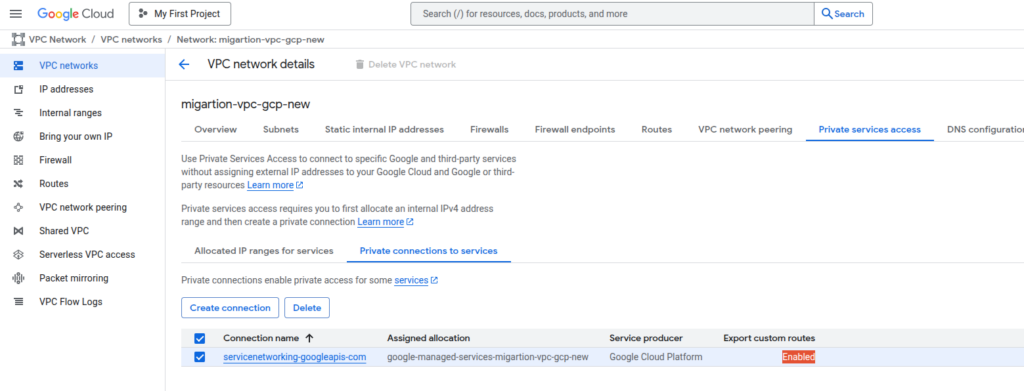
1. Enable “Export Custom Routes” and “Import Custom Routes” in GCP VPC network peering settings
2. Allow GCP Cloud SQL internal IP ranges in AWS security group.
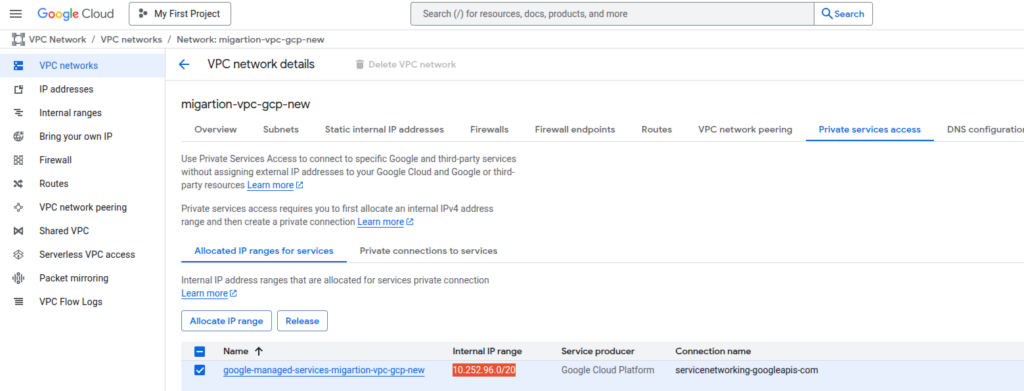
3. Navigate to AWS Site-to-Site VPN connections → Static routes → Edit routes, add the GCP Cloud SQL internal IP range and GCP VPC CIDR Range.
You can find GCP Cloud SQL internal IP range by navigating:
4. Enable Export custom routes for private connectivity
Step 5: Run and Validate the Migration Job
1. Test you migration Job now.
2. Monitor job for connectivity and replication issues.
3. If the job test fails, check firewall rules, route propagation, and ensure the parameter group is attached and the RDS instance is rebooted.
4. After migration job test is successful, you can start your migration job to migrate database from AWS to GCP.
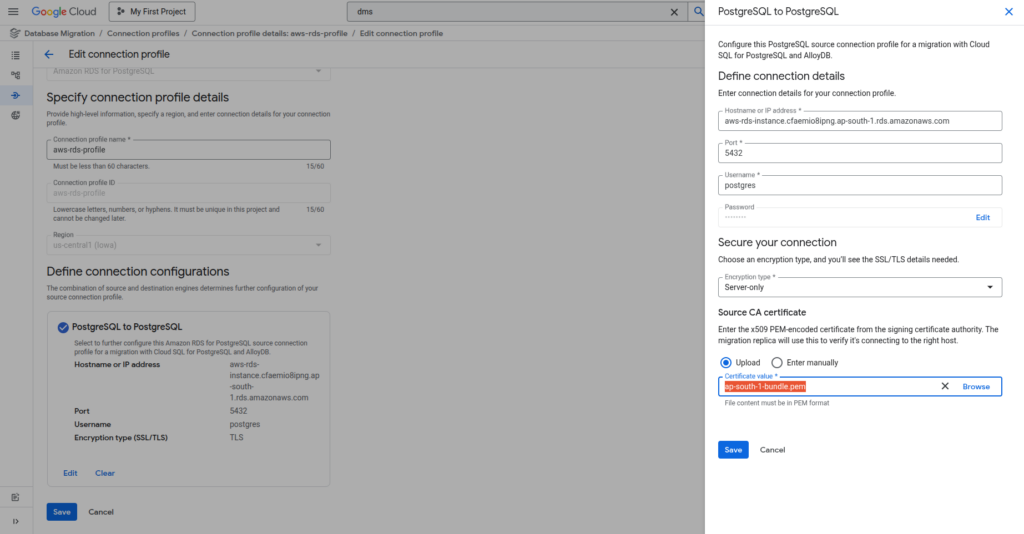
NOTE: DMS service will access the RDS instance with SSL mode enabled so please download the CA certificate for your AWS region using the link below-
https://docs.aws.amazon.com/AmazonRDS/latest/UserGuide/UsingWithRDS.SSL.html
Download certificate file in PEM format and put it in your source connection profile. It will prevent the source database connection problems in DMS.
Conclusion
Migrating PostgreSQL from AWS RDS to GCP Cloud SQL can be achieved efficiently using GCP DMS, provided proper connectivity, configuration, and firewall rules are in place. By following this structured approach—setting up Site-to-Site VPN, preparing RDS, configuring DMS, and validating routes—you can ensure a smooth, minimal-downtime migration with data integrity preserved.