



ASP.NET Core is a robust framework for building web applications, and Serilog is a powerful structured logging library for .NET applications. In this blog post, we will explore how to configure Serilog for multi-environment logging in an ASP.NET Core application.
Introduction to Serilog
Logging is a crucial aspect of software development, offering developers insights into their applications’ behaviour and performance. In the .NET ecosystem, Serilog stands out as a powerful logging library that simplifies the logging process while offering flexibility and extensibility. Serilog is a structured logging library for .NET applications, designed to produce detailed, structured, and contextual logs. It supports various output sinks such as console, file, database, and third-party services like Seq, Elasticsearch, and Splunk.
Serilog’s structured logging allows developers to log data in a structured format, making it easier to analyze and query logs. It is easy to set up, has a clean API, and runs on all recent .NET platforms. While it’s useful out of the box, Serilog can be instrumented with additional packages to extend its functionality.
Setting Up Serilog in ASP.NET Core
First, you need to install the Serilog.AspNetCore NuGet package. You can do this by running the following command in your Package Manager Console:
Install-Package Serilog.AspNetCore
Configuring Serilog for Multiple Environments
Different environments (like Development, Staging, and Production) often require different logging configurations. For example, in a development environment, you might want verbose logging to the console, but in production, you might want error-level logging to a Database management system.
You can achieve this by creating separate configuration files for each environment, like appsettings.Development.json, appsettings.Staging.json, and appsettings.Production.json. In each file, you can specify the Serilog settings suitable for that environment.
Production Environment setup
To use the SQL Server sink in the production environment, you first need to install the Serilog.Sinks.MSSqlServer NuGet package. You can do this by running the following command in your Package Manager Console:
Install-Package Serilog.Sinks.MSSqlServer
Then, in appsettings.Production.json, you can configure Serilog to write to SQL Server like this:

In the above configuration, replace your_server, your_database, your_user, and your_password with your actual SQL Server details. The tableName parameter specifies the name of the table where the logs will be written, and autoCreateSqlTable is set to true to automatically create the table if it doesn’t exist.
Remember to keep your connection string secure and not expose it in your code or version control system. Consider using Secret Manager or environment variables to store your connection strings securely.
With this setup, your ASP.NET Core application will log error-level messages to your specified SQL Server database when running in the production environment. This can be very useful for keeping track of errors and issues that occur in production.
Development Environment setup
To use the console for logging in a development environment is a common practice as it allows developers to see the log output in real-time while the application is running.
To configure Serilog to write to the console in the development environment, you can update your appsettings.Development.json file like this:

Enrichers
Enrichers are a great feature of Serilog that can add valuable information to your logs. An enricher can add additional properties to the log events that can be very useful for filtering and searching logs.
For example, you can use the ThreadEnricher to add the ThreadId to your logs, or the EnvironmentUserNameEnricher to add the EnvironmentUserName to your logs.
First, you need to install the necessary NuGet packages. For the ThreadEnricher, you can install the Serilog.Enrichers.Thread package:
Install-Package Serilog.Enrichers.Thread
And for the EnvironmentUserNameEnricher, you can install the Serilog.Enrichers.Environment package:
Install-Package Serilog.Enrichers.Environment
In each environments we have log event which includes the ThreadId and EnvironmentUserName, WithMachineName, MachineName etc properties, which can be very useful for diagnosing issues in a multi-threaded or multi-user environment.
Final configuration
Then, in your Program.cs, you need to read the configuration file based on the current environment:
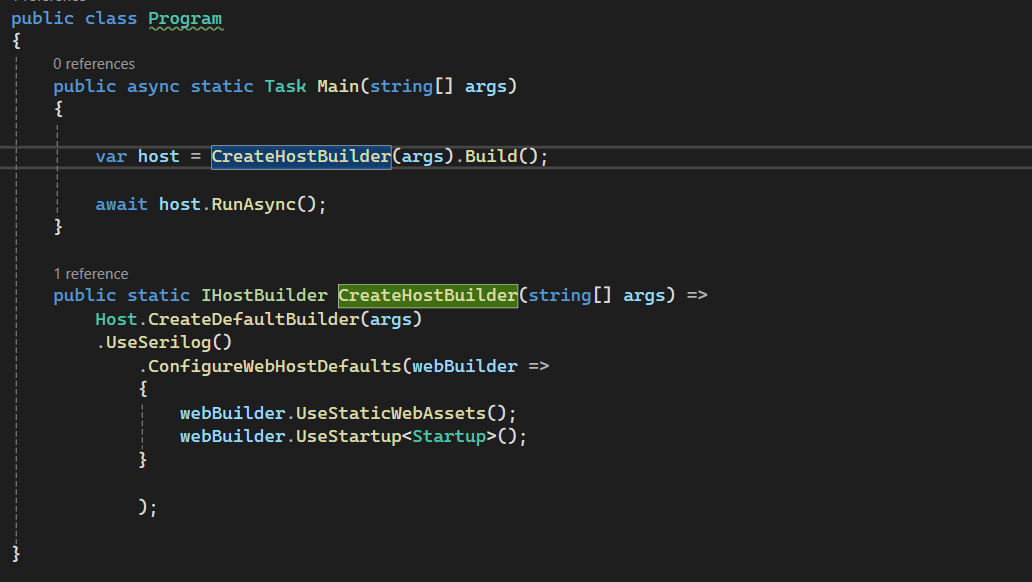
Create a new extension method as follows:

Now in development environment you will have logs output in console something like this:

In production environment it will create a “Logs” table.
Conclusion
With Serilog and ASP.NET Core, you can easily set up multi-environment logging for your application. This allows you to have fine-grained control over your logging behavior in different environments, helping you debug issues in development and monitor your application’s health in production.