



Machine learning (ML) and artificial intelligence (AI) have long been associated with complex coding and deep technical knowledge. However, Google’s Teachable Machine is breaking down these barriers, offering a user-friendly platform that enables anyone to create machine learning models. Whether you’re a teacher, artist, developer, or hobbyist, Teachable Machine empowers you to bring your innovative ideas to life with AI.
What is Teachable Machine?
Teachable Machine is an intuitive web-based tool designed to simplify the process of creating ML models. With Teachable Machine, you can train models to recognize images, sounds, and poses without needing any coding skills. This tool democratizes AI, making it accessible and useful for a wide range of creative and educational applications.
Teachable Machine is a web-based tool that makes creating machine learning models fast, easy, and accessible to everyone. A fast, easy way to create machine learning models for your sites, apps, and more — no expertise or coding required.
What is TensorFlow.js?
TensorFlow.js is an open-source library that enables the development and execution of machine learning models in JavaScript. By leveraging the capabilities of JavaScript, TensorFlow.js allows developers to perform ML tasks both in the browser and on server-side environments like Node.js. This brings the power of machine learning to the vast ecosystem of web technologies, making it accessible to a broader range of developers.
Benefits of Using TensorFlow.js
- Client-Side Processing: By running models in the browser, TensorFlow.js reduces the need for server resources and minimizes latency, leading to faster and more responsive applications.
- Privacy: Data used for training and inference remains on the client’s device, enhancing user privacy and security.
- Cross-Platform Compatibility: JavaScript is a ubiquitous language in web development. TensorFlow.js’s compatibility with JavaScript ensures that ML models can run across various platforms and devices without requiring significant changes to the existing codebase.
- Ease of Use: The extensive documentation, tutorials, and community support make TensorFlow.js accessible to developers of all skill levels, fostering innovation and experimentation in machine learning.
Teachable Machine Workflow
To illustrate how easy it is to use Teachable Machine, let’s walk through the process with an image-based project. Here’s an overview of the workflow:
- Choose a Project Type: Start by selecting the type of model you want to create: Image, Audio, or Pose.
- Gather Data: Collect examples for each category you want the model to recognize. For image classification, you can upload pictures or use your webcam to capture real-time images.
- Train the Model: Train your model by feeding it the collected examples. The tool will use these examples to learn and recognize patterns.
- Test the Model: Test your model with new data to see how well it performs. Adjust your data and retrain if necessary.
- Export the Model: Once satisfied with your model’s performance, export it in various formats for use in your applications.
Get Started with Teachable Machine
Let’s dive deeper into each step of creating an image classification model with Teachable Machine.
Step 1: Choose a Project Type
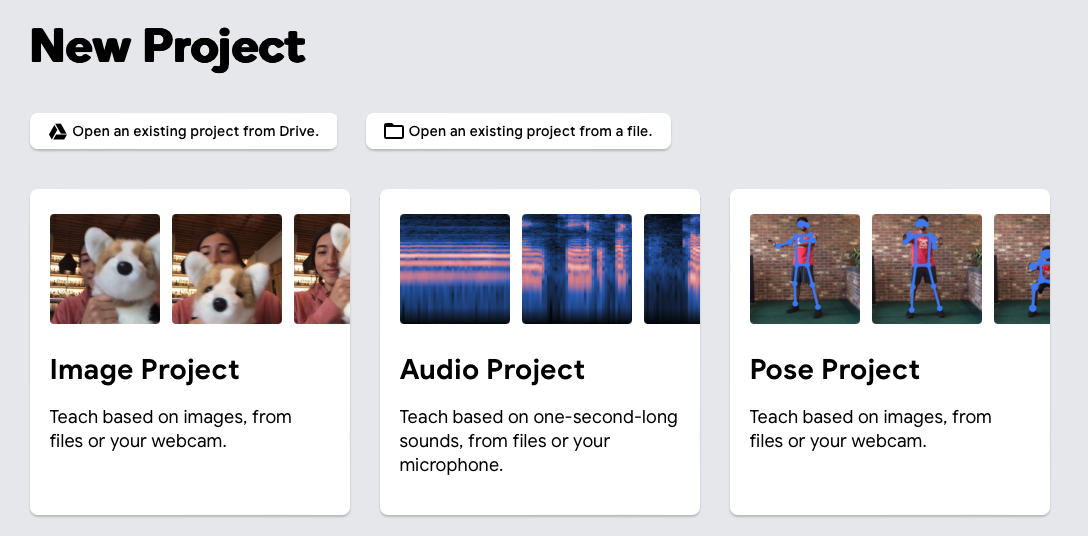
Visit the Teachable Machine website and click “Get Started.” Select the type of model you want to create. For this guide, we’ll choose “Image Project.”

Then next, we need choose a project type in these: Image Project, Audio Project, Pose Project., for this post I select Image Project
Step 2: Gather Data
You need to gather examples for each category you want your model to recognize. Click “Add a Class” to create categories. For instance, if you’re training a model to recognize different fruits, you might create classes for apples, bananas, and oranges.
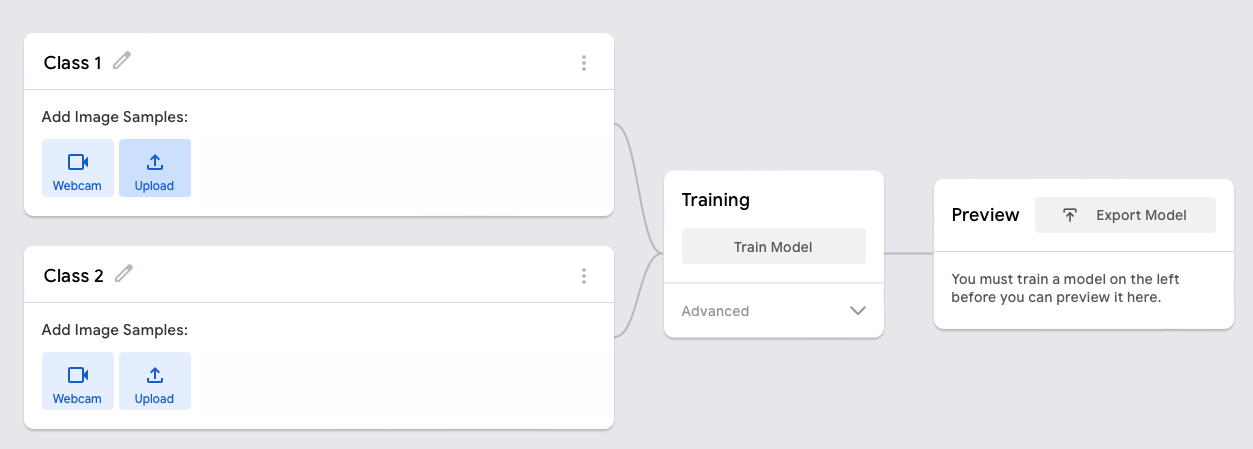
Upload Images: Click on each class and upload images from your computer. Use Webcam: Alternatively, you can capture images directly using your webcam. This is particularly useful for creating models with real-time data.
Step3: Train the model
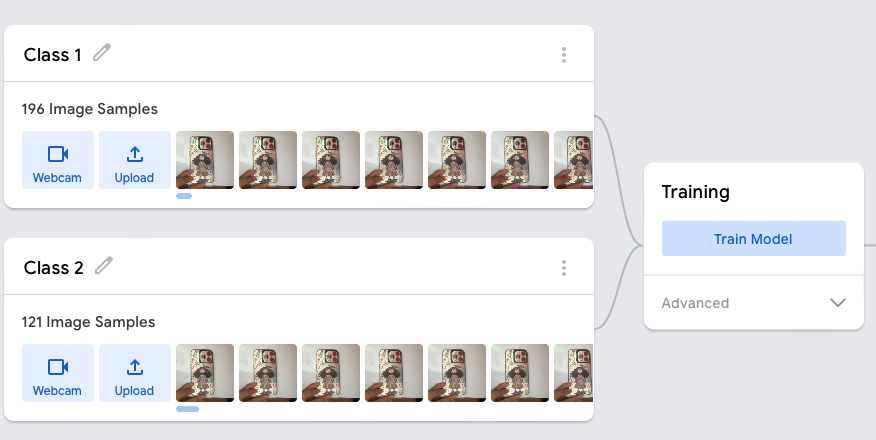
Once you have enough examples, click “Train Model.” The tool will process the images and start training. You’ll see a progress bar indicating the training process. Training is typically quick, thanks to the efficient algorithms behind Teachable Machine.
Step 4: Test the Model
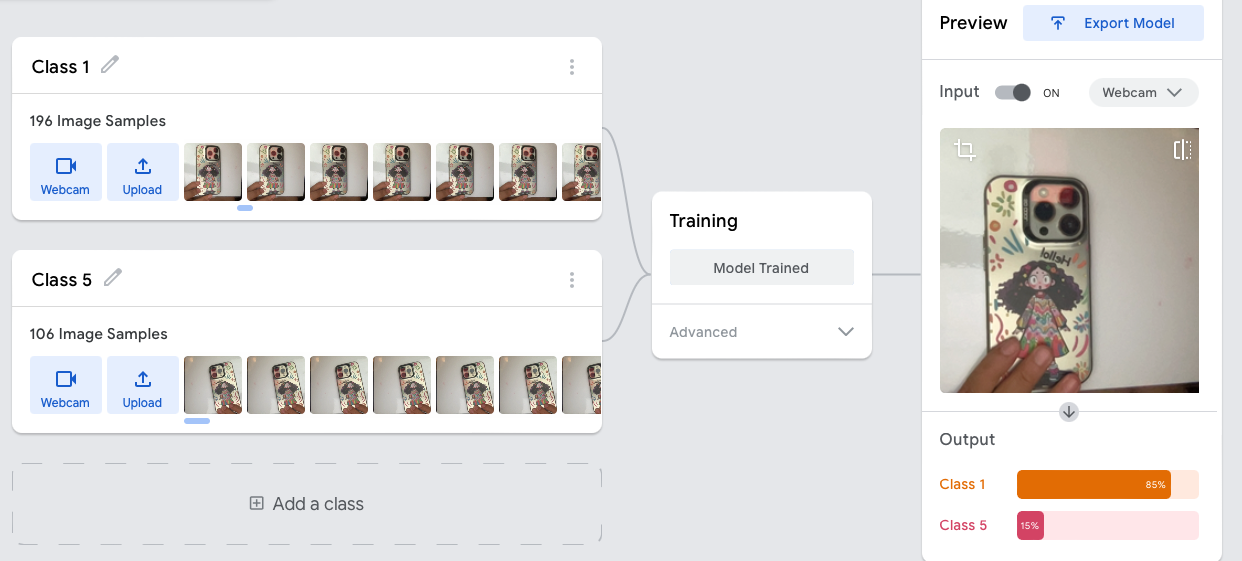
After training, it’s time to test your model. You can use the webcam or upload new images to see how accurately the model recognizes them. This step helps you understand the model’s performance and make any necessary adjustments.
Step 5: Export the Model
If you’re satisfied with the results, click “Export Model.” Teachable Machine offers several export options:
- TensorFlow.js: For web applications.
- TensorFlow Lite: For mobile applications.
- TensorFlow SavedModel: For more advanced uses. Practical Applications of Teachable Machine
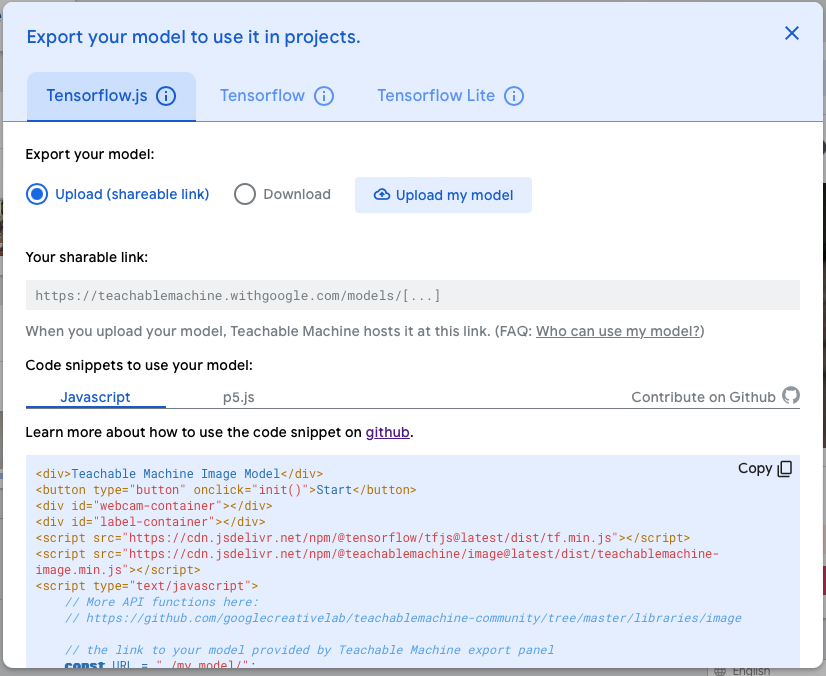
Step 6: Export Model with TensorFlow.js and Test it on the Glitch (https://glitch.com)
Glitch is a collaborative online development environment that allows users to create, share, and deploy web applications quickly. It’s a platform provided by Glitch, Inc., and it’s particularly popular for creating small projects, prototypes, or experimenting with new ideas. So I create a simple web application to demo:
The first, we need to click button: “upload model to cloud” to push this model to the cloud. Then Copy the code js from dialog and paste to index.html, here are my full code:


Result:
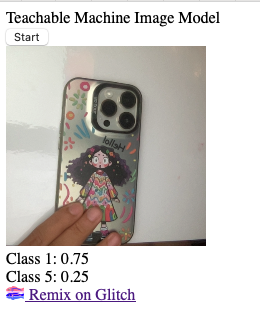
Link Glitch project: https://glitch.com/edit/#!/exciting-kaput-tick
Conclusion
Teachable Machine is revolutionizing the way we approach machine learning, making it accessible to everyone. Its user-friendly interface and powerful capabilities enable users to create sophisticated ML models without any coding knowledge. Whether you’re looking to innovate in art, education, health, or accessibility, Teachable Machine provides the tools you need to explore and implement your creative ideas. Give it a try and see how it can transform your projects!