



In this blog, we will see how Openkruise extends the features of a generic sidecar containers in Kubernetes by introducing a Sidecar Set.
Sidecar Set
It is a feature of Openkruise that makes use of Admission webhook to inject a sidecar container to any specified pod. Admission webhooks are mechanisms that allow you to intercept and potentially modify requests to the Kubernetes API server before they are persisted to the cluster’s state store. Basically they are like additional security checks or helpers that ensure everything going to your Kubernetes cluster follows the rules that you have set. It also provides the features like inPlaceUpdate and mounting volumes which makes it an individually managed entity. The container is ejected to the pod only at the time of pod creation.
Working Example of a Sidecar Set
Pre-requisites:
- Kubernetes cluster (>=1.16)
- Helm v3 installed
Install helm v3:
curl –fsSL -o get_helm.sh https://raw.githubusercontent.com/helm/helm/master/scripts/get-helm-3
chmod 700 get_helm.sh
./get_helm.sh
Install Openkruise:
We will begin by installing openkruise and its related components via helm. Use the following cli commands to install Openkruise:
- Add the helm repository
helm repo add openkruise https://openkruise.github.io/charts/ - Install the latest version of kruise
helm install kruise openkruise/kruise –version 1.5.2# You can check the official doc to see the latest version
- Install the Kruise state metrics
helm install kruise-state-metrics openkruise/kruise-state-metrics –version 0.1.0
Create a Sidecar Set
We will create a manifest for SidecarSet and add selectors to it. These selectors will be used to map the Sidecar container to the pod with the same labels.
apiVersion: apps.kruise.io/v1alpha1
kind: SidecarSet
metadata:
name: sidecarset
spec:
selector:
matchLabels:
app: demo
updateStrategy:
type: RollingUpdate
maxUnavailable: 1
containers:
– name: con1
image: alpine:latest
command: [“sleep”, “3600”]
volumeMounts:
– name: vol1
mountPath: /var/log
volumes:
– name: vol1
emptyDir: {}
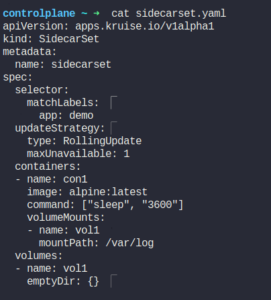
Apply the yaml.
kuebctl apply -f sidecarset.yaml
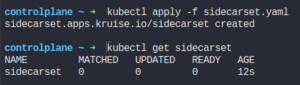
Currently it has no sidecar containers running as we haven’t created the pod yet.
Create a Pod
Let’s create a pod with the matching labels. We have defined one container with the name as main and image as nginx.
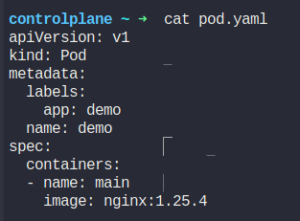
Apply the pod manifest.
kubectl apply -f pod.yaml

Check the status of the pod.
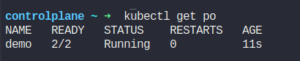
It shows that this pod contains 2 containers, both in the running state.
Let’s describe this pod.
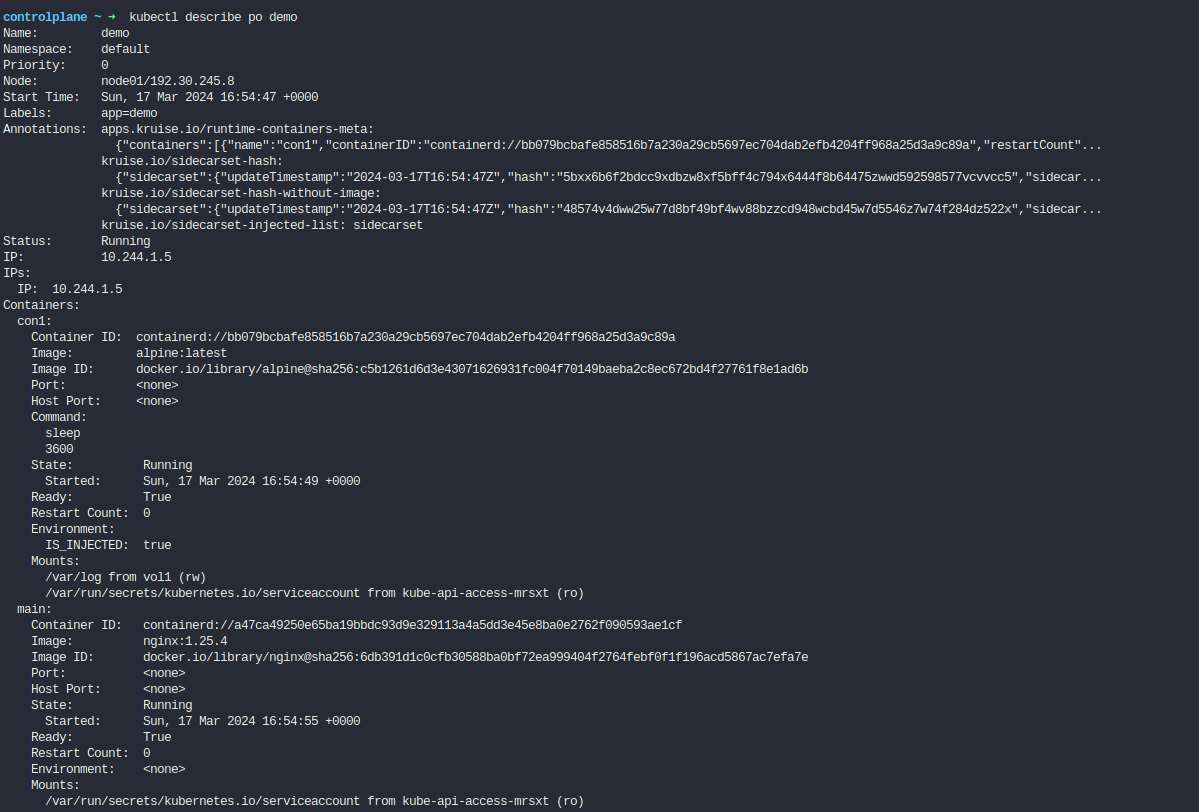
As we can see from the pod definition above, the sidecar container has successfully been injected.
Check the status of the sidecarset
kubectl get sidecarset
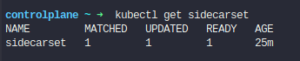
It shows that 1 sidecar container has been created.
Updating the image of the Sidecar Set
Lets now try to change the image of a sidecar container.
We will change the image of sidecar container alpine:latest to alpine:3.19.1
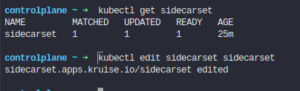
Lets check the status of the pod:

It hasn’t spinned up a new pod to replace the existing one.
We will describe the pod to check if the image of the sidecar container has been updated or not.
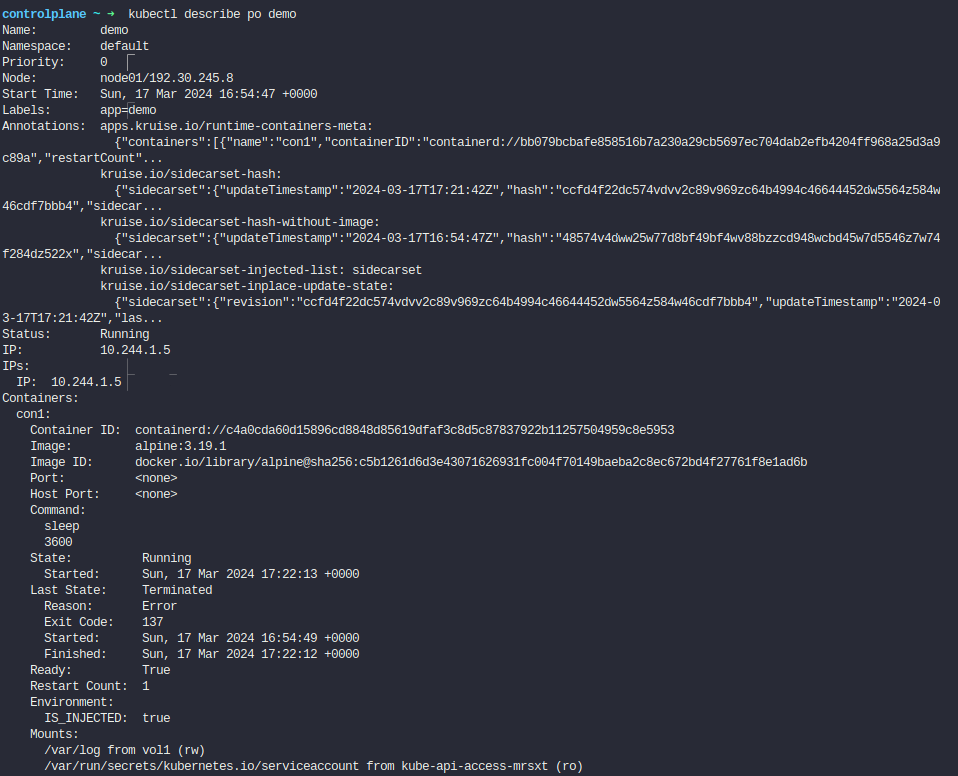
As we can see, the image has been updated with a new tag that we specified. Container is restarted within the pod and therefore the Restart Count for this container is 1.
This is the InPlaceUpdate feature of the Sidecar Set.
Hey, readers! Thank you for sticking up till the end. This was a brief on spinning AWS resources using Spacelift and Terraform. If you have any questions/feedbacks regarding this blog, I am reachable at vidushi.bansal@nashtechglobal.com. You can find more of my blogs here.