


What is Google Analytics?
Google Analytics is a web analytics service offered by Google that allows website owners to track and evaluate many elements of their site’s performance and visitor activity. It provides data on how users engage with a website, such as the number of visitors, their geographic area, the devices they use, their browsing patterns, and much more.
What are the features of Google Analytics?
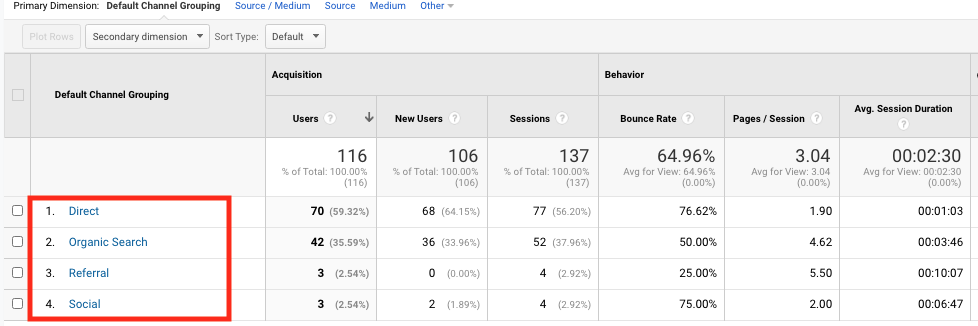
- Traffic analysis gives information about the sources of website traffic, including organic search, paid search, referral traffic, social media, etc.
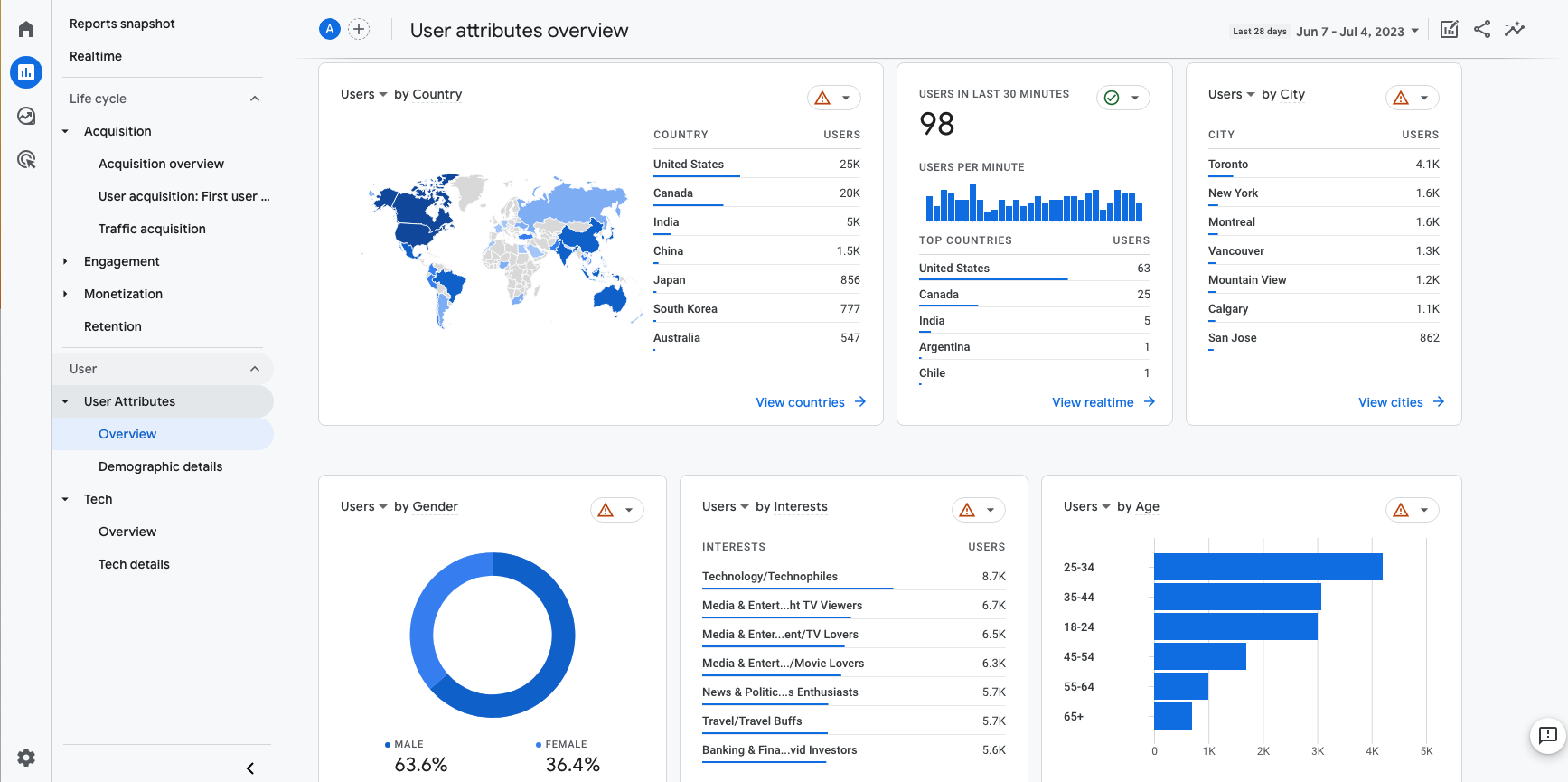
- Audience Analysis: Google Analytics provides demographic information about website visitors such as age, gender, interests, and geographical area.
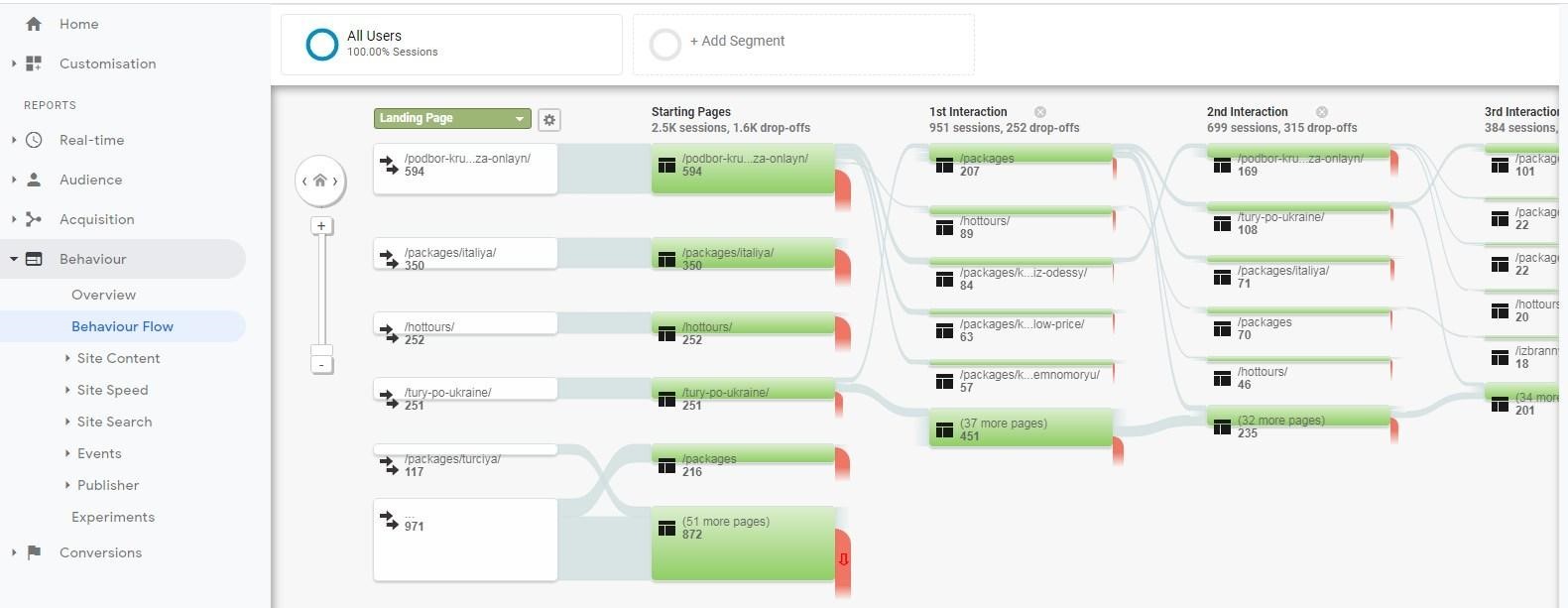
- Behavior analysis is the process of monitoring how users navigate a website, including the pages they visit, how long they spend on each page, what actions they take (e.g., clicks, downloads), and the paths they travel.
- Conversion tracking is a tool that lets website owners define and monitor objectives for things like downloads, sign-ups, purchases, and other desirable website actions.
- E-commerce Tracking: Revenue, conversion rates, average order value, and product performance are just a few of the in-depth insights that Google Analytics offers for online retailers.

- Customization and Reporting: To examine particular metrics or audience segments, users can design own reports and dashboards. In order to be informed of any notable changes in website traffic or performance, they can also set up bespoke notifications.
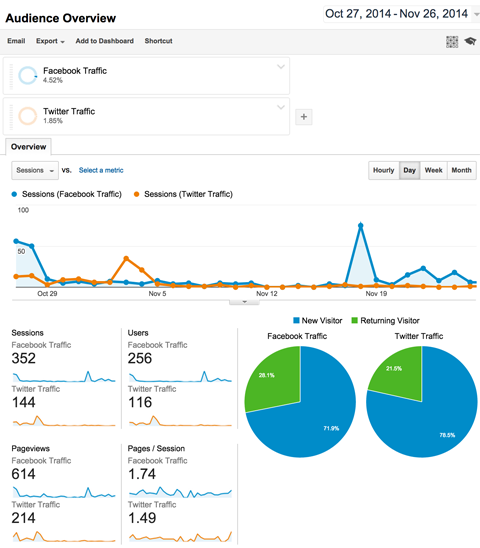
Approach to testing Google Analytics
Testing Google Analytics entails making sure the tracking code is applied correctly on your website and that data is collected and reported reliably. This is a detailed how-to for testing Google Analytics:
Install the Tracking Code
Install the Google Analytics tracking code on your website if you haven’t already. The tracking code snippet is located under Admin > Data Streams, select your Web Data Stream. Then click View tag instructions. Attach the code to each and every page of your website by following the instructions given.

Real-Time Reports
The Google Analytics Real-Time reports let you check if data is being collected in real-time after the tracking code has been installed. While viewing the Real-Time reports in Google Analytics, open your website in a web browser and explore its different pages. Your activity should be reflected practically instantly.
Imagine you just launched a new blog post and shared it on social media. You want to see how users are interacting with your site in real-time.
- Share Your Blog Post: Post a link to your new blog post on your social media channels.
- Monitor Real-Time Traffic: Open the Real-Time Overview report in Google Analytics.
- Watch for Activity: As people click on your social media links and visit your site, you’ll see the number of active users increase. The Traffic Sources section will show that these users are coming from social media.
- Analyze User Interaction: Check the Top Active Pages section to see if users are viewing your new blog post. You can also see how they navigate to other pages on your site.

Debugging Tools
To help you troubleshoot problems with the implementation of Google Analytics, Google offers several debugging tools. The Chrome plugin for Google Analytics Debugger is one such tool. You may ensure that data is being transmitted correctly by installing this extension in your Chrome browser, which will log tracking calls performed by the Google Analytics tracking code.
Google Tag Assistant
The Google Tag Assistant Chrome addon is another helpful resource. With the use of this tool, you can verify that Google tags—including Google Analytics—are properly placed on your website. It will evaluate your website and give you an update on how well Google Analytics is being implemented
Test Events and Goals
Make that your custom events and goals (such as button clicks and form submissions) are being tracked correctly in Google Analytics by testing them. Execute the tasks on your website that cause these objectives or occurrences, and make sure your Google Analytics reports reflect them.
Businesses across various industries use Google Analytics Test Events and Goals to track user interactions and measure the effectiveness of their digital strategies. Here are a few business models that commonly leverage these tools:
- E-commerce Platforms: Track customer behaviors such as product views, add-to-cart actions, and purchases. Measure conversion rates and optimize the sales funnel. Example Events and Goals:
- Events: Product View, Add to Cart, Checkout Start, Purchase.
- Goals: Purchase Completed, Cart Abandonment, Email Signup
- Online Education Platforms: Track interactions such as course enrollments, webinar registrations, and resource downloads. Measure user engagement and course completion rates. Example Events and Goals:
- Events: Course Enrollment, Webinar Registration, Resource Download.
- Goals: Course Completion, Webinar Attendance, Resource Download Completion.
- Travel and Hospitality: Track booking interactions, package views, and user engagement with promotional content. Measure booking conversion rates and user engagement with travel packages. Example Events and Goals:
- Events: Package View, Booking Start, Booking Completion.
- Goals: Booking Confirmation, Newsletter Signup, Package Inquiry.
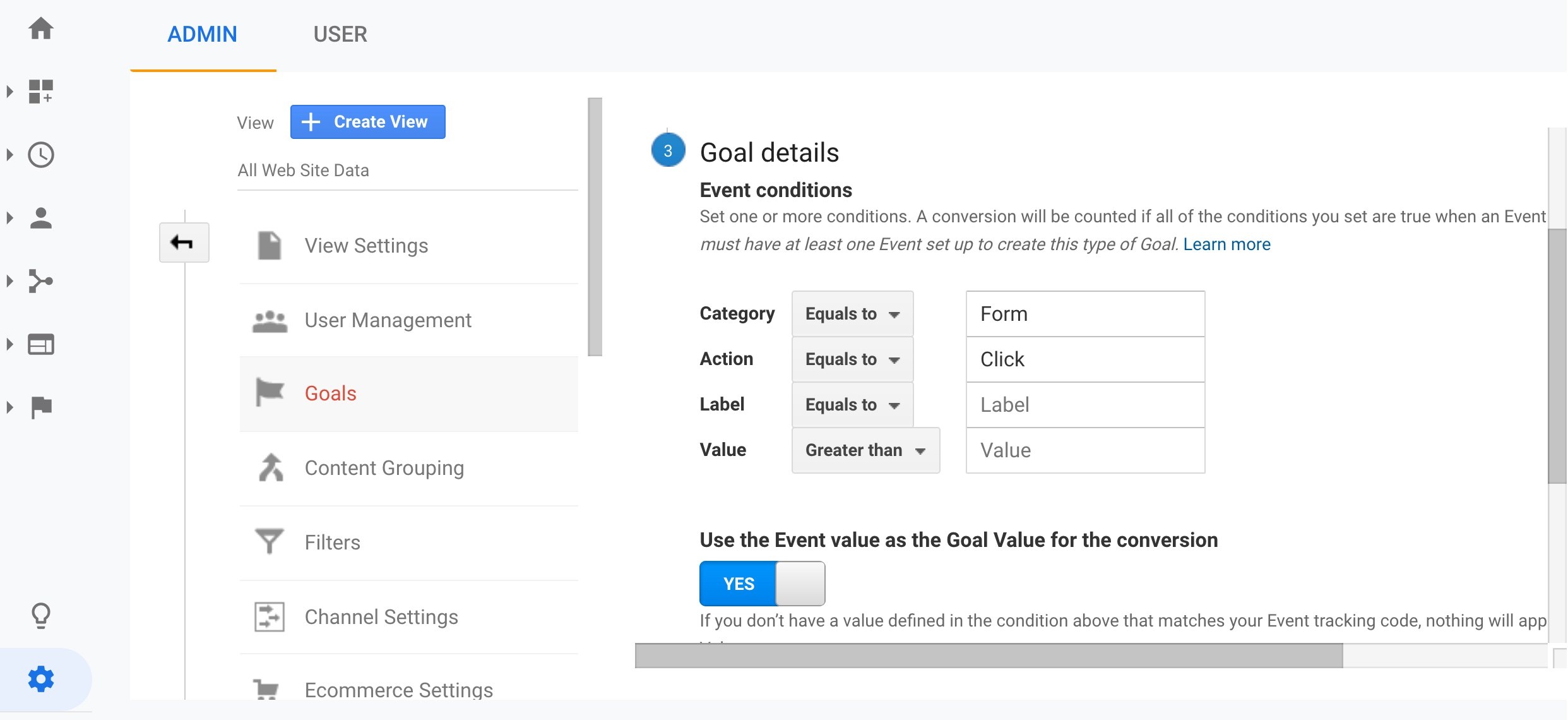
Cross-Browser Testing
Make that tracking from Google Analytics functions properly on various devices and web browsers. Check how effectively your website works and tracks across a range of common browsers, including mobile, Firefox, Safari, Chrome, and Edge.
Data Discrepancies
Look for any differences in the data that comes from other sources (such as server logs or third-party analytics tools) and from Google Analytics. Examine any notable differences to find any possible problems with your Google Analytics setup.
Conclusion
In general, Google Analytics assists website owners in making data-driven decisions that optimize their sites, enhance user experience, and help them meet their objectives.
Reference
Some image research on the internet.