


Introduction
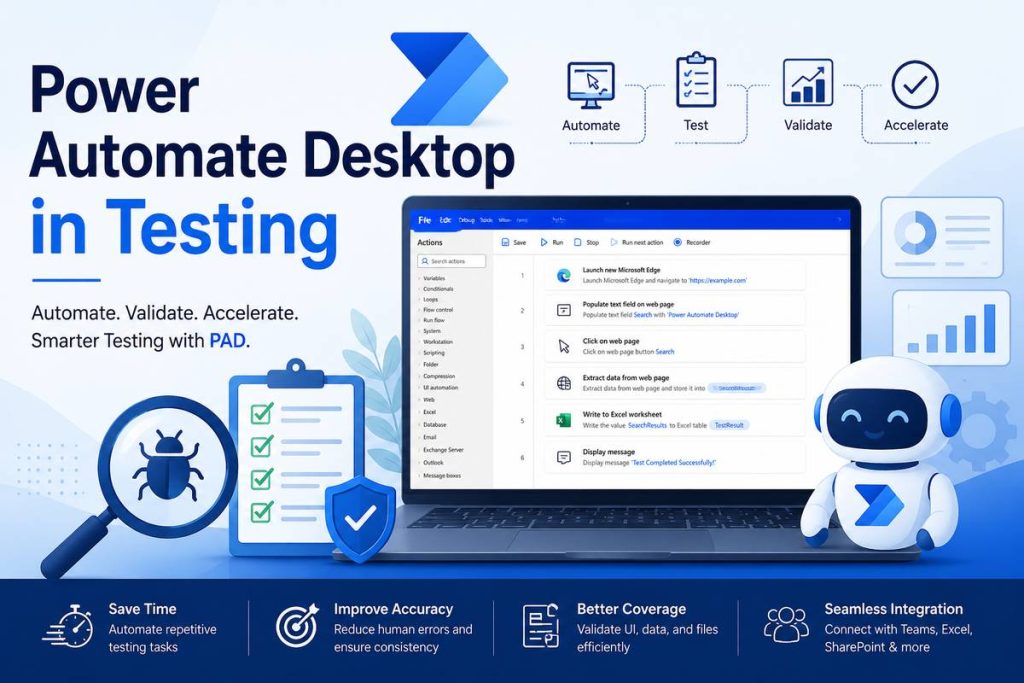
Power Automate Desktop (PAD) in Testing usually refers to Power Automate Desktop used to automate testing tasks. It is part of Microsoft Power Automate, which allows QA engineers to automate repetitive manual activities on desktop applications, web apps, or file systems. Since you are a QC working with automation and Power Automate, PAD can help you reduce manual testing work and speed up regression or data preparation tasks.
What is PAD in Testing?
Power Automate Desktop (PAD) is an RPA (Robotic Process Automation) tool that records and automates actions performed on a computer.
In software testing, PAD is used to:
- Automate repetitive manual test steps
- Prepare test data
- Run scheduled test scenarios
- Integrate with other tools like Excel, Teams, SharePoint, or Azure DevOps
How PAD supports QA Testing
Test Data Preparation
Automated data generation
PAD can create synthetic test data by pulling values from spreadsheets, databases, or APIs, and formatting them according to test requirements.
Data Transformation
It can clean, normalize, and restructure raw data into the format needed for test cases (e.g., converting dates, anonymizing sensitive fields).
Data Import/Export
PAD flows can move test data between systems — for example, exporting from Excel into a test database or importing from a CSV into an application.
Environment Setup
PAD can prepare test environments by populating applications with baseline data before test execution.
Reusability
Once built, PAD flows for test data preparation can be reused across multiple test cycles, reducing manual effort and ensuring consistency.
Regression Testing Automation
Automated Test Execution
PAD can simulate user interactions such as clicks, typing, and navigation across web or desktop applications. This helps ensure that previously tested features continue to function correctly after system changes.
Data-Driven Testing
PAD can read structured test data from sources such as Excel, CSV files, or databases. By looping through these datasets, the same regression tests can be executed automatically with multiple input values.
Environment Preparation
PAD can automate setup tasks before executing regression tests, such as clearing temporary files, resetting application states, restarting applications, or loading baseline test data. This helps ensure tests run in a consistent environment.
Result Capture and Logging
PAD can capture test outcomes by taking screenshots, recording logs, and exporting results to files such as Excel. This allows testers to easily review test results and identify regressions.
Integration with CI/CD Pipelines
PAD flows can be triggered automatically through integrations with tools such as Azure DevOps or GitHub Actions, often via Microsoft Power Automate. This enables regression tests to run automatically when new builds or deployments are released.
File and Data Validation
File validation
PAD can verify that files are correctly created and stored. Typical checks include:
- Confirming a file exists in a specific folder
- Validating file name or format (e.g., .xlsx, .csv)
- Checking file creation time or size
Data validation
PAD can read data from sources such as Excel or CSV files and verify that the content is correct. For example, it can:
- Check column headers
- Validate the number of records
- Compare actual values with expected results
Result Reporting
PAD can record validation results by writing logs, exporting results to Excel, or capturing screenshots when errors occur. This helps testers quickly identify issues during automated tests.
UI Automation
Simulating User Actions
PAD can replicate clicks, keystrokes, drag-and-drop, and navigation across desktop or web applications, mimicking real user behavior.
Cross-Application Testing
It can interact with multiple applications in a single flow (e.g., testing how data moves from Excel into a web app).
Element Recognition
PAD identifies UI elements (buttons, text fields, menus) and interacts with them reliably, even if screen positions change.
Validation & Assertions
PAD can check whether expected UI elements appear (like confirmation messages, error prompts, or updated fields) and log results.
Regression-Friendly
Once built, UI test flows can be reused after updates to confirm that existing features still work.
Integration with Microsoft Teams and Email
Power Automate Desktop can integrate with communication tools to automatically send notifications or test results after automation tasks. It often works together with Microsoft Power Automate cloud flows to connect with other services.
Microsoft Teams Notifications
PAD can trigger a cloud flow that sends messages to Microsoft Teams. This allows teams to receive updates such as:
- Test execution results
- Error notifications
- Status updates for automated processes
Example: After running automated tests, PAD sends a message to a Teams channel with the test results.
Email Notifications
PAD can send automated emails through services like Microsoft Outlook. This can include:
- Test reports or logs
- Error alerts
- Process completion notifications
Example: When a test fails, PAD automatically sends an email with the error details and attached screenshots.
Automated Reporting
By combining PAD with Power Automate cloud flows, automated reports can be generated and shared through Teams messages or email. This helps teams quickly review results and respond to issues.
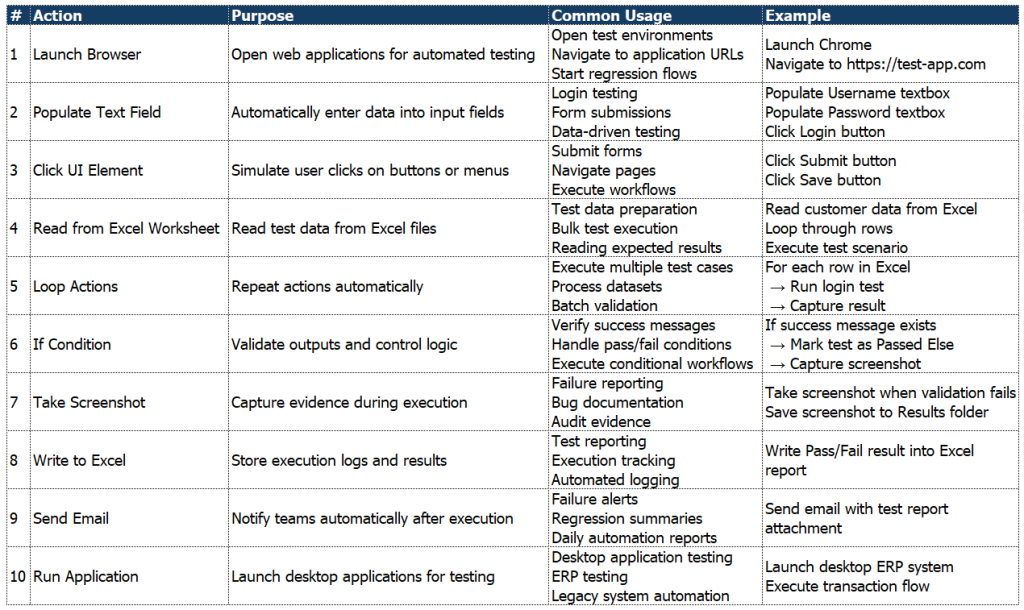
Common PAD Actions Used in QA Testing
Power Automate Desktop provides many built-in actions that help QA engineers automate testing tasks efficiently.
End-to-End Testing Flow Using PAD
Scenario: Search book with multiple results
GIVEN the user opens the Book Store page (https://demoqa.com/books)
WHEN the user enters “design” or “Design” in the search textbox
THEN the system displays all books containing searched keywords in the title
AND the results include:
- Learning JavaScript Design Patterns
- Designing Evolvable Web APIs with ASP.NET
AND after execution, the test result is sent to Microsoft Teams.
Purpose
Automate:
- Read test data from Excel
- Execute search test
- Validate result
- Write result to Excel
- Upload file
- Send report to Teams
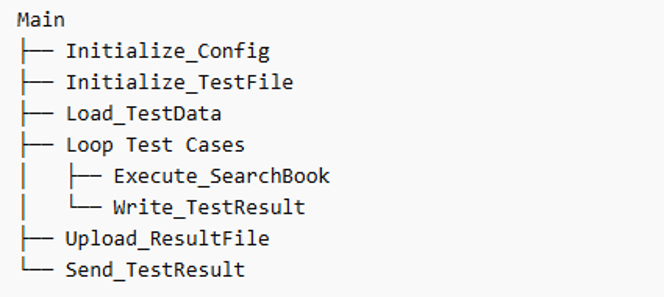
Design Flow Structure
Details within flows
Prepare data
- Create Config folder, TestData folder, TestResult folder, and Screenshots folder
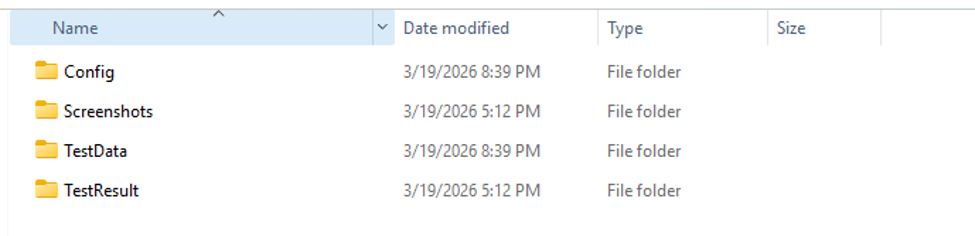
- Config.xlsx file in Config folder
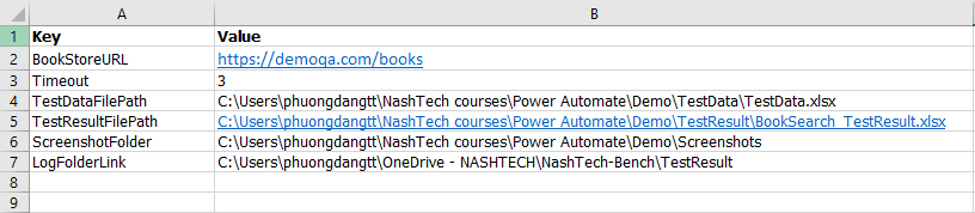
- TestData.xlsx file in Data folder

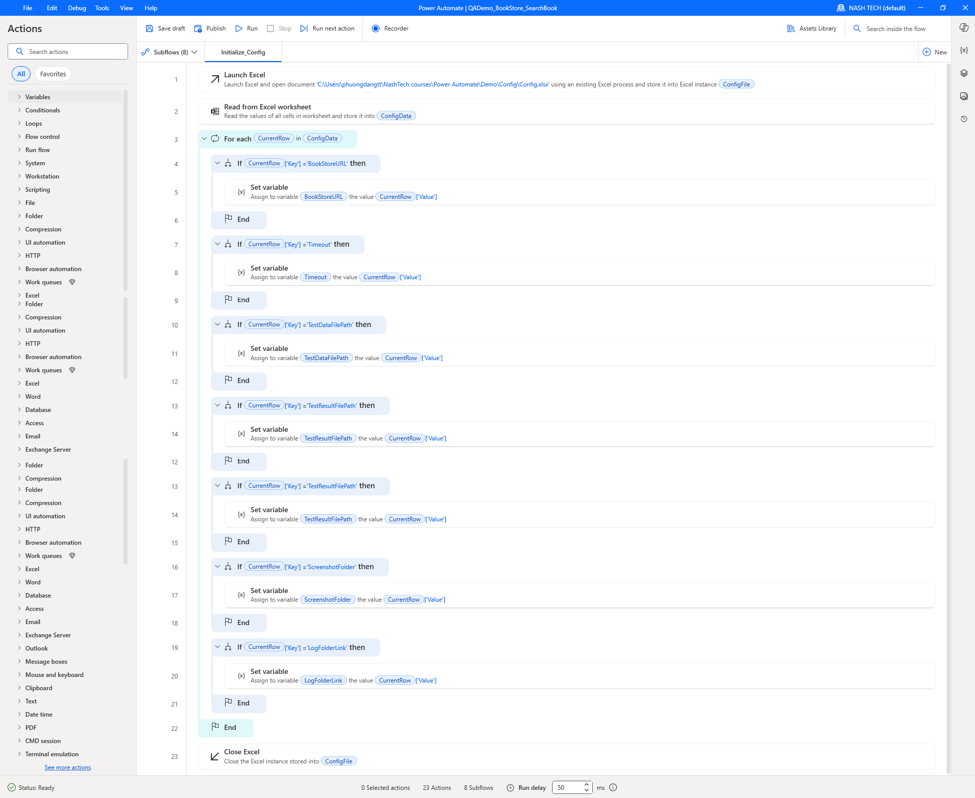
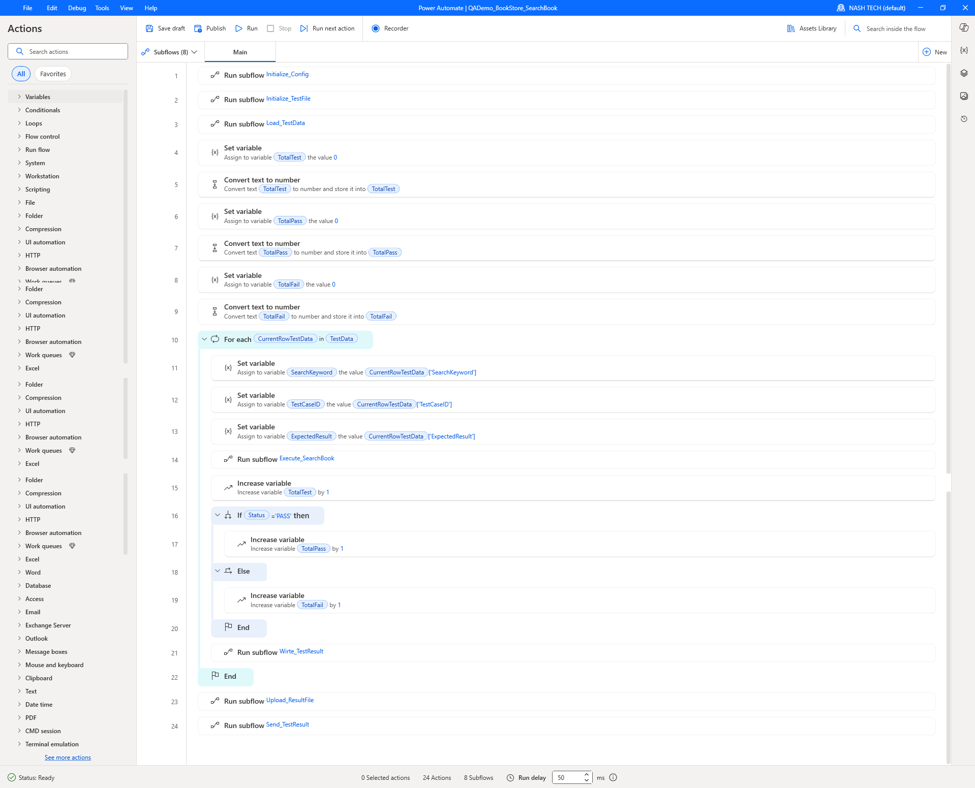
Initialize_Config subflow loads URLs, timeout settings, and file paths.
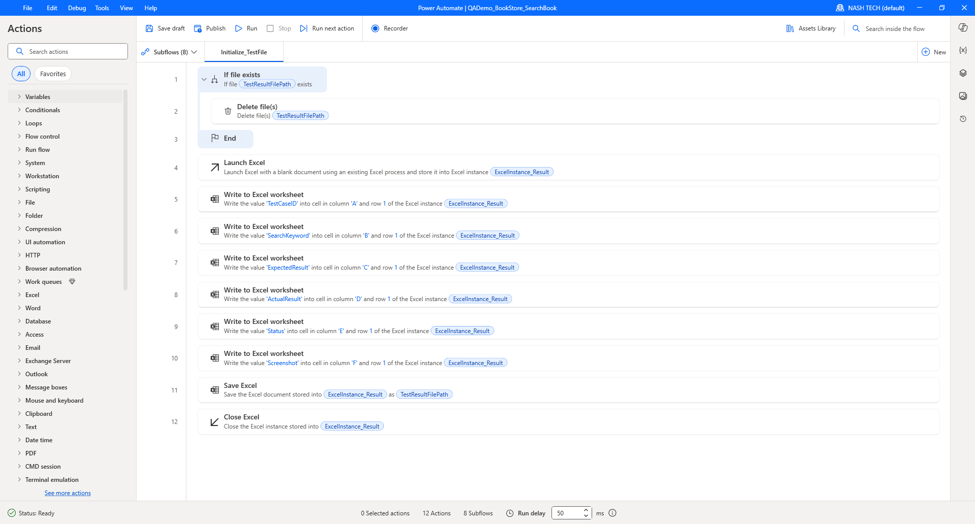
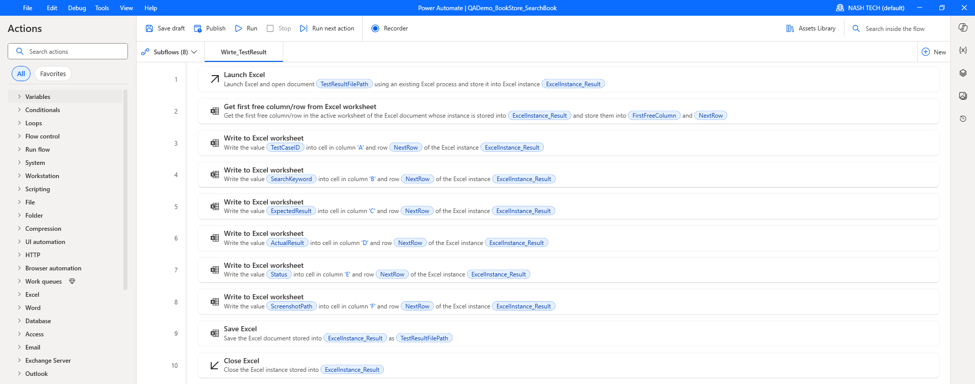
Initialize_TestResult creates the result Excel file with predefined headers.
The Load_TestData subflow reads testing data and returns the TestData collection.

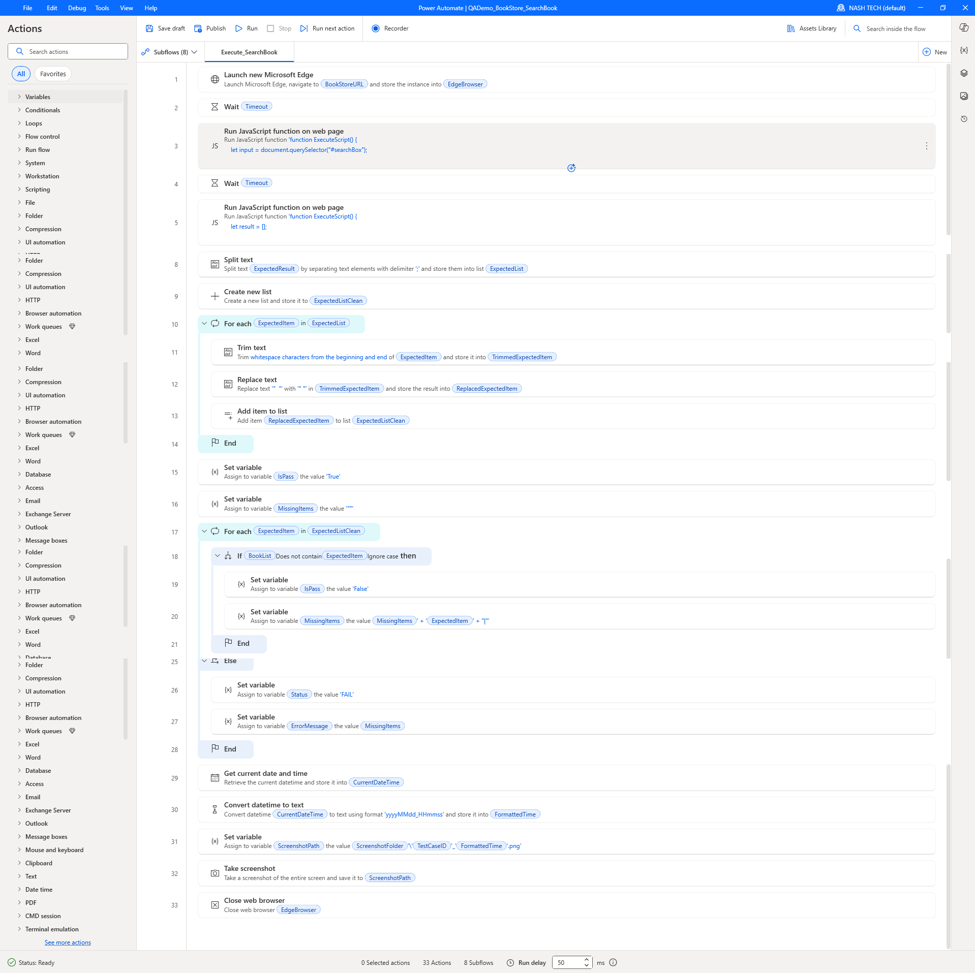
Execute_SearchBook performs book searches on the website, verifies search results, and validates returned data.
Note: For searching and getting searched results, we need to use Run JavaScript action instead of Populate/Extract data on DemoQA site because:
- The table is dynamic → UI actions may fail
- JavaScript reads data directly from DOM → more stable
- Faster: get all data in one step
- More flexible for filtering and validation
Write_TestResult records execution results into the Excel report file.
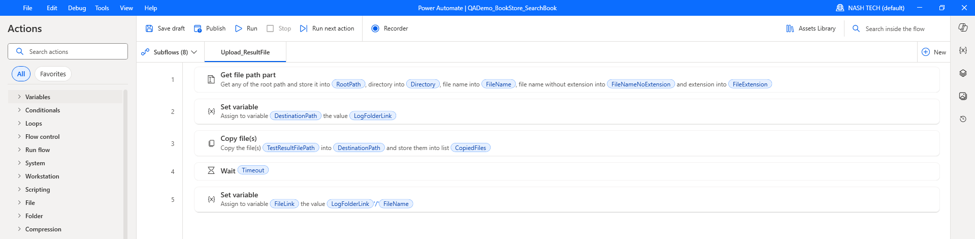
Upload_ResultFile uploads the generated result file to SharePoint through OneDrive synchronization.
Send_TestResult sends the execution summary and result file path to Microsoft Teams.

Main flow
Link Demo
Benefits of PAD for QA
PAD helps QA teams work faster, more accurately, and with better collaboration.
- Efficiency: Automates repetitive tasks, speeding up test cycles.
- Accuracy: Reduces human error, ensures consistent execution.
- Reusability: Flows can be reused across projects and test cycles.
- Coverage: Supports UI, file, and data-driven testing.
- Integration: Connects with Teams, Email, Excel, and CI/CD pipelines.
- Reporting: Generates logs, screenshots, and automated notifications.
When QA Should Use PAD
PAD is best for:
- Data preparation
- Repetitive manual test steps
- File processing validation
- Integration testing with Microsoft tools
Conclusion
Power Automate Desktop is a practical and powerful automation solution for QA teams.
By automating repetitive testing tasks, handling test data, validating files, and integrating with Microsoft services, PAD helps organizations:
- Improve productivity
- Reduce manual effort
- Increase testing consistency
- Accelerate regression testing cycles
For QA engineers working with Microsoft technologies, PAD can become a valuable addition to the testing automation toolkit.