


Hey Readers!! We are again back with a new exciting topic i.e. power of automation with Microsoft power automate. In an age where efficiency is the key, organizations are constantly seeking tools that can help them do more with less. This is where Microsoft Power Automate comes in picture. It is a powerful cloud-based service provided by Microsoft that empowers users to automate repetitive tasks, streamline workflows, and it connect different applications without the need for complex coding. It’s really very easy to use.
What is Microsoft Power Automate?
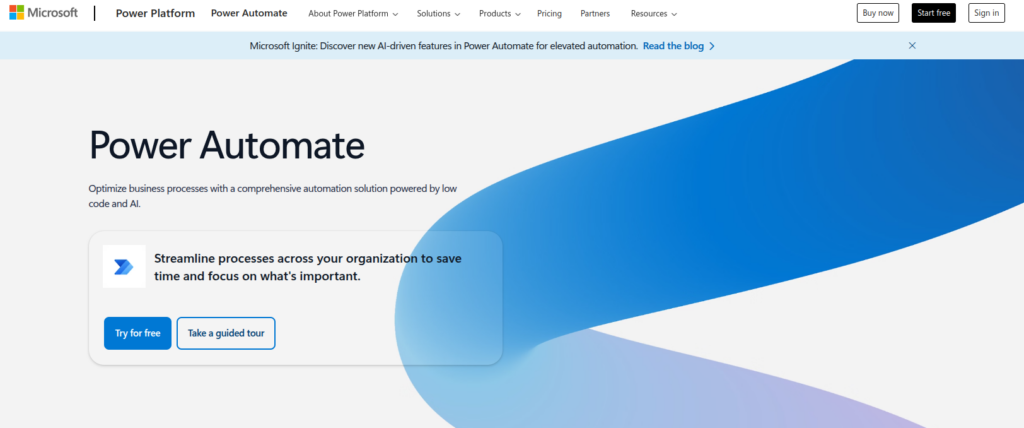
It was previously known as Microsoft Flow, Power Automate is part of the Microsoft Power Platform. Here users create automated workflows between apps and services to synchronize files, collect data, get notifications, and much more.
Whether you’re a business user streamlining approval workflows or an IT professional connecting enterprise systems, Power Automate offers a low-code/no-code platform to accelerate your processes, where no coding is required. It enhances productivity with automation.
Why Use Power Automate?
Here are some of the key benefits of using Power Automate:
- Time Savings: Automate time-consuming tasks like data entry, email responses, or file organization.
- Error Reduction: Reduce manual mistakes by letting flows handle repetitive processes.
- Cross-Platform Integration: Connect over 500 apps and services, including SharePoint, Outlook, Excel, Slack, Twitter, and more.
- User-Friendly Interface: With drag-and-drop tools and templates, users can build workflows with little to no coding knowledge.
Real-World Use Cases
Here are a few practical scenarios where Power Automate makes a difference:
- Email Notifications: Automatically send an alert when a new item is added to a SharePoint list. ex- a new file gets uploaded to the sharepoint locations.
- Approval Workflows: Route leave requests or expense claims for approval without manual follow-ups.
- Social Media Monitoring: Track mentions of your brand on Twitter and log them in an Excel file.
- File Management: Move files from OneDrive to SharePoint once approved.
Getting Started
It’s really very easy to use Power Automate. To begin using Power Automate, follow the below steps:
- Sign in to Power Automate using your Microsoft account.
- Choose a pre-built template or start from scratch.
- Define your trigger—this is the event that starts your flow.
- Add actions—these are the tasks you want to automate.
- Save and test your flow.

The intuitive UI guides you through the setup, and Microsoft provides extensive documentation and community support which makes easy to do your hands dirty on power automate.
Conclusion
Thanks for being with me till the end. In this blog, we have seen the power of automation with Microsoft Power Automate. Nowadays we can feel that Automation is no longer a luxury—it’s a necessity. Microsoft Power Automate gives businesses and individuals the tools they need to simplify operations and focus on what truly matters. Whether you’re automating a simple task or designing an enterprise-wide workflow, Power Automate helps bring productivity and innovation together. If this blog helped you somewhere do like and share this blog with the needful.
HAPPY READING!!!