



What is Power App?
Power Apps offers a collection of applications, tools, and links that enable you to design tailored business applications effortlessly, no coding required. It offers a fast-paced development platform where you can craft apps to suit your specific business requirements. Using Power Apps, you have the ability to create sophisticated solutions infused with AI-driven development, ready-made templates, and connections to a multitude of data origins and platforms. Whether tackling financial, sales and marketing, human resources, operational, or frontline challenges, Power Apps empowers you to address a myriad of business dilemmas effectively.
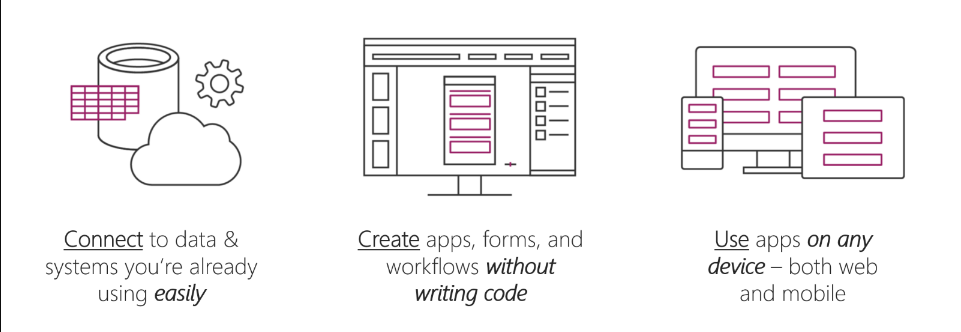
With Power Apps, you have the ability to:
- Swiftly create an app by integrating with your current data.
- Seamlessly link to the cloud services and data origins you already utilize.
- Instantly distribute your apps, enabling colleagues to access them on their mobile devices and tablets.
Types of Power Apps
They can be categorized into three types based on their functionality:
- Canvas Apps: Similar to starting with a blank canvas, users begin with the data source, incorporate workflows, and then design the interface. This approach offers greater flexibility compared to model-driven apps.
- Model-Driven Apps: In model-driven apps, much of the layout is determined by the connected data and information inputted into the app – the outcome is generally influenced by what data is provided. This approach is commonly employed for designing apps requiring intricate business logic.
- Portals: Designed for crafting web portals (websites) that can be shared internally and externally, enabling users to securely interact with data stored in Dataverse.
Benefits of Power Apps
Custom-built
When pre-made solutions don’t quite fit your business requirements, Microsoft Power Apps steps up to bridge the gap. Whether it’s overseeing staff allocations, monitoring inventory, or refining customer engagements, Power Apps empowers you to construct customized applications finely tuned to your needs. This tailored approach guarantees that every facet of your business is optimized to deliver precisely what you require.
Accelerated App Deployment
In the fast-moving landscape of modern business, time is of the essence. Power Apps offers a solution by facilitating the swift development and deployment of applications, thereby decreasing time-to-market and fostering rapid innovation. Its user-friendly interface and low-code development methodology empower your team to swiftly transform concepts into reality, ensuring that your business maintains a competitive edge.
Reduced Costs
Traditional app development can be both expensive and time-consuming, unlike Power Apps. Unlike conventional methods, Power Apps utilize low-code, eliminating the need for extensive development experience to begin.
Security
In today’s digital world, ensuring data security is paramount. Power Apps places a high priority on safeguarding the privacy and security of your business data through robust encryption, role-based access control, and compliance with industry regulations. With Power Apps, you can have peace of mind knowing that your sensitive information is protected, enabling you to concentrate on propelling business expansion.
Advanced AI Capabilities
The transformative capabilities of artificial intelligence (AI) are no longer exclusive to tech giants. With Power Apps, companies of all sizes can leverage AI’s potential through its AI Builder feature. This feature offers a range of AI options that can be integrated into your applications, such as a business card reader, receipt processor, form processor, object detector, and text recognizer. Furthermore, Microsoft has expanded the AI functionality in Power Apps with the introduction of Copilot. Copilot allows you to construct an app, along with its underlying data, using natural language, and Power Apps takes care of the rest.
Start your first Power App
Initiating App
Step 1: Navigate to make.powerapps.com and log in using your organizational Microsoft 365 account.
Step 2: Click on the “Create” button located in the left-hand menu. Power Apps provides shortcuts to initiate your app from two types of data sources:
- Common data sources such as SharePoint and Excel, both of which are accessible through your organizational Microsoft 365 Account.
- Advanced data sources like Dataverse and SQL, which offer the capability to efficiently handle large volumes of data. However, integrating them into your app may incur additional costs.
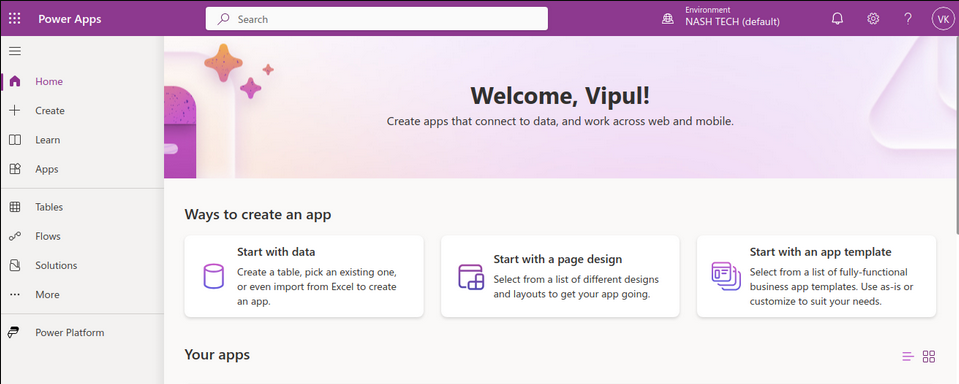
After selecting the Create button, you can choose which template of app you want to create. There are view tutorials available which you can use as a reference for each type of the app.
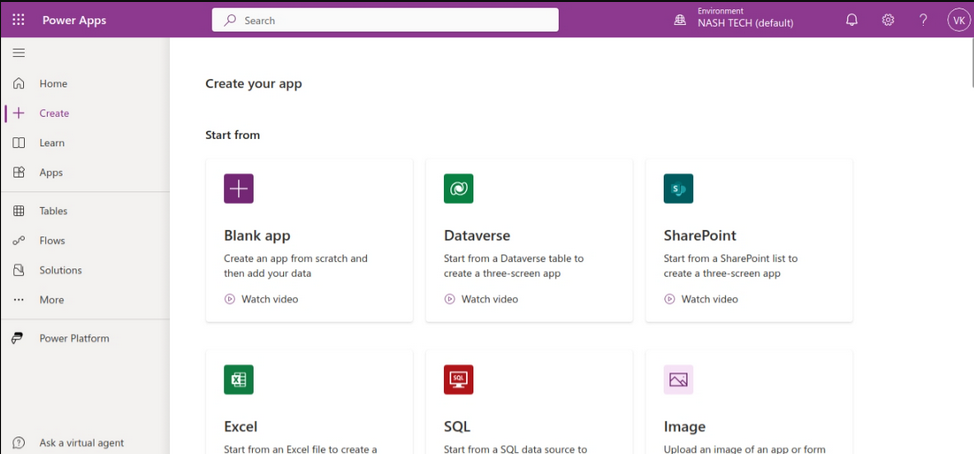
In this tutorial, we will be creating a application using Excel as the data source.
Getting the data
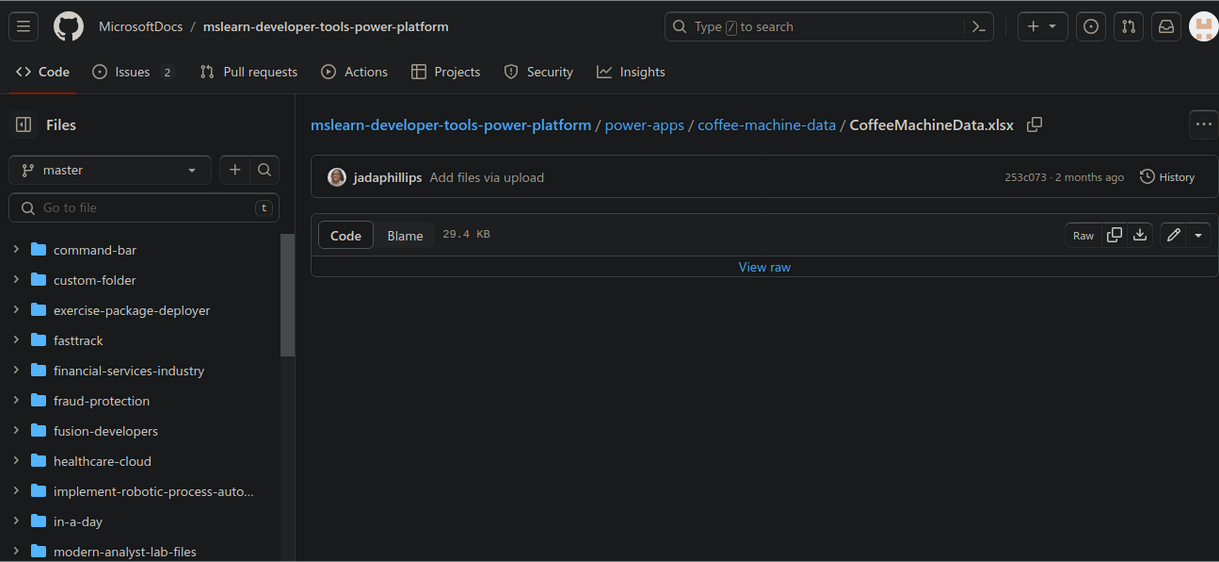
Step 3: Download the data by clicking on the link CoffeeMachineData.xlsx and then the Download raw file button or press Ctrl + Shift + S keys to download the file.
 From your OneDrive browser tab, click on “Add new” and then select “Files upload.” In the Open popup, navigate to the location of the CoffeeMachineData.xlsx file, which is likely in your Downloads folder.
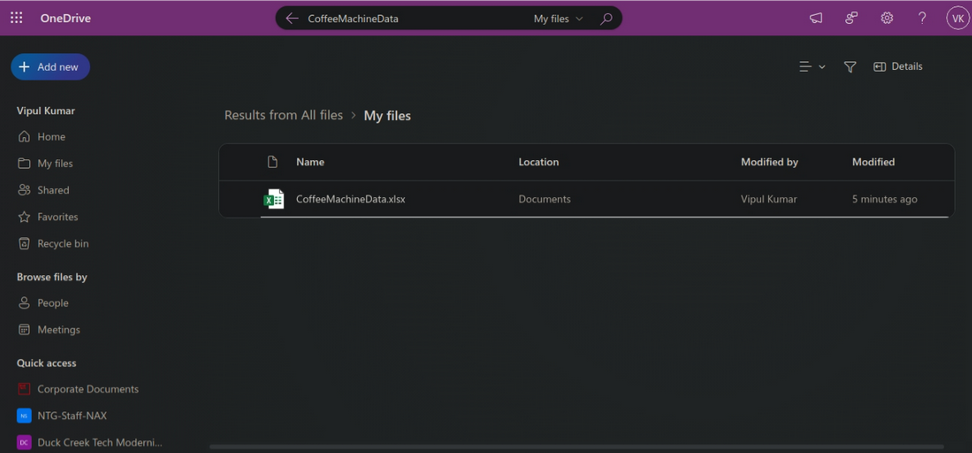
Once you locate the CoffeeMachineData.xlsx file, click on “Open.” Confirm that the file is now in your OneDrive by typing “CoffeeMachineData” into the search field located in the top center of the OneDrive command bar.
Now that the data file is in your OneDrive, we can proceed to build the app.
Step 4: Building the app
Now, return to make.powerapps.com and click on the “Create” tab in the left-side menu. Choose the Excel button under the “Start from” options.
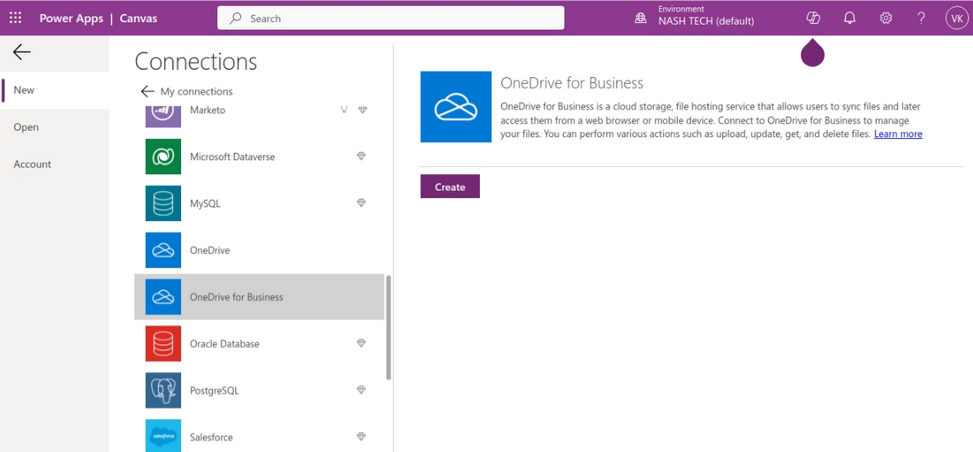
Under Connections, click on the “+New connection” button. Then, select the OneDrive for Business connection and click on “Create.”
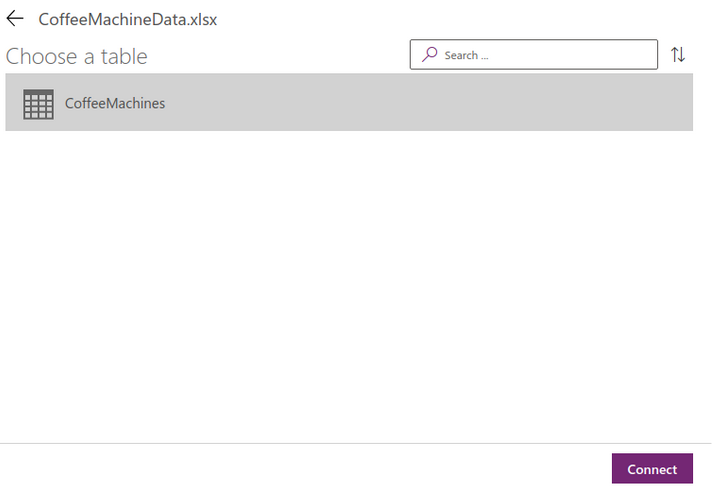
Under “Choose an Excel file,” locate and select “CoffeeMachineData.xlsx.” Then, under “Choose a table,” select “CoffeeMachines.” Finally, click on the “Connect” button located at the bottom right and observe as the connection is established.
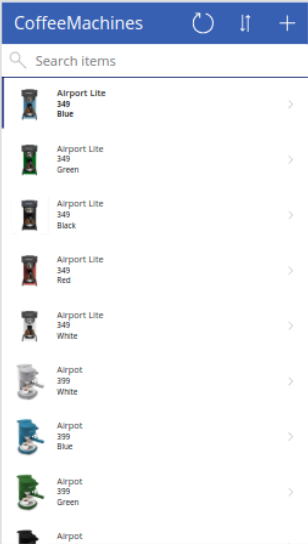
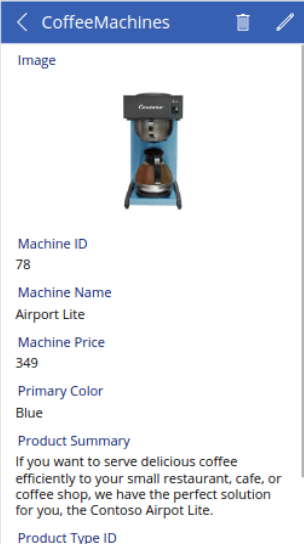
Here is the preview of the app created.
Some data sources in Power Apps
In this section, we will be learning about some of the data sources available in Power Apps that doesn’t require any additional licensing and cost, making them a popular choice for beginner learners.
SharePoint
SharePoint provides the capability to create lists of data and document libraries, acting as a backend data source for applications. These lists can vary from simple single-column lists, which are useful for populating dropdown controls in apps, to more intricate multi-column lists.
Here are some important design considerations when using SharePoint as a data source:
- Keep column types simple: Stick to basic column types like Text, Number, Yes/No, or Date and Time. Avoid using other types unless absolutely necessary. You can incorporate choices within your app that write text to your SharePoint column. Complex SharePoint columns are unnecessary when a well-designed app can write data to a simple column.
- Avoid mandatory input columns: Instead of making input mandatory within SharePoint, handle it from within your app.
- Simplify column names: Best practice suggests refraining from using special characters or spaces in column names. You can use any name within your app. Keep column names straightforward to make data handling easier.
- No automatic relation between SharePoint lists: Unlike a database, SharePoint lists don’t automatically relate to each other. If you want to establish relationships between tables, you need to define your own “key” fields.
By adhering to these design principles, you can effectively utilize SharePoint as a data source for your applications, ensuring efficient data management and smooth app functionality.
Excel
Excel serves as a secondary, non-premium data source option. Tabular data from Excel can be imported into either a SharePoint list or a Dataverse table. Here are some important points to consider when using Excel directly as a data source for your app:
- To access the data, you must format it as a table within Excel. This formatting can only be performed within Excel itself.
- When creating a gallery from an Excel table, the system will only use images labeled with “[image]” in the column header. The system auto-populates the gallery fields in alphanumeric order, so you may need to adjust the Item properties to display the desired column from your data.
- If someone has the Excel document open to make changes, it can interfere with the app’s ability to read or write data. Therefore, using an Excel table as a data source, especially with multiple app users, may not be ideal unless you’re dealing with static data.
In summary, Excel can be a useful data source for your app without additional license fees, but it’s typically considered less preferable than SharePoint due to its limitations with live data editing and formatting requirements.
Dataverse
The most optimal way to integrate data into your app is through Microsoft Dataverse. When your Power Platform Administrator sets up an Environment with Dataverse, they incorporate Dataverse tables directly into the same Environment where your Power Apps app is created. Power Apps simplifies the process of creating custom data tables tailored to your requirements, and importing existing data into a Dataverse table is straightforward.
When retrieving data, there’s no need for API calls; your app directly accesses the data within your Environment. Dataverse is capable of handling large volumes of data, and you can expand storage space with additional licensing to accommodate your organizational needs. Dataverse queries are robust and efficient. Additionally, Dataverse can automatically establish relationships between tables, allowing you to retrieve data from multiple tables in a single gallery without expensive lookups to other tables. It offers speed, comprehensiveness, and seamless integration with Power Apps.
Another advantage of Dataverse is its compatibility with the Power Apps Copilot feature, which allows you to describe app functionalities in plain language. Any options available from the Power Apps Maker Portal that involve starting with data are optimized to work with Dataverse. Moreover, the full functionality of Power Apps generative AI is accessible when using Dataverse.
Conclusion
In this article we learned about ins and outs of Microsoft Power Apps, their types and benefits and we worked on application using Power Apps service with Excel data source.