


Introduction
Power Apps applications are typically utilized within organizations using Microsoft 365, seamlessly integrating with various applications within the same ecosystem. However, there are scenarios where sharing Power Apps applications with users from external tenants becomes necessary. This post outlines the steps to share a Power Apps application (SharePoint lists as the data source) with external users
Practical steps
1. Guest accounts:
A. For users who don’t have Microsoft account (using Gmail, Hotmail, Outlook … as their emails)
- In Microsoft Entra ID Admin Portal: Create a new user account from user’s email
- In Microsoft 365, add this user as a new guest user.
B. For users who already have Microsoft account: Proceed the next step
2. Grant guest user appropriate permissions to access SharePoint lists
As we are assuming the app is built on top of SharePoint lists, we need to grant guest users appropriate permission to access SharePoint lists (Read/ Edit permission).
Select “Settings” from the SharePoint site then click on “List Settings“
Select “Permissions for this list“
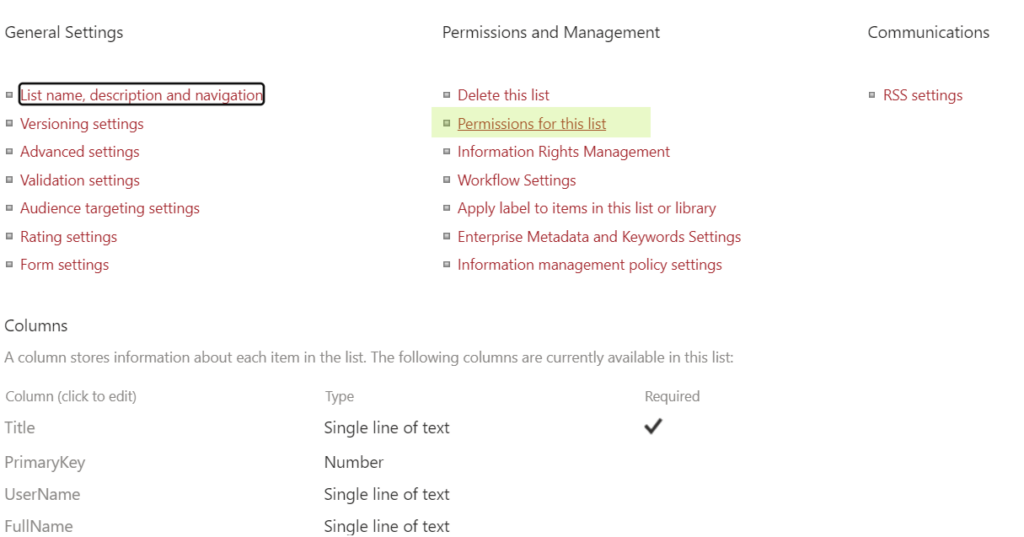
On the ribbon menu, select “Grant Permissions”

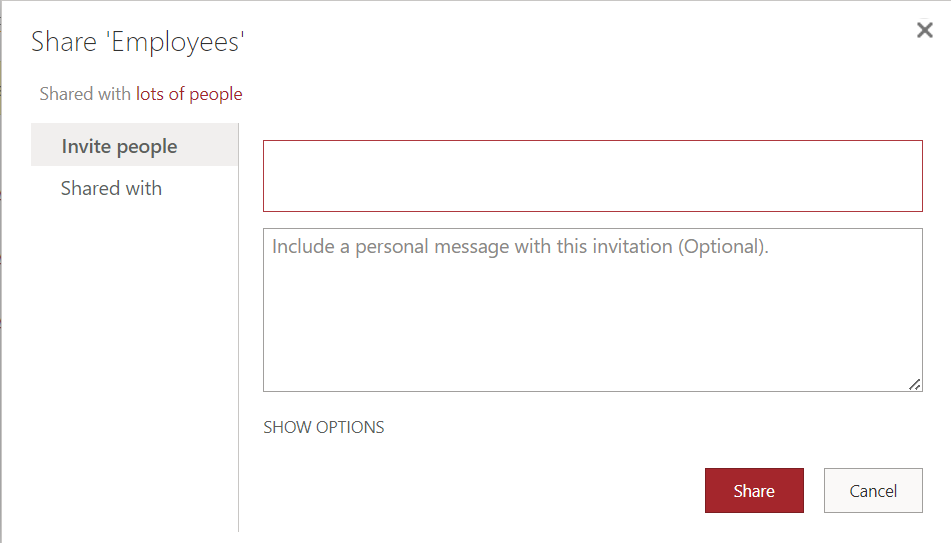
When the dialog shows up, enter the email of guest users:
3. Share Power Apps to guest users:
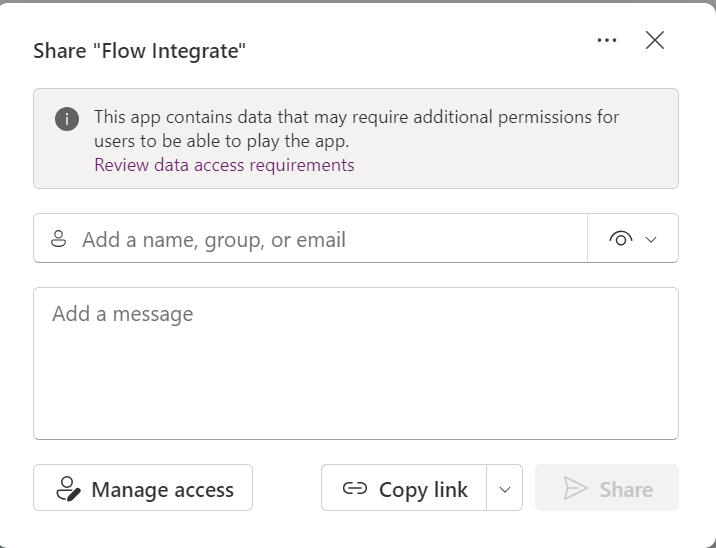
Select the application that needs to be shared with external users
When the “Share” dialog pops up, enter the email address of guest users and click on Share. This action will send an email to guest users’ mailboxes. The guest users need to click on the link inside their emails to accept the invitation.
4. Share embedded Power Automate flows
If the application is using embedded Power Automate flows, these flows are also needed to be shared with external users too.
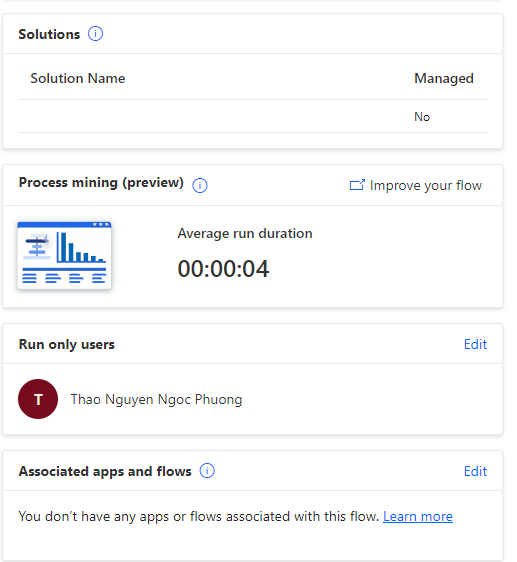
To share embedded flows with external users, open the flow details. On the right-hand side, click “Edit” link next to “Run only users”
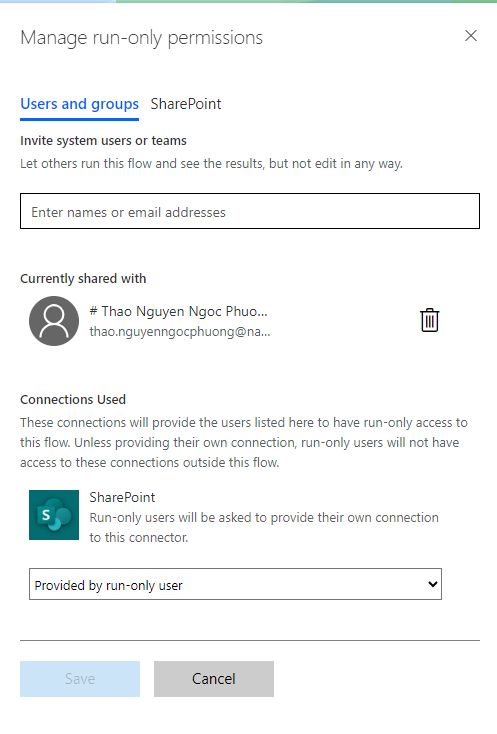
When the Mange run-only permissions dialog shows up, enter the external users email addresses into the textbox
Licensing
As guest users are using Power Apps application (and may include Power Automate flows), we need to provide appropriate licenses to the guest users based on the demands. If guest users are using Microsoft 365 available licenses in their original tenants then there could be no licenses required. Otherwise, appropriated licenses must be provided.
For more info about licensing, please follow guidelines from Microsoft.
Conclusion
Sharing Power Apps to external users seems to be effortless. However, in particular scenarios we need to deal with other technical issues and may need to adjust the original apps to adapt with the requirements. The licensing should be considered at the first place to avoid cost underestimation.