


I. How to install Testerum on Windows
Testerum has no system requirements and is very easy to install. You can either download the installer or the portable application version as an archive from our download page. It supports Windows, MacOS and Linux, detail is here. To install on Windows, just follow the steps below:
- Go to the Testerum download page: https://testerum.com/download/
- Under “Windows Download,” download the Testerum-windows.exe installer file.
- Double-click the downloaded file and follow the on-screen instructions to complete the installation.
- Open the Testerum application, the Testerum Server will start in default port: 9999.
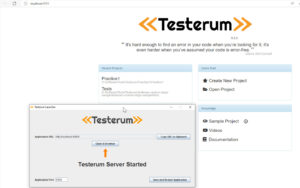
Note: You can use the portable package to avoid the install steps above.
II. What does Testerum offer for manual testing?
Testerum empowers you to perform a wider range of manual testing activities beyond basic UI interaction:
- Create Project: Create a new project within Testerum. This project will serve as a central hub for organizing your testing efforts.
- Create Features: Break down the application you’re testing into distinct functionalities or features.
- Test Cases – Leverage Acceptance Criteria as Manual Tests: Define clear acceptance criteria in plain language using Behavior-Driven Development (BDD) principles. These criteria can then serve as the foundation for your manual test cases, ensuring everyone involved understands the expected behavior.
- Create Test Plan and Execute the Test Plan: A Manual Test Plan allows you select the tests that you want to be in the execution and to set a status on each test.
- Gain Clear Project Insights: Testerum’s comprehensive reports provide valuable information on the quality, stability, and progress of your project. Analyze these reports to identify areas requiring more attention and ensure comprehensive testing coverage.
III. How to create Project, Features and Test Cases
Organize Your Testing with Features and Test Cases:
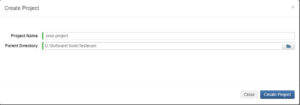
- Create a Project: Click on link “Create New Project” then input the project name and directory to save it.
- Define Features: For example, in a login system, features might include “User Registration,” “User Login”, and “Password Reset.”
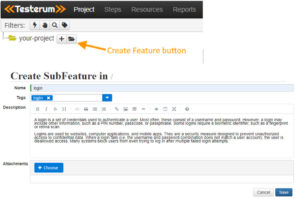
- Manual Test Cases: Within each feature, create well-structured test cases outlining specific steps to verify the functionality. Each test case should include:
- A clear and concise title.
- Detailed steps outlining the actions a user would take.
- Expected results for each step, defining the desired behavior.
- Pre-conditions (any setup required before running the test).
- Post-conditions (any actions needed after completing the test).
- User can use Tags feature to category the test. The Tags is useful for filter test cases in the same category.
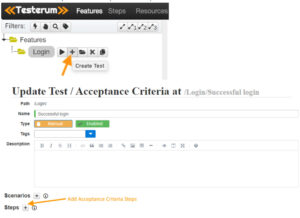
-
- Create steps for the test: Click on the plus icon beside label Steps to add steps.
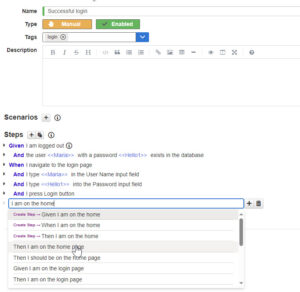
Testerum documentation offers detailed guidance on creating test cases: https://testerum.com/documentation/ui/manual-tests/
IV. Create a Test Plan
A Manual Test Plan allows you select the tests that you want to be in the execution and to set a status on each test.
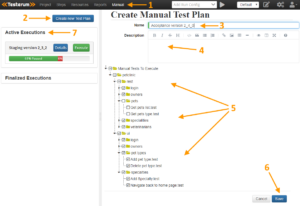
- Navigate to Manual in the top menu bar.
- Press Create new Test Plan button.
- Provide a name for this Manual Test Plan (mandatory). Ideally, your test name should contain the environment and the software version you are testing.
- Type in a description (subsidiary). For this field, Testerum uses Markdown for formatting text. Find more details about Markdown formatting here.
- Select the Manual Tests that you want to be part of this Test Plan.
- Press Save button.
- Your test will be listed in Active Executions panel and the details displayed on the right.
- Press Edit button on the bottom right if you want to make any changes in your Test Plan.
A Brief Look at Automation Testing with Testerum:
While this guide focuses on manual testing, Testerum also empowers you to explore automation. It integrates seamlessly with popular automation frameworks like Selenium, allowing you to leverage existing automation scripts or create new ones to automate repetitive tasks. I’ll write another post to talk in more about the automated test functionality.
V. Execute Manual Tests and View Reports
a. Run Your Tests and Capture Results
Once your test cases and test plan are defined, you’re ready to execute them manually.
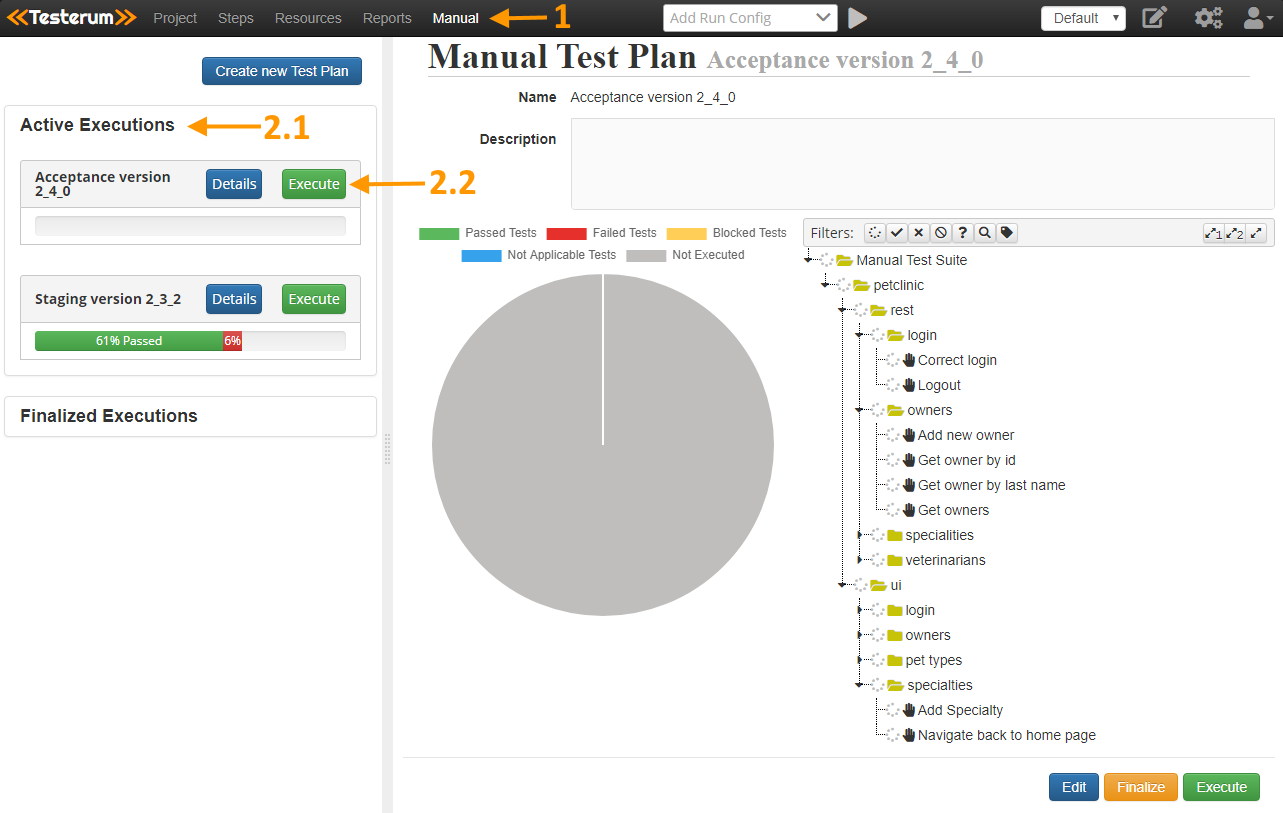
- Navigate to Manual in the top menu bar.
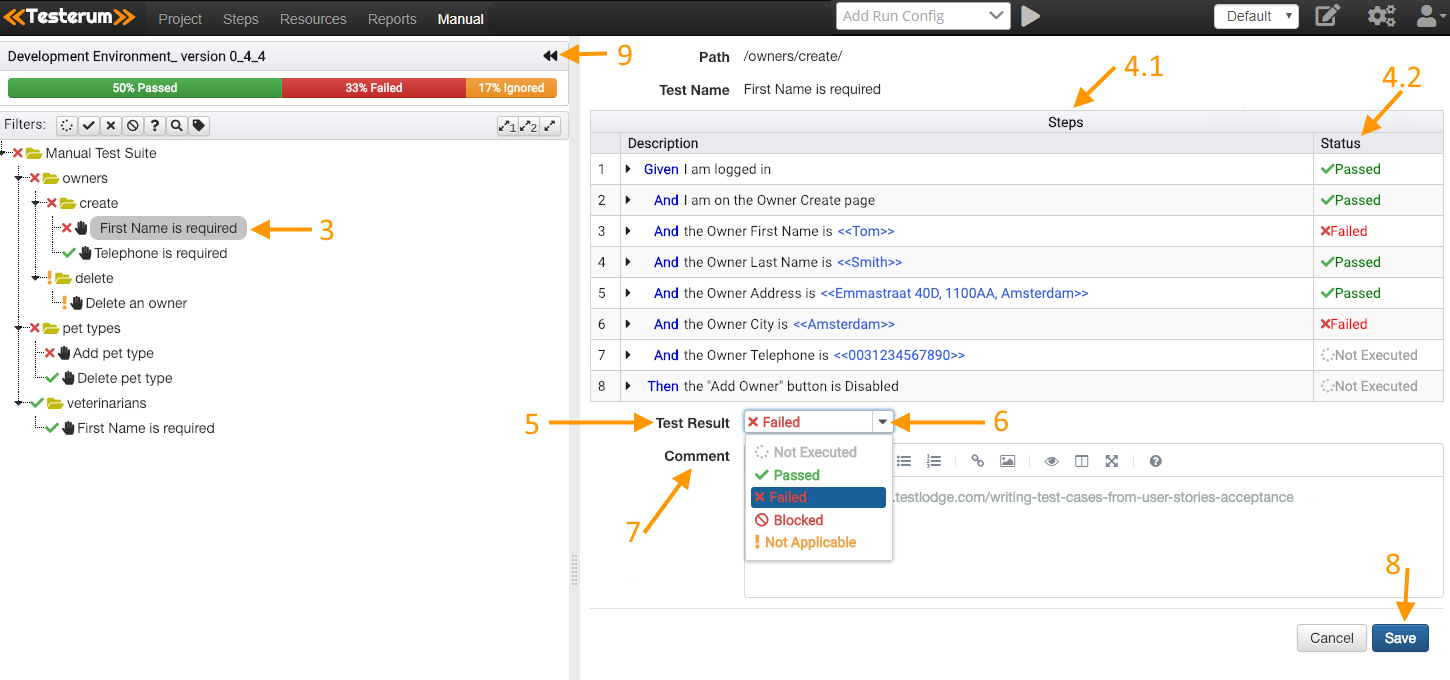
- On the left in Active Executions (2.1) you will find all the active manual Test Plans. You can run them by clicking on the Execute (2.2) button.
- Execution screen will open. On the left you will see a list of all your tests included in the selected plan. Click on a particular test that you want to execute.
- All its Steps (4.1) will be displayed. On the right there is a Status (4.2) column. You can change the status of every step to Failed or Passed by clicking in the Status field.
- Below the list of Steps there is a Test Result box. In case any of the test steps fails the box will automatically be checked as Failed.
- However, from the drop-down menu you can manually select any of the provided Test Result options: Not Executed/ Passed/ Failed/ Blocked/ Not Applicable.
- For Not Executed/Not Applicable or Blocked Test Result you can put a comment along with links and attachments.
- Save your test results. After you save it, a Next button will appear to proceed to the next test.
- In order to finish executing your Test Plan and return to the list click on the Back button.
b. Gain Insights with Reports
As you execute tests, Testerum automatically tracks your progress and generates comprehensive reports. These reports provide valuable insights into your testing efforts, including:
- Overall execution status (number of passed and failed tests).
- Identification of failed tests for further investigation.
- Test coverage metrics to understand how much of the application has been tested.
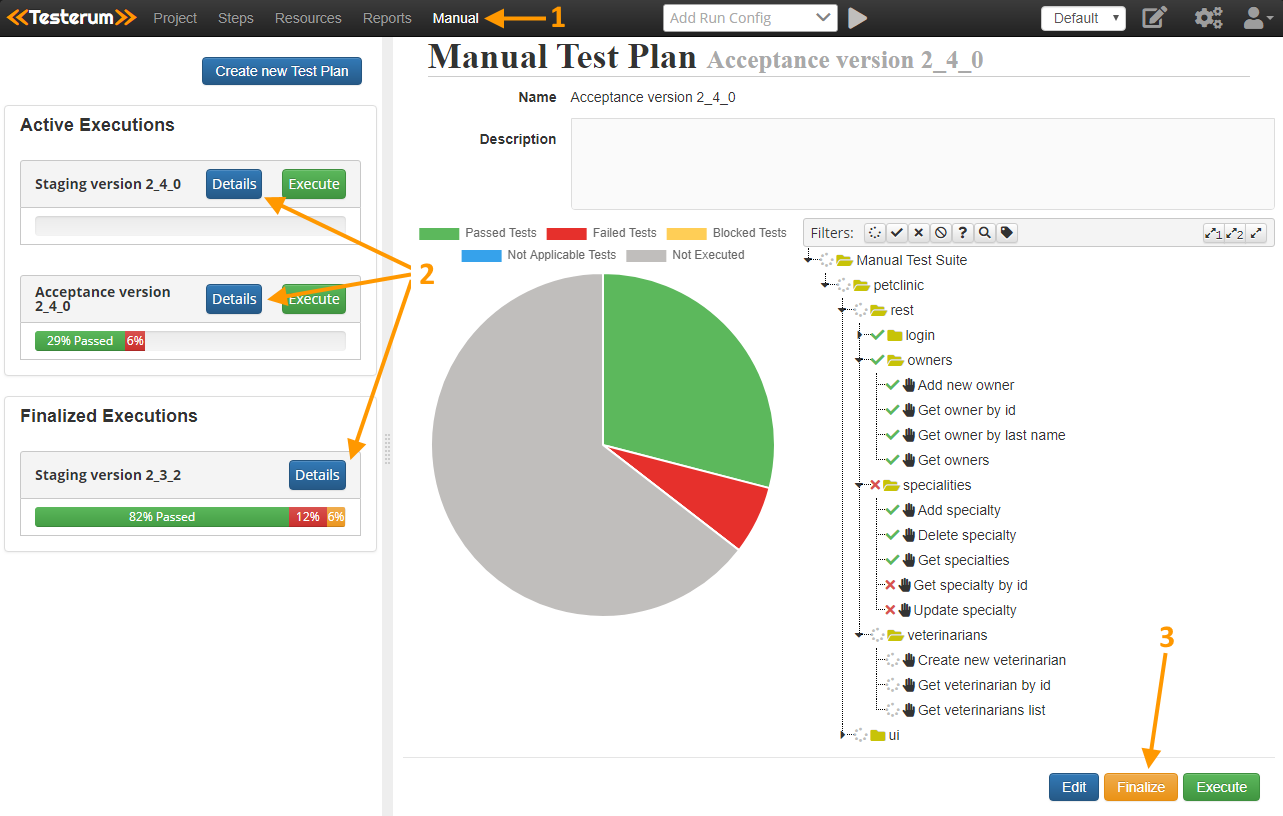
By analyzing these reports, you can identify areas requiring more attention and ensure comprehensive testing coverage.
VI. Ready to Streamline Your Manual Testing?
Download Testerum today and experience a more efficient and collaborative manual testing workflow! Testerum’s user-friendly interface, powerful features, and insightful reporting will empower you to elevate your testing game. Remember, while this guide focused on manual testing, Testerum offers exciting automation capabilities for those seeking to explore further.
References:
- https://blog.nashtechglobal.com/level-up-your-te…rum-and-selenium/
- https://testerum.com/documentation/ui/manual-tests/