



In this blog, we will discuss how to transfer data from an Amazon S3 bucket to Google Cloud Storage using the Google Cloud Data Transfer Service. This process involves creating an AWS user with the necessary permissions, obtaining credentials, and then using those credentials in Google Cloud to perform the transfer.
1: Create an AWS User
- Access AWS Management Console: Log in to your AWS account.
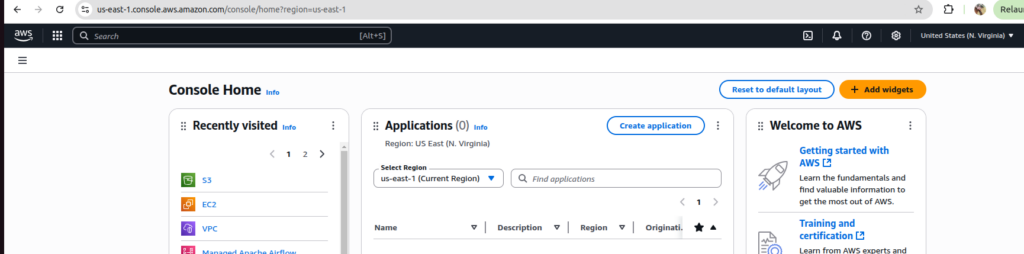
- Navigate to IAM: Go to the Identity and Access Management (IAM) section.
- Create a User:
- Click on “Users” and then “Add user”.
- Provide a username and select “Programmatic access” to create an access key.
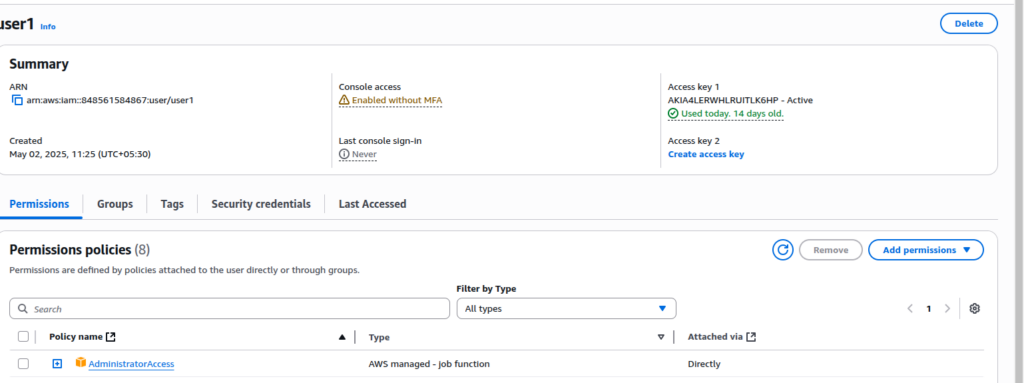
- Set Permissions:
- You can either give the user “Administrator Access” or customize permissions to allow access only to the specific S3 bucket you want to transfer data from.
2: Obtain AWS Credentials
- Access Security Credentials:
- After creating the user, go to the “Security credentials” tab.
- Create Access Key:
- Click on “Create access key” and download the CSV file containing the Access Key ID and Secret Access Key.
3: Prepare Your S3 Bucket
- Create or Use Existing Bucket:
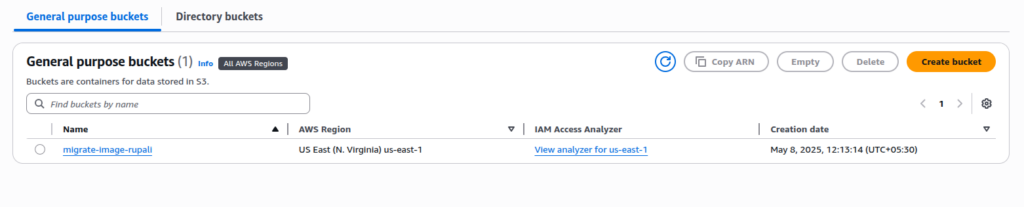
- Navigate to the S3 service and either create a new bucket or use an existing one.
- For this example, we will use a bucket named
migrate-image-rupali.
- Upload Data:
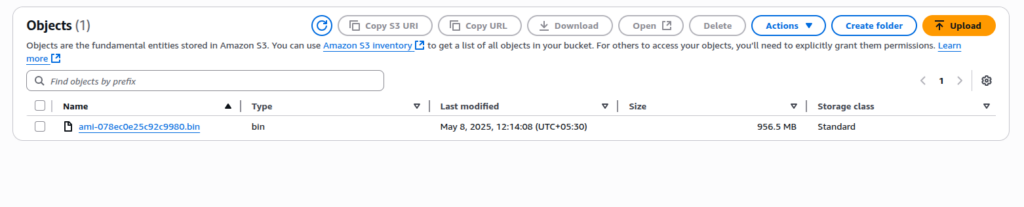
- Ensure that the bucket contains the data you want to transfer. For instance, we have an object named
ami-078ec0e25c92c9980.binin our bucket.
- Ensure that the bucket contains the data you want to transfer. For instance, we have an object named
4: Set Up Google Cloud Storage
- Access Google Cloud Console: Log in to your Google Cloud account.
- Navigate to Data Transfer:
- Go to the “Data Transfer” section in Google Cloud.
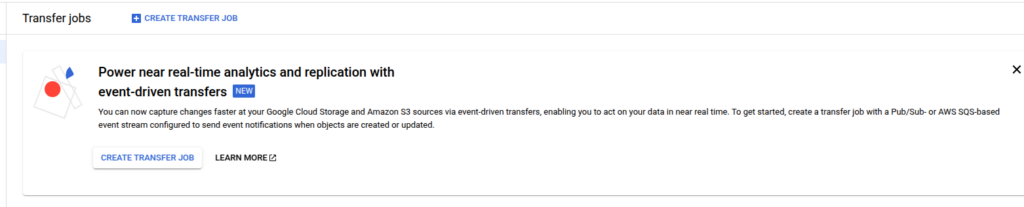
- Create a Transfer Job:
- Click on “Create Transfer Job”.
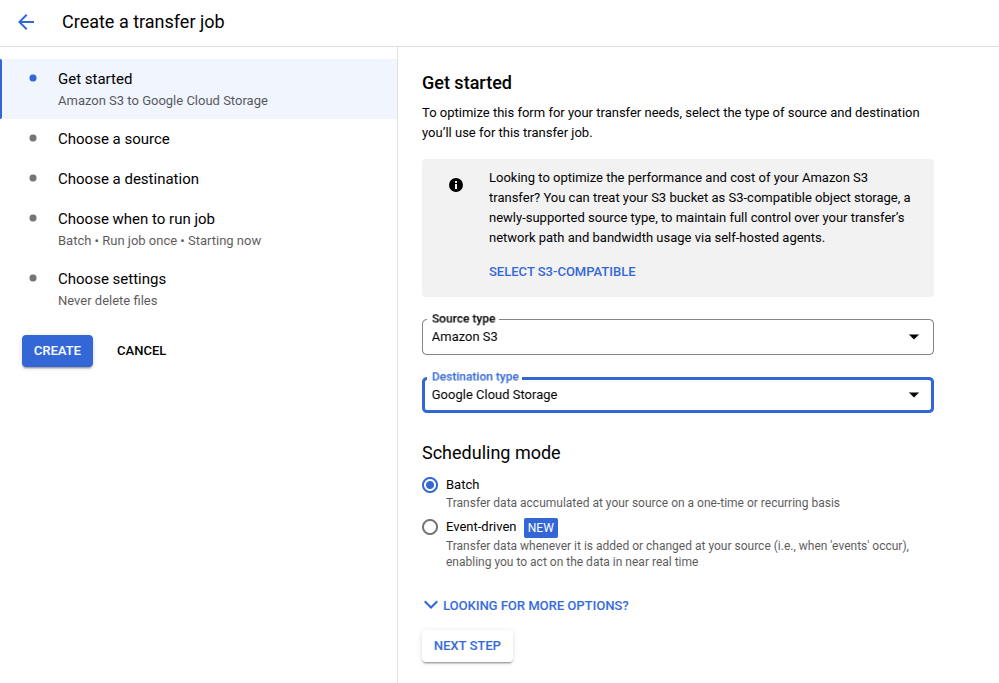
- Select Source Type:
- Choose “Amazon S3” as the source type.
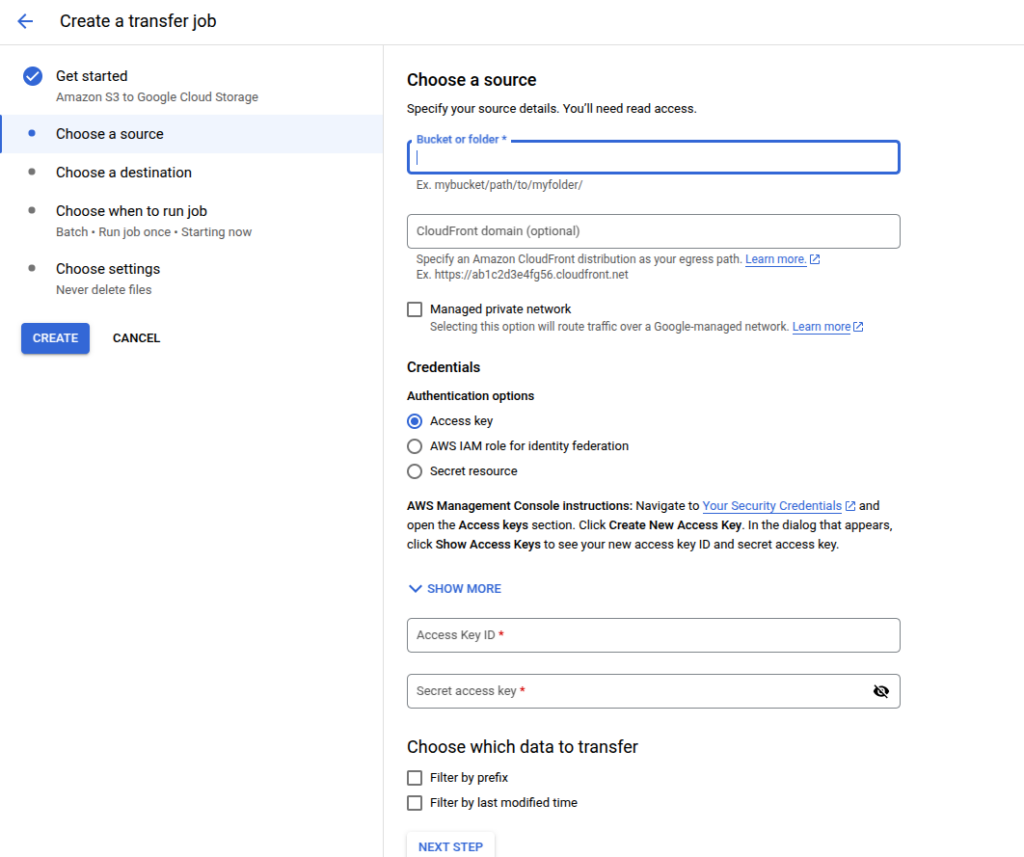
- Enter Bucket Name:
- Input the name of your S3 bucket (e.g.,
myvlc-bucket).
- Input the name of your S3 bucket (e.g.,
- Input AWS Credentials:
- Enter the Access Key ID and Secret Access Key from the CSV file you downloaded earlier.
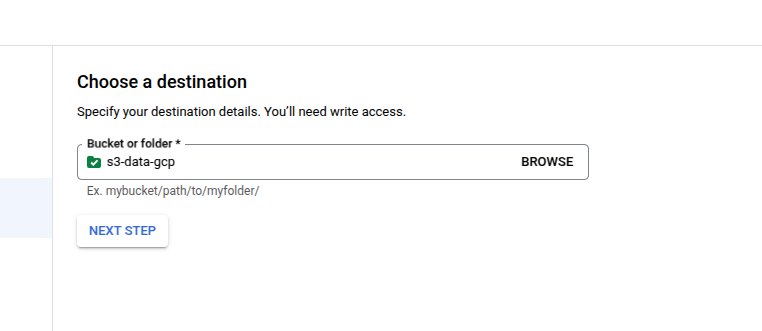
Specify Destination Bucket
- Select Destination Bucket:
- Choose an existing Google Cloud Storage bucket or create a new one to store the transferred data.
- Review and Create Job:
- Click “Next” to review your settings, and then click “Create and Run” to start the transfer job.
Step 6: Verify the Transfer
- Check Transfer Status:
- Once the job is complete, you can check the status in the Google Cloud Console.

- Access Transferred Data:
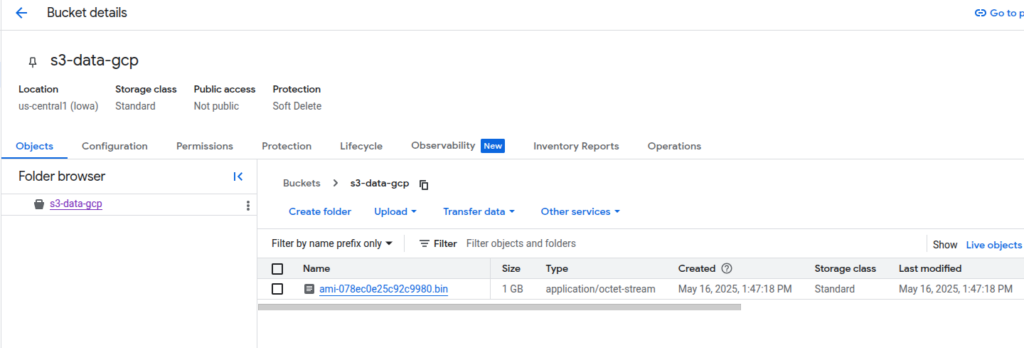
- Navigate to your destination bucket in Google Cloud Storage to verify that the file has been successfully transferred.
Conclusion
Transferring data from AWS S3 to Google Cloud Storage is a straightforward process that involves creating an AWS user, obtaining the necessary credentials, and using Google Cloud’s Data Transfer Service. By following these steps, you can easily move your data between these two cloud platforms.