


Introduction
Automation is crucial for increasing productivity and optimizing procedures in the fast-paced digital world of today. With little to no coding required, Azure Logic Apps provide a reliable way to integrate different services and applications. Logic Apps enable efficient task automation for both developers and non-developers by enabling processes that react to triggers and actions.
We will look at how to use HTTP requests in a.NET application to trigger Azure Logic Apps in this blog post. We’ll demonstrate the simplicity and effectiveness of Logic Apps for integration tasks with a real-world scenario involving the transmission of SMS verification codes via Twilio. Whether you’re a novice or seasoned developer, this tutorial will show you how to use Azure Logic Apps to build user-experience-enhancing automated workflows.
What is an Azure Logic App?
With Azure Logic Apps, you can plan, automate, and coordinate workflows, business processes, and activities to integrate apps, data, systems, and services amongst different corporations or organizations. To put it simply, Azure Logic Apps is a Platform as a Service (PaaS) that lets you connect to hundreds of APIs and services and build processes using triggers and actions without requiring you to write any code.
This feature is extremely helpful for non-developers, and Microsoft also has a platform called Microsoft Power Automate (previously Microsoft Flow) that is comparable but designed specifically for them. Logic Apps are a quick and easy method to integrate third-party services without having to deal with complicated SDKs and documentation.
Implementation of Receiving an SMS to Verify User Registration
SMS verification is widely used by services to validate the registration of new users. You usually receive an SMS with a code to validate your registration after creating a profile and entering your email address and password.
Typically, you would require an account with a service like Twilio or Plivo, which offer SMS message sending APIs, in order to carry out this verification. Then, in order to call these services, you would need to write a function in your code.
But you may use pre-built connectors with these APIs with Logic Apps. To finish, you just need to create a new instance of the Logic App, select the triggers and actions you want, and submit a simple HTTP request from your code.

Step 1: Create and Access Your Azure Account
To create a new Logic App, you need an Azure account. I recommend signing up for a Visual Studio Dev Essentials account, which provides free Azure credits to explore cloud services. After creating your account, head over to the Azure Portal and log in.
Step 2: Create a New Azure Logic App
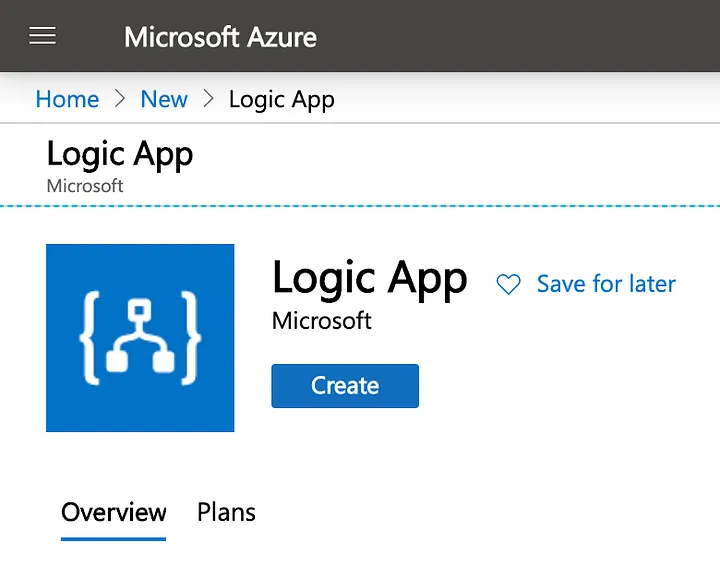
Once logged into the Azure Portal, click on “Create a resource,” search for “Logic App,” and click the “Create” button.
- Choose your subscription and resource group.
- In the “Instance Details” tab, enter a name for your Logic App instance. Select your preferred region from the “Select the location” dropdown.
- Click on “Review + Create” and then “Create.”
Once your deployment is complete, navigate to your resource (Menu > All Resources > [Your Logic App]) and click on “Edit.”
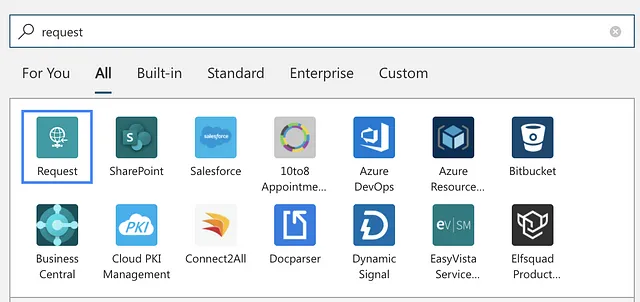
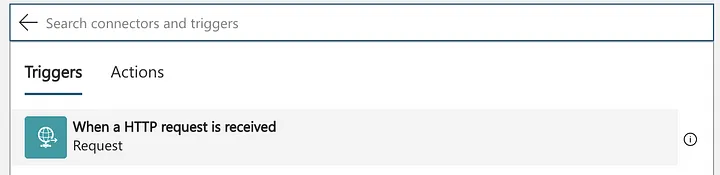
The Logic Apps Designer will open, displaying a search box. The first connector you add will serve as your trigger. Since we want to trigger this Logic App with an HTTP request, search for “request” and select Request.
This adds “When an HTTP request is received” as the trigger for your Logic App. You can define a Request Body JSON Schema, which specifies the expected JSON object when triggered. This allows you to access data in subsequent steps.
For our SMS verification, we’ll need to send a phone number and a code. Therefore, we can add the following schema to the “Request Body” section:
{
    "phone": "",
    "code": ""
}
Step 3: Configure Twilio for Sending SMS
Next, we’ll use Twilio to send our SMS. You can create a trial account for free at Twilio’s website.
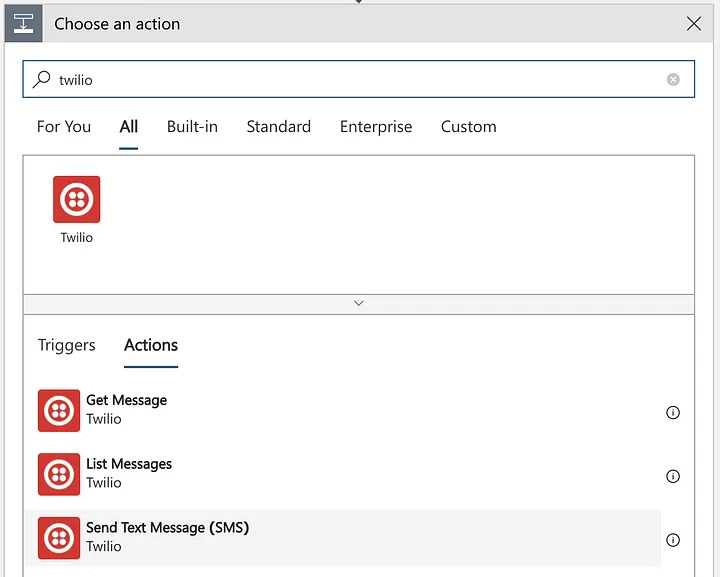
After setting up your Twilio account, return to the Logic App Designer. Click on “+ New step,” search for “Twilio,” and select Send Text Message (SMS).
Before configuring the SMS action, fill out the connection form. Assign a name to your Connection Name and find your Account SID and Auth Token in your Twilio Dashboard.
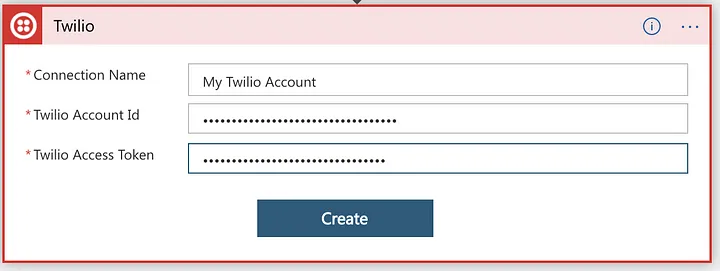
After creating the connection, configure the action:
- From Phone Number: Select the phone number that will send the SMS.
- To Phone Number and Text: You’ll use data received from the trigger. Switch to Code View to access the
TriggerBodyfunction. Find your Send_Text_Message(SMS) object and modify the parameters as follows:
"body": "Your activation code is @{TriggerBody()?['code']}",
"to": "@{TriggerBody()?['phone']}" 

Step 4: Triggering the Logic App from a .NET Application
Create a new C# console application. If using the .NET CLI, run:
dotnet new console Register the IHttpClientFactory to create a HttpClient instance later. Add the following packages using NuGet Package Manager or the .NET CLI:
dotnet add package Microsoft.Extensions.DependencyInjection --version 3.1.3
dotnet add package Microsoft.Extensions.Http --version 3.1.3
Modify the Program.cs file:
using System;
using System.Net.Http;
using System.Text;
using Microsoft.Extensions.DependencyInjection;

namespace AzureLogicAppHttpRequest
{
    class Program
    {
        static void Main(string[] args)
        {
            ServiceProvider serviceProvider = new ServiceCollection().AddHttpClient().BuildServiceProvider();
            IHttpClientFactory httpClientFactory = serviceProvider.GetService<IHttpClientFactory>();
            HttpClient client = httpClientFactory.CreateClient();

            string url = "[YOUR LOGIC APP URL]";

            Console.Write("Your phone: ");
            string phone = Console.ReadLine();

            string code = CreateCode();

            HttpRequestMessage request = new HttpRequestMessage(HttpMethod.Post, url);
            request.Content = new StringContent("{\"code\":\"" + code + "\",\"phone\":\"" + phone + "\"}", Encoding.UTF8, "application/json");

            HttpResponseMessage response = client.SendAsync(request).Result;

            Console.WriteLine(response.StatusCode);
            Console.ReadKey();
        }

        static string CreateCode()
        {
            Random rnd = new Random();
            string code = string.Empty;

            for (int i = 0; i < 6; i++)
                code += rnd.Next(0, 9).ToString();

            return code;
        }
    }
Run the application:
dotnet run Enter the same phone number you used to create your Twilio account.
Conclusion
we explored how to trigger Azure Logic Apps using HTTP requests in a .NET application, highlighting the powerful capabilities of Logic Apps for automating workflows and integrating services. By using Twilio for SMS verification, we demonstrated how easily you can set up complex automation without extensive coding, making it accessible for both developers and non-developers alike.