



1. What is Lighthouse?
Lighthouse is a robust open-source solution developed by Google, designed to assist all project roles in evaluating and enhancing the overall quality of web pages. While its focus is web applications and mobile sites, it still provides a lot of useful information and recommendations that can make any website better.
Lighthouse empowers Testing to identify the issues related to slow loading, lag, or unstable layouts during page load for expanding the testing coverage beyond just functional aspects, be easy for integration with CI/CD pipeline that enables automated testing with deployment or build, ensuring continuous quality assurance and early detection of Front End issues before they reach end users. In addition, Lighthouse also generates detailed and shareable reports in both JSON and HTML formats. It also enables easy comparison of performance scores between versions.
2. How to launch Lighthouse
There are multiple ways to use Lighthouse. We’ll talk about the 3 ways below:
2.1 Activate Lighthouse in DevTools
- Step 1. Load the page you want to audit in the browser.
- Step 2. Open DevTools.
– Windows: F12 key, or Control+Shift+I or Right-click on the page > Inspect
– Mac: Command+Option+I
– From Chrome’s main menu: Click “Customize and control Google Chrome” in the upper right corner, then select More Tools > Developer Tools.
- Step 3. Select the modus, device and categoriesyou want to audit
- Step 4. Click the “Analyze page load” button.
=> Lighthouse will run its audit and display the report in the DevTools pane or window.
2.2 Run Google Lighthouse via Node.js Command Line Tool
To use Lighthouse through Node.js, please follow these steps:
- Step 1: Install Google Chrome
Ensure Google Chrome is installed on your machine.
- Step 2: Install Node.js
Install the latest Node.js version, preferably the LTS (Long-Term Support) version.
- Step 3: Install Lighthouse globally
Open your terminal and run:
npm install -g lighthouse- Step 4: Run an audit
Execute the following command to audit a website:
lighthouse <url>- Step 5: View all audit options
To explore more options:
lighthouse –help2.3 Run Lighthouse via Extension
Alternatively, you can download and install the Chrome Extension for Lighthouse. This could be a solid choice if you plan on using Lighthouse frequently.
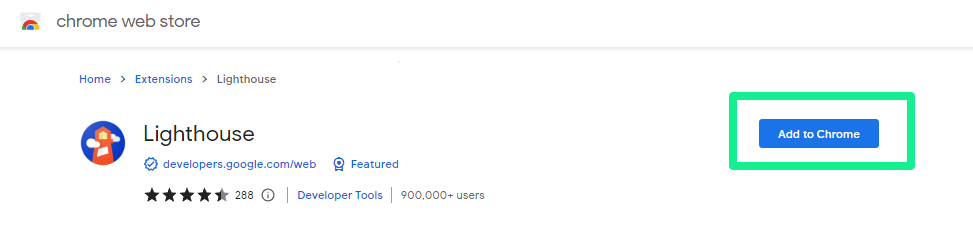
- Step 1: Install Extension
Go to the Chrome Web store, search for Lighthouse, click Add to Chrome
- Step 2: Open the Website
Navigate to the website you want to audit
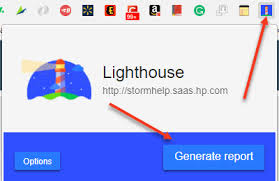
- Step 3: Launch the Extension
Click the Lighthouse icon in the top-right corner of the Chrome toolbar
- Step 4: Configure Settings
Click the gear icon to customize audit categories and device type
- Step 5: Generate Report
Click Generate report, results will appear in a few minutes
3. Lighthouse Audit Categories
As mentioned before a Lighthouse report provides you with five different categories. The most important one for us is performance, however, we will talk about the other four as well.
3.1 Performance
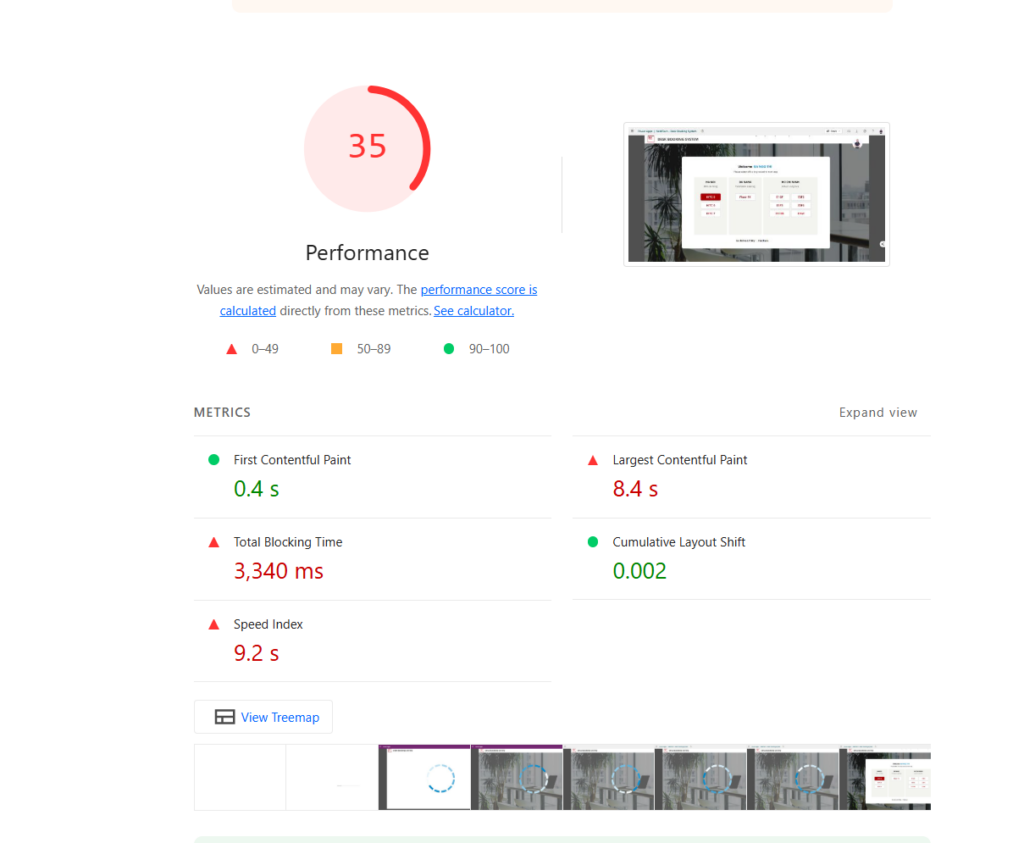
– The perception of speed is as important as actual speed. For that reason, the Lighthouse report focuses on a number of things related to displaying content on the screen as quickly as possible. It also tests the ability of users to interact with the content.
– Google Lighthouse evaluates your site’s performance using metrics such as:
+ First Contentful Paint (FCP): is a measure of how long it takes for the content of any kind to appear on screen.. Lower is better.
- FCP time under 2 seconds — green, fast
- FCP time from 2 to 4 seconds — orange, moderate
- FCP time over 4 seconds — red, slow
+ Total Blocking Time (TBT): Time JavaScript/CSS blocks interactivity. Shorter time improves speed.
- TBT under 300 milliseconds — green, fast.
- TBT from 300 to 600 milliseconds — orange, moderate
- TBT over 600 milliseconds — red, slow
+ Largest Contentful Paint (LCP): LCP plays a major role in the performance score calculator. It reports the render time of the largest image or text block within the viewport (i.e., the visible part of the page).. Lower LCP means a better experience.
- LCP under 2.5 seconds — green, fast
- Speed Index from 2.5 to 4 seconds — orange, moderate
- Speed Index over 4 seconds — red, slow
+ Time to Interactive (TTI): measures when a page is interactive, which means most of the user interface elements are interactive and the screen responds to user input. Lower TTI = faster response.
- TTI under 3.9 seconds — green, fast.
- TTI from 3.9 to 7.3 seconds — orange, moderate
- TTI over 7.3 seconds — red, slow
+ Cumulative Layout Shift (CLS): Measures visual stability. A lower score means fewer unexpected layout shifts.
+ Speed Index (SI): is a site speed test that shows how quickly the contents of a page are viewable. The index is based on a load time under 1.25 seconds. Lower SI = faster loading.
- Speed Index under 4.3 seconds — green, fast
- Speed Index from 4.4 to 5.8 seconds — orange, moderate
- Speed Index over 5.8 seconds — red, slow
Lighthouse also provides recommendations for improvement, making it easier to optimize your site.
3.2 Accessibility
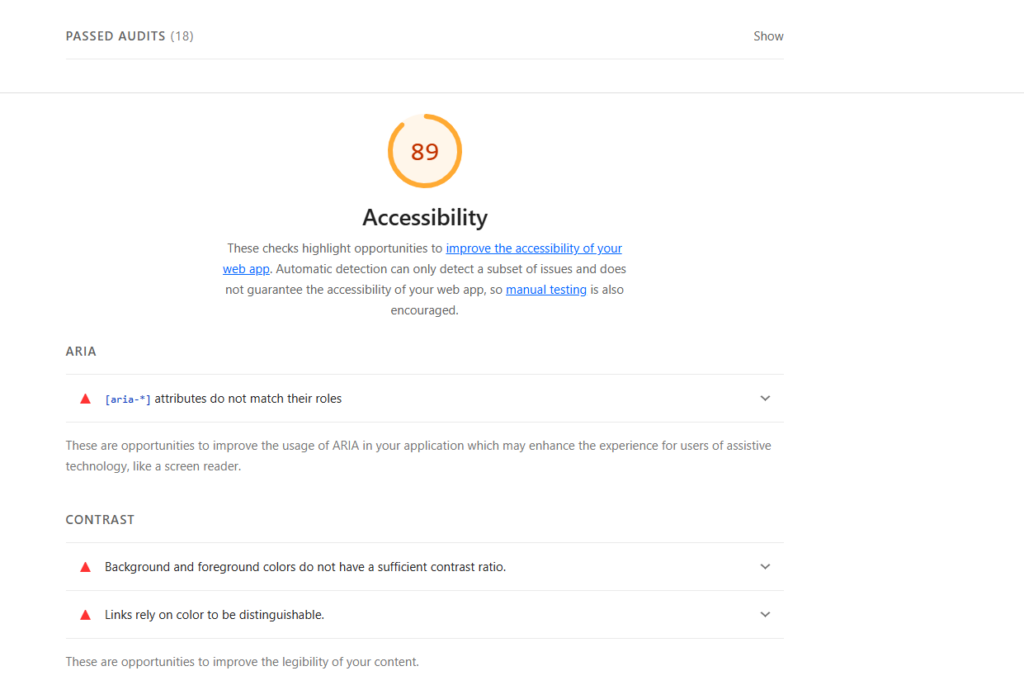
These audits scrutinise whether your website is easily accessible to all users, including those with disabilities. It checks elements like colour contrast, correct use of headings, and appropriate labelling. The Lighthouse Accessibility section also provides a list of “Additional items to manually check.” This is because it isn’t possible to automate a check of all of the relevant benchmarks.
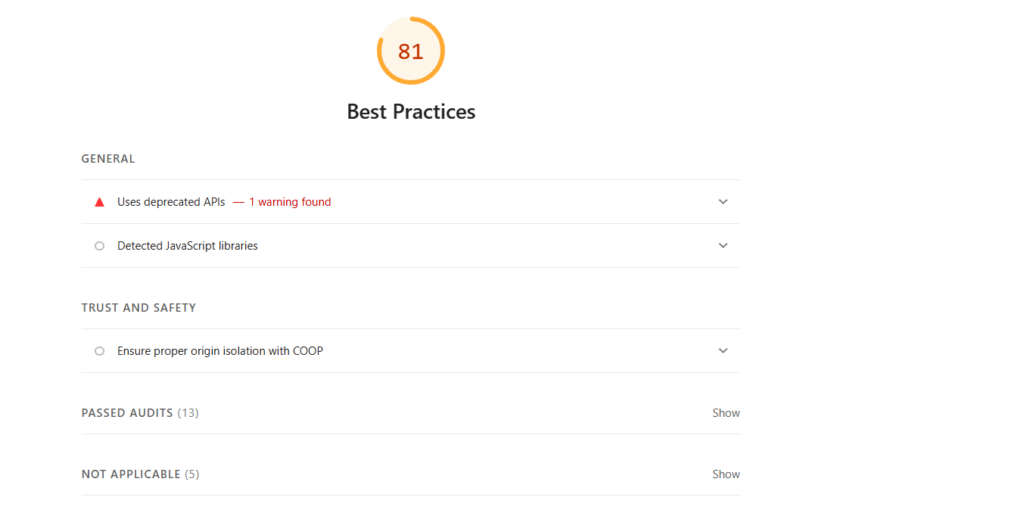
3.3 Best practices
Google Lighthouse identifies opportunities to apply web development best practices, helping to prevent potential issues that could harm your site’s security or performance.
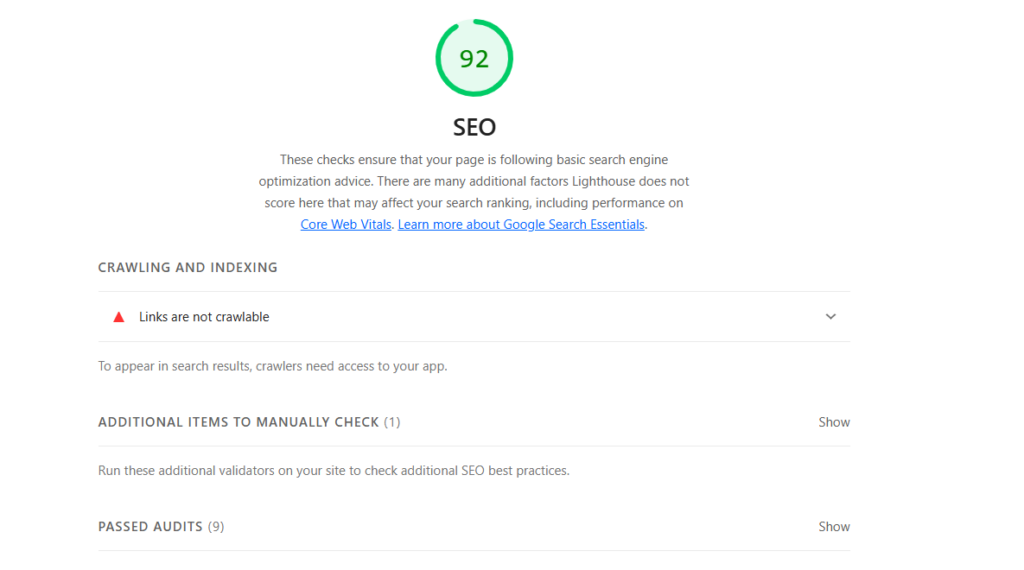
3.4 SEO (Search Engine Optimisation)
The SEO audits ensure that your site is optimized for search engine visibility, focusing on elements like meta descriptions, crawlability, and appropriate use of HTML tags. The Lighthouse SEO section also provides a list of “Additional items to manually check.” At the time of this post, the check only includes a link to the Structured Data Testing Tool.
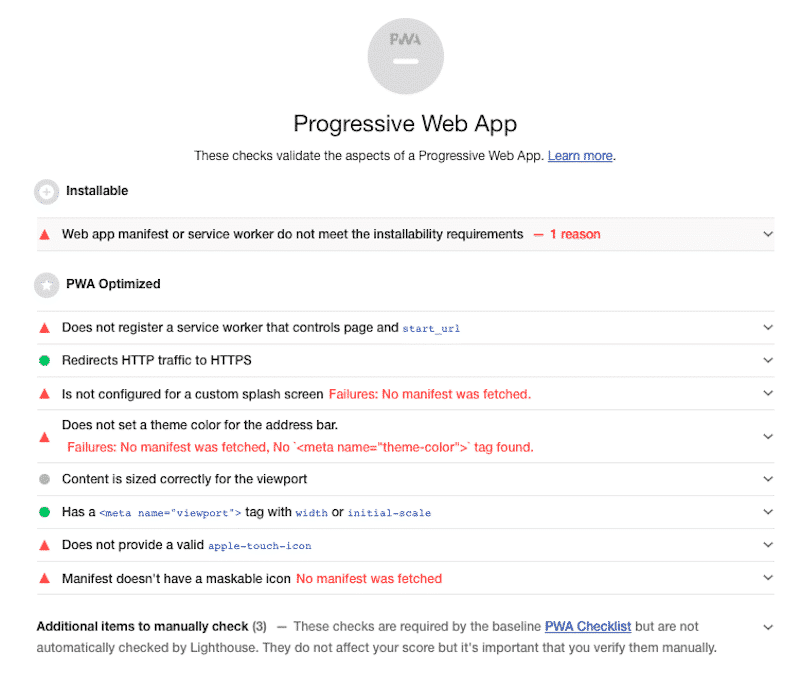
3.5 Progressive Web Apps
Google Lighthouse also evaluates progressive web apps, ensuring they meet essential criteria, such as service worker registration and offline capabilities. But sometimes you run a lighthouse audit on a regular web page most of the results here are not applicable.
We hope this guide provides you with a clearer understanding of Google Lighthouse and its potential to enhance your website.
Thanks for reading – and have a great day!