


Microsoft PowerApps is a tool within the Microsoft Power Platform suite that enables users to create custom apps without extensive coding knowledge. It’s a low-code platform that empowers both technical and non-technical users to build apps quickly. Whether you’re looking to automate business processes or solve specific problems, PowerApps provides the tools you need.
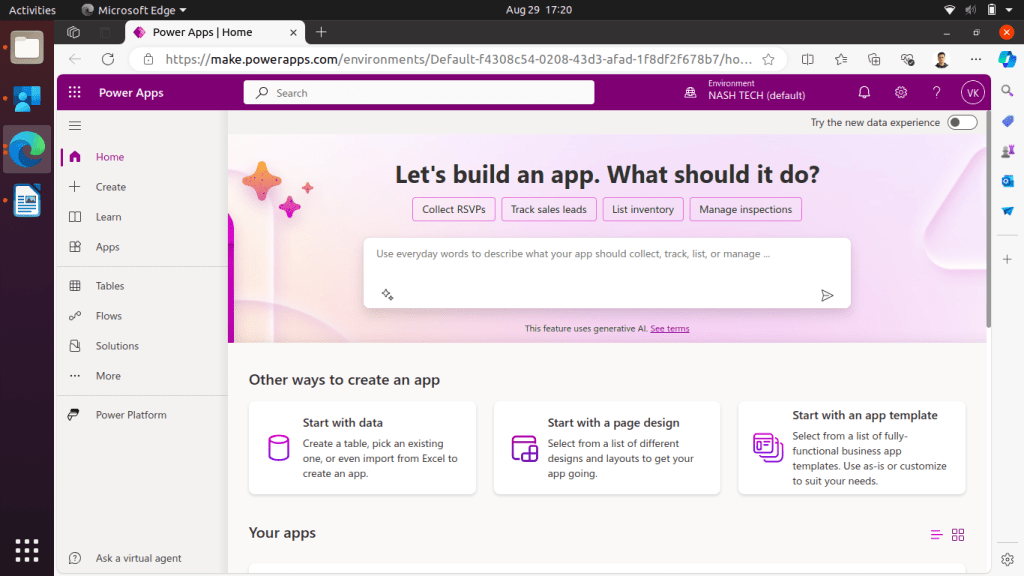
Why Use Microsoft PowerApps?
- No Coding Skills Required: PowerApps uses a low-code approach, making it accessible to everyone.
- Rapid App Development: Quickly create apps using templates, drag-and-drop features, and pre-built connectors.
- Seamless Integration: Works perfectly with Microsoft 365, Dynamics 365, and Azure.
- Cost-Effective: Reduces development time and costs by leveraging existing tools.
- Responsive Design: Apps are automatically responsive on all devices.
Key Features of Microsoft PowerApps
- Canvas Apps: Offers complete design flexibility. Drag and drop elements onto a blank canvas to build your app’s interface.
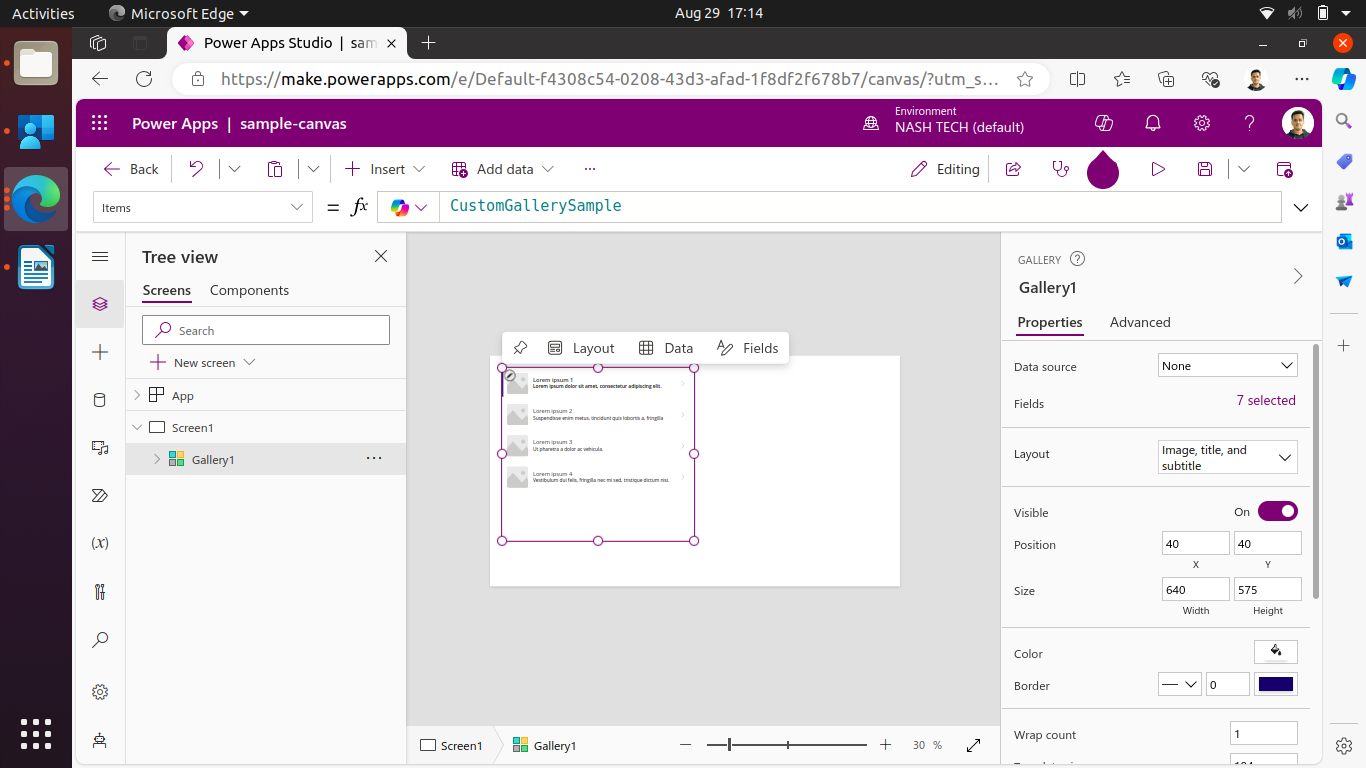
To learn more on how to create a Canvas App you can go to Getting started with Canvas Apps in PowerApps. - Model-Driven Apps: Focus on data-driven design. The app layout is driven by the data model, great for complex applications.

To know more about Model-Driven Apps, please visit What are Model-Driven Apps in PowerApps? A Beginner’s Overview. - Power Automate Integration: Automate workflows within apps to simplify tasks and improve efficiency.
- Pre-built Templates: Get started quickly with templates for common business scenarios like employee onboarding or budget tracking.
- AI Builder: Add AI capabilities, such as text recognition and prediction models, without needing coding skills.
How to Get Started with PowerApps
- Access PowerApps: Available through Microsoft 365. Log in to your account and navigate to the PowerApps portal.
- Choose the Type of App: Select from canvas, model-driven, or portal apps based on your needs.
- Connect Your Data: Integrate data from sources like SharePoint, Excel, and SQL Server.
- Design Your App: Use drag-and-drop tools to customize your app’s look and feel.
- Test and Publish: Test your app, make adjustments, and then publish it for your organization to use.
Common Use Cases for PowerApps
- Employee Onboarding: Automate and streamline the onboarding process.
- Expense Tracking: Create a custom app for submitting and approving expense reports.
- Inventory Management: Manage stock levels and automate reorder requests.
- Customer Service: Develop a portal for logging issues and communicating with support teams.
Tips for PowerApps Beginners
- Start Small: Begin with a simple project to get familiar with PowerApps.
- Leverage Templates: Use and modify templates as a learning tool.
- Utilize Learning Resources: Explore Microsoft’s tutorials and community forums.
- Experiment with Power Automate: Integrate workflows to enhance your apps.
- Test on Multiple Devices: Ensure a consistent experience across different devices.
Conclusion
Microsoft PowerApps is a game changer for anyone looking to build custom apps without the complexity of traditional software development. With its intuitive interface, seamless integration, and robust features, PowerApps makes it easy to create, share and use apps that enhance productivity. Whether you are an IT professional or business user, PowerApps can turn your ideas into working solutions.