


Introduction to Cosmos DB Emulator
Developing and testing locally before deploying to Azure Cosmos DB can save time and cost. The Azure Cosmos DB Emulator provides a local environment that emulates the Azure Cosmos DB service for development purposes. Lots of people get stuck for the setup of cosmos db Emulator, but this guide will walk you through setting up the emulator on Windows and Linux and provide a sample .NET console application to demonstrate its use.
Setting Up the Azure Cosmos DB Emulator
For Windows
setup for windows is pretty much simple
- Download and Install the Emulator
- Download the Azure Cosmos DB Emulator from the official Microsoft website.
- Download Link: https://aka.ms/cosmosdb-emulator
- Run the downloaded
.exefile to install the emulator.
- Start the Emulator
- After installation, the emulator starts automatically. If it doesn’t, you can start it from the Start menu by searching for “Azure Cosmos DB Emulator“.
- Access the Emulator
- Once started, the emulator is accessible at
https://localhost:8081/_explorer/index.html. You can use the Data Explorer to manage your databases, collections, and documents.
- Once started, the emulator is accessible at

and then you are good to go with the use of emulator, I also provided the sample code to test if your emulator is working properly or not later in this blog.
For Linux
For Linux users, that can be little bit complicated, because the emulator is available as a Docker container.
- Check if Docker is Installed:
Open a terminal and run the following command to check if Docker is installed
docker --version

If Docker is installed, you will see the Docker version information. If it is not installed, you will see an error message.
2. Install Docker (If docker is not installed)
If Docker is not installed, you can install it by following the instructions from the official docker documentation.
Link: https://docs.docker.com/engine/install/ubuntu/
3. Pull the Emulator Image
Open a terminal and run the following command to pull the Azure Cosmos DB Emulator
docker pull mcr.microsoft.com/cosmosdb/linux/azure-cosmos-emulator:latestIf you are getting an error related to permissions, then you can go with sudo command
4. Check to make sure that the emulator image is available on your local Docker host or not using following command.
docker images
4. Run the Emulator
Start the emulator container with the following command:
docker run \
    --publish 8081:8081 \
    --publish 10250-10255:10250-10255 \
    --name linux-emulator \
    --detach \
    mcr.microsoft.com/cosmosdb/linux/azure-cosmos-emulator:latest

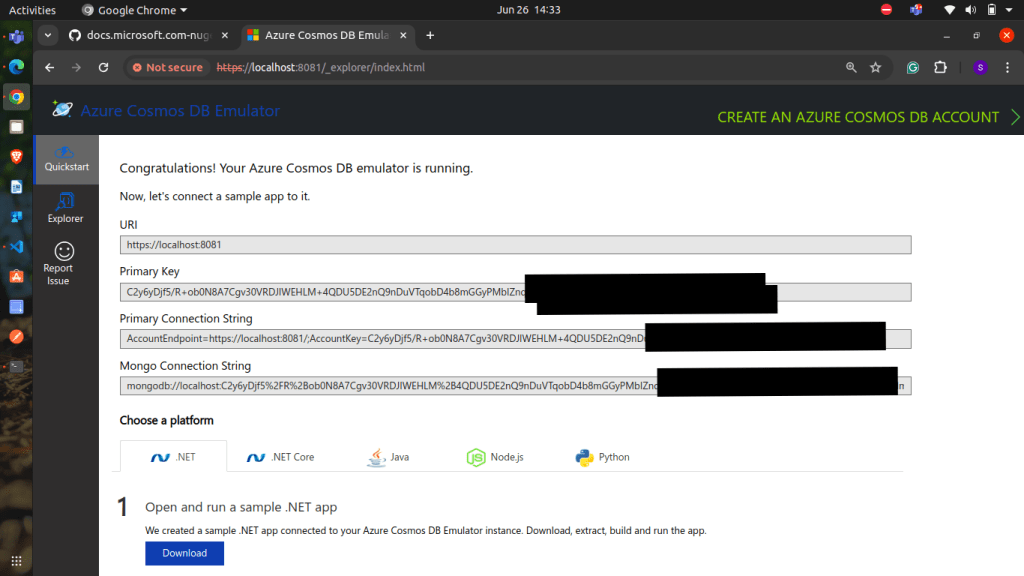
Just wait for some time to load, and then the emulator is now accessible at https://localhost:8081/_explorer/index.html.
5. Importing the emulator’s TLS/SSL certificate
To use the emulator with your preferred developer SDK without disabling TLS/SSL on the client, you need to import the emulator’s TLS/SSL certificate.
The certificate for the emulator can be found at the path /_explorer/emulator.pem on the running container.
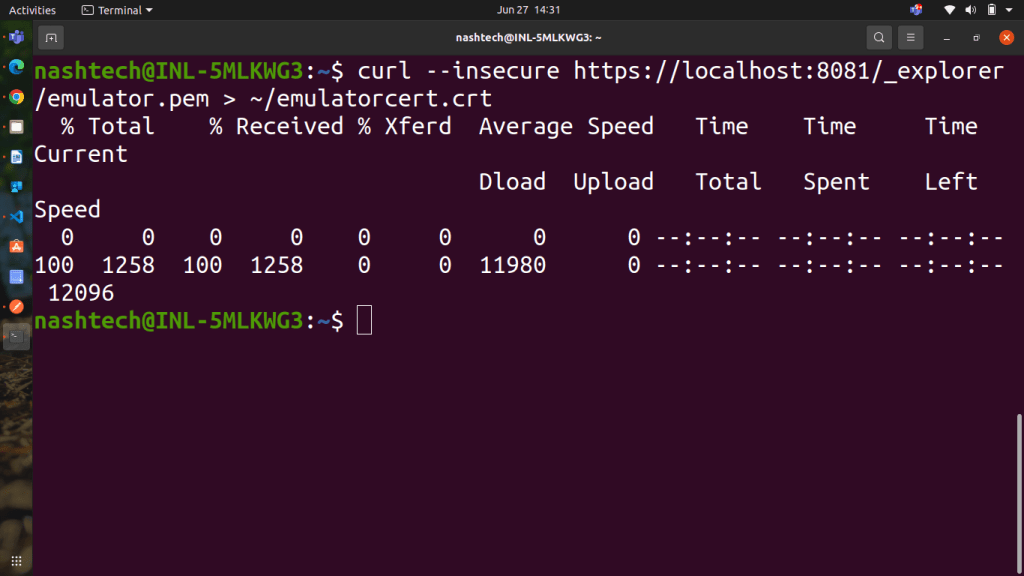
- Download the certificate from the running container to your local machine.
use the following command:
curl --insecure https://localhost:8081/_explorer/emulator.pem > ~/emulatorcert.crt
- Install the certificate according to the standard procedure for your operating system. so for an instance, on Linux, you would copy the certificate to the
/usr/local/share/ca-certificates/directory.
for that use the following command:
cp ~/emulatorcert.crt /usr/local/share/ca-certificates/3. On Linux systems, regenerate the certificate bundle using the appropriate command for your distribution.
For Debian-based Linux systems (e.g., Ubuntu), use the following command:
sudo update-ca-certificatesFor Red Hat-based Linux systems (e.g., CentOS, Fedora), use the following command:
sudo update-ca-trustNow you are good to go with the setups, lets move on to see if the emulator is working properly or not.
.Net Sample Application to work with Cosmos DB Emulator
- for that, clone or download the sample project from my github repository
Link: https://github.com/sujitmeshramnashtech/azure-cosmos-db-emulator-template
- open the code editor and replace the PrimaryKey in appsettings.json with your local Cosmos DB Emulator primary key.
- and then simply run the project using following command
dotnet runand it will return the following output as shown below.

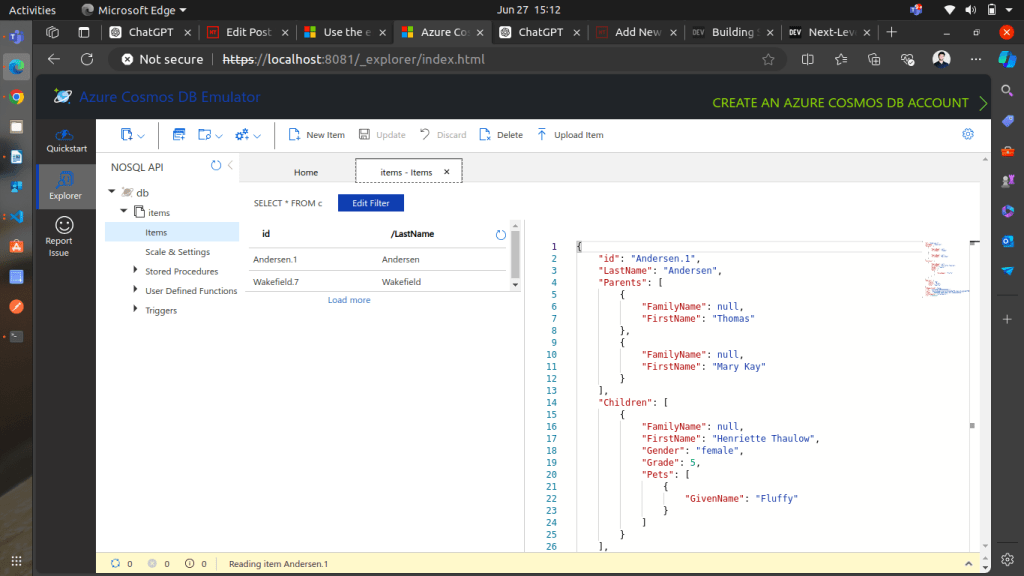
to verify if the Cosmos DB Emulator is working properly or not,
go to the Explorer section in Cosmos DB Emulator and there you can see the database with the sample data provided in the code.
Conclusion
Developing and testing locally with the Azure Cosmos DB Emulator saves time and cost by providing a robust local environment mirroring the Azure Cosmos DB service. This guide simplifies the setup process for both Windows and Linux users, offering clear steps and a sample .NET application to verify the emulator’s functionality. By following these instructions, developers can ensure efficient local development without having azure subscription (this will only valid for local development scenario) and a smooth transition to cloud deployment.