


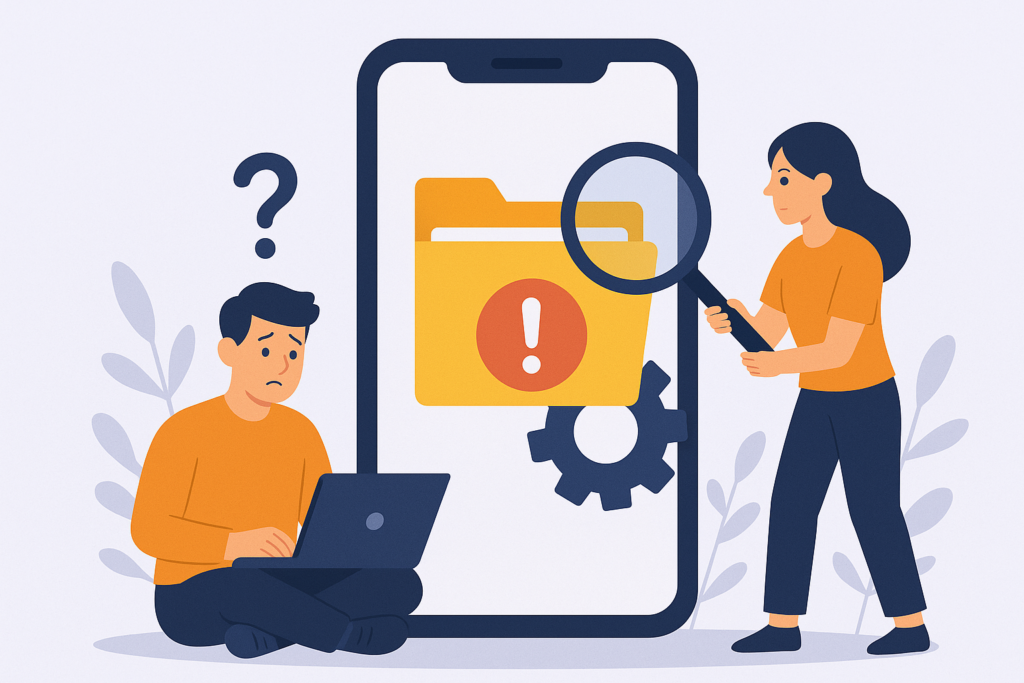
Have you ever tested a mobile app, run into a weird bug, reinstalled the app—and the bug just wouldn’t go away? Even after a “clean” reinstall?
Meanwhile, the same app runs perfectly fine on other devices.
You might start questioning your test device, your sanity, or your karma… But in many cases, the true culprit is much simpler: the cache.
The Problem: When Reinstall Isn’t Enough
- On my phone: the old promotional banner kept showing up.
- On other testers’ phones: the new banner displayed correctly.
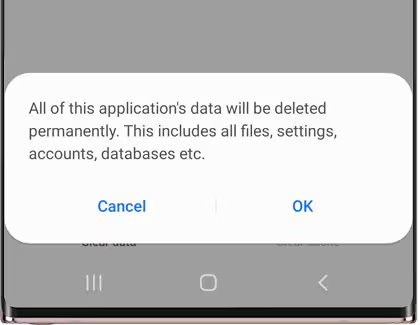
- I deleted the app, cleared data, reinstalled—it still showed the old banner.
The breakthrough? Only after clearing the system cache and restarting the device did the banner finally update.
That’s when I realized: reinstalling an app doesn’t guarantee a clean slate.
Understanding Mobile Caching
Through trial, error, and frustration, I discovered three types of cache that can interfere with mobile app testing:
1. App-Level Cache
Data the app saves locally to improve performance and reduce network calls.
Examples include:
- Image assets (banners, logos)
- Saved login/session info
- Previously loaded screens or data
Important:
Uninstalling the app usually removes this cache.
However, some Android devices with auto-restore or backup features may retain this data unless the cache is explicitly cleared.
2. System-Level or Third-Party Cache
Some content isn’t directly controlled by the app, such as content loaded through web views, browsers, or OS-level services.
Examples include:
- WebView or browser-cached content
- CDN-hosted images
- OS-cached server responses
Important:
These caches live outside the app sandbox.
Even a full reinstall won’t clear them. You’ll need to manually go into system settings and clear the cache.
3. Server-Side or Device-Bound Cache
Sometimes, the issue doesn’t live on your phone at all—it’s in the backend.
Examples include:
- A/B testing based on user/device ID
- Personalized UI or feature flags
- Staggered release deployments tied to user accounts or device fingerprints
Important:
No amount of local cleanup will fix these.
Your options are:
- Use a different test device
- Try logging in with a different user account
- Ask the backend team to reset or override your test data
How to Troubleshoot “Only Happens on My Device” Bugs
Use this checklist before raising alarms:
- ✅ Did you reinstall the app completely?
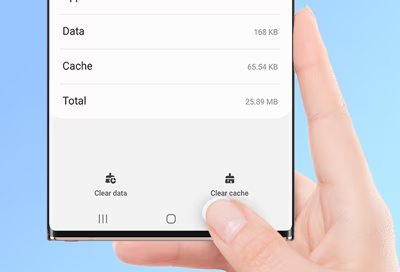
- ✅ Did you clear the app’s cache from system settings?
- ✅ Did you check for leftover files or hidden app data?
- ✅ Is the backend caching data for your user/device?
- ✅ Did you test with a different user or device?
Quick Guide: How to Clear Cache Properly
On Android:
Settings → Apps → [Your App] → Storage → Clear Cache
Some devices may require Developer Options to access full cache settings.
On iOS:
There’s no native “Clear Cache” option.
You’ll need to:
- Use TestFlight for clean installs
- Restart the device after uninstalling
- In some cases, reset Safari/WebView content via settings
Final Thoughts
“Don’t always blame the app—sometimes, the bug lives in the stubborn cache you forgot to wipe.”
If you’re a mobile tester or developer, mastering cache behavior across OS layers can save you hours of frustration—and prevent misreporting “ghost” bugs.