


You need to run mobile tests but have limited of physical devices — or have you ever had to reproduce a bug that only occurs on a specific device, such as a Samsung Galaxy S8 running Android 8 or an iPhone 6, without actually having that device on hand?
In the real world, testing on real devices is the gold standard. But when you’re facing hundreds of device models, OS versions, and browser combinations, buying or provisioning a real device (or a separate emulator) for each one quickly becomes unrealistic.
The “Compatibility” bug in mobile ecosystems — a real case
• My team once received a report that a bug appeared on a popup when the user accessed the site from an iPhone SE.
• The devices available in our project weren’t enough to reproduce every reported environment — yet investigation still needed to happen.
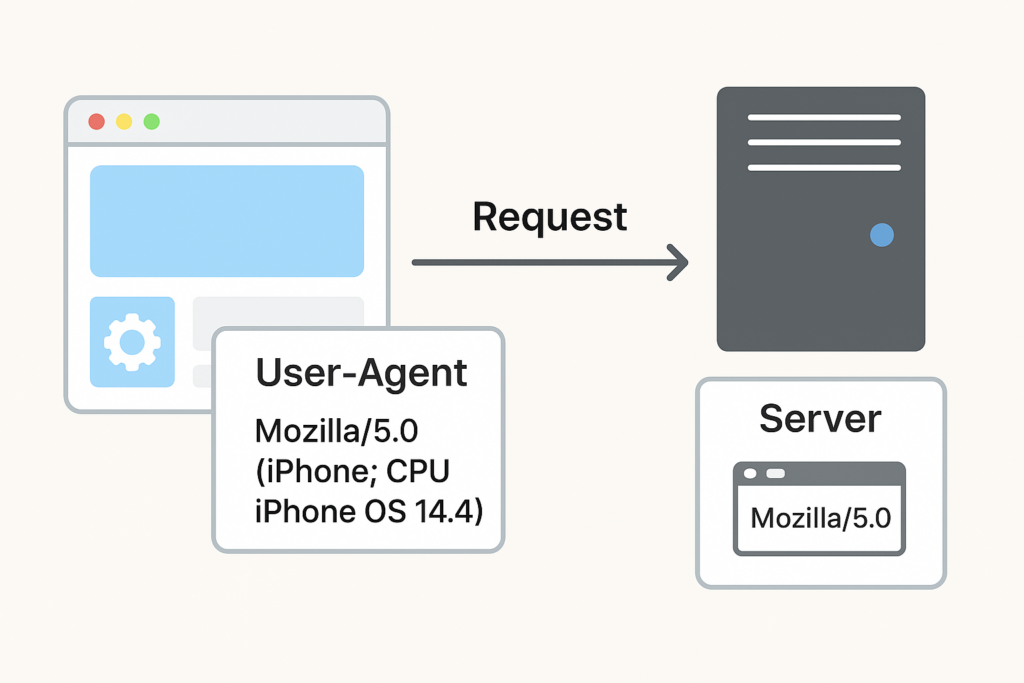
After digging in, the issue turned out not to be a front-end rendering problem but server-side logic. The server was inspecting the User-Agent header to decide which CSS/JS bundle to serve and how to create sessions. When the User-Agent indicated an older device, the server executed a different logic branch — and that branch contained the bug.
Quick glossary
- CSS (Cascading Style Sheets): the “outfit” and “makeup” of a web page — colors, sizes, layout.
- JS (JavaScript): the “behavior” — making buttons work, opening pop-ups, handling events.
By changing the User-Agent, you test whether the server treats you differently (serves different “outfits”) depending on what device it thinks you’re using.
The question we needed to answer
“Is the problem actually on the server side, or is it caused by how the client sends data to the server?”
The solution: change the User-Agent — “trick” the server
User-Agent is the identification string a browser sends with each request that tells the server what device, OS, and browser the client claims to be. By changing the User-Agent in DevTools, you can make the server believe you are the exact device that triggers the bug.
How to do it
- Open DevTools (F12) → find Network conditions (under More Tools).
- In User agent uncheck Use browser default.
- Select a specific
User-Agent(for example: iPhone 6/7/8, or an older Android Chrome). - Reload the page and reproduce the steps that trigger the bug.
- Observe the server’s response — does the returned data, UI, or logic differ?
If the bug reproduces, you’ve narrowed the cause down to:
➡️ Server-side logic that branches based on the User-Agent.

How User-Agent actually works — and where it stops
1. What User-Agent is good for
- Helps the server return the appropriate resources (CSS, JS, HTML) for that device.
- Useful for quickly verifying how the backend responds to different client groups.
- Handy for isolating logic branching bugs (e.g., server enabling a special “mobile-only” feature when it detects a mobile
User-Agent).
2. What User-Agent does not change
- Swapping the
User-Agentonly fools the server — it does not change the browser’s rendering engine.
What is a rendering engine?
It’s the heart of any browser: software that reads HTML, CSS, and JavaScript the server returns, then paints pixels to the screen. It determines layout, animations, and how JS runs in that particular browser environment.
Therefore, display-related bugs — CSS layout issues, animations, or JS behavior that depend on the actual browser/engine, touch latency, GPU, or hardware performance — will not be accurately reproduced by just changing the User-Agent. User-Agent cannot simulate view port quirks, touch responsiveness, GPU differences, or device performance characteristics.
When to use — and when not to use — User-Agent spoofing
Use it when:
- You want to determine whether the server has device-dependent logic.
- You need a quick check to see if the server returns a different mobile layout vs. desktop.
- You want to triage logic-level branching before spending time on deep UI testing.
Don’t use it when:
- The bug is about rendering, animation glitches, performance, or touch-specific behavior.
- You need full confidence in UI/UX compatibility between devices. In those cases, test on real devices or full emulators.
Takeaway: from “pretending” to “testing for real”
Mastering User-Agent spoofing is a lightweight, effective tool in your tester toolkit — a fast way to triage and narrow down server-side compatibility issues while saving time. But remember:
“
User-Agentlets you pretend to be someone else — it doesn’t make you actually be them.”