


Kotlin Multiplatform Mobile (KMM) represents a paradigm shift in mobile app development, offering developers a unified solution for targeting both Android and iOS platforms. By leveraging Kotlin’s versatility and conciseness, KMM empowers developers to write code once and share it across platforms seamlessly. This not only accelerates development but also reduces duplication of effort, ensuring consistency and reliability across platforms. In this guide, we’ll walk through two straightforward methods for creating KMM projects, providing step-by-step instructions to help you get started on your cross-platform development journey.
Before diving into project creation, it’s essential to establish a solid foundation of understanding about Kotlin Multiplatform Mobile. Our previous blog post delves into the core concepts and benefits of KMM, providing valuable insights that will complement your journey through this guide. By familiarizing yourself with the fundamentals of KMM, you’ll be better equipped to navigate the project creation process and unlock the full potential of cross-platform app development.
Feel free to check out our previous blog post “Kotlin Multiplatform Mobile – Streamlining Mobile App Development” to enhance your understanding of Kotlin Multiplatform Mobile before embarking on your project creation journey.
Creating KMM Projects:
1. Installing KMM Plugin:
- Launch your preferred Integrated Development Environment (IDE) such as Android Studio or IntelliJ IDEA.
- Navigate to the plugin marketplace or settings within the IDE.
- Search for the “Kotlin Multiplatform Mobile” plugin and install it.
- Restart the IDE to activate the plugin.
- Now, you can create a new KMM project directly from the IDE, leveraging its intuitive interface and integrated tools.
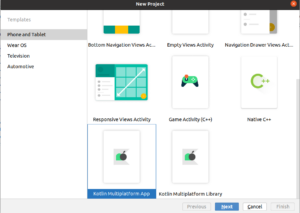
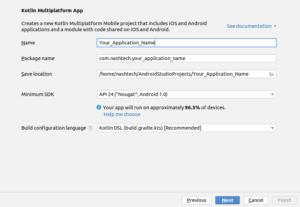
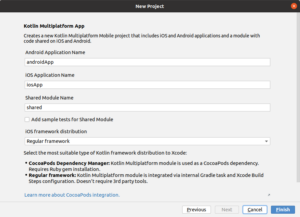
Now, click on Finish and wait for the project to be loaded.
2. Using KMM Website:
- This method offers a streamlined approach, providing step-by-step instructions and resources to kickstart your KMM journey.
- Alternatively, visit the official Kotlin Multiplatform Mobile website at https://kmp.jetbrains.com/.
- Follow the provided guidelines and prompts to create a new KMM project.
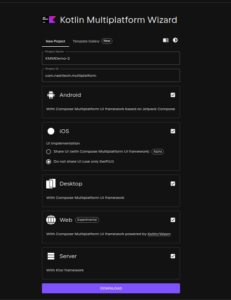
Configure your projects as per the requirements and click on Download, then extract it and open it with your preferred IDE.
Understanding Project Structure:
Once you’ve created a KMM project, it’s essential to familiarize yourself with its structure to effectively manage and navigate your codebase. Here’s an overview of the typical project structure in a KMM project:
- Shared Module: Contains shared code that is platform-agnostic, including business logic, data models, and utility functions. This module serves as the foundation for code sharing between Android and iOS platforms.
Platform-Specific Modules:
- Android Module: Houses platform-specific code and resources for the Android platform. This includes UI components, platform-specific integrations, and resources like layouts and drawables.
- iOS Module: Similar to the Android module, this contains platform-specific code and resources tailored for iOS devices. Developers can implement native UI components and integrate iOS-specific features within this module.
Project Configuration Files:
- build.gradle (or build.gradle.kts): Configuration file for managing project dependencies, build settings, and other project-specific configurations.
- settings.gradle (or settings.gradle.kts): Specifies the modules included in the project and their dependencies.
- Podfile (for iOS projects): Defines dependencies and configuration settings for iOS project integration using CocoaPods.
Understanding the project structure enables developers to organize their code effectively and leverage the full potential of Kotlin Multiplatform Mobile for building cross-platform apps efficiently.
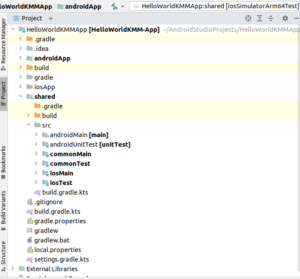
This is how our project structure appears while working with KMM.
Conclusion
Creating Kotlin Multiplatform Mobile projects is the first step towards unlocking the potential of cross-platform app development. By following the step-by-step methods outlined in this guide and gaining an understanding of project structure, developers can embark on their KMM journey with confidence, building high-quality apps for Android and iOS platforms seamlessly.