


Hi folks, In this blog, you’ll learn how to run and test their automated Selenium web tests through a Docker container. However, you may be asking what the circumstances are and why we use them. As I believe, everyone is familiar with Selenium as it is a famous tool, so let’s start with a short description of Docker.
Docker is a software platform that allows you to build, test, and deploy applications quickly. Docker packages software into standardized units called containers that have everything the software needs to run including libraries, system tools, code, and runtime.
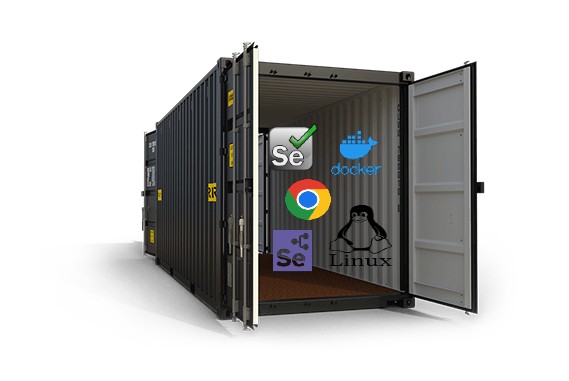
Unfortunately, building the Docker container wasn’t straightforward. We needed a Docker container with a virtual OS, a Chrome web browser, selenium, etc. so let’s more talk about the Docker container.
Docker container:
As per google:- the Docker container image is a lightweight, standalone, executable package of software that includes everything needed to run an application: code, runtime, system tools, system libraries, and settings.
Let’s have a look at the software required for web automation setup with Selenium Grid.
- Selenium
- Supported programming language and its runners
- Build tools like Node, maven
- web browser
- Java environments
- Testing framework
As I’ve already indicated, setting up a Docker container is not easy, but don’t worry, we have another solution to bypass the things we use “standalone packages” of software, which contain all the components required to run an application.
We can find Docker images on the Docker Hub. Docker Hub is an image library. It’s like a repository of Docker images.
Search Docker Hub for a Selenium image. There would be several images in the search results. Each one is used for a specific purpose. Choose the selenium or selenium/standalone-chrome Docker image to run a test on Google Chrome.
You can pull the above image by using the below command :
sudo docker pull selenium/standalone-chrome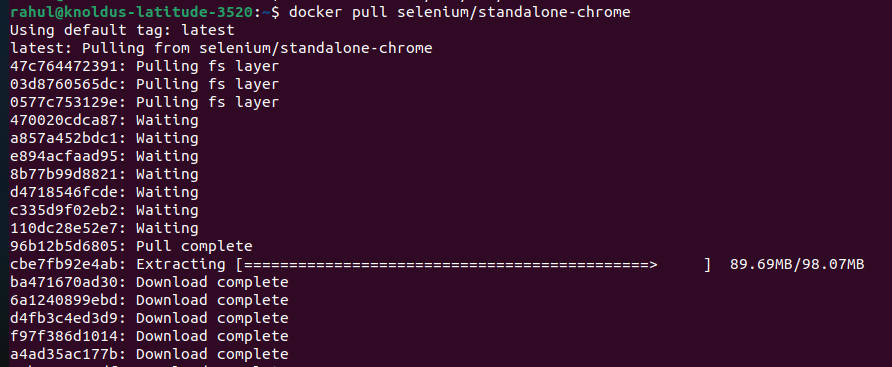
Launch Firefox; it works nearly identically to Chrome. We only need to run a new image, and we can point it locally to a different port so that it won’t conflict with the one that is already running.
sudo docker pull selenium/standalone-firefoxYou can verify that your system has the following images by using the below command but in my case, I use only chrome image:
sudo docker images
now start the container by using the standalone docker image
sudo docker run -d -p 4444:4444 -v /dev/shm:/dev/shm selenium/standalon-chromedocker run: starts a container from the image specified.
d: starts the container in detached mode(background mode).
-p 4444:4444: Port 4444 on the container is mapped to Port 4444 on your local browser.
selenium/standalone-chrome: name of the image that has to be started.
The Selenium Grid will be accessible from the Docker container as soon as you type and enter that command in your terminal. You can verify whether Selenium Hub has started or not by checking the following link in your browser: http://localhost:4444/, It renders Selenium Grid UI, as shown in the below screenshot.
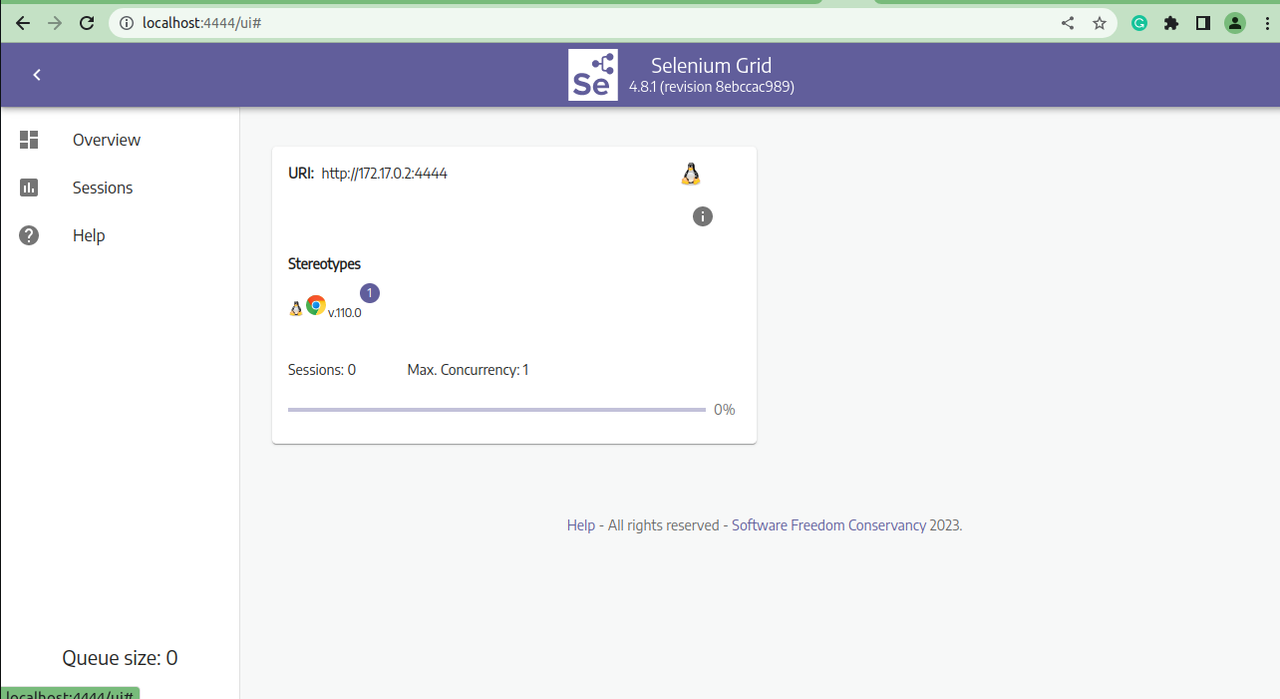
To identify the port numbers of Chrome, you can type the below command in your quick-start terminal, and you will be able to see all the Docker images and the running ports of each image under the PORTS column.
sudo docker ps –a
Configuring Selenium RemoteWebDriver
ChromeOptions cap = new ChromeOptions();

        cap.setCapability("browserVersion", "110.0");

        cap.setCapability("browserName","chrome");

        cap.setCapability("platformName", "Linux");

        LaunchBrowsers.driver = new RemoteWebDriver(new

URL("http://172.17.0.2:4444/wd/hub"),cap);

        LaunchBrowsers.driver.manage().window().maximize();

        LaunchBrowsers.driver.get(baseURL);
I create selenium with a cucumber-based maven project along with the TestNG framework
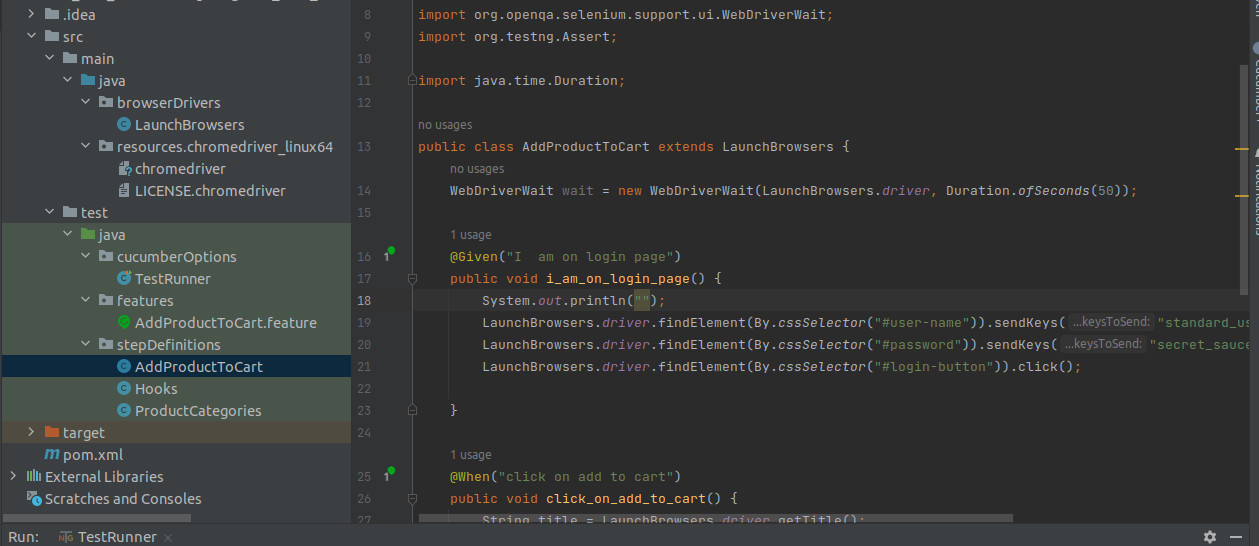
When our test suites are run from the IDE, we can view the live execution and screen recording through the Selenium grid.
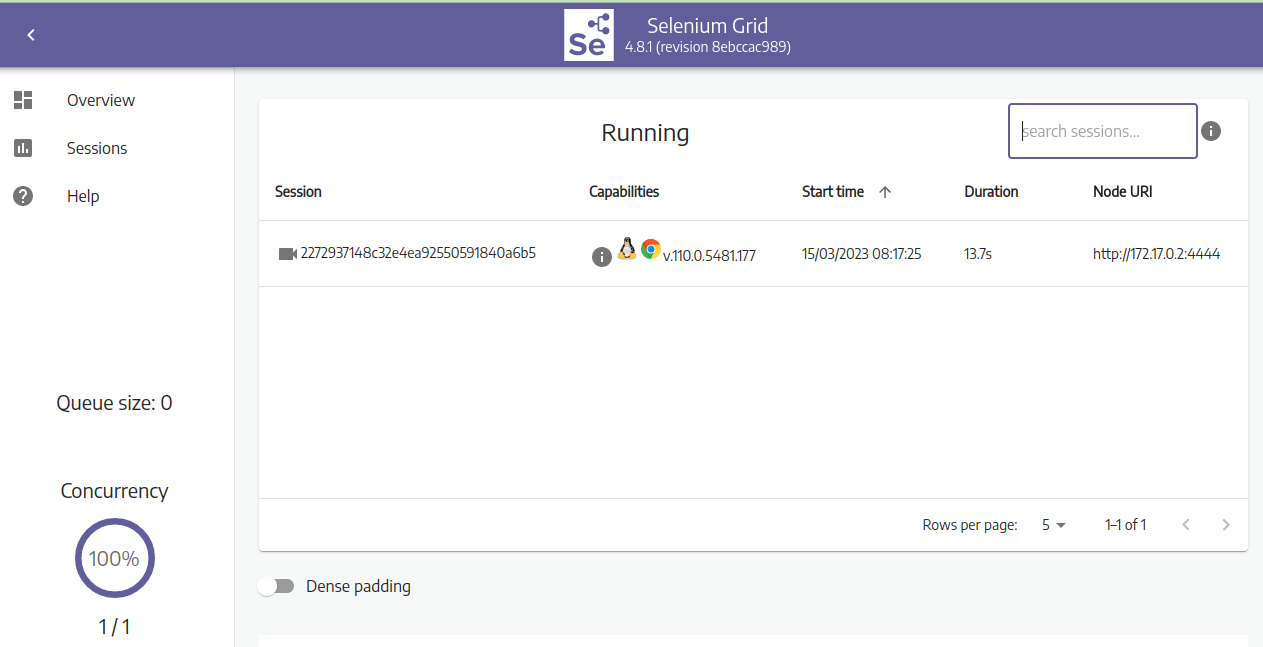
The screen recording is accessible but password-protected, so you must enter a “secret” as the password to access the recording.
Conclusion
In this brief blog post, we learned how to containerize the test using Docker. In my upcoming posts, I’ll go into more detail about it. I’ll also release a tech hub that contains all of my Selenium code. In order to simplify the process for everyone, I will also add a Docker compose file to my project.
Till then, Happy learning, and happy sharing!
Reference
https://hub.docker.com/_/docker
Proudly powered by WordPress