



Introduction
In the cloud-driven business platform, data security is one of the top priorities. Encrypting sensitive data is a MUST have to ensure compliance with regulations. We’re going to enforce encryption on an S3 bucket by using AWS Key Management Service (KMS) to protect data at rest.
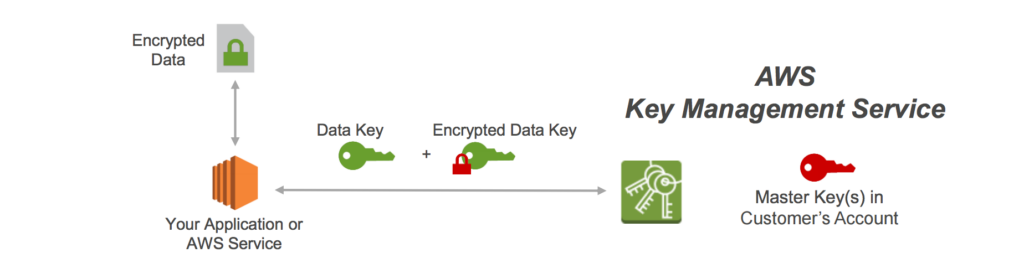
Source: https://jayendrapatil.com/aws-s3-encryption/
> AWS KMS is a scalable and secure solution that provides businesses protect data through managed encryption keys.
Encryption Cryptography Signing – AWS Key Management Service – AWS
Use case
Suppose that a business handling customer-sensitive information like healthcare records, or personal identifiers information. By enforcing encryption with AWS KMS, businesses can ensure that any data uploaded to AWS S3 automatically encrypted, reducing the risk of data breaches and ensuring regulatory compliance (e.g. GDPR…)
Main steps
Create a S3 bucket
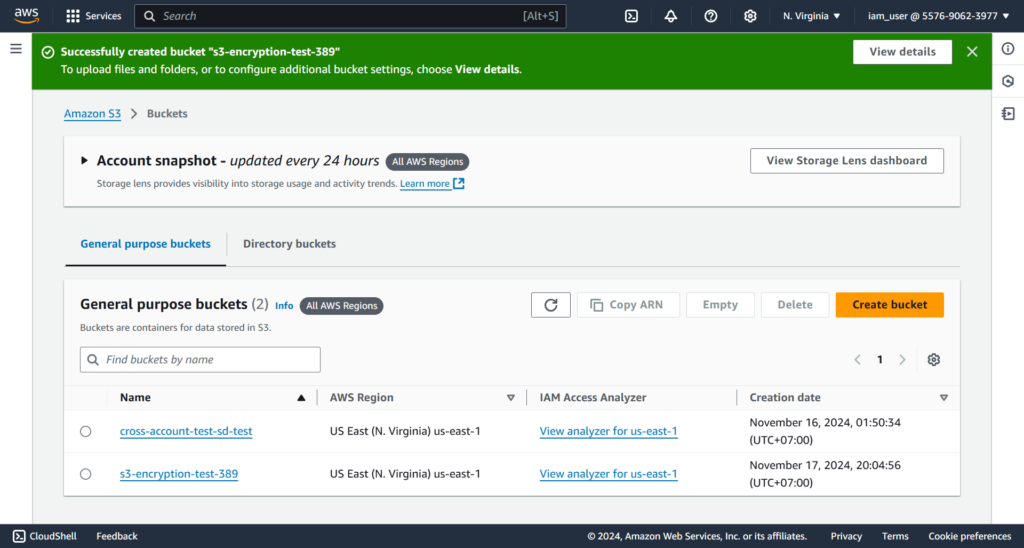
Let’s create a bucket called [s3-encryption-test-389]

Click [Create bucket] button to finishing this step
Enforce encryption
Firstly, we need to get ARN name of the newly created bucket:
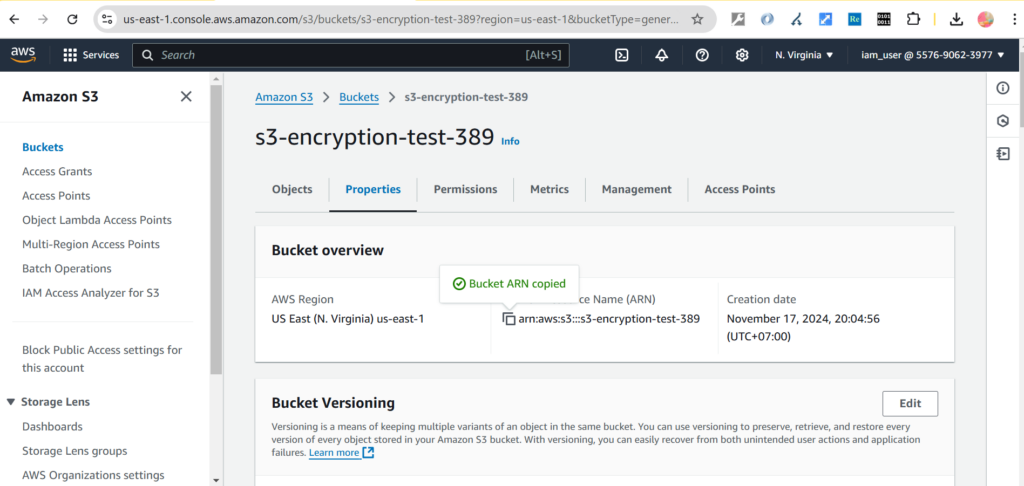
Next, select the bucket [s3-encryption-test-389] to edit the bucket policy by clicking the [Edit] button in the [Bucket policy] section

Input the Bucket policy as below:
{
    "Version": "2012-10-17",
    "Id": "PutObjectPolicy",
    "Statement": [
        {
            "Sid": "DenyUploadUnEncryptedObject",
            "Effect": "Deny",
            "Principal": "*",
            "Action": "s3:PutObject",
            "Resource": "arn:aws:s3:::arn:aws:s3:::s3-encryption-test-389/*",
            "Condition": {
                "StringNotEquals": {
                    "s3:x-amz-server-side-encryption": "aws:kms"
                }
            }
        }
    ]
}
This Bucket policy ensure any PutObject (uploading files) to the specified ARN resource (S3 bucket) without having the header [s3:x-amz-server-side-encryption=aws:kms] will be denied. In other words, only allowing upload files to the specified S3 bucket with KMS key encrypted.
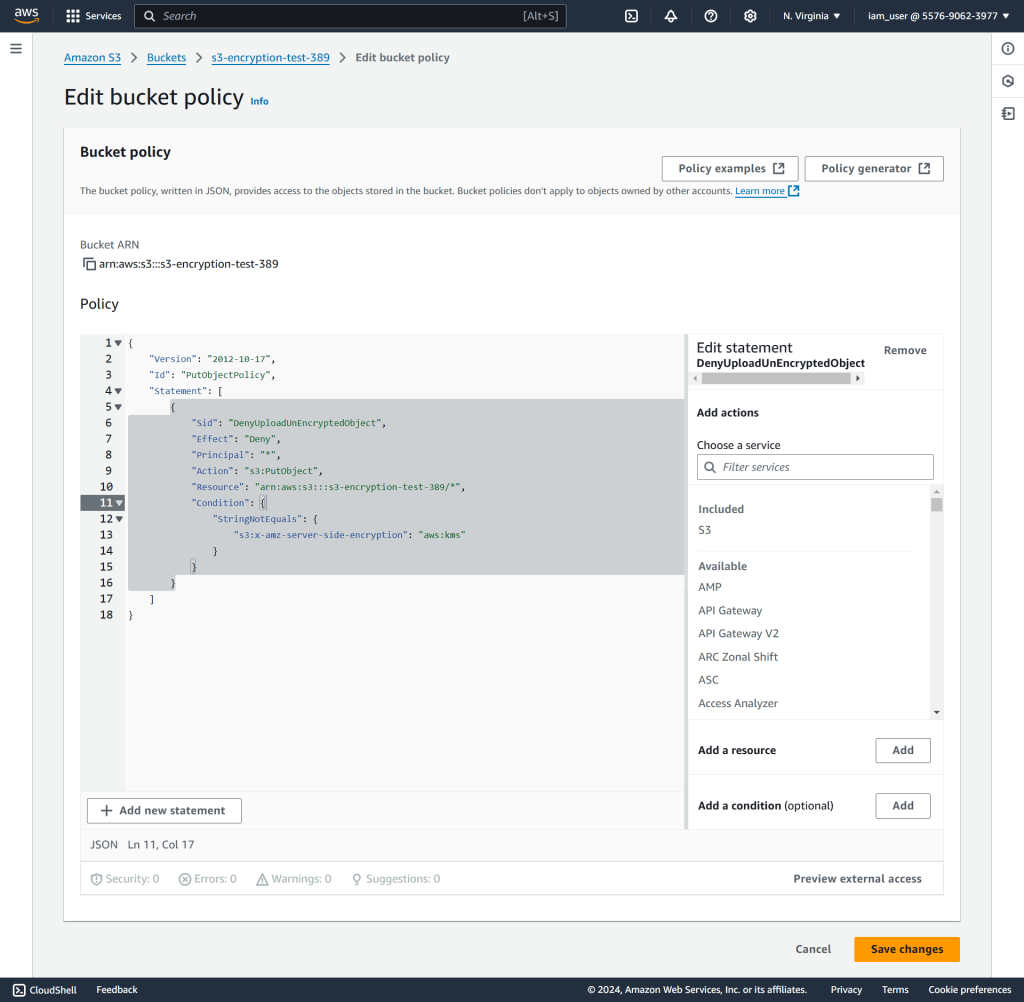
Click [Save changes] to apply the Bucket policy.
Test it out
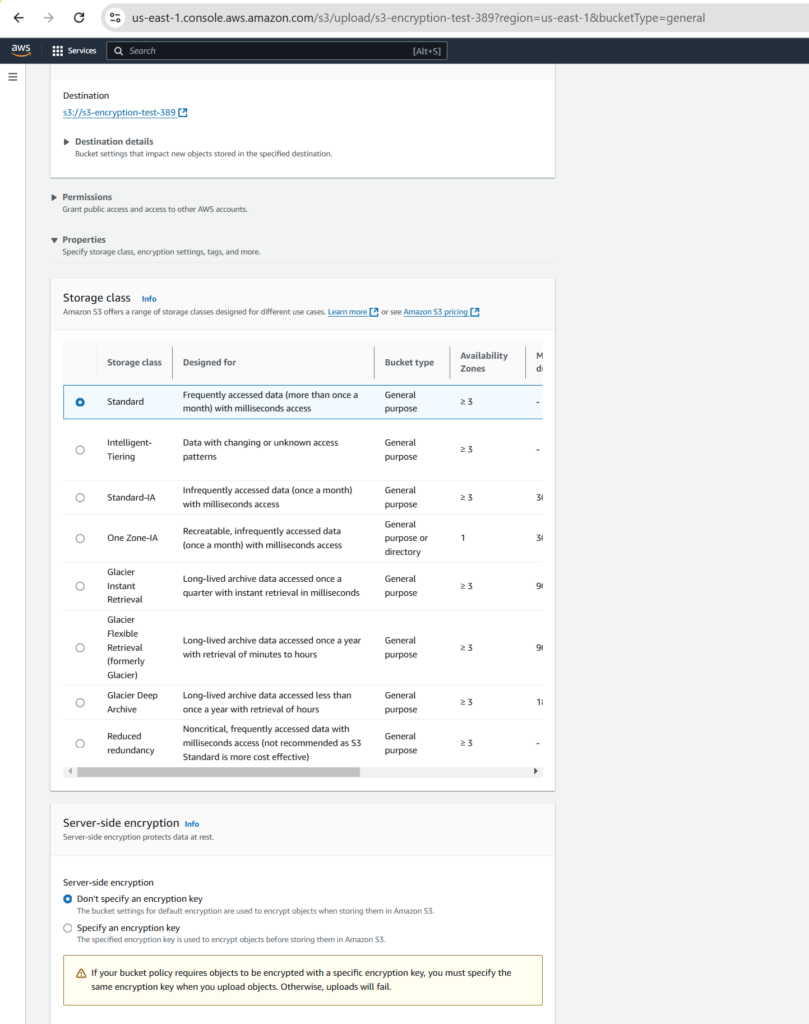
Let’s uploading a file without KMS key encrypted to see whether it’s failed with an error.
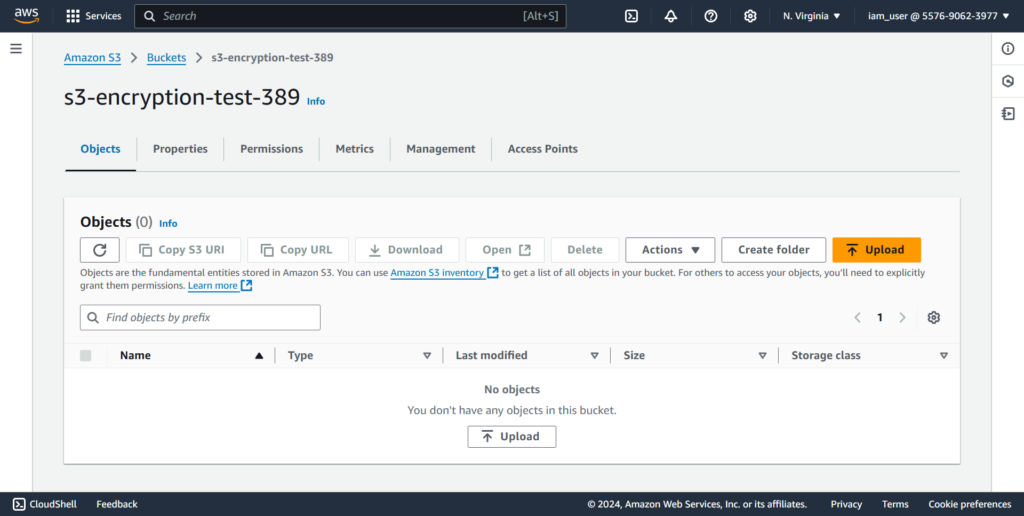
Click [Upload] to upload a file. In the [Server-side encryption], select [Don’t specify an encryption key]
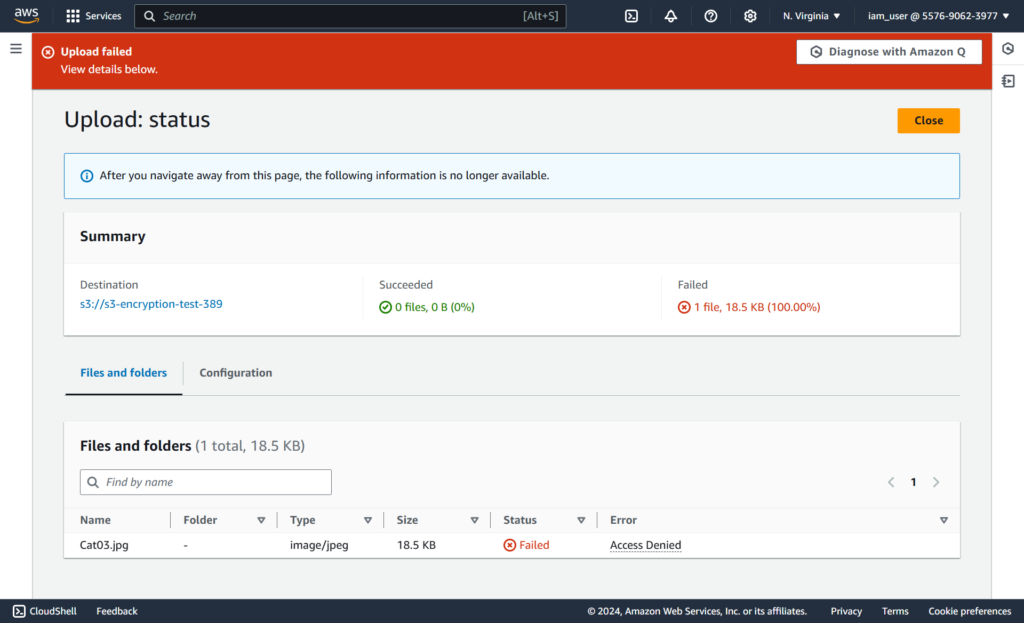
An error is thrown as below:
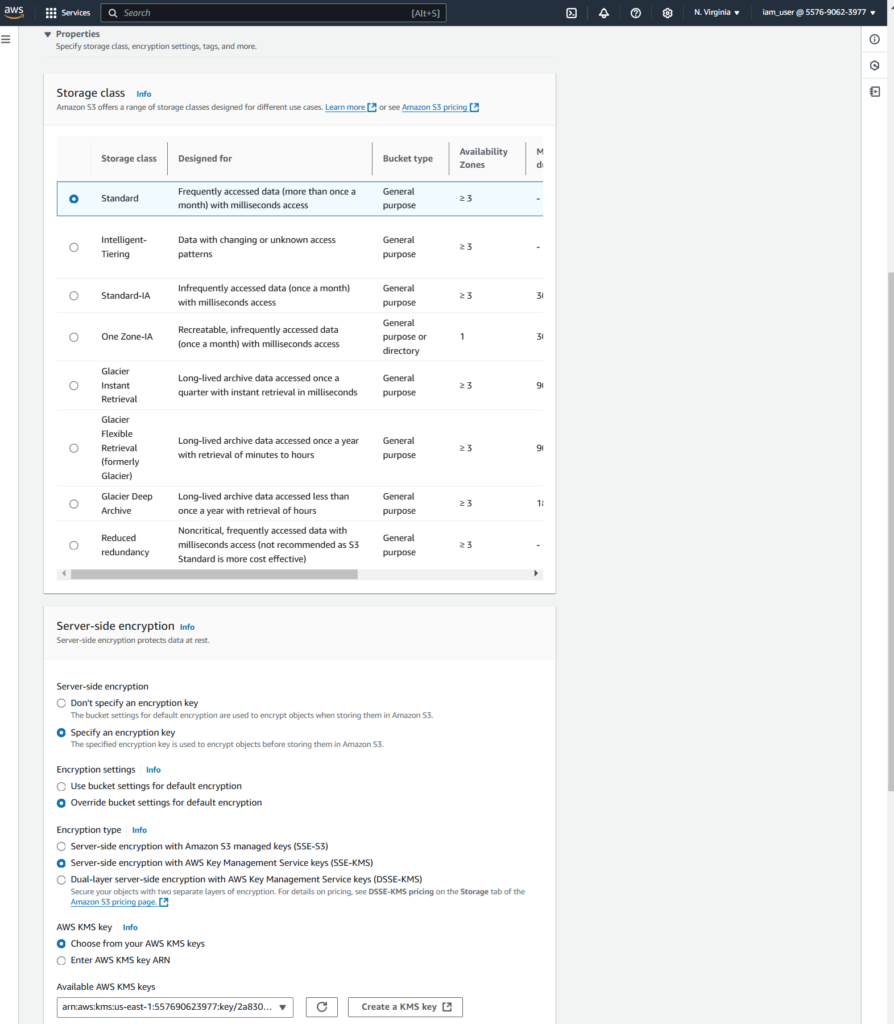
Now let’s upload a file with specified Server-side encryption with AWKS KMS keys option.
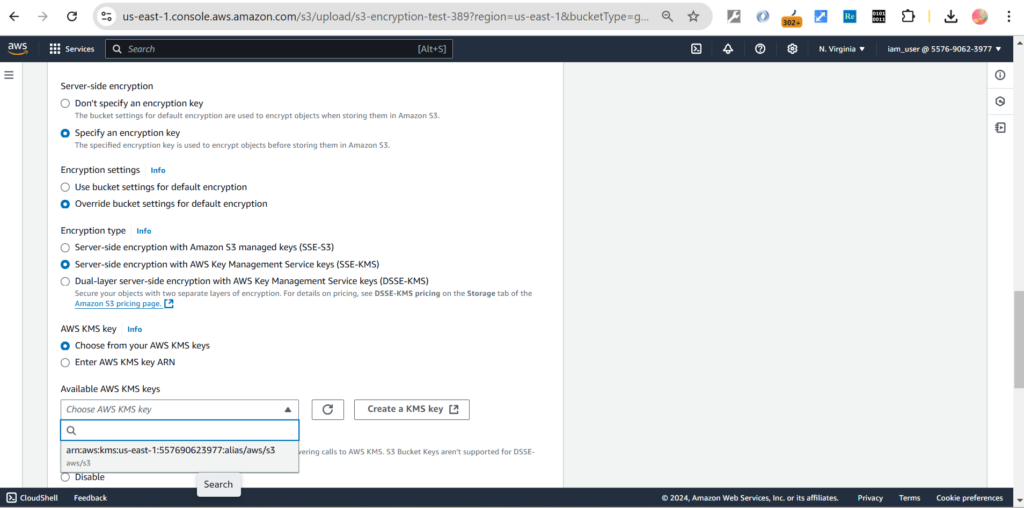
Click [Upload] to finishing the step.
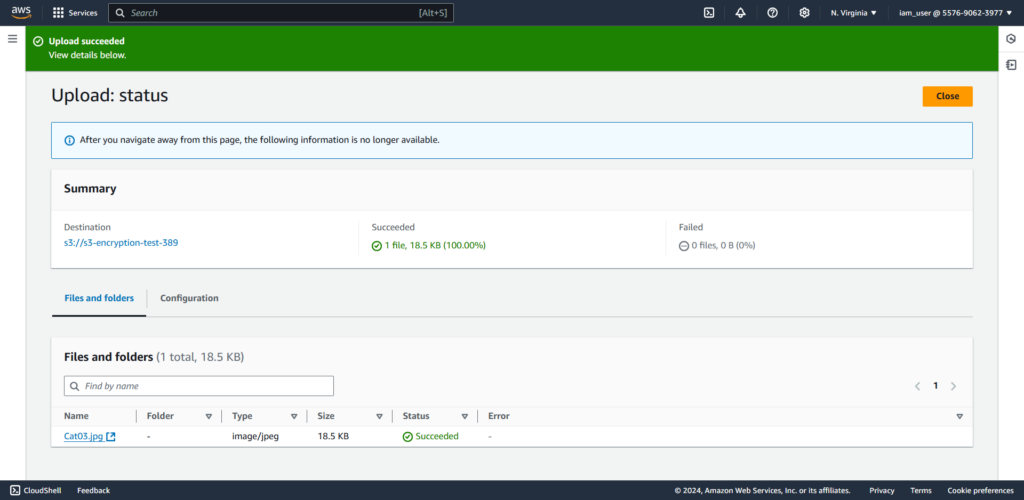
We can see the output as successful now.
Conclusion
By using a customer-managed KMS key, you take full control of the encryption process, ensuring that all data uploaded to your S3 bucket is encrypted with your specific key. This provides you with key ownership to manage the key, giving you complete control over its lifecycle, including creation, rotation, and deletion.
References:
https://docs.aws.amazon.com/AmazonS3/latest/userguide/UsingKMSEncryption.html