


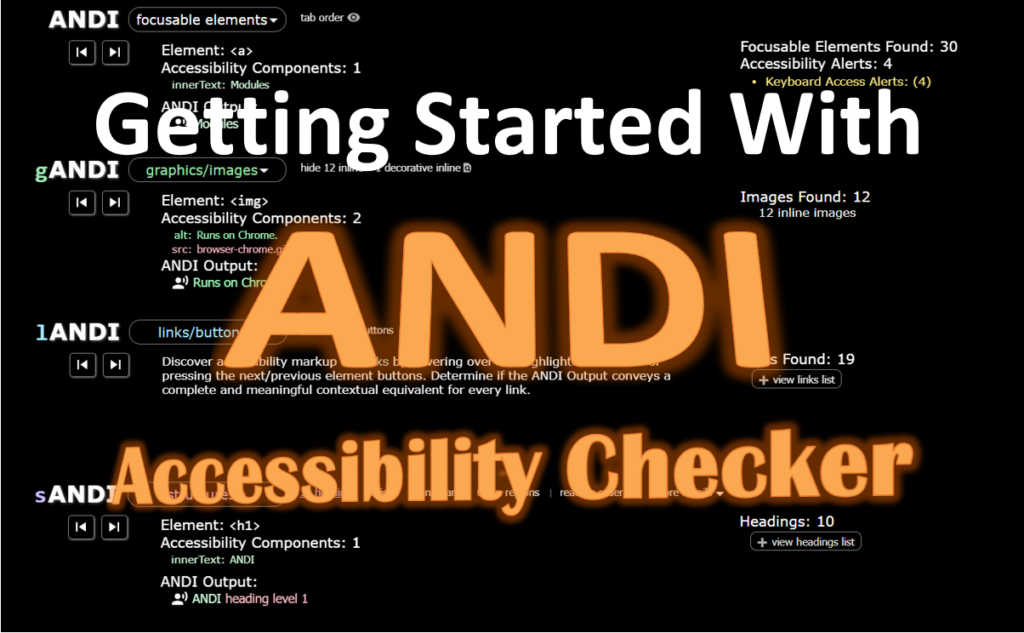
What is ANDI?
ANDI (Accessible Name & Description Inspector) is a free accessibility testing tool developed by the U.S. Social Security Administration. It aims to assist web developers, content creators, and testers in identifying and addressing accessibility issues on their websites. ANDI works as a browser-based bookmarklet, making it easy to integrate into any workflow without requiring installation or special permissions.
By analyzing web content:
- Provide automated detection of potential accessibility issues.
- Reveal what information is provided to assistive technology (AT).
List browsers to support: Chrome, Edge, Firefox, Internet Explorer, Safari.
Modules of ANDI
ANDI provides several powerful features to ensure your website is accessible.
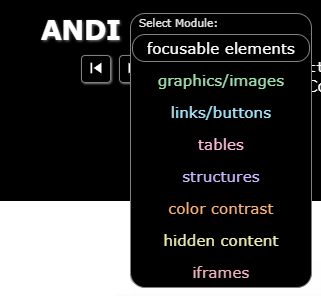
| Module Name | Area of Accessibility Features | Features |
| ANDI | focusable elements (default) | Interactive elements, tab order, accesskeys |
| gANDI | graphics/images | Alternative text |
| lANDI | links/buttons | Link comparison, button comparison |
| tANDI | tables | Data tables, cell associations |
| sANDI | structures | Headings, semantic HTML, ARIA roles, language |
| cANDI | color contrast | Automated color contrast checker |
| hANDI | hidden content | Revealing hidden content |
| iANDI | iframes | Iframe Content Testing |
NOTE: The module will be automatically hidden if the website doesn’t include the corresponding element.
How to get ANDI?
- Navigate to ANDI page.
- Drag the ANDI button into your bookmarks toolbar.

Update: no need to update. ANDI updates itself automatically.
Uninstall: simply delete ANDI from the bookmarks.
How to use?
- Navigate to the page to be tested.
- Launch ANDI by clicking on the favorite/bookmark labelled “ANDI”.
- ANDI will be inserted onto the page.
Modules: analyze and provide information
ANDI (focusable elements)

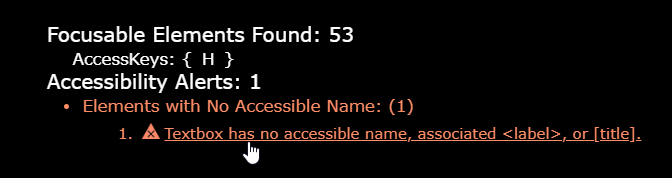
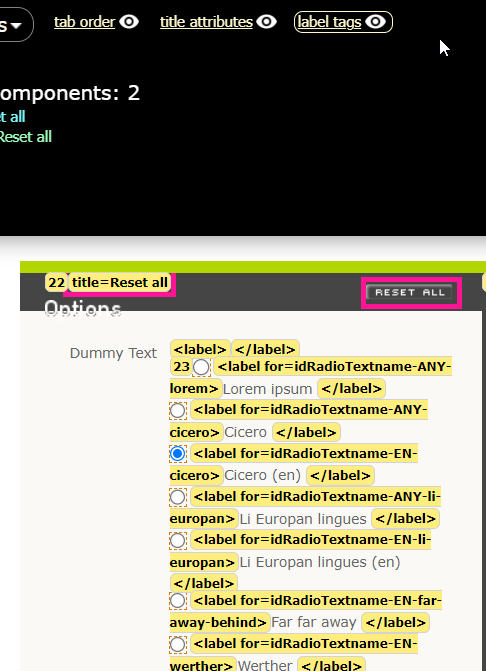
When ANDI is first launched, it always defaults to focusable elements (interactive elements). It checks for conditions that may cause accessibility issues related to focusable elements. ANDI (focusable elements) offers the ability to see the keyboard tab order indicators. It will also present a list of accesskeys found.
How to use: click on the next/previous element button, ANDI will highlight all focusable elements on the webpage and show detailed accessibility information such as the element’s type, role, and accessible name.

gANDI (graphics/images)
Provides the ability to test the accessibility of graphics/images including the presence of alternative text. Shows the number of images found, including inline, background, and image links. It also reveals any accessibility alerts associated with images.

Provides the ability to toggle the appearance of the images for enhanced visual detection and screen shot capturing purposes.

In addition to common alerts, ANDI will scan for accessibility issues relating to graphics/images such as , , alt text containing file names, redundant phrases in alt text (“image of”, “photo of”, etc.), non-descriptive alt text (“image”, “photo”, etc.), and presence of server-side image maps.
lANDI (links/buttons)
The links/buttons module provides the ability to inspect “clickable” links and buttons for uniqueness, completeness, and accuracy.
lANDI detects potential accessibility issues with links such as non-distinguishable or ambiguous links, the presence and functionality of internal or within-page “skip links”, and links with a missing or non-descriptive accessible name/description.
lANDI also detects potential accessibility issues with buttons such as the automatic detection of non-unique buttons.

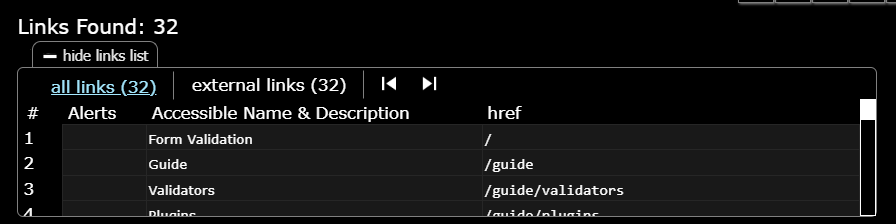
Click on the links to verify links, then click on next/previous button or hover on the hyperlink to check the detail information.
Or click on the “view links list” button to show all links with corresponding href, and alert (if any).

tANDI (tables)
The tables ANDI (tANDI) module provides the ability to inspect tables for column headers and cell associations. It checks for conditions that may cause accessibility issues related to tables.

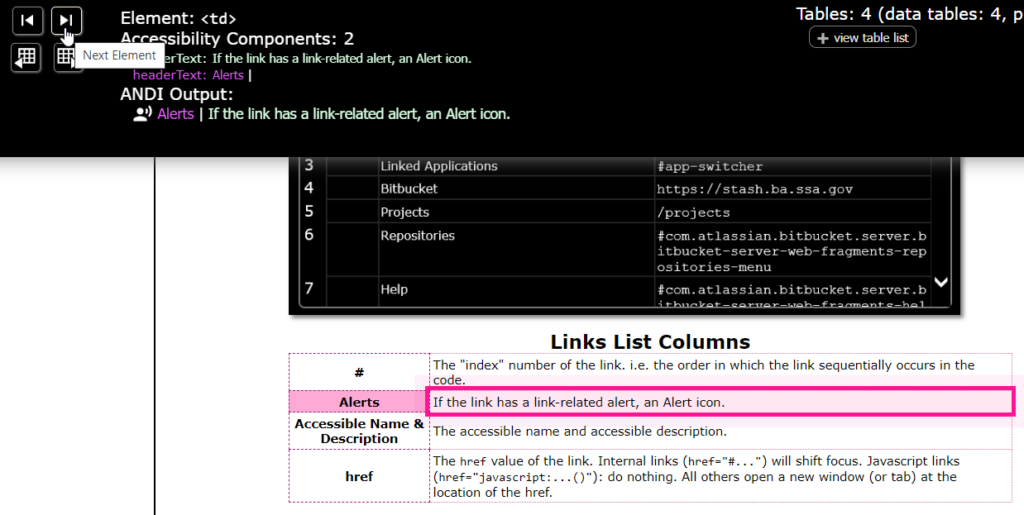
Click on the Next/ Previous Element buttons to analyze elements in a table
If there are more than one table, click on the Analyze Next/ Previous Table buttons to analyze the next/ previous table.

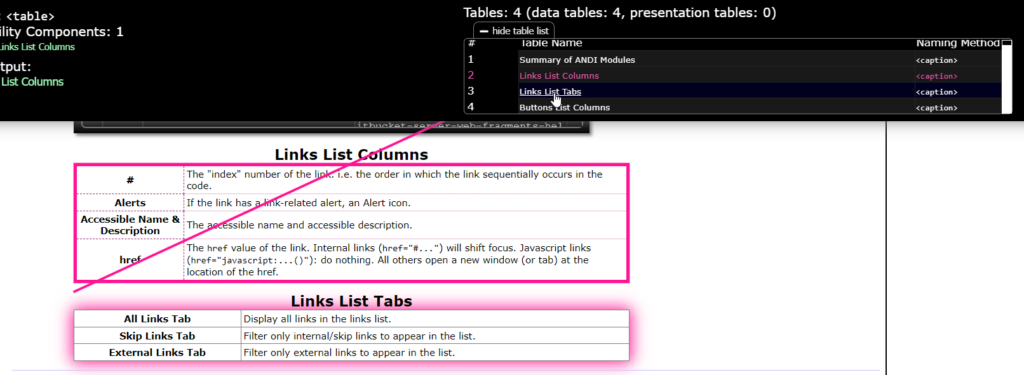
Show the list tables in the web page by clicking on the view table list button
Jump to the other table to analyze by clicking on the target table in the list
sANDI (structures)
The structures ANDI (sANDI) module provides the ability to test for the presence of semantic tags and ARIA roles associated with page structure.

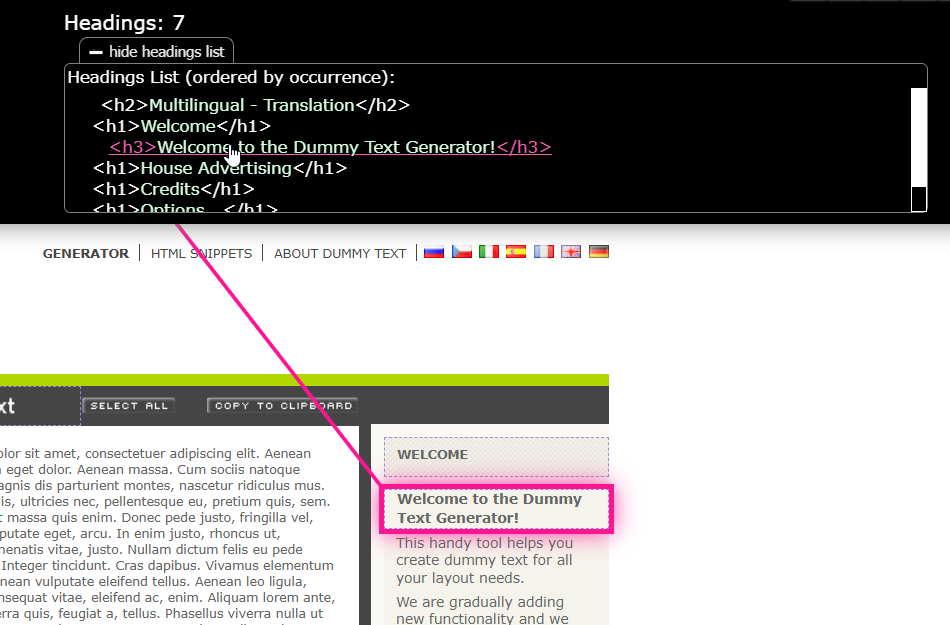
Headings: (displayed by default) click on the headings button. Pressing the View Headings List button displays a list of all headings ordered by the sequence in which they occur in the code. The order displayed in the list should match the order in which they appear in a headings list provided by assistive technologies.
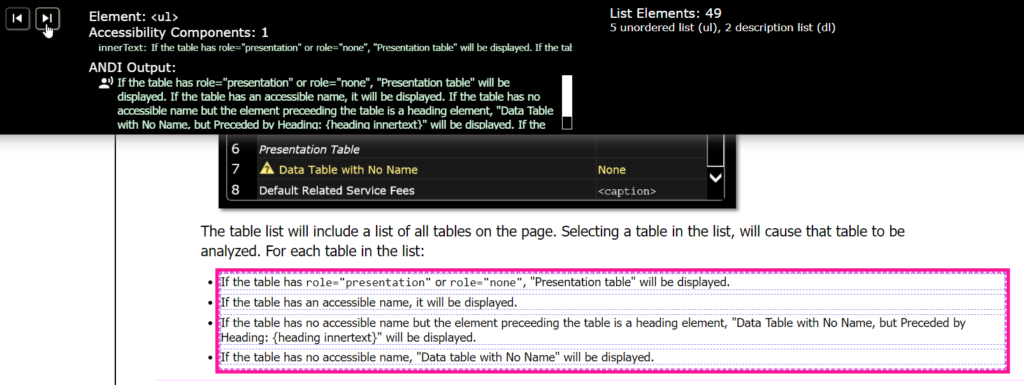
Lists: Pressing the Lists Button will engage Lists mode and disengage the other modes.

Lists are often used on websites to organize content in a clear and structured way. They may appear as numbered steps, bulleted items, or even navigation menus. In this mode, sANDI will find and highlight all list types (<ul>, <ol>, <dl>) and list items (<li>, <dt>, <dd>).
Press the Next/ Previous Element to analyze the element of the list.
Landmarks: Activating the Landmarks mode in ANDI will switch off other modes and focus on identifying landmark elements.
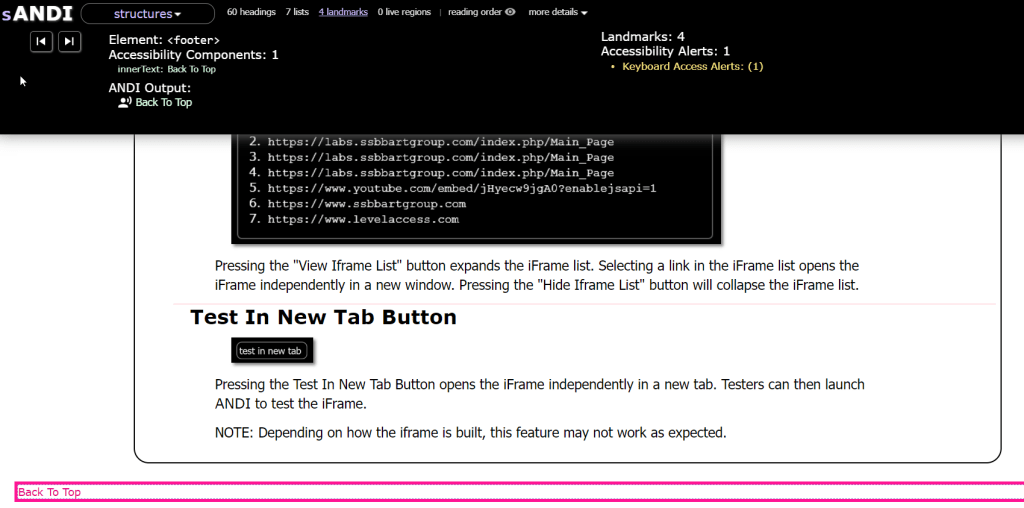
Landmarks help define the structure of a webpage and include HTML tags like <main>, <header>, <footer>, <nav>, <form>, and <aside>, as well as ARIA attributes such as role=”banner”, role=”complementary”, role=”contentinfo”, role=”form”, role=”main”, role=”navigation”, role=”search”, and role=”application”. These landmarks assist users, especially those using assistive technologies, in navigating and understanding the page structure more efficiently.
Live region: Pressing the Live Regions Button activates Live Regions mode and deactivates other modes. Live regions are areas monitored by screen readers for content changes, such as notifications and alerts. This mode highlights live regions with attributes like role=”alert”, role=”status”, aria-live=”polite”, or aria-live=”assertive”.
Reading order: Pressing the Reading Order Button overlays numerical indicators next to each block of text, showing the sequence in which a screen reader will read them based on the HTML source code. Elements hidden from screen readers with aria-hidden=”true” but visible to sighted users will have a red flag with an “X,” indicating they are excluded from the reading order.
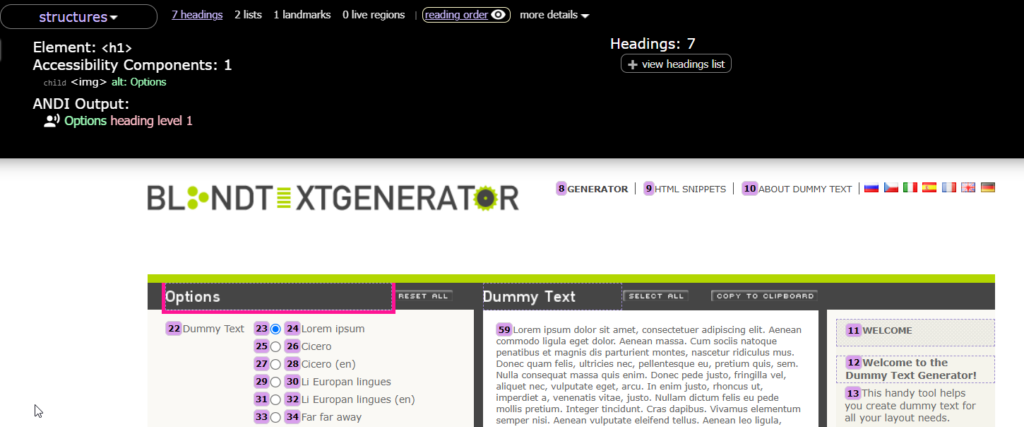
More detail dropdown
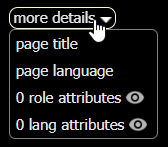
- Page Title: Displays a popup with the page title from the <title> tag.
- Page Language: Shows a popup with the page’s language from the lang attribute of the element.
- Role Attributes: Adds a flag near elements with a role attribute.
- Lang Attributes: Flags elements with a lang attribute, useful for ensuring text in different languages is properly tagged for screen readers. Use this button to check the page’s overall language.
cANDI (color contrast)
The cANDI module automatically detects color contrast issues for accessibility. It checks text-containing elements, calculates the contrast ratio between text and background colors, and alerts users if the ratio fails to meet accessibility standards. When inspecting an element, cANDI displays the element’s tag, contrast ratio, style, and any alerts.

Manual Test Needed
When cANDI can’t calculate contrast, testers must perform a manual test using a tool with a color selector (eye dropper) to pick pixels from the text and background. The tool will help to calculate the contrast. One such tool (free and available for download) is the Colour Contrast Analyser.

Grayscale

This button transforms the test page into grayscale (black and white) viewing mode. This feature is useful to determine where meaningful color may be used. NOTE: The grayscale button will not appear in Internet Explorer.
hANDI (hidden content)
The hANDI module detects hidden content for accessibility testing. It alerts testers to hidden elements and allows them to toggle CSS to reveal the content, marked with a glowing yellow border. Testers should find the natural triggers for hidden content, as forced visibility can cause display issues and doesn’t reflect normal page behavior. Hidden content is “unrevealed” when switching to another ANDI module.


review all the hidden content
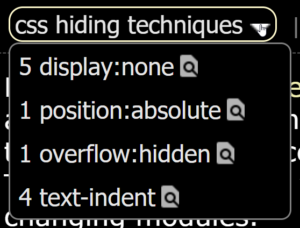
This dropdown contains other buttons which will toggle the display of elements being hidden using a particular technique. Sometimes, an element may have more than one hiding technique applied and may need more than one of the buttons to be engaged to get the content to appear. Options that may appear within this dropdown are: display:none, visibility:hidden, position:absolute, opacity:0, overflow:hidden, font-size:0, text-indent, text-indent, html5 hidden

Show the title attributes
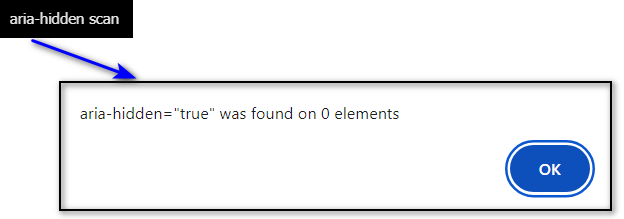
Show the aria-hidden
iANDI (iframes)

The iframes ANDI (iANDI) module allows users to test the contents of iframes for accessibility.
iframes need to be tested independently in a new window because browsers do not allow javascript/CSS manipulation of iframes in an effort to prevent security vulnerabilities.
Hit view iframe list to show the list of iframe

Hit a link of iframe or  to open the new tab, then testers can independently in a new window.
NOTE: Depending on how the iframe is built, this feature may not work as expected.
Benefit of using ANDI
Improved Web Accessibility: ANDI helps you create more accessible websites by identifying issues that affect users with disabilities. This includes problems related to screen reader compatibility, keyboard navigation, and color contrast.
Compliance with Accessibility Standards: ANDI assists in meeting WCAG 2.1 guidelines and Section 508 compliance, which are crucial for organizations required to adhere to web accessibility laws.
User-Friendly and Free: ANDI is easy to use and doesn’t require special installation or setup. Its real-time analysis makes it a valuable tool for both beginner and experienced developers. Best of all, it’s free to use.
Actionable Insights: ANDI not only identifies accessibility issues but also provides guidance on how to fix them. This makes it easier for developers to take immediate action and ensure that web content is accessible to everyone. Quick Testing for All Web Elements: ANDI analyzes all types of web elements, from buttons to forms, ensuring that your entire site is accessible. It also tests ARIA attributes and ensures proper labeling for assistive technologies.
Pros and Cons of ANDI
| Pros | Cons |
| Free and Easy to Use: free and no installation, making it accessible for testers of all skill levels. Real-Time Visual Feedback: visual highlights for landmarks, roles, ARIA attributes, and hidden content, which helps testers immediately identify accessibility issues. Manual Testing Support: allow for a more detailed and hands-on approach to accessibility evaluation, especially for dynamic content and hidden elements. Hidden Content Detection: It’s particularly good at discovering hidden content that might otherwise go unnoticed during automated tests. | Limited Automation: unlike some tools, ANDI lacks fully automated testing capabilities. It requires manual navigation and review of the issues. No CI/CD Integration: ANDI doesn’t offer any API or command-line interface (CLI) to be integrated into automated workflows. No Reporting Feature: ANDI doesn’t offer built-in reporting or export features, which may limit teams needing to document issues. |
Comparison with Other Accessibility Tools
| ANDI | Axe | WAVE | Lighthouse | ARC Toolkit | |
| Free to use | Yes | Yes (Paid version has additional features) | Yes (Paid version has additional features) | Yes | Yes |
| Browser Integration | Bookmarklet (works in Chrome, Edge, Firefox, Safari, IE) | Browser extensions (Chrome, Edge, Firefox) | Browser extensions (Chrome, Edge, Firefox) | Built into Chrome DevTools, Edge DevTools Browser extension for Firefox | Browser extension (Chrome, Edge, Firefox) |
| Customizability | No | Yes | No | No | Yes |
| Visual Feedback | In-page visual highlights (flags for landmarks, roles) | Report-based with direct links to issues | In-page visual indicators for issues | Report-based with minimal visual feedback | In-page visual indicators and reporting |
| Screen Reader Testing | Yes (with reading order and role checks) | No (focuses on general violations) | No | No | Yes (tests for screen reader usability) |
| Color Contrast Testing | Automated with real-time feedback and manual adjustment | Automated with ratio provided | Automated (flagging insufficient contrast) | Automated (basic contrast check) | Automated testing for color contrast |
Personal Opinion
In my opinion, ANDI is an excellent tool for web accessibility testing, especially for testers who want a simple, real-time solution. Its ease of use stands out, providing quick feedback on key issues like color contrast and reading order without requiring complex setup.
A big plus is that ANDI supports manual testing alongside its automated features, which is crucial since not all accessibility issues can be detected automatically. ANDI’s focus on hidden content testing is a valuable feature as well.
One standout benefit is that ANDI can help testers prepare for the “DHS Trusted Tester Certification,” provided by the U.S. Department of Homeland Security (DHS), making it a practical tool for professionals aiming to meet federal accessibility standards.
Conclusion
ANDI is like having an expert at your side, helping you ensure your website is meeting accessibility standards. Include ANDI in screenshots during your manual accessibility review. Use ANDI during development to help you build accessible websites.
Overall, ANDI is a strong choice for those new to accessibility testing or for anyone looking for a user-friendly tool that aligns with certification goals.