


Introduction
Workflows in today’s digital environment frequently need strong error handling techniques to guarantee seamless functioning. You may build robust integrations by utilizing Azure Logic Apps’ robust error and exception management features. We’ll look at how to use scopes for try-catch behavior, filter unsuccessful activities, and send error messages to Log Analytics in this blog post on handling errors in Azure Logic Apps.
Understanding Error Handling in Logic Apps
Every action you add to a workflow in Azure Logic Apps will end with one of the following statuses: Succeeded, Failed, Skipped, or TimedOut. By default, operations occur one after the other, with the success of each action requiring the completion of the one before it. The runAfter attribute is used to handle this relationship.
Default Behavior
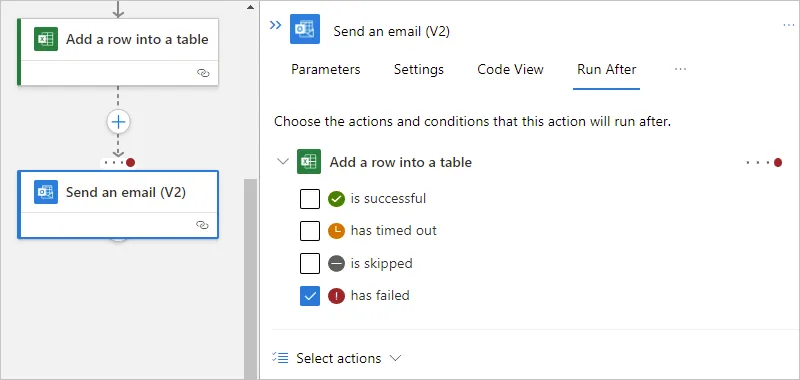
An action is recorded as Failed when it throws an unhandled error, and any dependent actions are marked as Skipped. By default, the “run after” status is set to “is successful,” meaning the predecessor action must complete successfully before the currently selected action can run.

Changing the Run After Behavior
- Select the action for which you want to modify the behavior.
- Open the Settings panel.
- Under the Run After section, clear the default option and select the desired statuses that will allow this action to execute.
Example to Handle errors and exception
Assume you have three actions in a sequence: Action A, Action B, and Action C. By default, Action B runs after Action A only if Action A succeeds. You can modify Action B to run even if Action A fails by adjusting its runAfter settings.
Using Scopes for Try-Catch Logic
To create more complex error handling, Azure Logic Apps allows you to group actions inside a Scope. This lets you assess the aggregate status of multiple actions and execute different workflows based on whether the group succeeded or failed.
Step-by-Step Guide to Implement Scopes
- Add a Scope: Drag and drop a Scope action into your workflow.
- Add Actions to the Scope: Place the actions you want to monitor for errors within this scope.
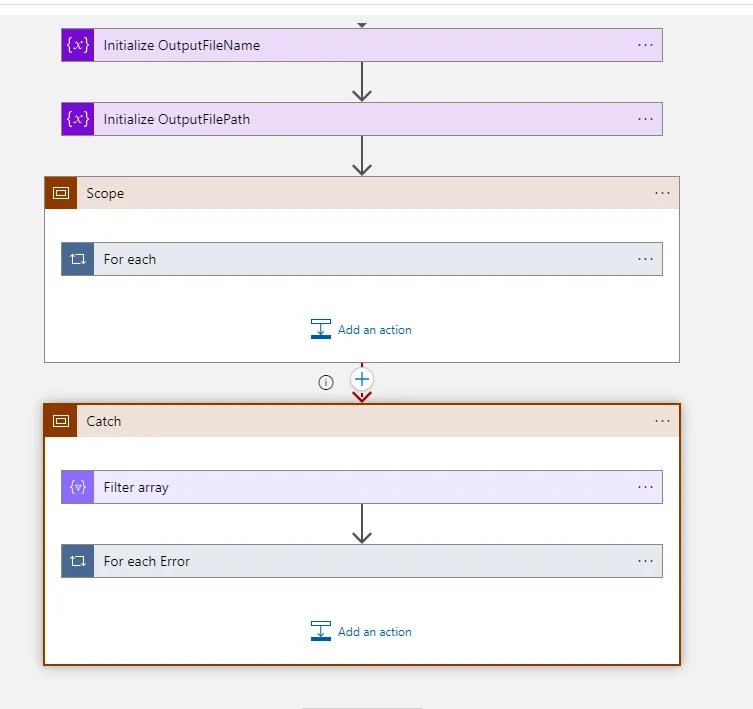
- Add a Catch Scope: Create another scope immediately after the first one, labeled Catch. This scope will handle any errors that occur in the first scope.
- Configure Run After for the Catch Scope:
- Select the Catch Scope.
- In the Run After settings, select hasFailed for the first scope.
Example Implementation of a Try-Catch mechanism
- Try Scope: Contains actions to process an order.
- Action A: Validate Order
- Action B: Process Payment
- Action C: Update Inventory
- Catch Scope: Will execute if any action in the Try Scope fails.
- Action D: Send Email Notification
- Action E: Log Error to Log Analytics

Filtering Failed Actions
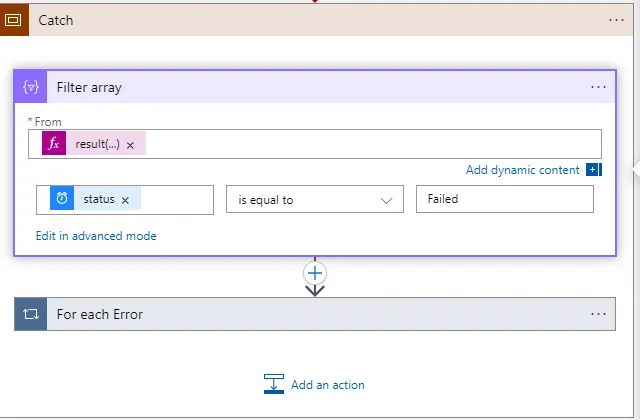
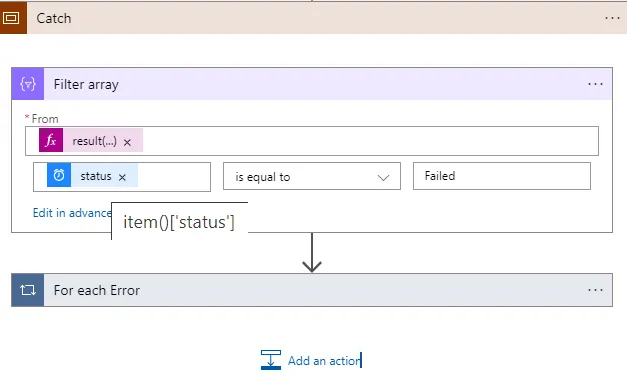
Inside the Catch Scope, you might want to log all actions that failed. You can use a Filter Array action to filter out the failed actions based on their status.
- Add Filter Array: After the Catch Scope, add the Filter Array action.
- Set the From field: Use
@result('TryScopeName')as the input. - Set the Condition: Use the expression
@equals(item()['status'], 'Failed').
Logging Errors to Log Analytics
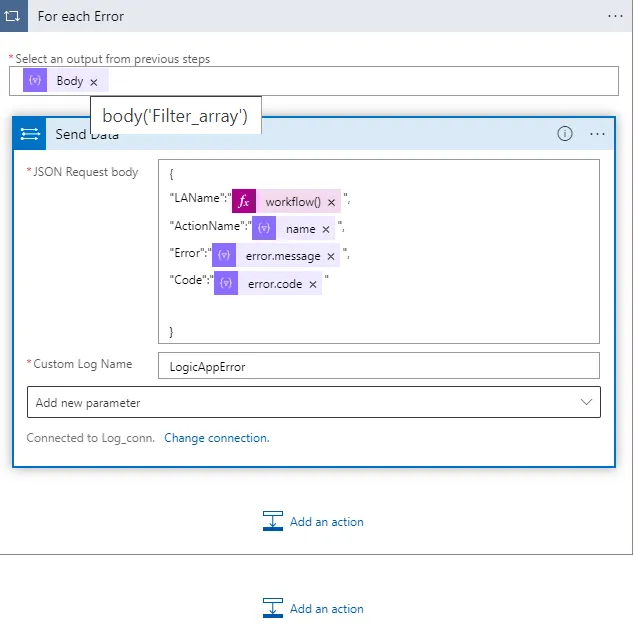
To track errors more systematically, you can send error messages to Azure Log Analytics. This helps you keep an organized record of errors for later analysis.
Steps to Send Error Logs
Body: Provide a JSON formatted message with details about the error.
Add an HTTP Action in the Catch Scope to send error messages to Log Analytics.
Configure the HTTP Action with the following:
Method: POST
URL: Your Log Analytics endpoint.
Headers: Include the appropriate authentication headers.
{
  "error": "Order Processing Failed",
  "details": "Payment could not be processed due to insufficient funds.",
  "timestamp": "@{utcNow()}"
} 
Querying Custom Log Tables
Once you’ve sent error logs to Log Analytics, you can query them using Kusto Query Language (KQL). This allows you to generate insights and trends over time.
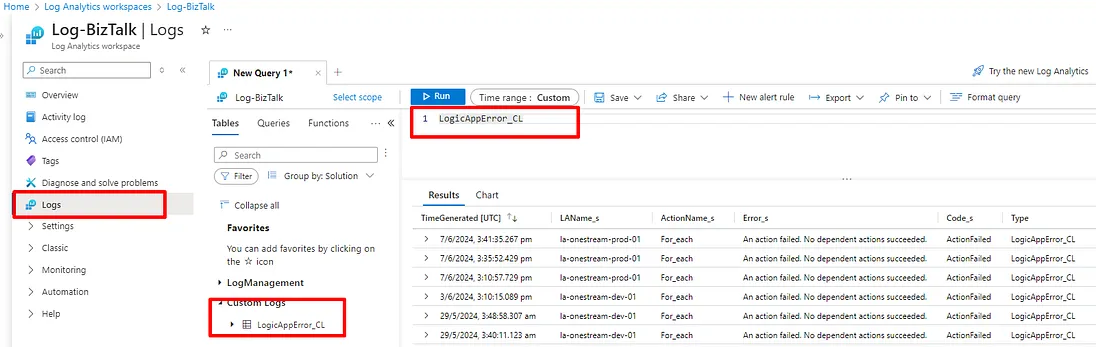
Sample Query
CustomLogName
| where timestamp >= ago(1d)
| summarize count() by error
| order by count_ desc
Conclusion
Ensuring the integrity of your workflows in Azure Logic Apps requires efficient handling of failures and exceptions. You may create resilient apps that handle failures gracefully by using scopes for try-catch logic, adjusting the runAfter behavior, and logging problems to Azure Log Analytics. This approach not only enhances the user experience but also aids in debugging and monitoring your workflows over time. Through the application of these strategies, you can guarantee that your Logic Apps manage faults with ease, maintaining the stability and dependability of your processes.