


The Story
Have you ever been asked by other stakeholders (it doesn’t matter if they are your bosses or co-workers) what are the 3rd packages being used in your code project? and I have been, but opening and checking all csproj and package.json files is super boring and easy to miss, so I decided to write a small Console application to do that for me, let me show you how.
In this article, I’ll be demonstrating how to list Nuget packages and Npm packages for C# and ReactJs projects. However, the same concept can be applied to other stacks.
List Out Nuget Packages
Create a Console application named CheckNugetPackages using Visual Studio 2022 or Visual Studio Code. I’ll be using Visual Studio 2022.
Open the Program.cs, create a private static method that returns a list of Nuget packages residing in packages.config files in a specific directory.
private static List<(string Name, string Version, string Project)> ScanPackagesInPackagesConfigureFiles(string directory)
{
    var files = Directory.GetFiles(directory, "packages.config", SearchOption.AllDirectories);
    var packages = new List<(string Name, string Version, string Project)>();
    foreach (var file in files)
    {
        var projectName = new DirectoryInfo(Path.GetDirectoryName(file)).Name;
        XDocument xdoc = XDocument.Load(file);
        var packagesNode = xdoc.Descendants("packages").First();
        var packageNodes = packagesNode.Descendants("package");
        foreach (var node in packageNodes)
        {
            var packageName = node.Attribute("id")?.Value;
            var packageVersion = node.Attribute("version")?.Value;

            packages.Add((packageName, packageVersion, projectName));
        }
    }

    return packages;
}
Create another private static method that returns a list of Nuget packages residing in *.csproj files in a specific directory.
private static List<(string Name, string Version, string Project)> ScanPackagesInCsProjectFiles(string directory)
{
    var files = Directory.GetFiles(directory, "*.csproj", SearchOption.AllDirectories);
    var packages = new List<(string Name, string Version, string Project)>();
    foreach (var file in files)
    {
        var projectName = new DirectoryInfo(Path.GetDirectoryName(file)).Name;
        XDocument xdoc = XDocument.Load(file);
        var ItemGroupNodes = xdoc.Descendants("ItemGroup");
        foreach (var ItemGroupNode in ItemGroupNodes)
        {
            var packageNodes = ItemGroupNode.Descendants("PackageReference");
            foreach (var node in packageNodes)
            {
                var packageName = node.Attribute("Include")?.Value;
                var packageVersion = node.Attribute("Version")?.Value;

                if (string.IsNullOrWhiteSpace(packageName))
                    continue;

                packages.Add((packageName, packageVersion, projectName));
            }
        }

    }

    return packages;
}
Back to the Main method and write the below code:
private static void Main(string[] args)
{
    var packages = new List<(string Name, string Version, string Project)>();

    var directories = new[]
    {
        @"D:\Project1\API",
        @"D:\Project2\API",
    };

    foreach (var directory in directories)
    {
        var packagesInPackagesConfigureFiles = ScanPackagesInPackagesConfigureFiles(directory);
        var packagesInCsProjectFiles = ScanPackagesInCsProjectFiles(directory);
        packages.AddRange(packagesInPackagesConfigureFiles);
        packages.AddRange(packagesInCsProjectFiles);
    }

    var packageGroups = packages.GroupBy(x => new { x.Name, x.Version })
        .Select(g => new
        {
            g.Key.Name,
            g.Key.Version,
            Projects = string.Join(", ", g.Select(x => x.Project)),
            Url = $"https://www.nuget.org/packages/{g.Key.Name}/{g.Key.Version}"
        })
        .OrderBy(x => x.Name)
        .ThenBy(x => x.Version).ToList();

    var ignoredPackages = new List<string>
    {
        //"System.",
        //"Microsoft."
    };

    using (var fileStream = File.Open("packages.csv", FileMode.Create))
    {
        using (var streamWriter = new StreamWriter(fileStream))
        {
            foreach (var package in packageGroups)
            {
                if (ignoredPackages.Any(x => package.Name.StartsWith(x)))
                {
                    continue;
                }

                streamWriter.WriteLine($"{package.Name},{package.Version}, ,\"{package.Url}\",\"{package.Projects}\"");
            }
        }
    }

    //Console.ReadLine();
}
Let’s find and clone a GitHub Repo and test our application
git clone https://github.com/phongnguyend/Practical.CleanArchitecture.gitUpdate the directories variable to point to a folder containing any C# project
var directories = new[]
{
    @"D:\Phong.NguyenDoan\GitHub\Practical.CleanArchitecture\src\Microservices",
};
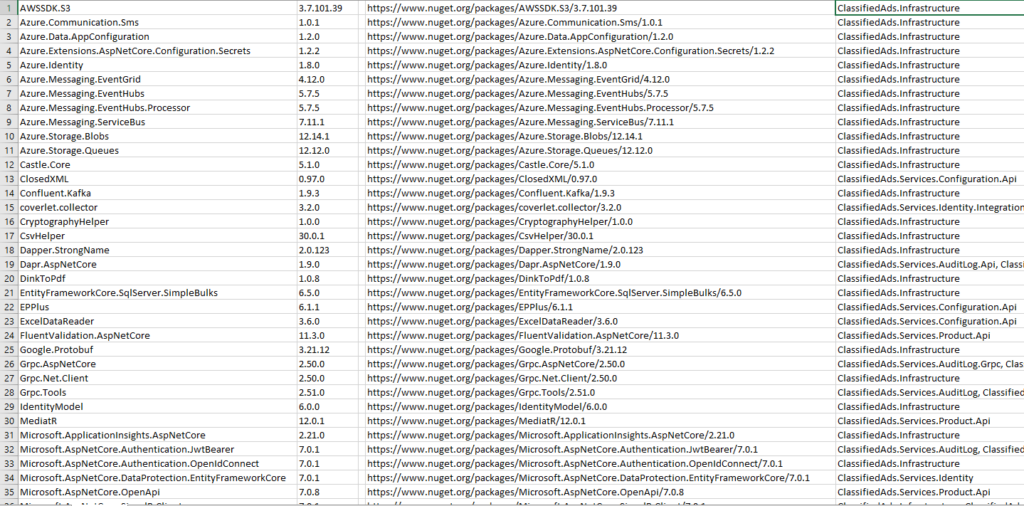
Run the application, wait for it to execute successfully, and harvest the results by opening the packages.csv file.
List Out NPM Packages
Create another Console application named CheckNpmPackages
Open the Program.cs, create a private static method that returns a list of NPM packages residing in package.json files in a specific directory.
public class Package
{
    public Dictionary<string, string> Dependencies { get; set; }

    public Dictionary<string, string> DevDependencies { get; set; }
}

private static List<(string Name, string Version, string Project)> ScanPackagesInPackagesConfigureFiles(string directory)
{
    var files = Directory.GetFiles(directory, "package.json", SearchOption.AllDirectories);
    var packages = new List<(string Name, string Version, string Project)>();
    foreach (var file in files)
    {
        var package = System.Text.Json.JsonSerializer.Deserialize<Package>(File.ReadAllText(file), new System.Text.Json.JsonSerializerOptions
        {
            PropertyNameCaseInsensitive = true,
        });
        var projectName = new DirectoryInfo(Path.GetDirectoryName(file)).Name;

        if (package.Dependencies != null)
        {
            foreach (var node in package.Dependencies)
            {
                var packageName = node.Key;
                var packageVersion = node.Value;

                if (packageVersion.StartsWith("file:"))
                {
                    continue;
                }

                packages.Add((packageName, packageVersion, projectName));
            }
        }

        if (package.DevDependencies != null)
        {
            foreach (var node in package.DevDependencies)
            {
                var packageName = node.Key;
                var packageVersion = node.Value;

                if (packageVersion.StartsWith("file:"))
                {
                    continue;
                }

                packages.Add((packageName, packageVersion, projectName));
            }
        }
    }

    return packages;
}
Back to the Main method and write the below code:
private static void Main(string[] args)
{
    var packages = new List<(string Name, string Version, string Project)>();

    var directories = new[]
    {
        @"D:\Project1\UI",
        @"D:\Project2\UI",
    };

    foreach (var directory in directories)
    {
        var packagesInPackagesConfigureFiles = ScanPackagesInPackagesConfigureFiles(directory);
        packages.AddRange(packagesInPackagesConfigureFiles);
    }

    var packageGroups = packages.GroupBy(x => new { x.Name, x.Version })
        .Select(g => new
        {
            g.Key.Name,
            g.Key.Version,
            Projects = string.Join(", ", g.Select(x => x.Project)),
            Url = $"https://www.npmjs.com/package/{g.Key.Name}/v/{FormatVersion(g.Key.Version)}"
        })
        .OrderBy(x => x.Name)
        .ThenBy(x => x.Version).ToList();

    var ignoredPackages = new List<string>
    {
    };

    using (var fileStream = File.Open("packages.csv", FileMode.Create))
    {
        using (var streamWriter = new StreamWriter(fileStream))
        {
            foreach (var package in packageGroups)
            {
                if (ignoredPackages.Any(x => package.Name.StartsWith(x)))
                {
                    continue;
                }

                streamWriter.WriteLine($"{package.Name},{package.Version},\"{package.Url}\",\"{package.Projects}\"");

                Console.WriteLine($"{package.Name}, {package.Version}");
            }
        }
    }

    //Console.ReadLine();
}
Let’s use the same previous GitHub Repo to test our app by updating the directories variable to point to a folder containing a javascript project
var directories = new[]
{
    @"D:\Phong.NguyenDoan\GitHub\Practical.CleanArchitecture\src\UIs\reactjs",
};
Run the application, wait for it to execute successfully, and harvest the results by opening the packages.csv file.

Please remember to delete the node_modules folder and any unused/ auto-generated files/ folders before running.
Conclusion
Manual work is boring and Automation is great. In this article, we went through how to create a simple application that can be reused in the future if we have any updates to the project.
The full source code for this demo is published at https://github.com/phongnguyend/blog.nashtechglobal.com.