


1. Introduction
Appium is an open-source tool for automating mobile applications, both native and hybrid, on iOS and Android platforms. In this guide, we’ll focus on setting up Appium for iOS testing. This includes installing Appium, configuring Xcode, setting up the Appium Desktop, and connecting it to your iOS devices or simulators.
Prerequisites
Before you proceed, make sure you have:
- A macOS system (Appium for iOS only runs on macOS).
- Xcode installed (preferably the latest stable version).
- Node.js and npm installed.
- Homebrew installed (for easy package management).
- Java Development Kit (JDK) installed.
- iOS device (if you want to test on a real device) or Xcode Simulator.
2. Installation Steps
Step 1: Install Node.js and npm
Appium is built on Node.js. Make sure you have Node.js installed:
brew install node npm -vTo verify the installation:
node -v
npm -v
Step 2: Install Xcode and Xcode command line
Xcode is necessary for building and running iOS apps on simulators or real devices.
Install Xcode from the App Store or via:
xcode-select --installEnsure the Xcode Command Line Tools are properly configured:
xcode-select --switch /Applications/Xcode.app/Contents/Developer
Step 3: Install Carthage via brew
Carthage is a dependency manager that Appium uses for handling WebDriverAgent.
brew install carthage
Step 4: Install Appium via npm
Install Appium globally using npm:
npm install -g appiumVerify Appium installation:
appium -v
Step 5: Install Appium Doctor
Appium Doctor is a command-line tool that helps you diagnose any environment setup problems:
npm install -g appium-doctor Run Appium Doctor to verify that all dependencies are installed:
appium-doctor --ios
Step 6: Install Appium Desktop
Appium Desktop provides a graphical interface for interacting with Appium servers.
Download Appium Desktop from Appium’s official website and install it like a standard macOS application.
Step 7: Set Up WebDriverAgent
WebDriverAgent is a WebDriver server for iOS that Appium uses to communicate with devices.
Clone WebDriverAgent:
git clone https://github.com/appium/WebDriverAgent.git
Open WebDriverAgent.xcodeproj in Xcode and configure the signing settings to match your developer profile.
Build and run WebDriverAgent on your device or simulator.
3. Quick steps to inspect iOS application
Step 1: Start the Appium Server by command line
appium Step 2: Launch the iOS Simulator
Open Xcode.
Go to XCode -> Open Developer Tool -> Simulator
Choose the device you want to simulate
Step 3: Open Appium Inspector
If you’re using the Appium Desktop client, the inspector is integrated and can be launched directly.
For standalone versions, download the Appium Inspector tool compatible with your Appium Server version.
Step 4: Connect to the Appium Server:
In Appium Inspector, specify the server’s host address and port (typically localhost and port 4723).
Step 5: Configure Desired Capabilities:
Set the desired capabilities for your iOS application. Here’s an example configuration:
- Get uuid of simulator
- Open Xcode -> Window -> Devices and Simulators -> Select the simulator tab -> Find the simulator you want to use and get Identifier as UUID
- Get xcodeOrgId
- Login to your Apple Developer Account
- GO to Membership session
- Your Team Id is the xcodeOrgId
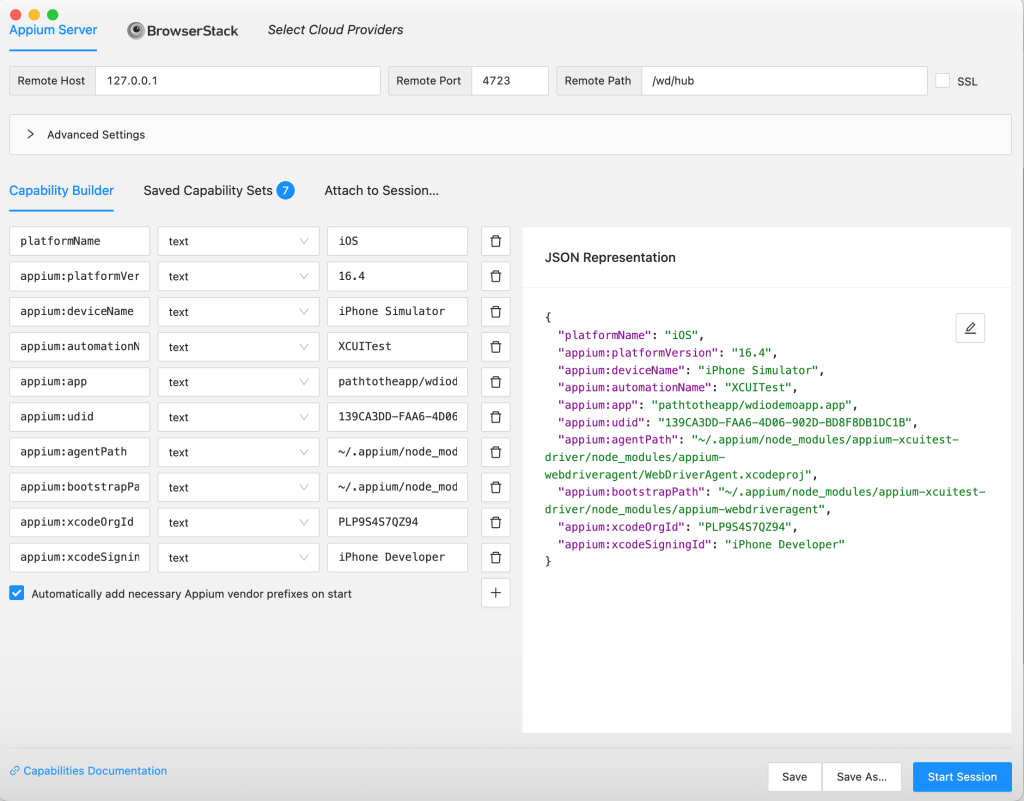
Step6: Start the Session
Click on the “Start Session” button in Appium Inspector to begin inspecting your iOS application.
