


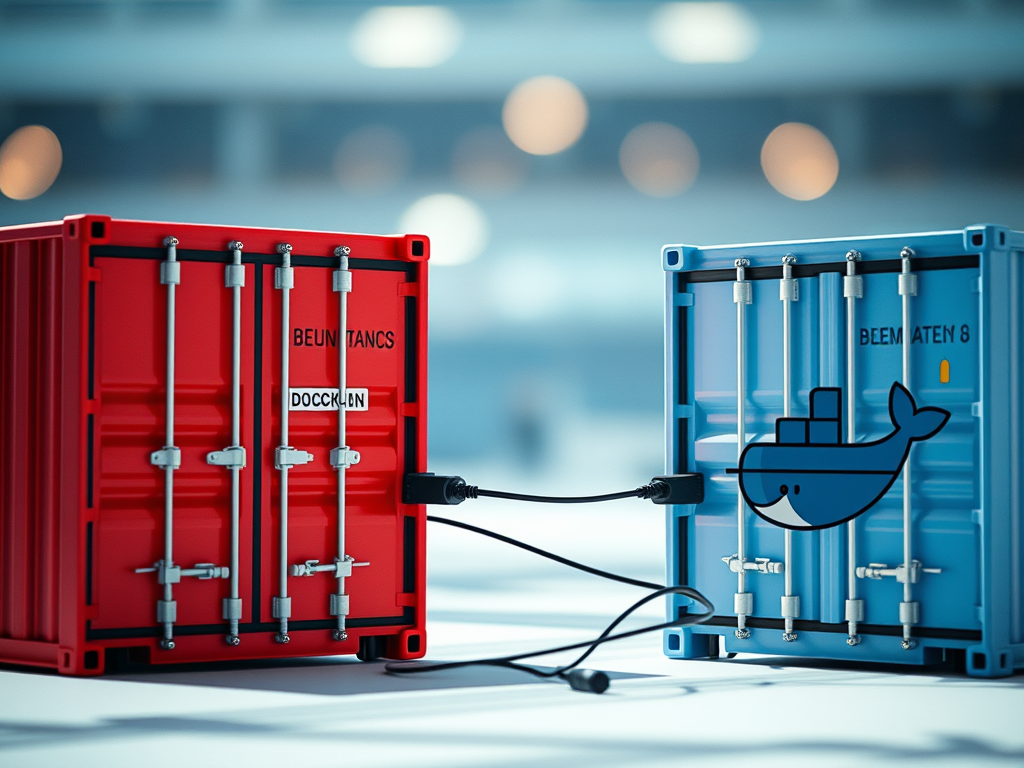
When working with Docker, networking is a crucial aspect to understand. Docker networking enables communication between containers, the host system, and external networks. Whether you’re building a microservices architecture, deploying a web application, or running databases in containers, understanding Docker networking concepts is essential.
In this blog, we’ll dive into the basics of Docker networking, explore different network types, and provide code examples to help you get started.
Why Docker Networking Matters
Containers are isolated by design, which means they can’t communicate with each other or the outside world unless explicitly configured to do so. Docker networking provides the tools and capabilities to connect containers, allowing them to exchange data and communicate seamlessly. This is especially important in microservices-based architectures where multiple containers need to interact to function correctly.
Types of Docker Networks
Docker provides several networking options, each designed for different use cases. Let’s look at the main types of Docker networks:
- Bridge Network (default)
- Host Network
- None Network
- Overlay Network
- Macvlan Network
1. Bridge Network
The Bridge Network is the default network type when you create a new container. It acts as a virtual switch within a single Docker host, allowing containers to communicate with each other in isolation from the host network. Containers connected to the same bridge network can communicate using their container name as the hostname.
Example: Creating and Using a Bridge Network
Let’s create a custom bridge network and run two containers within that network.
#Create a custom bridge networkdocker network create my-bridge-network

# Run two containers in the custom bridge network
docker run -d --name container1 --network my-bridge-network nginx
docker run -d --name container2 --network my-bridge-network httpd
In this example:
- We create a custom bridge network called
my-bridge-network. - We start two containers (
nginxandhttpd) and connect them to the custom network.
Containers container1 and container2 can now communicate with each other using their names.
Testing Connectivity:
To test connectivity, you can enter one container and ping the other:
docker exec -it container1 ping container2This command should show that container1 can successfully ping container2, demonstrating that they are on the same bridge network.
2. Host Network
The Host Network removes network isolation between the Docker container and the Docker host. Instead of creating a new network namespace for the container, Docker uses the host’s network stack. This is useful for applications that require high performance or direct access to the host network.
Example: Using Host Network
To run a container on the host network, use the --network host option:
docker run -d --network host nginx
In this example, the nginx container runs directly on the host network, meaning it shares the same IP address and network interfaces as the host.
3. None Network
The None Network is the most restrictive network type. When a container is connected to the none network, it has no network interfaces apart from a loopback interface (lo). This mode is useful for containers that do not need network access, such as batch jobs or security-sensitive applications.
Example: Using None Network
To run a container with no network access, use the --network none option:
docker run -d --network none alpine sleep 1000
In this example, the alpine container runs without network connectivity.
4. Overlay Network
The Overlay Network allows communication between containers running on different Docker hosts, which is essential for Docker Swarm or multi-host deployments. It creates a secure network that spans multiple Docker daemons.
Example: Creating an Overlay Network
To use an overlay network, you need to initialize Docker Swarm mode:
# Initialize Docker Swarm
docker swarm init

# Create an overlay network
docker network create -d overlay my-overlay-network
Now, any service created in Docker Swarm can use the my-overlay-network to communicate across different nodes.
5. Macvlan Network
The Macvlan Network allows you to assign a MAC address to each container, making them appear as physical devices on the network. This network type is useful for legacy applications that require direct access to the physical network.
Example: Creating a Macvlan Network
# Create a macvlan network
docker network create -d macvlan \
  --subnet=192.168.1.0/24 \
  --gateway=192.168.1.1 \
  -o parent=eth0 my-macvlan-network
In this example:
--subnetdefines the subnet for the network.--gatewayspecifies the gateway for the network.-o parent=eth0indicates the physical network interface to use.
Managing Docker Networking
Listing Docker Networks
To list all Docker networks on your system, use:
docker network ls
This command displays all networks, including their IDs, names, drivers, and scopes.
Inspecting Docker Networks
To get detailed information about a network, use:
docker network inspect <network-name>
Replace <network-name> with the name of the network you want to inspect. This command provides details such as connected containers, IP ranges, and configuration settings.
Removing Docker Networks
To remove a network that is no longer needed, use:
docker network rm <network-name>
Replace <network-name> with the name of the network you want to remove.
Connecting and Disconnecting Containers
You can connect or disconnect running containers to networks dynamically.
Connect a Container to a Network:
docker network connect <network-name> <container-name>
Disconnect a Container from a Network:
docker network disconnect <network-name> <container-name>
Conclusion
Docker networking is a powerful feature that enables seamless communication between containers, hosts, and external networks. By understanding the different network types and their use cases, you can make informed decisions on how to architect your applications using Docker.
Whether you need isolation with bridge networks, high performance with host networks, or cross-host communication with overlay networks, Docker provides the flexibility to meet various networking requirements. With these foundational concepts and examples, you’re well on your way to mastering Docker networking.