


Introduction
Modern software teams are expected to deliver fast, scalable, and resilient applications. In the past, much of the focus was on unit and functional testing early in the development cycle, while performance or load testing was typically left until the very end, often just before a release .That approach no longer works in today’s user-driven, fast-paced environment. Performance issues must be identified early and fixed before they have an impact on output.
Load Test Pipelines as Code allows you to integrate performance testing directly into your CI/CD pipelines using tools like GitLab CI and k6.
Why Load Testing Has Evolved – A Quick Reality Check
Traditionally, software testing followed a predictable process:
- Developers built a feature
- Unit tests verified the logic
- Functional testing happened once the larger components were ready
- Finally, Performance or load testing was left until just before release
But that approach no longer fits. Agile development demands testing to happen continuously and concurrently with development. Just like functional tests are run frequently, Load Tests now need to be part of our day-to-day development cycle.
Why Load Testing as Code?
Why This Matters Now
It is detrimental and out of date to put off performance testing in the fast-paced, cloud-native environment of today.
Real-world failures serve as examples of the consequences:
- The IRCTC server crashes at periods of strong booking demand, demonstrating how unprepared systems collapse under traffic surges.
- In 2021, a misconfigured backbone router caused the WhatsApp outage, highlighting the vulnerability of even the most robust technologies.
- The necessity of early, repeated performance tests was highlighted by flash sales and gaming app debuts that crashed under strain.
These were the result of not testing for robustness and size during the development lifecycle, not coding mistakes.
By adopting Load Testing as Code, we can:
- Early detection of performance Bottlenecks
- Verify responsiveness after each modification.
- Make sure systems can manage actual traffic, including sporadic spikes.
This is where your CI/CD workflow becomes a smooth extension of load test pipelines as code.
What Is Unique About This Method?
Instead of setting up and running load tests manually or waiting until later stages of the release cycle, this method lets you:
- Use K6 to write JavaScript tests.
- Add a configuration in
.gitlab-ci.yml - Use GitLab to push the code.
- Set up load tests for merges, tags, or scheduling automatically.
And all of these functions without needing:
- A Kubernetes cluster
- Helm or kubectl
- Manual Docker commands or local setup
Everything runs in GitLab using the official k6 Docker image, making it simple and reproducible.
Why k6 and GitLab CI?
These tools were selected because they lower the barrier to automated load testing:
- Simple syntax: k6 scripts are written in JavaScript, making them easy to understand and quick to write
- No extra infrastructure: k6 can run in a Docker container with no additional setup
- CI-native: The K6 image is automatically integrated with GitLab CI.
- Reproducible: Anyone can run the same test workflow by forking the repository.
This setup is ideal for individual developers, growing teams, and open-source contributors who want to add performance testing without creating extra DevOps complexity.
The Test Script: checkout-test.js
To verify the status code of a website, use this simple K6 script:
import http from 'k6/http';
import { check, sleep } from 'k6';

export let options = {
  vus: 10,
  duration: '30s', // each VU will run the default function repeatedly for 30 seconds
};

export default function () {
  const url = 'https://magento.softwaretestingboard.com/customer/account/login/';
  const payload = JSON.stringify({
    email: 'your@gmail.com',
    password: 'yourpassword',
  });

  const params = {
    headers: {
      'Content-Type': 'application/json',
    },
  };

  const res = http.post(url, payload, params);

  check(res, {
    'is status 200': (r) => r.status === 200,
    'login success message present': (r) => r.body && r.body.includes('Welcome'), // Adjust based on API response
  });

  sleep(1); // Simulate user think time
}
Save this in a folder like k6-script/.
Tip:
- Want each Virtual User (VU) to run the test multiple times? Just use
iterations: 5 - This ensures every VU repeats the script exactly five times.
- If you use
durationinstead, it controls how long the test runs for each VU (e.g.,duration: '30s'). - Use
iterationsfor fixed execution counts, anddurationfor time-based load simulation.
To test your code locally, first you can run the script by using the command:
k6 run <path to your script>
The .gitlab-ci.yml File
This CI configuration runs the script in Gitlab pipeline :
stages:
  - loadtest

load_test:
  stage: loadtest
  image:
    name: grafana/k6
    entrypoint: [""]
  script:
- k6 run ./load-test-pipelines-as-code/k6-script/checkout-test.js
This file does the following:
- Uses the official k6 Docker image
- uses the CI pipeline to carry out the test
You can also enhance the test with parameters to control virtual users and duration:
script:
  - k6 run --vus 10 --duration 30s ./load-test-pipelines-as-code/k6-script/checkout-test.js
This example simulates 10 users over a 30-second window.
Setting It Up on GitLab
There are two ways of setting up GitLab
1. Using Gitlab UI
2. Using CLI commands to directly push your code
Prerequisite: You need to have an account on GitLab.
Option 1: GitLab UI
If you’re using the GitLab UI, the setup is straightforward:
- Log in to GitLab
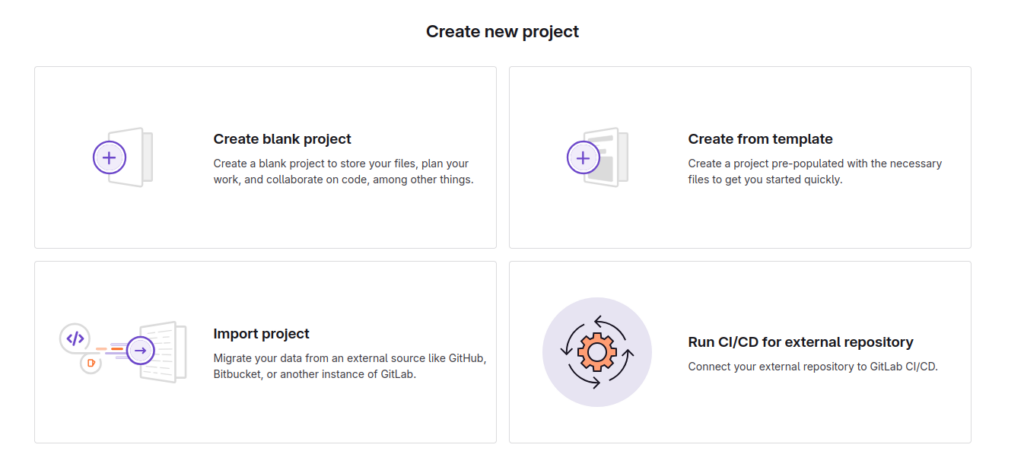
- Import your project (via the options present) or create one manually
- Create a new file named
.gitlab-ci.ymlor your project should have the file already in the root directory. - Add the configuration and commit it.
Once committed, GitLab will automatically trigger the pipeline and run the load test.
These are the following options you get for creating or importing a project via Gitlab UI:
Option 2: GitLab CLI (via Git + Terminal)
- Initialise your project (if not already done): using
git init - Add GitLab as the remote:
git remote add origin https://gitlab.com/your-username/your-repo.git - Make sure your
.gitlab-ci.ymlfile is present in the root directory. - Add, commit, and push your code:
git add .
git commit -m "Add GitLab CI pipeline config"
git push -u origin main - Once pushed, GitLab will detect .gitlab-ci.yml and automatically start the pipeline.
Tip:
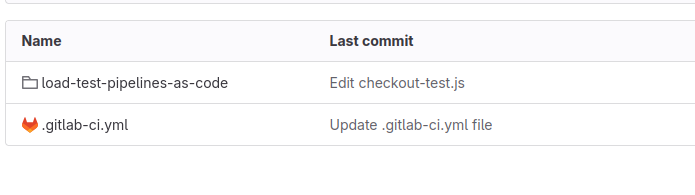
The .gitlab-ci.yml file should be in the root directory for the gitlab to read it. GitLab looks for it there by default.
If you place it inside a subfolder, GitLab won’t detect or run your pipeline.
Once the setup is complete using either method (UI or CLI), GitLab will automatically detect the .gitlab-ci.yml file, trigger the pipeline, and execute the defined job inside a Docker container using the k6 image.
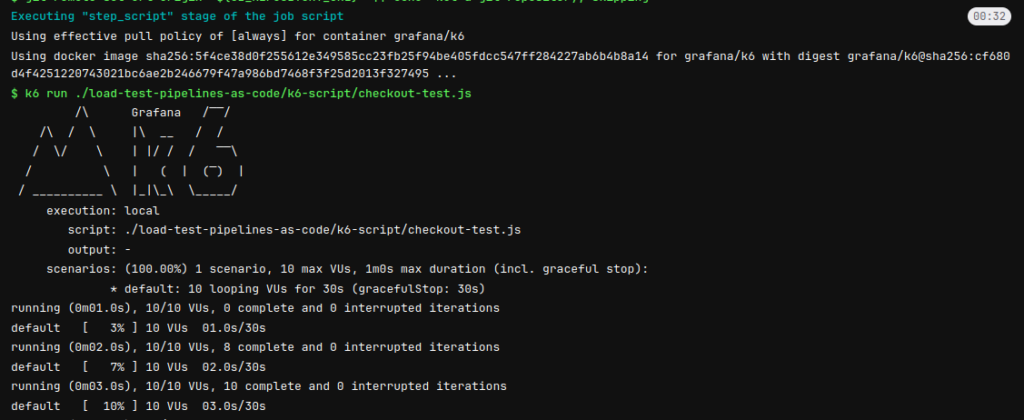
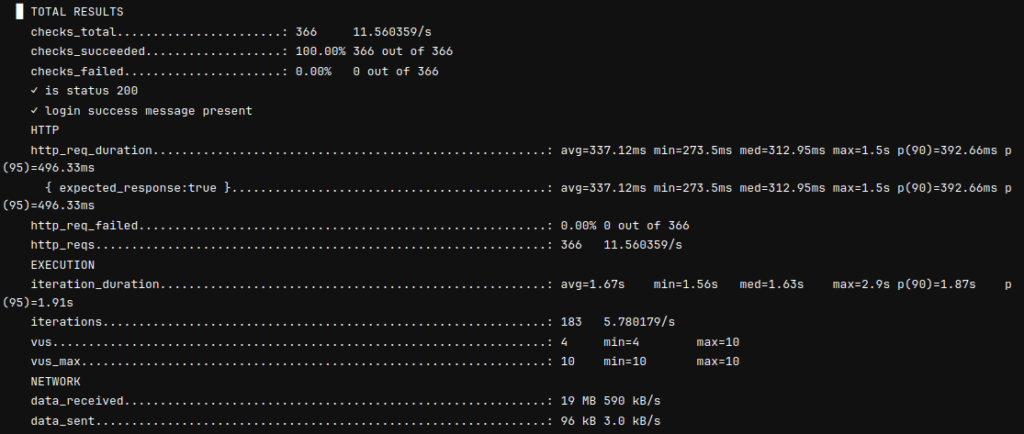
You’ll be able to see the pipeline stages passing and your load test running as part of the CI process.
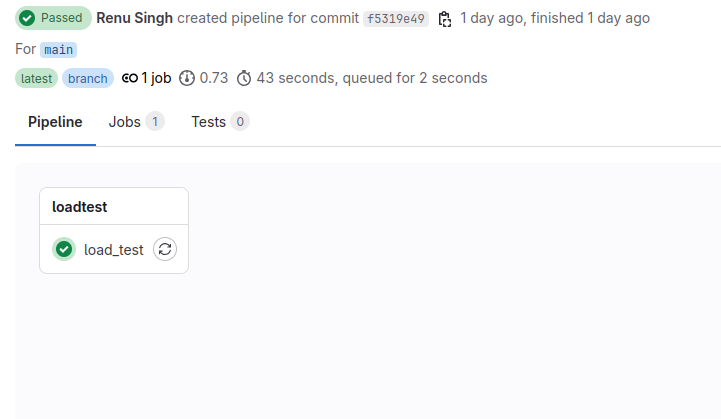
Once the pipeline runs successfully, you’ll be able to view the execution logs and test results.
What This Solves
This method addresses typical issues with performance testing by:
- Eliminating the requirement for local test setups
- Make performance checks part of everyday development
- Making testing easier for QA teams and developers
- Providing responsiveness and scalability from the start
- Maintaining applications in a production-ready state
Wrapping Up
There’s no longer a need to push performance testing to the very end of development. By treating load testing as code, we can fold performance checks into our everyday workflow, just like we do with unit tests.
Using tools like GitLab CI and k6, it’s simple to automate load testing without setting up complex infrastructure or needing deep DevOps knowledge. This approach allows teams to release faster and with greater confidence, knowing that performance is being continuously validated.
This blog focuses on a simple, CI-based setup. But once you’re comfortable, you can explore more advanced integrations:
- Use k6 with Kubernetes for distributed testing
- Automate deployments and tests using ArgoCD
- Send results to InfluxDB and visualise them in Grafana
- Use the k6 Operator to run test resources as Kubernetes-native objects
Resources and References
For more information, you can refer to: