


Introduction
Microsoft Fabric offers a robust data platform that unifies data integration, warehousing, engineering, and analytics capabilities into a single environment along with a suite of data and analytics tools within its range. This blog explores specifically Data Pipelines in Data Factory, a core component of Microsoft Fabric, exploring its architecture, functionalities, and advantages.
Overview
Data Factory offers a modern solution for data integration, and allows the user to perform the following functions:
- Ingest, prepare, and transform data from various sources such as databases, data warehouses, Lakehouses, and real-time data.
- Create pipelines to execute multiple tasks, access data through linked services, and automate processes with triggers.
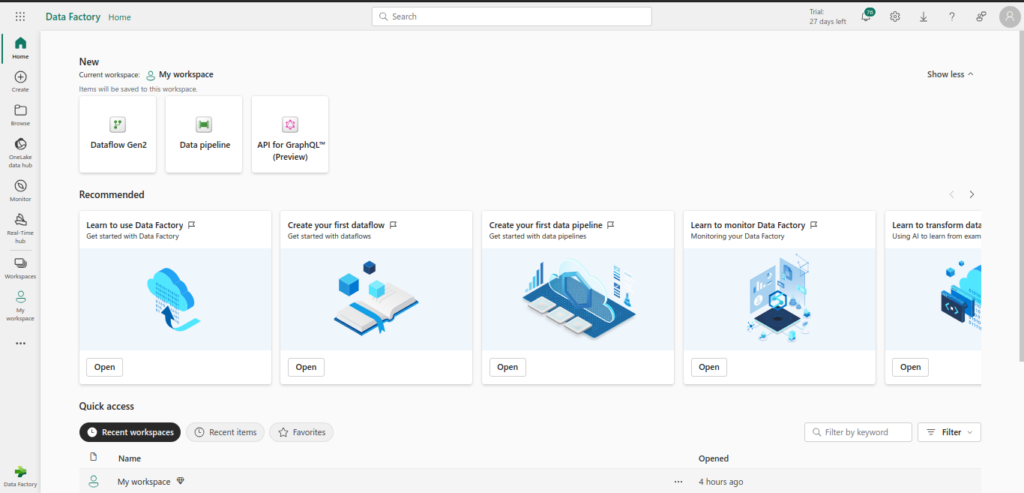
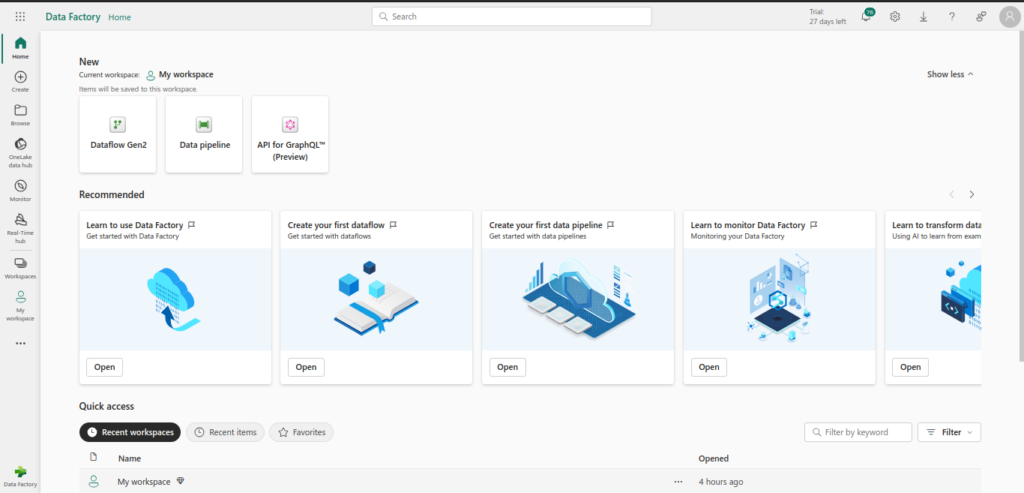
There are two primary features Data Factory implements: Dataflows and Data Pipelines. In this blog we will particularly discuss about Data Pipelines. The following image depicts the dashboard of Data Factory
What is Data Pipeline?
Data pipelines offer scalable workflow capabilities for managing complex data tasks in the cloud. They allow you to:
- Build and manage sophisticated workflows for ETL processes and data transformations, handling large datasets with ease.
- Incorporate control flow features, such as loops and conditionals, to create dynamic workflow logic.
- Combine configuration-driven copy activities like dataflow and integrate activities like Spark Notebooks, SQL scripts, and stored procedures.
Prerequisites
Before diving into building data pipelines using Microsoft Fabric Data Factory, ensure you have the following prerequisites in place:
- Microsoft Azure Subscription: You need an active Azure subscription to access Azure services, including Data Factory.
- Basic Knowledge of Data Engineering Concepts: Familiarity with ETL (Extract, Transform, Load) processes, data warehousing, and data integration principles is essential.
- Azure Data Factory Account: Set up an Azure Data Factory account within your Azure subscription.
- Azure Storage Account: Create an Azure Storage account to store data that will be processed by your data pipelines.
- Azure SQL Database: Have an Azure SQL Database ready for storing and querying processed data.
- Access to Source Data: Ensure you have access to the data sources you plan to integrate, such as databases, APIs, or file storage systems.
- Development Environment: Install necessary development tools, such as Visual Studio Code, and configure your environment for Azure development.
- Basic Programming Skills: Proficiency in languages like Python, SQL, or PowerShell can be beneficial for scripting and automation tasks.
- Azure CLI and PowerShell: Familiarize yourself with Azure CLI and PowerShell for managing Azure resources and automating tasks.
Having these prerequisites in place will ensure a smooth start to building robust and efficient data pipelines using Microsoft Fabric Data Factory.
Create Your First Data Pipeline
Creating your first data pipeline in Microsoft Fabric Data Factory involves several steps. Follow this detailed guide to get started:
- Set Up Your Environment
- MS Fabric Subscription: Ensure you have an active MS Fabrics subscription.
- MS Fabric Access: Log in to the MS Fabrics portal
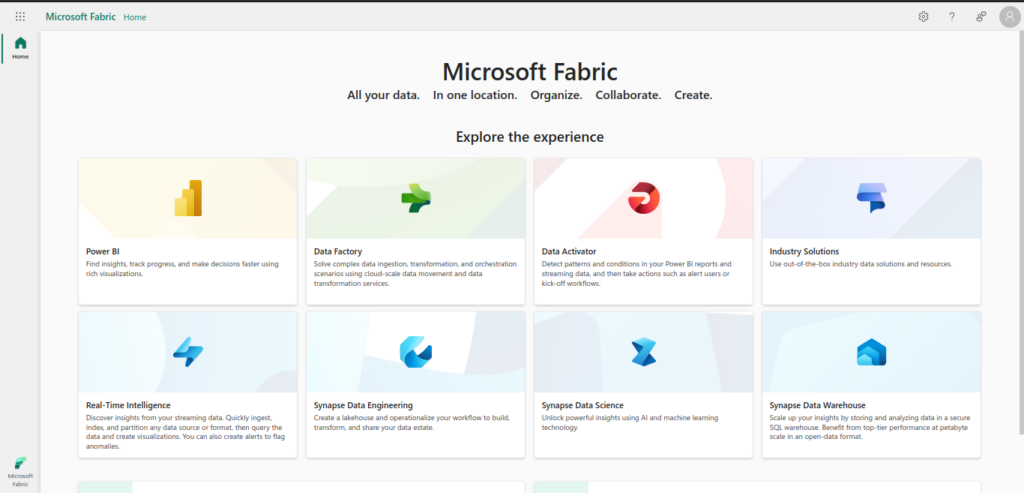
- You will be greeted with the following Microsoft Fabric Dashboard
- Create MS Fabric Data Factory Pipeline
- Navigate to Data Factory: In the MS Fabric dashboard, click on “Data Factory” to open it.
- You will see the following Data Factory dashboard. From here on, we will create our Data Pipeline
- Create a Pipeline
- Click on Data Pipeline. Enter the desired pipeline name. A popup will appear as follows:
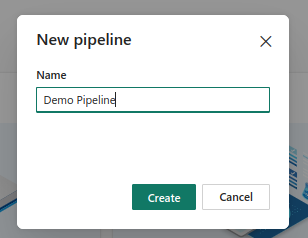
Click on Create button, you will be redirected to your new Pipeline main page. It will look as follows:

- Set Up Triggers
- Navigate to Manage: Go to the “Manage” tab.
- Create Trigger: Click on “Triggers” and then “New”.
- Configure Trigger: Choose the type of trigger (e.g., schedule, event-based) and configure its settings (e.g., frequency, start time).
- Attach Trigger to Pipeline: Go back to your pipeline, click on “Add trigger” and select the trigger you created.
- Publish and Run the Pipeline
- Publish Changes: Click on “Publish all” to save and deploy your changes.
- Run Pipeline: In the “Author” tab, select your pipeline and click “Add trigger” > “Trigger now” to run it manually.
- Monitor Pipeline: Navigate to the “Monitor” tab to view the status of your pipeline runs, check for errors, and review logs.
- Monitor and Manage
- Monitor Runs: Use the “Monitor” tab to track the progress and performance of your pipeline runs.
- Debugging: If there are errors, use the detailed logs and error messages to troubleshoot and fix issues.
- Optimize: Continuously monitor and optimize your pipeline for performance and cost efficiency.
By following these steps, you can successfully create and manage your first data pipeline using Microsoft Fabric Data Factory.
Additional Features
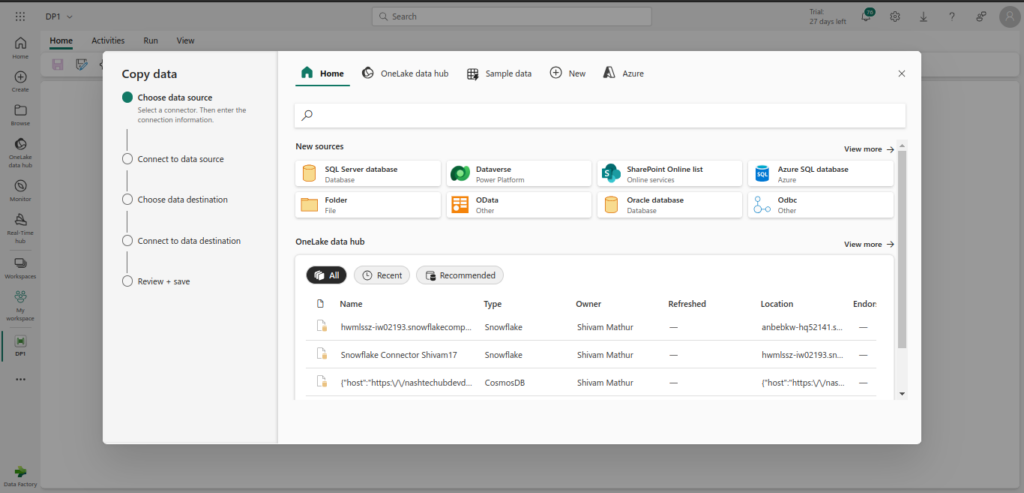
- Copy Data Assistant: The Copy Data Assistant simplifies the data transfer process by guiding users through the steps to copy data from various sources to destinations. It provides a user-friendly interface to configure source and destination settings, mapping data, and handling data transformations. This tool is ideal for both beginners and advanced users looking to streamline data migration tasks.
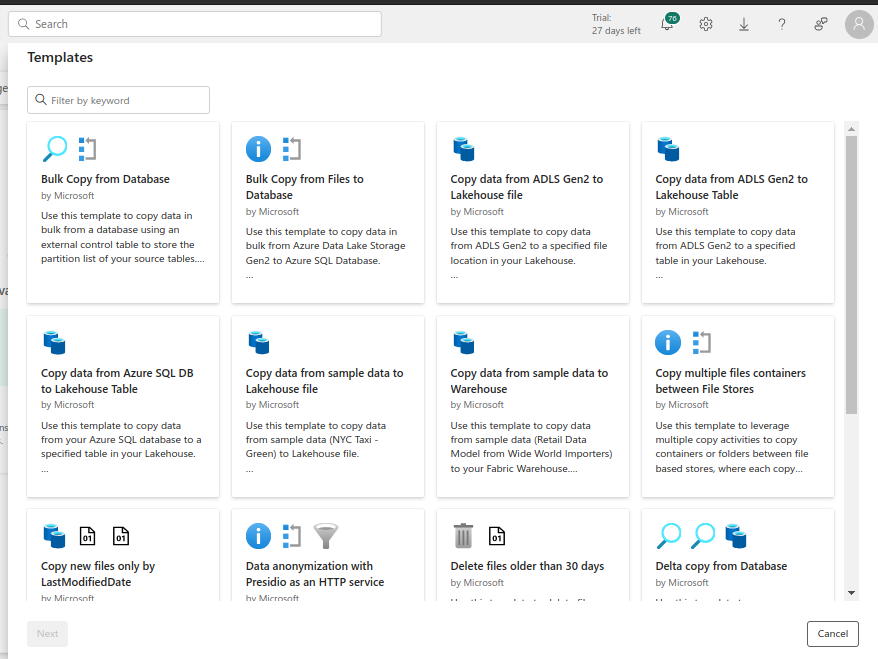
- Templates: Templates in Data Factory are pre-configured workflows that can be reused and customized for various ETL (Extract, Transform, Load) processes. These templates save time by providing a starting point for common data integration scenarios, allowing users to quickly deploy pipelines and automate data operations without starting from scratch.
- Sample Data Practice: It allows users to test and refine their data workflows using sample datasets. This feature is useful for validating pipeline configurations and transformations in a controlled environment before applying them to real data. It helps ensure that data processing works as expected and can handle the required data volume and complexity.
- Pipeline Monitoring: Pipeline Monitoring provides tools to track the performance and status of data pipelines in real-time. It offers detailed insights into pipeline execution, including success and failure rates, run history, and performance metrics. This component is crucial for maintaining the health of data workflows, diagnosing issues, and optimizing pipeline performance.
- Pipeline Scheduler: Pipeline Scheduler enables users to automate the execution of data pipelines based on predefined schedules or triggers. This feature allows for the periodic running of data workflows, such as daily or weekly updates, and can be configured to react to specific events or conditions. It ensures that data processes run consistently and on time without manual intervention.
Challenges & Limitations
While building data pipelines using Microsoft Fabric Data Factory offers numerous benefits, there are also several challenges and limitations to be aware of:
- Complexity of Data Integration: Integrating data from diverse sources can be complex, especially when dealing with different data formats, schemas, and protocols.
- Performance Bottlenecks: Large volumes of data and complex transformations can lead to performance issues, requiring careful optimization and resource management.
- Cost Management: Running extensive data pipelines can incur significant costs, especially with high data volumes and frequent processing. Monitoring and managing costs is crucial.
- Data Quality Issues: Ensuring data quality throughout the pipeline is challenging. Inconsistent or incomplete data can lead to inaccurate insights and decisions.
- Security and Compliance: Maintaining data security and compliance with regulations (such as GDPR) requires robust measures, including encryption, access controls, and regular audits.
- Scalability: Scaling data pipelines to handle increasing data volumes and complexity can be difficult, requiring efficient resource allocation and management.
- Error Handling and Debugging: Identifying and resolving errors in data pipelines can be time-consuming, especially in complex workflows with multiple dependencies.
- Dependency Management: Managing dependencies between different pipeline components and ensuring smooth execution can be challenging, particularly in large-scale data projects.
- Learning Curve: Mastering the tools and features of Microsoft Fabric Data Factory can take time, especially for developers new to the platform or data engineering concepts.
- Integration with Other Tools: Seamlessly integrating Azure Data Factory with other tools and services in the data ecosystem can be complex and may require custom solutions.
Understanding these challenges and limitations will help you plan and implement more effective data pipelines, mitigating potential issues and optimizing performance.
Conclusion
Building data pipelines using Microsoft Fabric Data Factory is a powerful way to streamline data integration and processing tasks. By understanding the prerequisites, major components, and step-by-step procedures, you can effectively design and implement robust data pipelines. Despite the challenges and limitations, the benefits of using Azure Data Factory, such as scalability, flexibility, and integration capabilities, make it an invaluable tool for modern data engineering.
References
Official Microsoft Documentation: https://learn.microsoft.com/en-us/fabric/data-factory/data-factory-overview