



Platform Engineering at NashTech series:
- https://blog.nashtechglobal.com/platform-engineering-at-nashtech/
- https://blog.nashtechglobal.com/platform-engineering-introduce-a-new-nashtech-self-service-portal-accelerator/
- https://blog.nashtechglobal.com/platform-engineering-how-nashtech-self-service-portal-accelerator-work/
- https://blog.nashtechglobal.com/platform-engineering-exploring-nashtech-self-service-portal-accelerator-practical-steps/ <= This part
Starting to run NashTech Self-service Portal
Request to access into NT Self-service Portal accelerator on Azure DevOps (internal), then run the bash script:
> git clone git@ssh.dev.azure.com:v3/xxx-Projects/xxx/archlib-backstageNotes: you need to be granted permission to access this link above; otherwise, you cannot see it.
Then, the machine just runs:
> docker compose up # make sure you have docker engine runs on your machine.> yarn && yarn dev # you are all set.Let’s go to http://localhost:3000, and start exploring what we NashTech call self-service portal.

Now, let’s navigate to the Self-service menu:
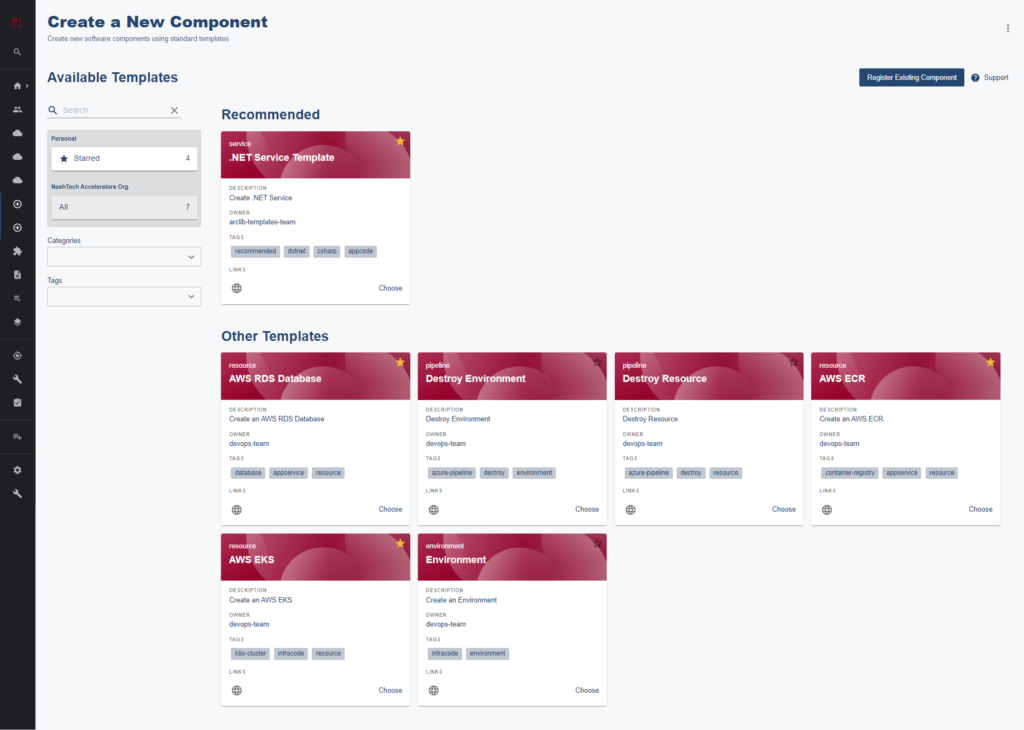
In this screen, you can create a new cloud resource as well as a .NET Service Template (Microservice software development lifecycle as we mentioned a lot in the previous part: How NashTech Self-service Portal work?
Request a new AWS RDS Database
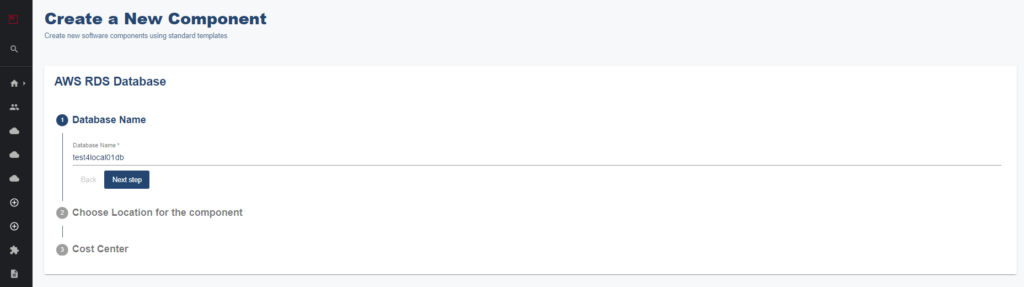
Input the database name: test4local01db, then click Next Step.
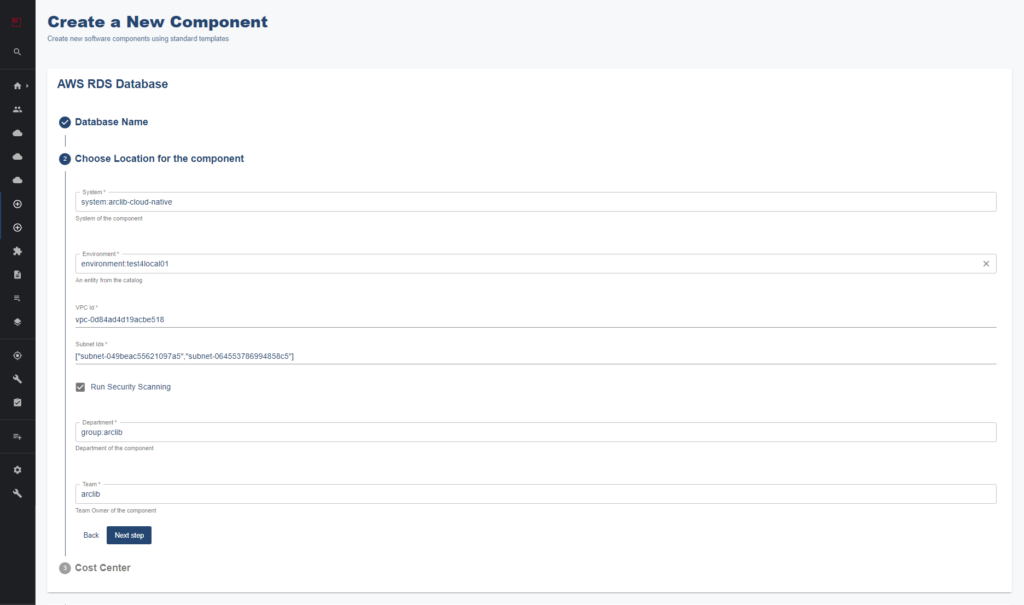
In this screen, choose System and Environment from the system model. Important inputs in this screen are VPC ID and Subnet IDs, make sure you use the correct one. Check Run security scanning if you want to opt-in DevSecOps tasks. Click Next Step.
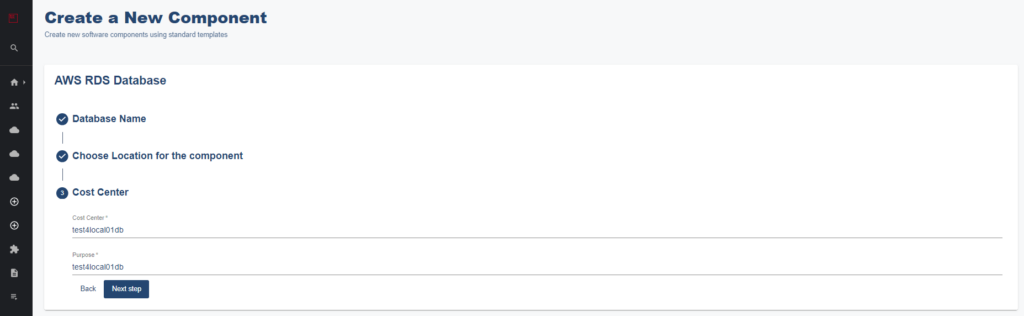
For FinOps in the future, we might want to input the Cost center and Purpose for labeling resources. Click Next Step.
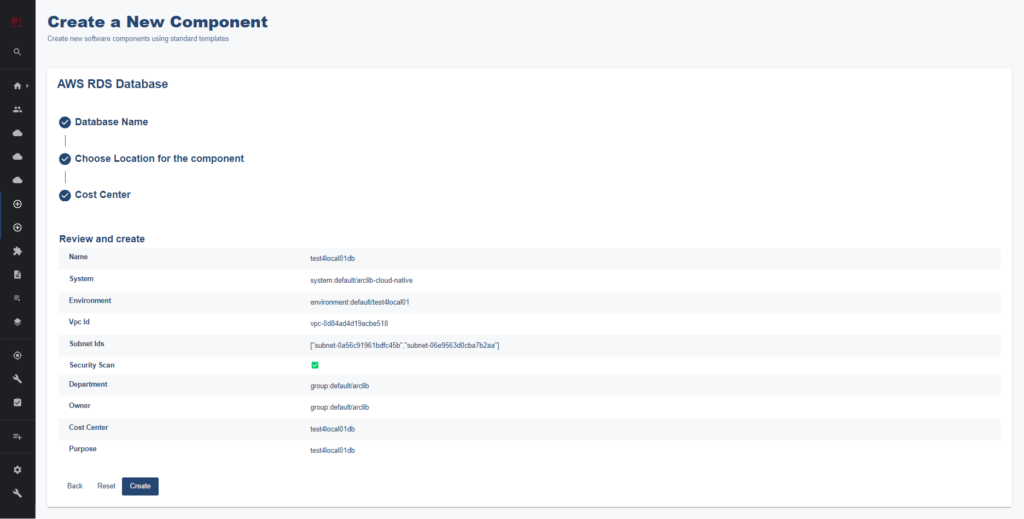
This step is only a summary of what we choose for creating AWS RDS cloud resources. Click Create.
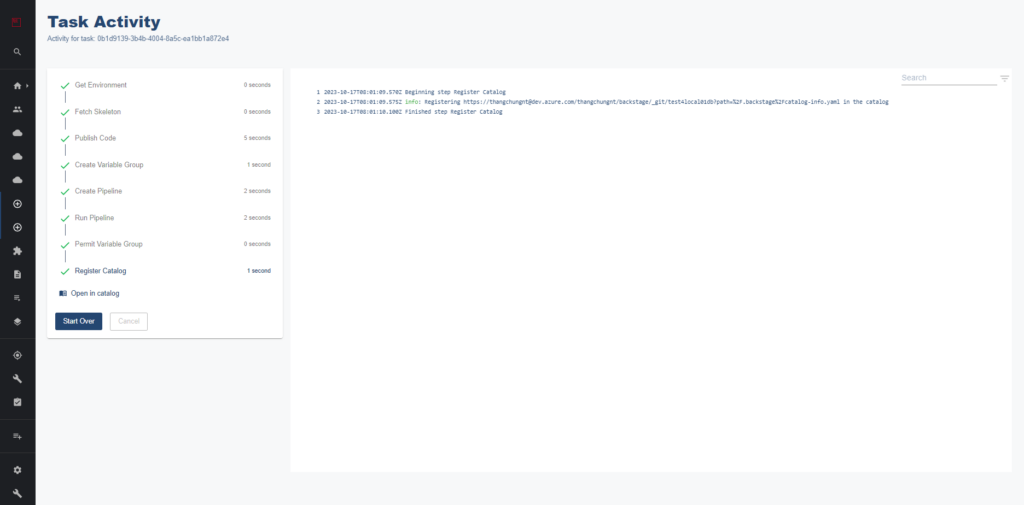
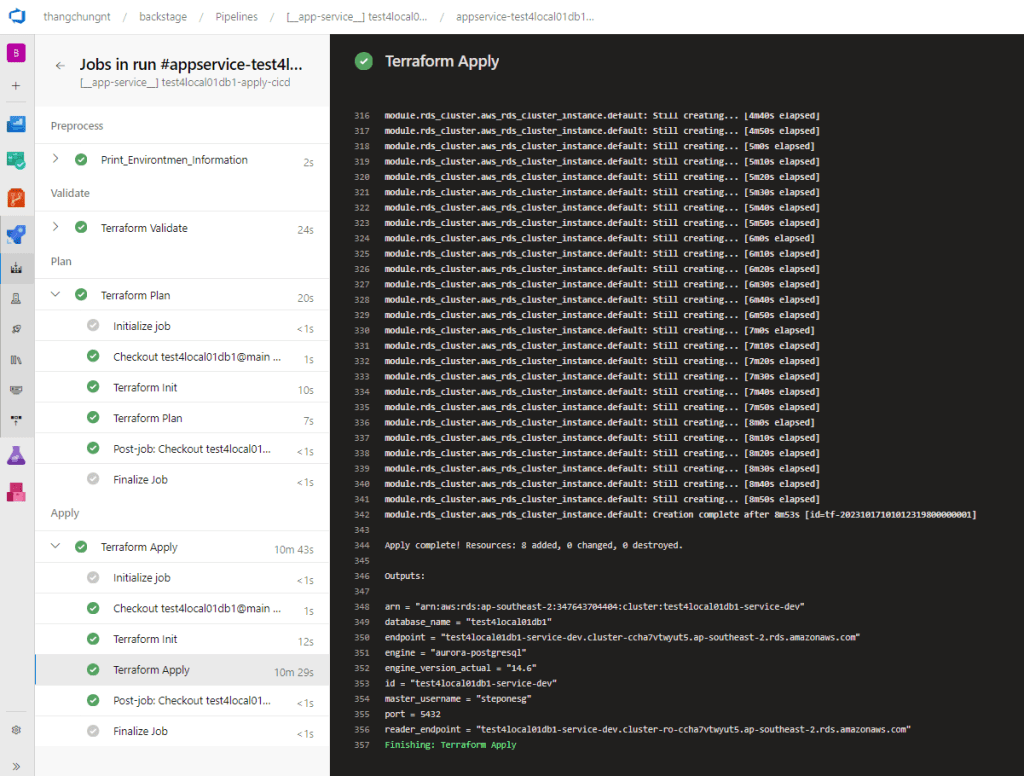
Now, turning to Azure DevOps, we can see the CI/CD pipeline runs there:
Open AWS Management Console, you should see:
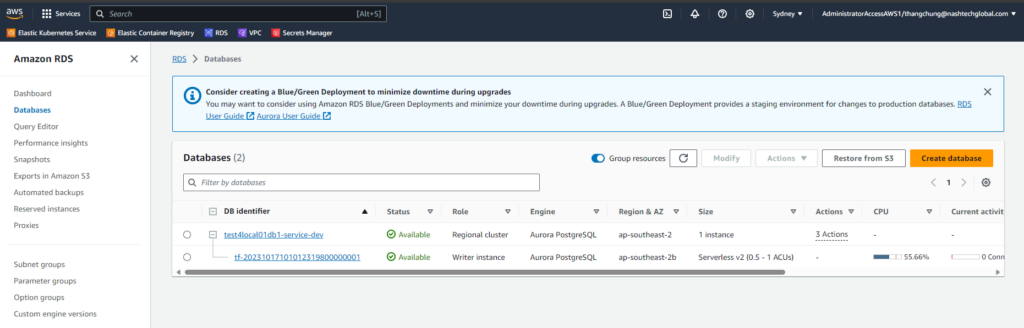
Done! We just created a new AWS RDS Database without needing any permission to access to under-infrastructure and AWS subscription.
Now let’s get started to scaffolding a full .NET microservice in a few steps below.
Scaffolding a full .NET Microservice Software Development Lifecycle Service.
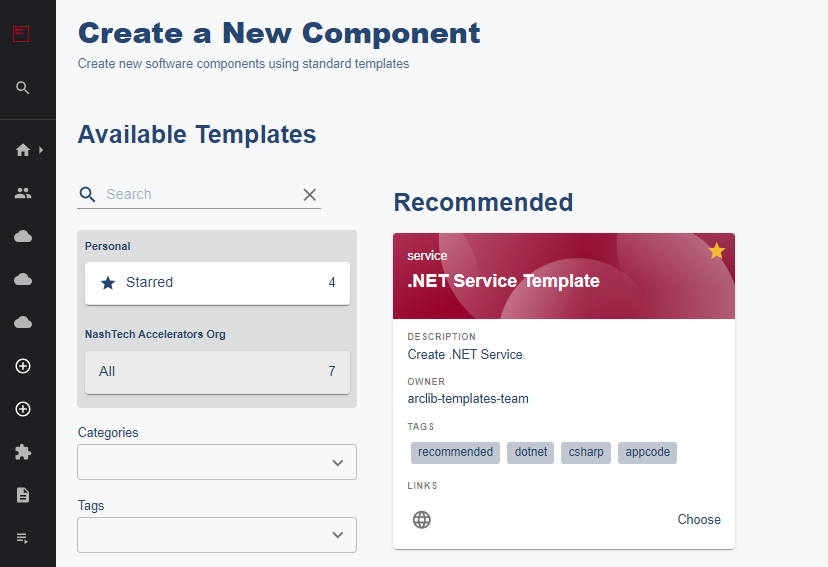
On the Self-service menu, choose the .NET Service Template:
Then, input the information below.
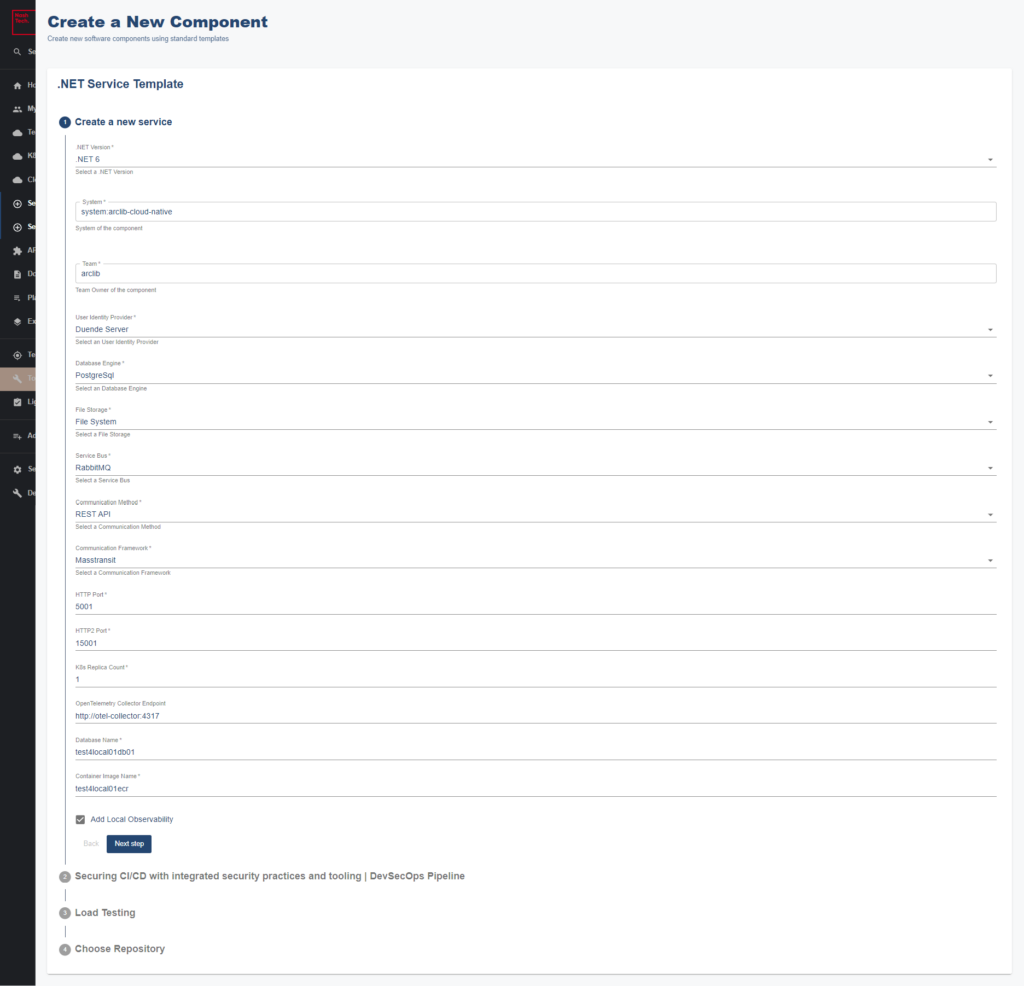
Notes: The database name is the database that we create in the Request AWS RDS section and the same for the Container Image Name.
Then, click Next Step.
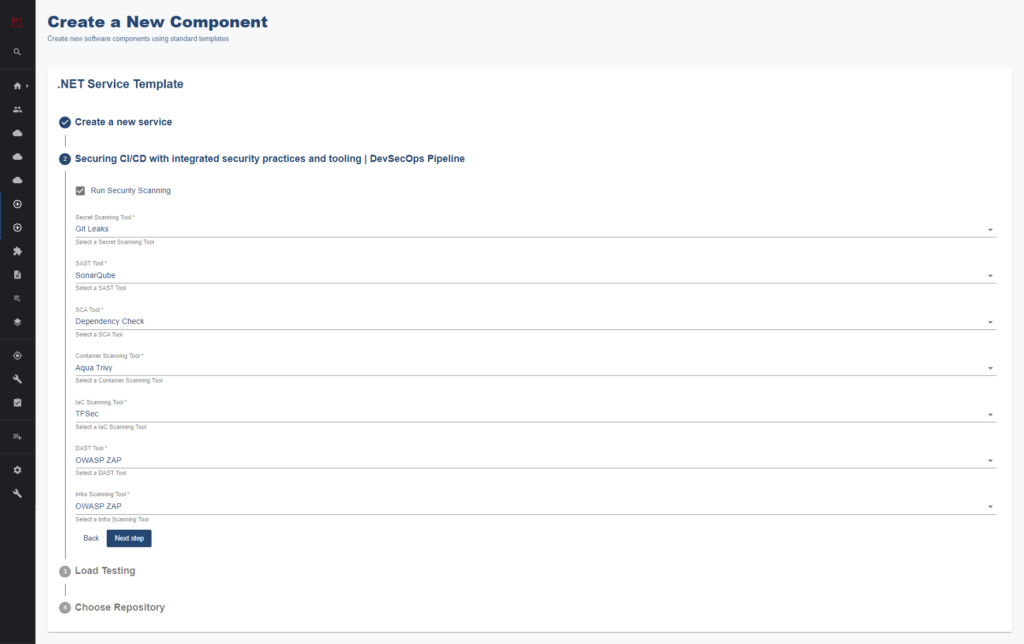
If you want to opt-in DevSecOps toolset, then you can check to Run Security Scanning (some of the standard tools will be displayed and allow you to choose it). Click Next Step then.
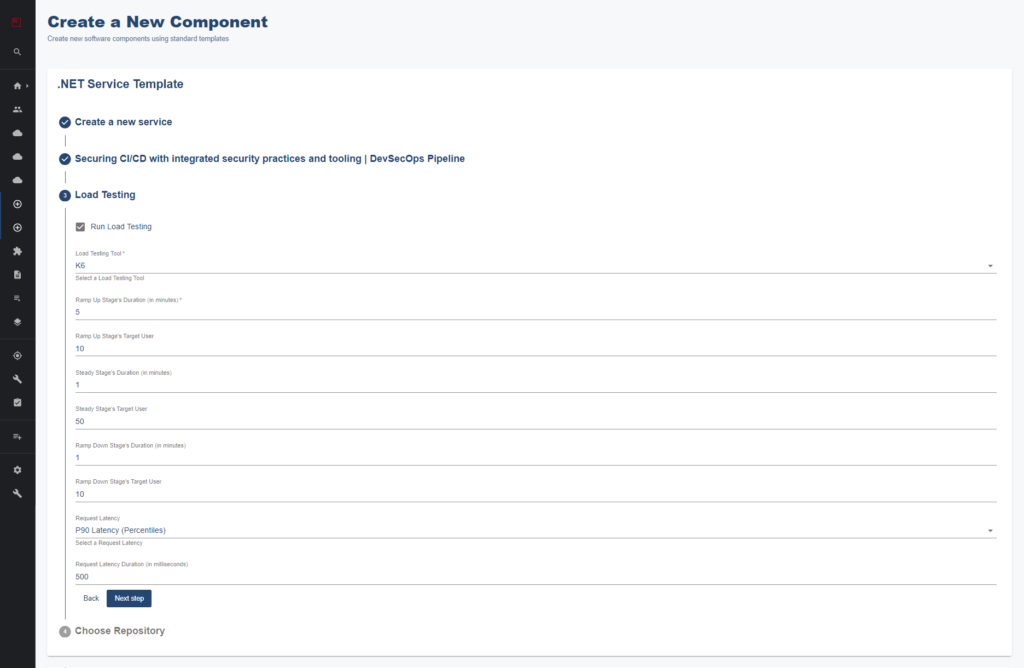
Now, if we want to add a sample load-testing script in this code base, then we choose K6 (JMeter is another option). Click Next Step.
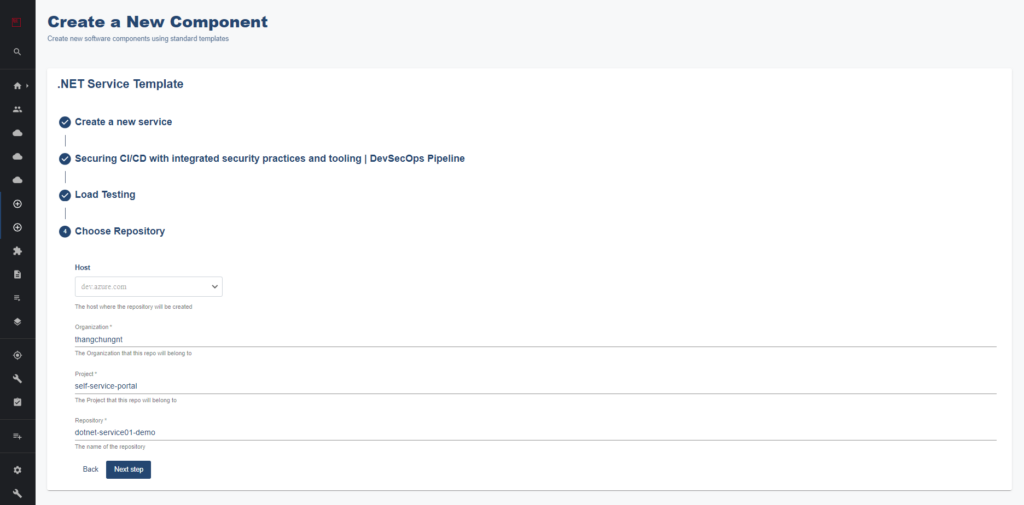
In this step, we need to input the Organization, Project, and Repository name so that the NashTech Self-service Portal will know exactly where to put the artifacts. Click Next Step.
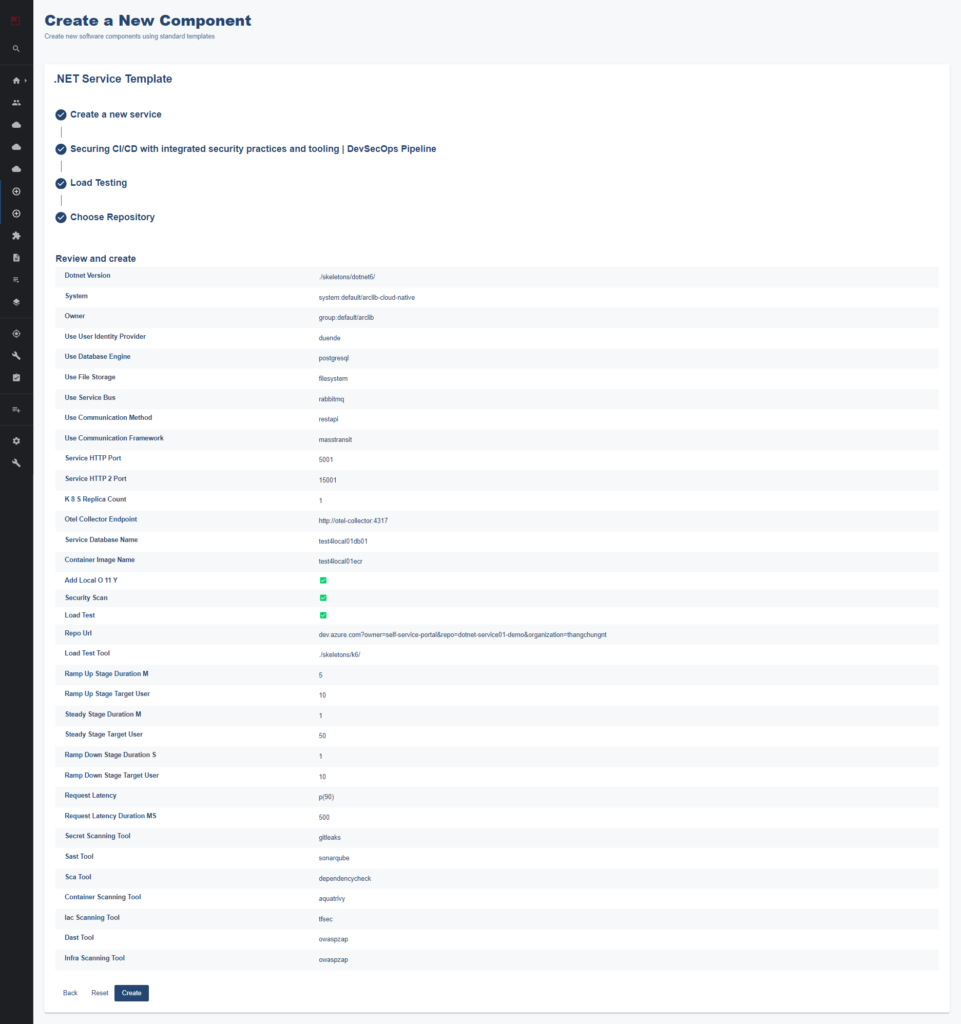
This step is just confirming all information we provide is correct. Click Create.
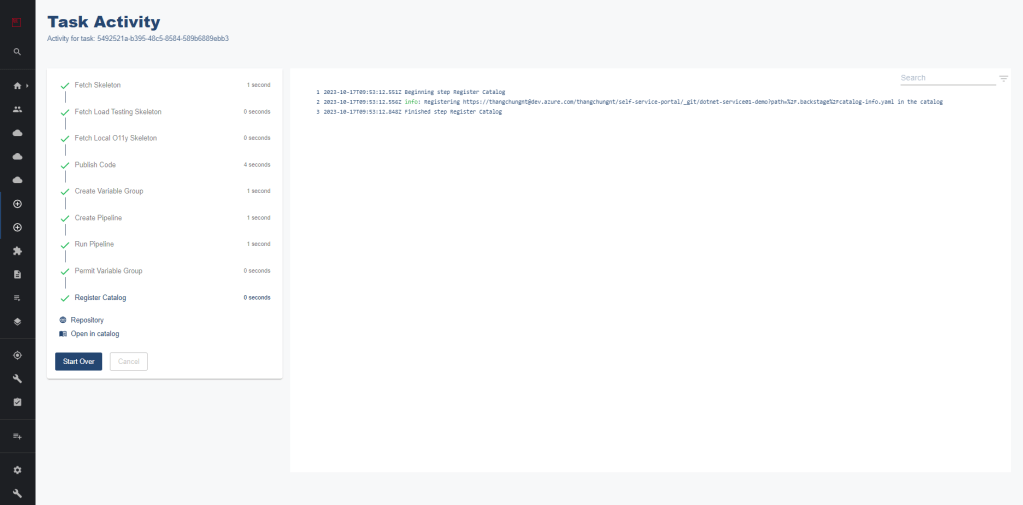
Now, open Azure DevOps, you should see:
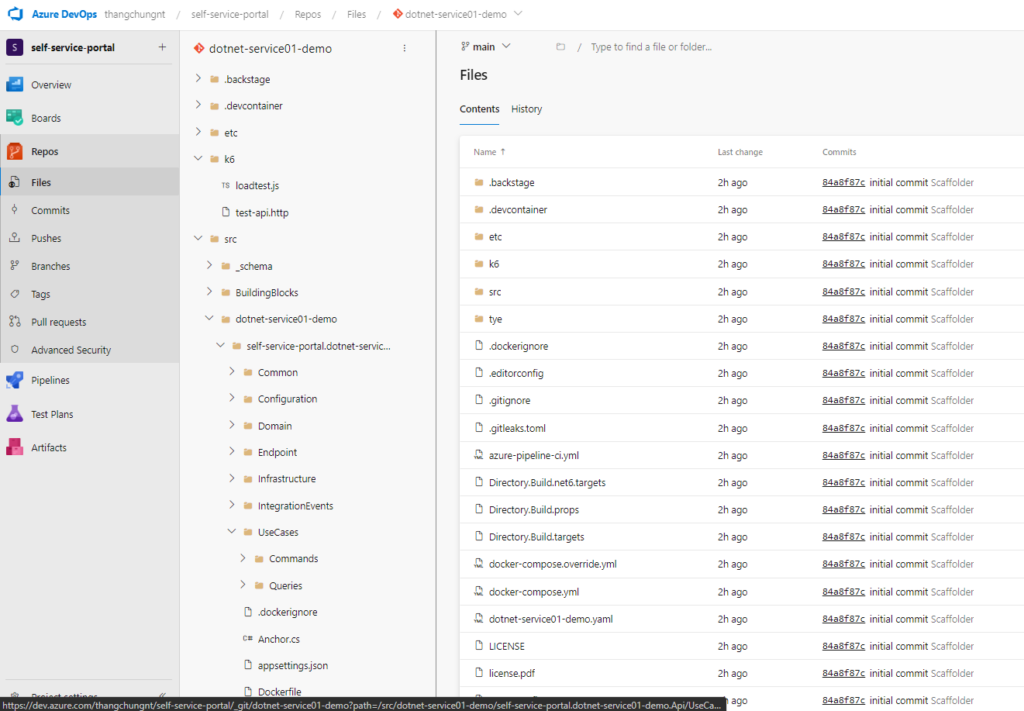
Now, the developer can clone the source code into her environment (laptop or cloud VM) and start to work on the project.
> git clone git@ssh.dev.azure.com:v3/thangchungnt/self-service-portal/dotnet-service01-demoNotes: you need to be granted permission to access this link above; otherwise, you cannot see it.
That’s for today. And more to come in the next couple of months after we continue to improve and build up more cool features with the NashTech Self-service Portal.
If you want to know more about it, feel free to contact directly to us directly at https://accelerator.nashtechglobal.com