



Key takeaways:
Showcase the management and scaling of effective ArgoCD deployments across multiple clusters efficiently and securely through GitOps practices.
Note:
This practical exercise is conducted on Windows
Pre-requisite:
- AWS CLI
- Azure CLI
- kubectl
- eksctl
- argocd-cli
Set up an AWS EKS Cluster
Create EKS cluster using eksctl
- When you utilize an eksctl YAML file for deployment or run a command to create a cluster, CloudFormation templates are deployed in the background. Essentially, it’s these CloudFormation templates that set up the clusters, with eksctl serving as a convenient wrapper around CloudFormation.
Execute the following command using the eksctl CLI with the specified parameters
eksctl create cluster –name eksargocd –region us-east-1 –nodes 1 –nodes-max 2 –zones us-east-1a,us-east-1b,us-east-1c
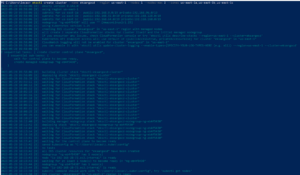
After executing the command, an EKS cluster should be successfully created on AWS

If you haven’t logged into AWS yet, you may encounter the following error

Then, you will need to log into AWS by executing the ‘aws configure’ command

Set Up Argo CD on Your EKS Cluster
Execute the command below to create an ArgoCD Namespace
kubectl create namespace argocd

This command will establish a new namespace within the EKS cluster.
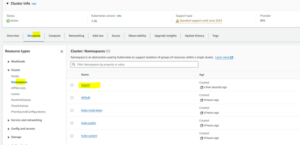
Execute the installation script for Argo CD as provided by the project’s maintainers.
kubectl apply -n argocd -f https://raw.githubusercontent.com/argoproj/argo-cd/stable/manifests/install.yaml
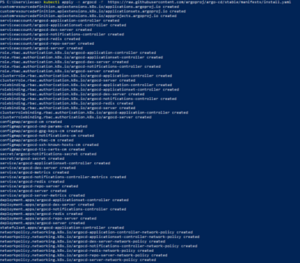
You have the option to verify the resources that were created
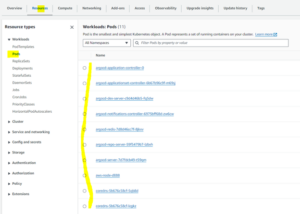
Obtain Access to Argo CD
There are two methods available to access ArgoCD
-
Configuring Port Forwarding for Accessing Argo CD
Redirecting traffic to arbitrary ports, such as 8080
kubectl port-forward svc/argocd-server -n argocd 8080:443
Access from internet from browseruse id: admin
password: <base64 decoded password>
-
Utilizing a Load Balancer to Access Argo CD
Modify argocd-server, execute the following command:
kubectl edit svc argocd-server -n argocd



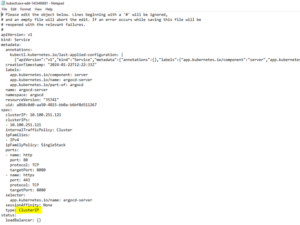
Substitute ClusterIP with LoadBalancer
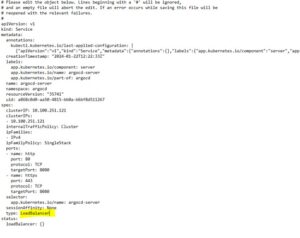
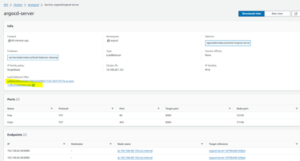
Verify the argocd-server service
kubectl get svc argocd-server -n argocd

Access the LoadBalancer URL in your web browser

Retrieve the Argo CD default password
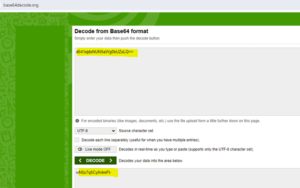
The default username is ‘admin’, and you can obtain the password using the following command
kubectl -n argocd get secret argocd-initial-admin-secret -o jsonpath=”{.data.password}”

Decode the default password using base64decode.org.
Update the Argo CD default password
Access ArgoCD using the default password.
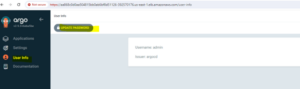
Navigate to “User info” in the left menu and proceed to click on the “UPDATE PASSWORD” button
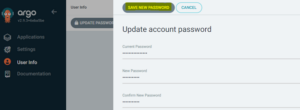
Enter your new password and then click the “SAVE NEW PASSWORD” button.
Continued on part 2.