


Effective test orchestration can be a game-changer in the fast-paced world of DevOps, where continuous integration, delivery, and deployment (CI/CD) is critical. Rather than running isolated test scripts or dealing with the complexities of executing multiple tests manually, test orchestration offers a streamlined approach to automating tests across the DevOps pipeline.
This blog explores the fundamentals of test orchestration, its role in automating DevOps workflows, and some practical approaches to implementing it effectively in your CI/CD process.
Test Orchestration
Test orchestration involves coordinating the execution, management, and monitoring of various test activities across multiple environments and test stages. It’s not just about running tests but about running them intelligently, ensuring the right tests are executed at the right time with the right data and configuration.
Why Test Orchestration is Essential in DevOps
- Faster Releases with Continuous Testing: By integrating tests at each stage of the DevOps pipeline, teams can catch issues early, reduce bottlenecks, and release high-quality software faster.
- Improved Test Coverage: Automated orchestration allows broader test coverage across multiple environments, platforms, and configurations.
- Efficient Resource Usage: Test orchestration reduces idle time and optimizes the use of available infrastructure through optimized scheduling and resource management.
Key Practices for Effective Test Orchestration
1. Define a Clear Test Strategy
Before implementing orchestration, define what types of tests (unit, functional, load, security) should run at each pipeline stage. Decide these tests’ sequence, dependencies, and priority to maximize efficiency.
2. Integrate Tests with CI/CD Tools
Test orchestration requires seamless integration with CI/CD tools like Jenkins, GitLab CI, or Azure DevOps. Setting up triggers to initiate tests upon code commits, builds, or deployments ensures continuous testing within the pipeline.
3. Leverage Parallel and Distributed Testing
Speed up test execution by running tests in parallel or distributing them across multiple environments or containers. Cloud-based test orchestration tools often provide these features, allowing tests to run on various configurations simultaneously.
4. Implement Dependency Management
Complex tests often have dependencies, such as data sets, APIs, or configurations. By orchestrating dependency management, you ensure each test has the necessary prerequisites and avoid redundant setups.
5. Use Automated Test Scheduling and Prioritization
Based on previous test outcomes and code changes, prioritize tests that are more likely to detect issues early. Automated scheduling tools can adjust test frequency and order based on risk assessment.
6. Centralize Reporting and Analytics
Orchestration tools often include reporting and analytics dashboards that track test results, performance metrics, and defect trends. This centralization allows teams to monitor testing progress and make data-driven decisions quickly.
Implementing Test Orchestration in a DevOps Pipeline
- Choose a Test Orchestration Tool
Tools like Selenium Grid, GitLab CI, Jenkins Pipeline, and cloud-based platforms such as Sauce Labs and BrowserStack support test orchestration. Select a tool compatible with your CI/CD infrastructure and testing requirements. - Set Up Test Environments
Configure multiple test environments to run tests on different operating systems, browsers, or configurations as needed. Containerized environments using Docker or Kubernetes make it easier to maintain consistency across tests. - Create Modular Test Scripts
Write reusable, modular test scripts. Use a version control system like Git to manage these scripts so that they can be executed on-demand across environments, reducing redundancy and maintenance overhead. - Integrate with the CI/CD Pipeline
Configure your orchestration tool to trigger tests at different stages of the CI/CD pipeline. For instance, run unit tests after each commit, integration tests after each build, and end-to-end tests before deployment. - Implement Feedback Loops
Enable immediate feedback mechanisms that notify teams when tests fail. CI/CD platforms often provide notifications through Slack, email, or dashboard alerts, helping resolve issues before moving to the next stage. - Automate Reporting and Analytics
Use centralized reporting to analyze trends, monitor pass/fail rates, and generate insights. Most orchestration tools have built-in reporting features, making it easier to visualize test outcomes over time.
Tools for Test Orchestration in DevOps
Here are some popular tools to get started with test orchestration:
- GitLab CI/CD: Provides robust tools for test orchestration and can seamlessly integrate with Git repositories.
- Selenium Grid: A tool for distributed test execution, enabling tests across multiple browsers and platforms.
- Sauce Labs: A cloud-based test orchestration tool offering cross-browser and cross-device testing.
- Test Orchestration Platforms (e.g., TestOps): Platforms like TestOps offer end-to-end test management, integration, and reporting, especially for larger enterprise environments.
How to integrate Selenium code with CI/CD pipeline(Gitlab)
Step 1: Setting Up the GitLab CI Pipeline
To create the CI/CD pipeline, add a .gitlab-ci.yml file in your project’s root directory.
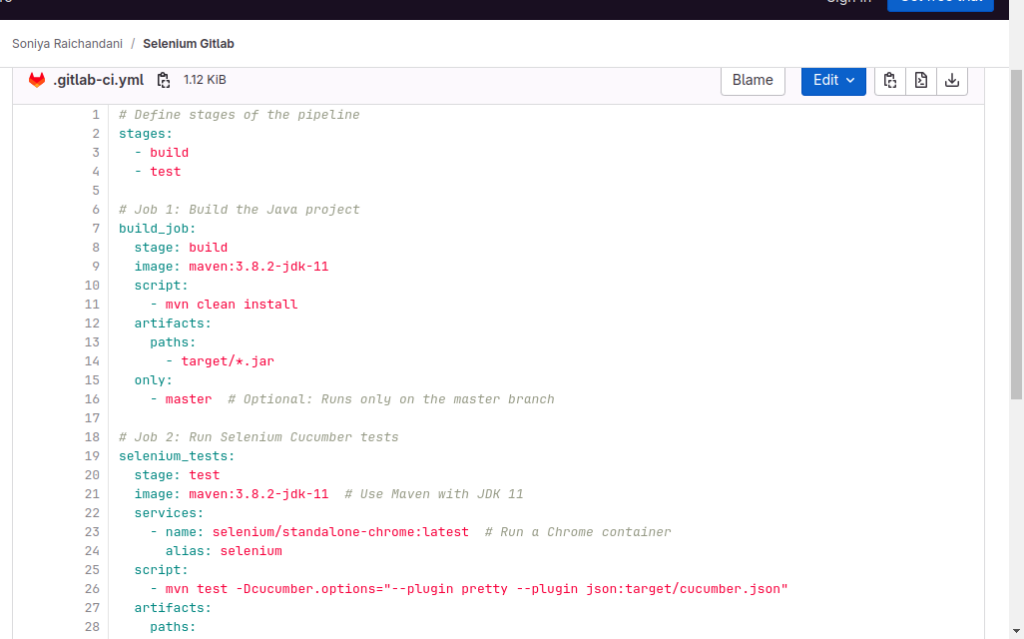
# Define stages of the pipeline
stages:
  - build
  - test

# Job 1: Build the Java project
build_job:
  stage: build
  image: maven:3.8.2-jdk-11
  script:
    - mvn clean install
  artifacts:
    paths:
      - target/*.jar
  only:
    - master  # Optional: Runs only on the master branch

# Job 2: Run Selenium Cucumber tests
selenium_tests:
  stage: test
  image: maven:3.8.2-jdk-11  # Use Maven with JDK 11
  services:
    - name: selenium/standalone-chrome:latest  # Run a Chrome container
      alias: selenium
  script:
    - mvn test -Dcucumber.options="--plugin pretty --plugin json:target/cucumber.json"
  artifacts:
    paths:
      - target/cucumber.json  # Store the test report for analysis
  dependencies:
    - build_job  # Depends on the build job
  only:
    - main # Optional: Runs only on the master branch

# Optional: Generate the Cucumber HTML report
cucumber_report:
  stage: test
  image: maven:3.8.2-jdk-11
  script:
    - mvn verify -Dcucumber.options="--plugin html:target/cucumber-report.html"
  artifacts:
    paths:
      - target/cucumber-report.html
  only:
    - master  # Optional: Runs only on the master branch
Step 2: Writing Selenium Tests in Java
For Selenium end-to-end tests, create Java test scripts to validate core user flows, like logging in or adding an item to a cart. These tests should be organized so that GitLab CI can trigger them separately from unit and integration tests.
Below is an example of a Selenium test for logging into a web application.
import org.openqa.selenium.By;
import org.openqa.selenium.WebDriver;
import org.openqa.selenium.WebElement;
import org.openqa.selenium.chrome.ChromeDriver;
import org.junit.After;
import org.junit.Before;
import org.junit.Test;

import static org.junit.Assert.assertEquals;

public class LoginE2ETest {
    private WebDriver driver;

    @Before
    public void setUp() {
        System.setProperty("webdriver.chrome.driver", "/path/to/chromedriver");
        driver = new ChromeDriver();
        driver.manage().window().maximize();
    }

    @Test
    public void testLogin() {
        driver.get("https://example.com/login");

        WebElement usernameField = driver.findElement(By.id("username"));
        WebElement passwordField = driver.findElement(By.id("password"));
        WebElement loginButton = driver.findElement(By.id("loginButton"));

        usernameField.sendKeys("testuser");
        passwordField.sendKeys("password");
        loginButton.click();

        WebElement welcomeMessage = driver.findElement(By.id("welcomeMessage"));
        assertEquals("Welcome, testuser", welcomeMessage.getText());
    }

    @After
    public void tearDown() {
        if (driver != null) {
            driver.quit();
        }
    }
}
Step 3: Generating Test Reports
Configure Maven to generate test reports in a format compatible with GitLab CI. Use the Surefire and Failsafe plugins for unit and integration tests. Under pom.xml, include this
<plugins>
    <plugin>
        <groupId>org.apache.maven.plugins</groupId>
        <artifactId>maven-surefire-plugin</artifactId>
        <version>3.0.0-M5</version>
        <configuration>
            <includes>
                <include>**/*UnitTest.java</include>
            </includes>
        </configuration>
    </plugin>

    <plugin>
        <groupId>org.apache.maven.plugins</groupId>
        <artifactId>maven-failsafe-plugin</artifactId>
        <version>3.0.0-M5</version>
        <configuration>
            <includes>
                <include>**/*IntegrationTest.java</include>
                <include>**/*E2ETest.java</include>
            </includes>
        </configuration>
    </plugin>
</plugins>
Step 4: Set Up Notifications
Add notifications for test results in GitLab to keep the team informed. This can be done through email or Slack integrations so that failures are immediately visible, and issues can be addressed quickly.
send_email:
  stage: notify
  image: alpine:latest
  needs: ["report_job"]
  before_script:
    - apk add --no-cache mutt  # Install mutt to send emails
  script:
    # Extract the artifact to be sent
    - mkdir -p target/cucumber-reports
    - curl --location --output target/cucumber-reports/cucumber-report.html "${CI_SERVER_URL}/api/v4/projects/${CI_PROJECT_ID}/jobs/artifacts/main/raw/target/cucumber-reports/cucumber-report.html?job=report_job"
    - ls -l target/cucumber-reports

    # Configure email details
    - export EMAIL_SUBJECT="Cucumber Test Report - ${CI_PROJECT_NAME}"
    - export EMAIL_BODY="Hi team,\n\nPlease find attached the latest Cucumber test report for the ${CI_PROJECT_NAME} project.\n\nBest regards,\nCI/CD Pipeline"
    - echo "$EMAIL_BODY" | mutt -s "$EMAIL_SUBJECT" -a target/cucumber-reports/cucumber-report.html -- emailid(hello@gmail.com)  # Replace with the actual email address
  only:
    - Feature/Selenium
  when: on_success
Add Variables in Gitlab
To add a variable that will be accessible by all projects within a group:
- Go to your group in GitLab.
- In the left sidebar, navigate to Settings > CI/CD.
- Expand the Variables section.
- Add variables the same way as described above.
For the Entire Instance (Admin Access Required)
- Go to the Admin Area in GitLab.
- In the left sidebar, go to Settings > CI/CD.
- Expand the Variables section.
- Add variables the same way as for a project.
References:
https://katalon.com/resources-center/blog/devops-orchestration-investment