


Fusion is Builder.io’s new AI-powered workspace that lets designers, product managers, and engineers all work directly on real application, without leaving their comfort zones.
Before we go any further, let’s set our expectation right: Fusion is NOT a replacement to your IDE (despite having a built-in code editor with runtime environment). Keep using VS Code, Cursor, Copilot, whatever you like for deep engineering work. Fusion instead focuses on the conception, visual part of building product: turning designs into working UI, prototyping new flows, and keeping everything consistent with your design system and codebase.
In other words, Fusion is where:
- Figma-like visual editing
- AI “vibe coding”
- And production-grade repositories
all live in one place.
What Makes Fusion Different?
Most AI/visual tools either:
- Work great on hobby projects but fall apart on large repos, or
- Ignore your existing components and tokens and just output generic UI.
Fusion is built for real-world teams:
- It connects directly to your GitHub repo (or GitHub Enterprise, Azure DevOps, GitLab, Bitbucket), runs your dev server, and edits your actual app.
- It understands and reuses your design system: components, icons, colors, tokens, and layout primitives.
- Every change still flows through Git: branches, pull requests, and normal review.
So instead of “AI that generates a random app,” Fusion is “AI that edits your app exactly the way your team builds it.”
Who Gets the Most Value from Fusion?
These are three main target users of Fusion:
- Designers – They can use familiar visual tools on real code, ensure the UI matches the design system, and ship PRs instead of handing off static mockups.
- PMs – They can paste a ticket (e.g., “Build a customer dashboard using this users API”) and let Fusion build real internal tools and flows, then send draft PRs.
- Engineers – They no longer have to sweat every pixel and spacing rule. Fusion handles most of the UI and design fidelity, so engineers can focus on logic, performance, and architecture.
Getting Started with Fusion: A Simple Flow
Here’s a simple path to try Fusion in your team.
Sign Up & Create a Project
- Go to builder.io in your browser and create an account for free.
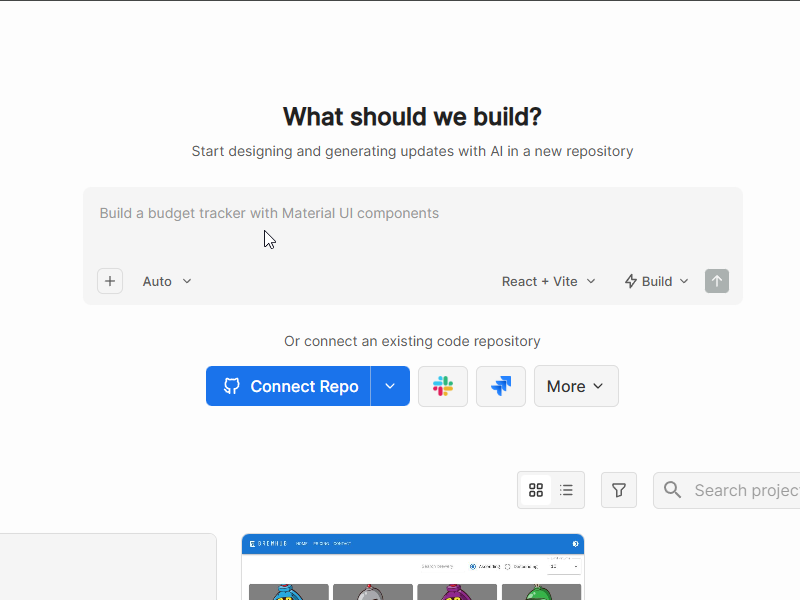
- After your account is created, you can choose a starting point by either:
- Type in the chat prompt and ask Fusion to start a new project from scratch for you, or
- Choose Connect Repo to start building from your existing project on GitHub (or similar repository management platform like GitLab), which is what we will choose to proceed
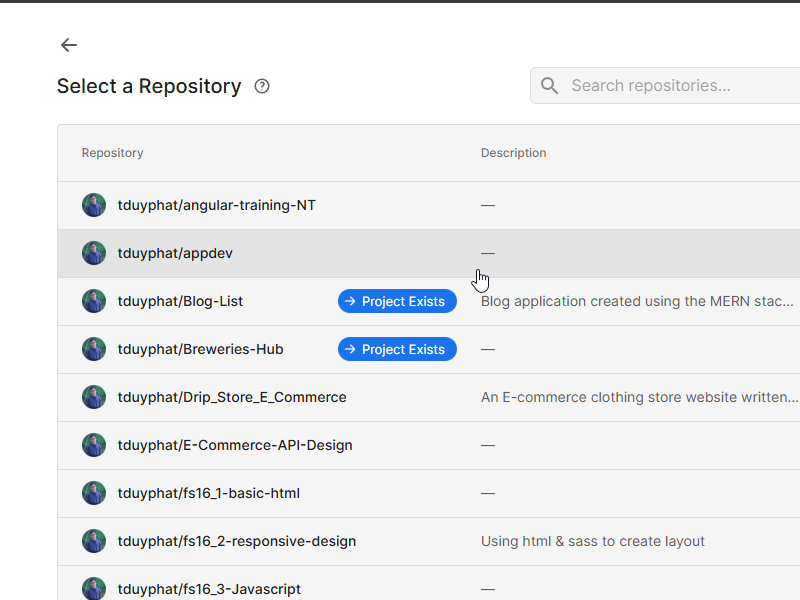
- After connecting to our GitHub account, all of our repositories will appear which we can select one to setup a project
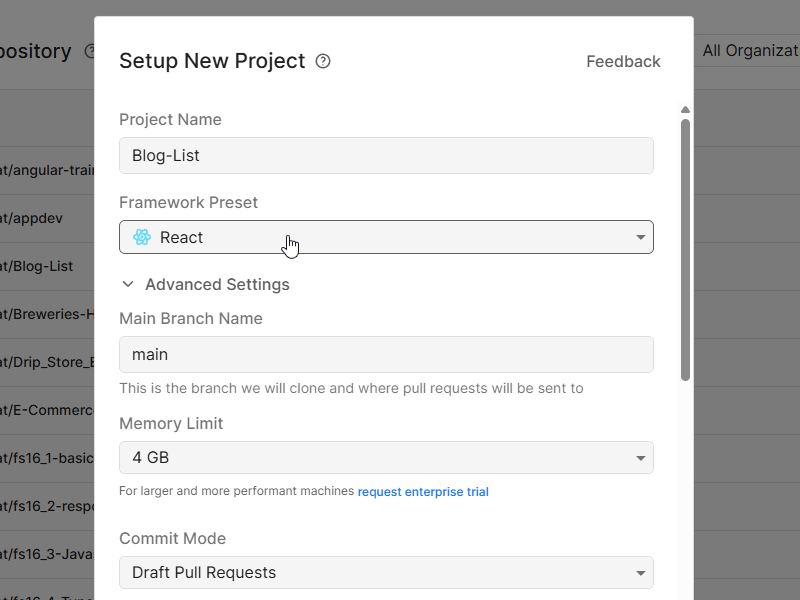
- Fusion will ask how to run your app:
- Install command (
pnpm install,yarn,npm install, etc.) - Dev command (
npm run dev,next dev, etc.) - Environment Variables (API keys, etc.)
- Port your dev server runs on
- Install command (
- After Fusion has all the information it needs, now we wait to get the project up and running
Turn Your Idea into a Working Prototype with Ease Using Builder.io Fusion
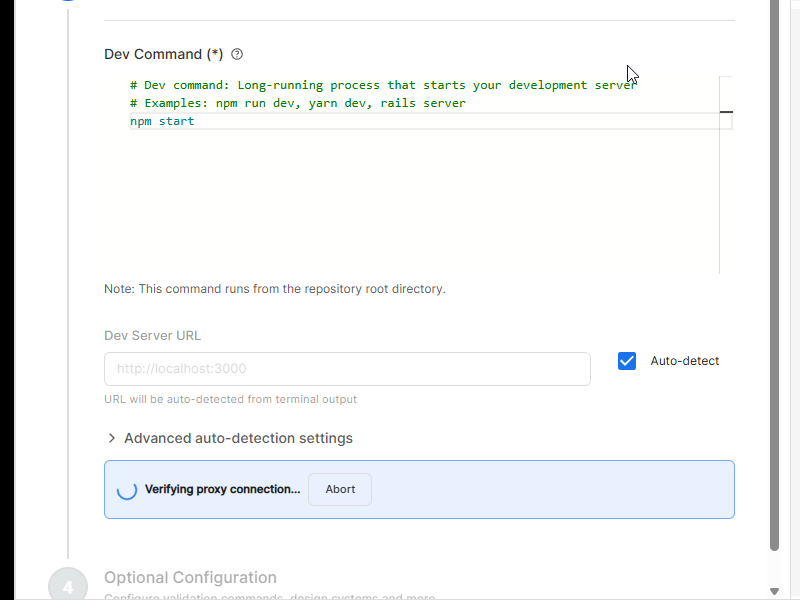
IMPORTANT: Verifying proxy connection step can take a while to run. If this process takes too long, you might have to use a VPN like 1.1.1.1 in order to proceed.
Run Your First Prompt
Once the app is running in Fusion:
- The project will be opened in the browser view
- In the chat panel, try a simple prompt like: “Add a new ‘Contact Us’ page and link it in the main nav“
- Watch Fusion:
- Add routes
- Create the new page
- Hook up the navigation
- Render the new UI live
Use the responsive preview to see how it looks on different screen sizes.
NOTE: You can quickly switch between AI Models to get a better result or save Agent Credits. Builder.io offers many AI Models from well-known names like OpenAI, Gemini, Claude, etc. which serves different user targets. Refer to the document for more information regarding AI Models and pricing.
Refine in Design Mode
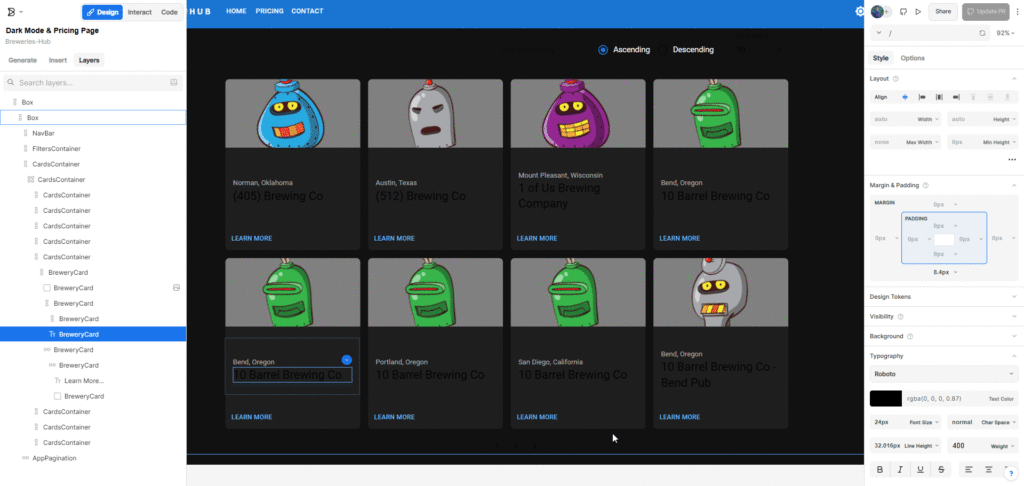
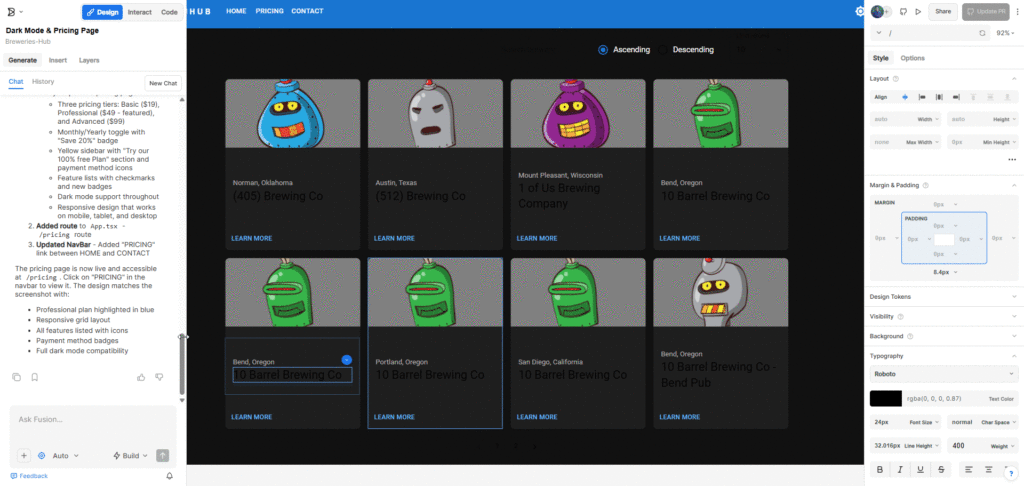
The design mode offers a Figma-like user experience for designers to easily fine tune the UI. Fusion takes a snapshot of your app preview and allows users to directly make adjustment like select layers, adjust gaps/padding, change layout, spacing, and many visual details. To get started, simply:
- Switch to Design Mode tab
- Click on elements, in Layout sub tab:
- Reorder items (e.g., email support first, remove outdated support hours)
- Adjust spacing using the gap/spacing controls
- Append any additional element before or after the selected elements in Insert sub tab
- Once you’re satisfied with the results, press Apply Visual Change to prompt Fusion to reflect these changes directly in your code
TIPS: If you want to use the selected element as visual cue to prompt Fusion for some changes (e.g, align this button to the left of the task bar), simply switch to Generate sub tab and select an element. It will be shown as Selected Layer in the chat box which provide more context and accuracy for Fusion to match your requirement.
How to use Builder.io Figma to Code plugin
Builder.io offers a plugin in Figma which assists users in providing Fusion more guidance using the designs. Start by:
- Get the plugin for your Figma account here
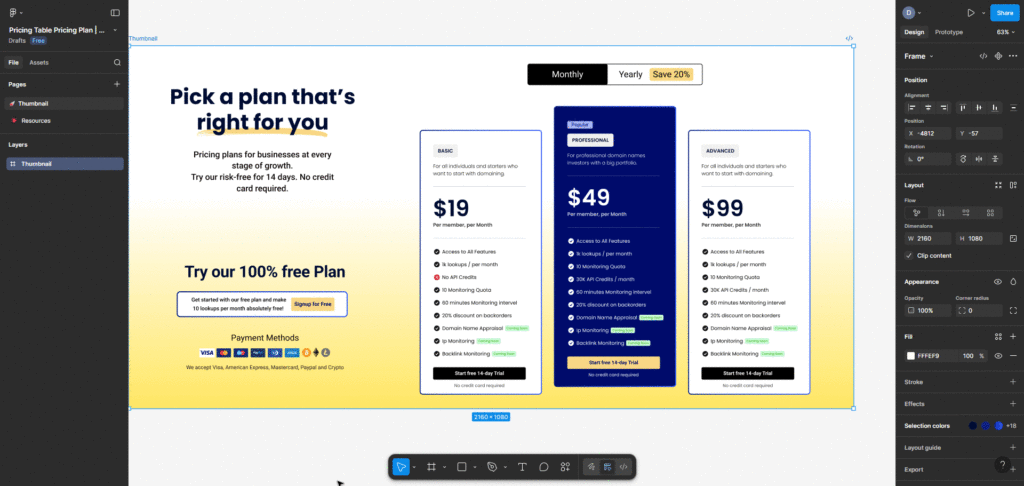
- Go to your Figma file and select a node you want to use as visual guidance (e.g., a pricing table that you want to copy to your code)
- Right click and choose Plugin, choose Builder.io Figma to Code
- Your selected node will appear in a pop-up. Click Smart Export then press Copy. The plugin will transform the selected node into a set of instruction for Fusion
- Now go back to Fusion and simply paste into the chat prompt. You can now ask Fusion to perform any changes according to the design (e.g., add this pricing table into the pricing page)
Open a Pull Request
Once you’re happy with the changes:
- Click Create PR on the top right corner. Fusion will create a pull request to your repository with written title and description
- Review the diff (you’ll see clean, framework-consistent code)
- You can tag the Builder bot in the PR for follow-up adjustments, for example: “Extract this into a reusable component.” Fusion will add another commit to the existing pull request with relevant commit message
- Merge as usual after code review

Final Thoughts
With Fusion, anyone can turn ideas into a working application in just a few steps with no coding experience required, and everything is backed by proper version control. Instead of endless redlines and handoff cycles, your entire team can contribute directly to the real app in a safe, visual workspace while AI keeps everything consistent with your design system and codebase. Designers gain ownership, PMs get real prototypes, engineers stay focused on the hard problems, and the whole product team ships faster without sacrificing quality.