


Introduction
In today’s data-driven landscape, security and privacy are paramount. Organizations must safeguard sensitive information while ensuring compliance with regulations like GDPR and HIPAA. One effective solution offered by Snowflake is Dynamic Data Masking (DDM). This powerful feature allows for selective masking of data based on user roles, ensuring that only authorized personnel can access sensitive information.
What is Dynamic Data Masking?
Dynamic Data Masking is a feature that protects sensitive data by masking it when queried by users who lack the appropriate access permissions. DDM operates at the column level, allowing organizations to define rules about how specific data should be displayed depending on the user’s role.
Key Benefits of DDM:
- User Experience: Allows authorized users to access data as needed while protecting others from exposure.
- Data Security: Prevents unauthorized access to sensitive information.
- Compliance: Helps meet regulatory requirements without compromising data integrity.
How Does Dynamic Data Masking Work in Snowflake?
In Snowflake, DDM relies on a combination of masking policies and role-based access control (RBAC). When a user queries a masked column, Snowflake evaluates the current user’s role against the defined masking policies to determine whether to return the original or masked data.
Masking Policies
A masking policy specifies how to mask data and under what conditions. We can use SQL syntax to create complex logic within these policies to cater to various user roles.
Role-Based Access Control
Snowflake’s RBAC system allows you to define roles and assign users to these roles, controlling what data they can access. Each role can have different levels of access, making it easier to enforce security policies.
Setting Up and Using Dynamic Data Masking
Setting up DDM in Snowflake involves several steps, including creating a masking policy, applying it to specific columns, and defining user roles.
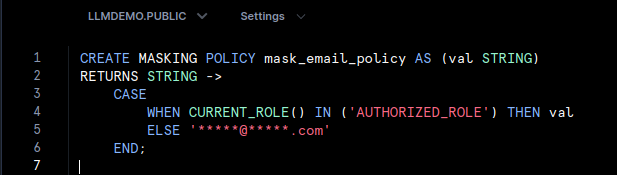
Step 1: Create the Masking Policy
To create a masking policy, we can use the following SQL syntax. The policy below masks email addresses unless the user has the AUTORIZED_ROLE.
Step 2: Apply the Masking Policy to a Column
After defining the policy, apply it to a specific column in a table. Here’s how we can apply it to the email column in a customer_data table:

Step 3: Define Roles and Assign Users
Next, we need to define roles in Snowflake and assign users to these roles based on their access needs. For example:

This structure ensures that only users with the AUTHORIZED_ROLE can view unmasked email addresses.
Best Practices for Implementing DDM
To maximize the effectiveness of Dynamic Data Masking, consider the following best practices:
- Testing and Validation: Always test your masking policies to ensure they work as intended before deploying them in a production environment.
- Define Clear Roles: Ensure your user roles are clearly defined and reflect the access needs of different users within your organisation.
- Limit the Number of Roles: While it’s beneficial to have different roles, avoid creating too many. This can complicate management and lead to potential security oversights.
- Regularly Review Masking Policies: As business needs change, so should your masking policies. Regularly review and update policies to ensure they align with current data access requirements.
Real-World Use Case Example: Healthcare Data Protection
Let’s explore a scenario where a healthcare organisation needs to protect patient data in compliance with HIPAA regulations. Sensitive information such as Social Security Numbers (SSNs) and email addresses must be masked for general users while remaining accessible to authorized medical staff.
Creating a Masking Policy for SSNs
Here’s how to create a masking policy to protect SSNs:

Applying the Masking Policy to a Patients Table
Next, apply this masking policy to the ssn column in a patients table:

- Users with the MEDICAL_STAFF role can see actual SSNs.
- Other roles, such as administrative staff, see a masked version (
XXX-XX-XXXX).
Example of Adding More Granularity
Suppose the organisation also wants to allow researchers to see the last four digits of SSNs. We can extend the masking policy like this:
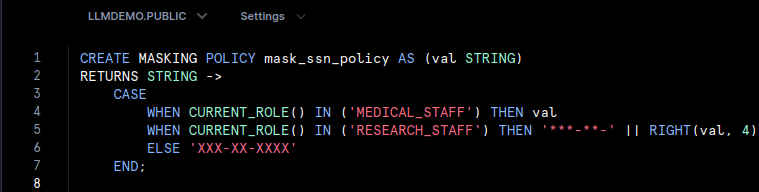
This policy modification allows researchers to see only the last four digits of the SSNs, thereby providing more granularity in data access.
Testing and Maintaining Masking Policies
Testing the Masking Policy
Testing is crucial to ensure the masking policy works correctly. Here’s how we can verify access based on roles:
- Query by Medical Staff:

- Query by Research Staff:

- Query by General User:

By executing these queries, we can confirm that the masking policy functions as intended for different roles.
Maintaining Masking Policies
As our organisation evolves, it’s essential to keep our masking policies up to date. Use the following command to alter an existing masking policy:
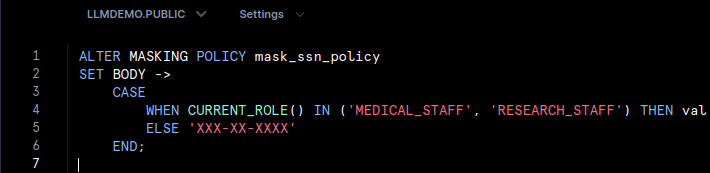
This command updates the policy to include both MEDICAL_STAFF and RESEARCH_STAFF, ensuring that both roles can access the SSN data.
CONCLUSION
Snowflake’s Dynamic Data Masking is a robust solution for managing sensitive data access while maintaining compliance with data privacy regulations. By utilizing masking policies and role-based access control, organisations can effectively secure their data without hindering authorised users’ access.
Implementing DDM not only safeguards sensitive information but also streamlines data management processes, providing peace of mind for organisations in today’s complex regulatory environment. As data privacy continues to evolve, adopting dynamic masking techniques will be essential for maintaining trust and compliance in your organisation.
Embrace the power of Snowflake’s Dynamic Data Masking today and take a proactive step towards securing your sensitive data.